Enter assessment marks for your class
Written for: Teachers.
Use Non-Statutory Assessments to record your school’s own assessment results for a class, such as a judgement or score in each subject this term. You choose the class and term, work through the grid, then save. Saved entries go straight into your school’s assessment reports, with no separate sign-off step.
Open assessment entry for your class
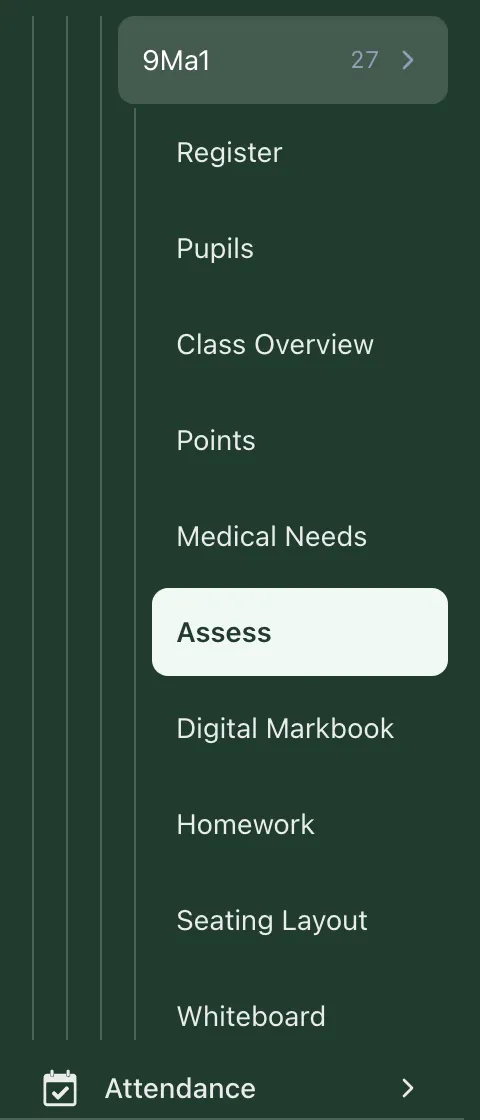
Section titled “Open assessment entry for your class”- In the sidebar, click Classes.
- Choose the class:
- In a secondary school, click Teaching classes, then the subject and the class. For a tutor group, click Tutor groups, then the year group and the tutor group.
- In a primary school, click the year group, then the class.
- Click Assess.
The Non-Statutory Assessments page opens, showing only the pupils in that class.
You can also open the page from the sidebar: click Assessment, then Entry, then Non-Statutory Assessments. This shows every pupil you can access, so use Year group and Class to narrow it down.
Choose the term and subject
Section titled “Choose the term and subject”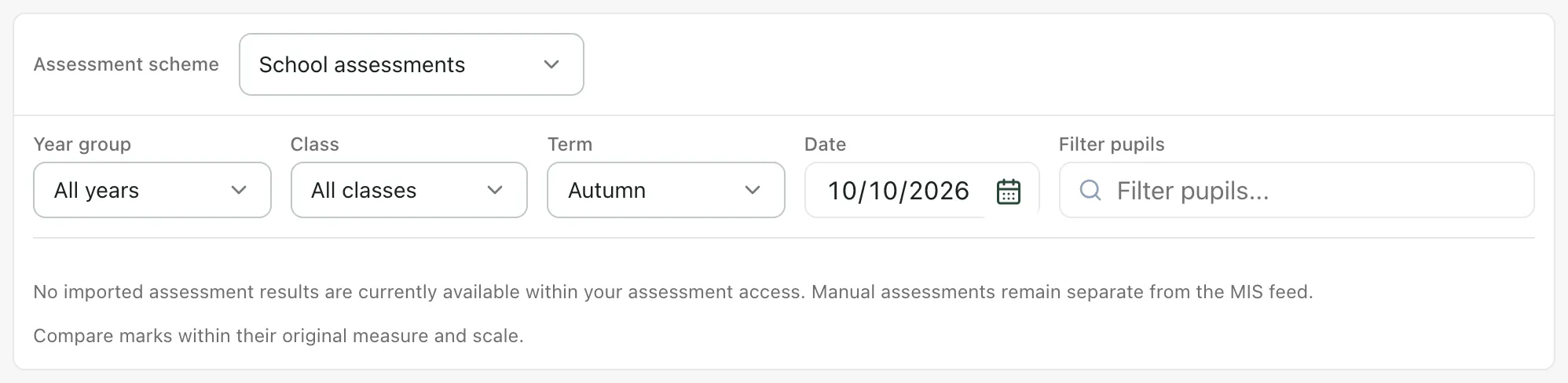
- Leave Assessment scheme set to School assessments.
- Check the Term and Date. The page starts on today’s date and the current term. The date also sets which academic year your entries are saved against.
- To find one pupil, type their name in Filter pupils.
- Below the filters, click a subject to enter results for that subject only, or click All subjects to see every subject side by side.
If you change the term or date with unsaved entries, Student Radar asks “Changing the assessment period will discard unsaved changes. Continue?”. Click Cancel and save first if you want to keep them.
Enter the marks
Section titled “Enter the marks”Each row is a pupil and each column is a subject. What you record depends on how your school has set up the subject: a judgement on your school’s scale, a score, or both.
- Click a pupil’s cell. A panel opens with the subject and the pupil’s name.
- Under Teacher judgement, click the judgement that fits. If the subject also has a score, type it in the box below. Press Enter in the score box to move to the next pupil.
- If you want to, add more detail:
- Link objective: link a curriculum objective to the result.
- Add evidence: attach a Photo, a Document or a voice note. Evidence is saved with the assessment.
- Work down the class. A small dot beside a result means it hasn’t been saved yet, and the line above the grid shows how many changes are unsaved.
- Click the save button at the top right of the grid. It shows how many changes you’re saving.
When the save finishes, you’ll see “Assessments synced” and the button changes to Saved. The save includes changes to pupils hidden by your current filters, as long as they’re in the same term.
To remove a result, open the cell and click Clear this judgement, then save.
The Completion column shows how many subjects each pupil has a result for. With one subject selected, it shows Complete or Awaiting.
Enter marks from the keyboard
Section titled “Enter marks from the keyboard”To select a cell without its panel, click the cell and press Escape, or press Tab until a cell is highlighted. Then use these keys. You’ll find a reminder under Keyboard shortcuts below the grid.
| Key | What it does |
|---|---|
| Arrow keys or Tab | Move between cells. |
| The first letter of a judgement, or 1 to 9 | Records that judgement. The number is its place on the scale. |
| Enter | Moves down to the next pupil. |
| F2 or Space | Opens the cell, to add a score, objective or evidence. |
| Delete or Backspace | Clears the cell. |
| Ctrl+D (⌘D on a Mac) | Copies the cell to every pupil shown below it. |
| Ctrl+S (⌘S on a Mac) | Saves your changes. |
You can also paste a block of results from a spreadsheet. Copy the cells in your spreadsheet, click the first cell in the grid where they should go, and paste. Student Radar tells you how many cells were filled and how many were skipped. Check the results, then save.
- Who can enter marks: teachers, SENCos, safeguarding leads, senior leaders, headteachers and office staff can open assessment entry by default. Teaching assistants can’t. You can only record results for pupils your account has assessment access to. Other pupils’ cells show Read only. Schools can change who has access.
- Subjects and scales: the subjects, judgements and scores come from your school’s set-up. If you look after assessment for your school, you’ll also see New assessment and Assessment setup, where you add and change subjects and grading scales.
- Uploading scores: if you see Upload scores, you can bring scores from a CSV file into the grid for the current term. They aren’t saved until you save the grid.
- Imported marks: marks imported from your school’s MIS aren’t shown in this grid. You’ll find them in assessment reports and in each pupil’s assessment history.
- Working offline: if your connection drops, the page shows Offline. You can still save: your changes are kept on this device and sent when you’re back online. If any are still waiting, the page shows how many are pending. Click Sync to send them.
- Early years: in a primary school, Assess for a Nursery or Reception class opens the EYFS assessment instead.
- Statutory assessments: phonics, multiplication tables check and key stage results are recorded in Assessment → Entry → Statutory Assessments.
- Term names: schools outside England may see their own term names in Term.
- Tour: click Take a tour at the top of the page for a step-by-step guide.
If something doesn’t work
Section titled “If something doesn’t work”| What you see | What to do |
|---|---|
| “Your current permissions let you view assessments, but not record or edit judgements.” | Your account can view results but not enter them. Ask your school’s Student Radar administrator for assessment entry access. |
| “Set up school assessment subjects” | No subjects have been set up for your school yet. Ask whoever looks after assessment in your school to add them. |
| “No pupils match the current year, class or search filters.” | Clear Filter pupils, or set Year group and Class back to All years and All classes. |
| “No pupils are available for assessment entry in this view.” | None of the pupils in this class are in your assessment access. Ask your administrator to check your access. |
| “Check score” in a cell | The score is outside the subject’s range or isn’t a number. Open the cell to see what’s wrong and correct it. |
| “Fix score values” | A score needs correcting before you can save. The message names the pupil and subject. |
| “No assessment changes detected.” | There’s nothing new to save. |
| “Assessment data could not be loaded” | Your entries are kept on the page. Click Retry loading, then carry on. |
| “The pupil list could not be loaded” | Click Try again. If it keeps happening, check your connection and try again later. |
| “You have unsaved assessment changes. Leave without saving?” | You’re leaving the page with unsaved results. Cancel and save them first if you want to keep them. |
| “Non-statutory assessment entry is unavailable in Alternative Provision.” | Alternative provision settings don’t use this page. Use Open Daily Check-ins instead. |