Plan a CPD session and take attendance
Written for: Staff who plan and run CPD, and leaders who keep the CPD record.
The CPD workspace keeps a record of each training session: what it was for, which school priorities it supports, who ran it, the materials used and who attended. This article shows you how to plan a session and record who came.
Open CPD
Section titled “Open CPD”- In the sidebar, open Leadership, then Staff.
- Choose CPD.
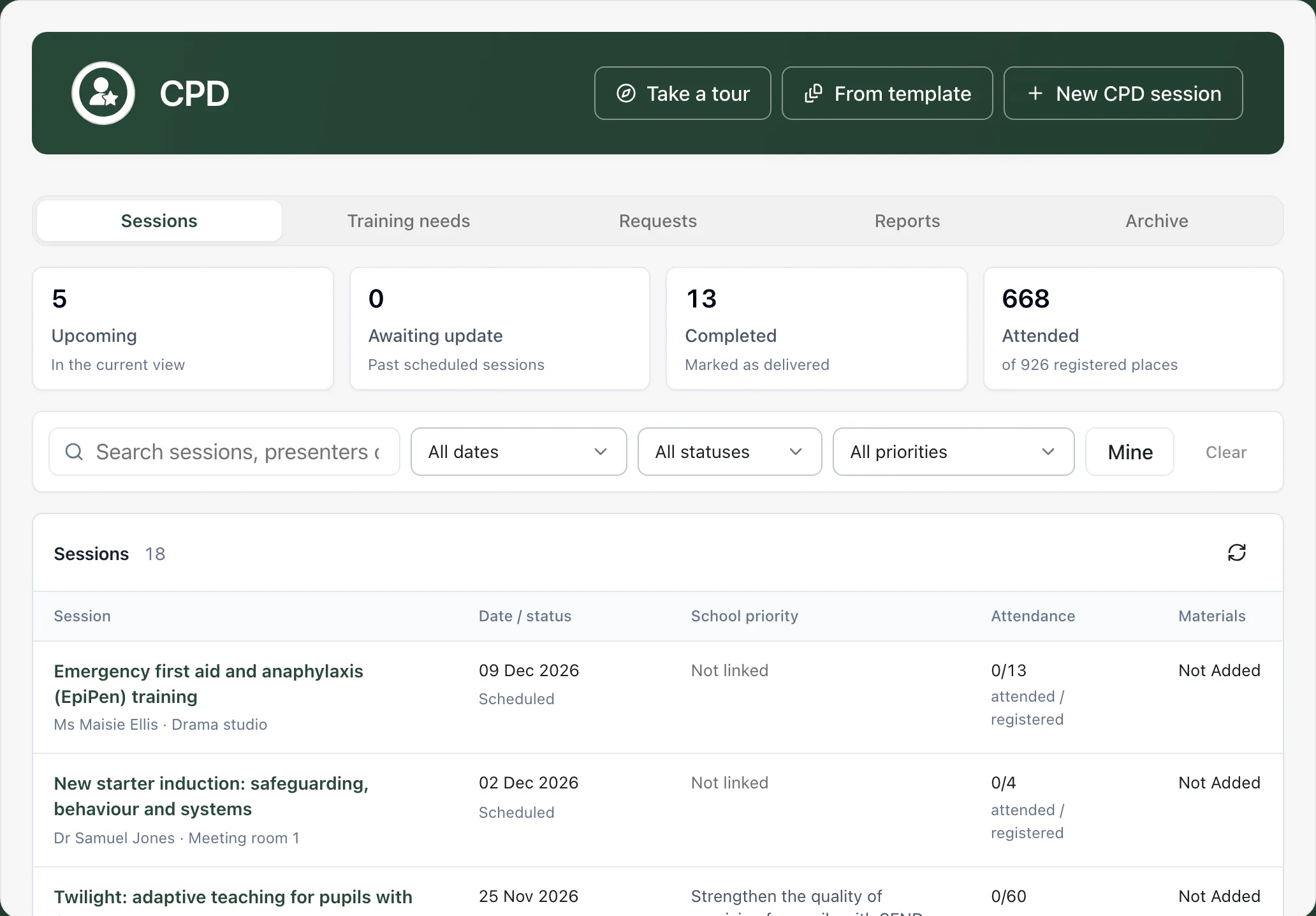
The Sessions tab lists your school’s CPD sessions with their date and status, the school priority they’re linked to, attendance and materials. The cards at the top count the sessions in the current view:
- Upcoming: sessions still to come.
- Awaiting update: sessions whose date has passed but are still marked Scheduled.
- Completed: sessions marked as delivered.
- Attended: how many registered places were attended.
Use Search sessions, presenters or priorities and the filters to narrow the list. Click Mine to see only your sessions, and Clear to remove the filters.
Plan a session
Section titled “Plan a session”- Click New CPD session. To start from a ready-made session instead, click From template and choose one, such as Annual safeguarding refresher or INSET / twilight (blank).
- On the Details tab, fill in:
- Session title: what the session is about.
- Date.
- Status: leave it as Scheduled for a session that hasn’t happened yet.
- Presenter (staff link): choose the presenter if they’re a member of staff. Presenter name fills in for you; type a name there for an outside presenter.
- Location, Duration (minutes) and Cost (£), if you know them.
- Summary / notes: the purpose and key points.
- If everyone in a group must complete the training, tick Mandatory training (e.g. statutory safeguarding) and set Completion due by. Student Radar uses this date to show who’s overdue.
- Under Linked priorities, tick the school priorities the session supports. Type in Search priorities to find one.
- Click Create session.
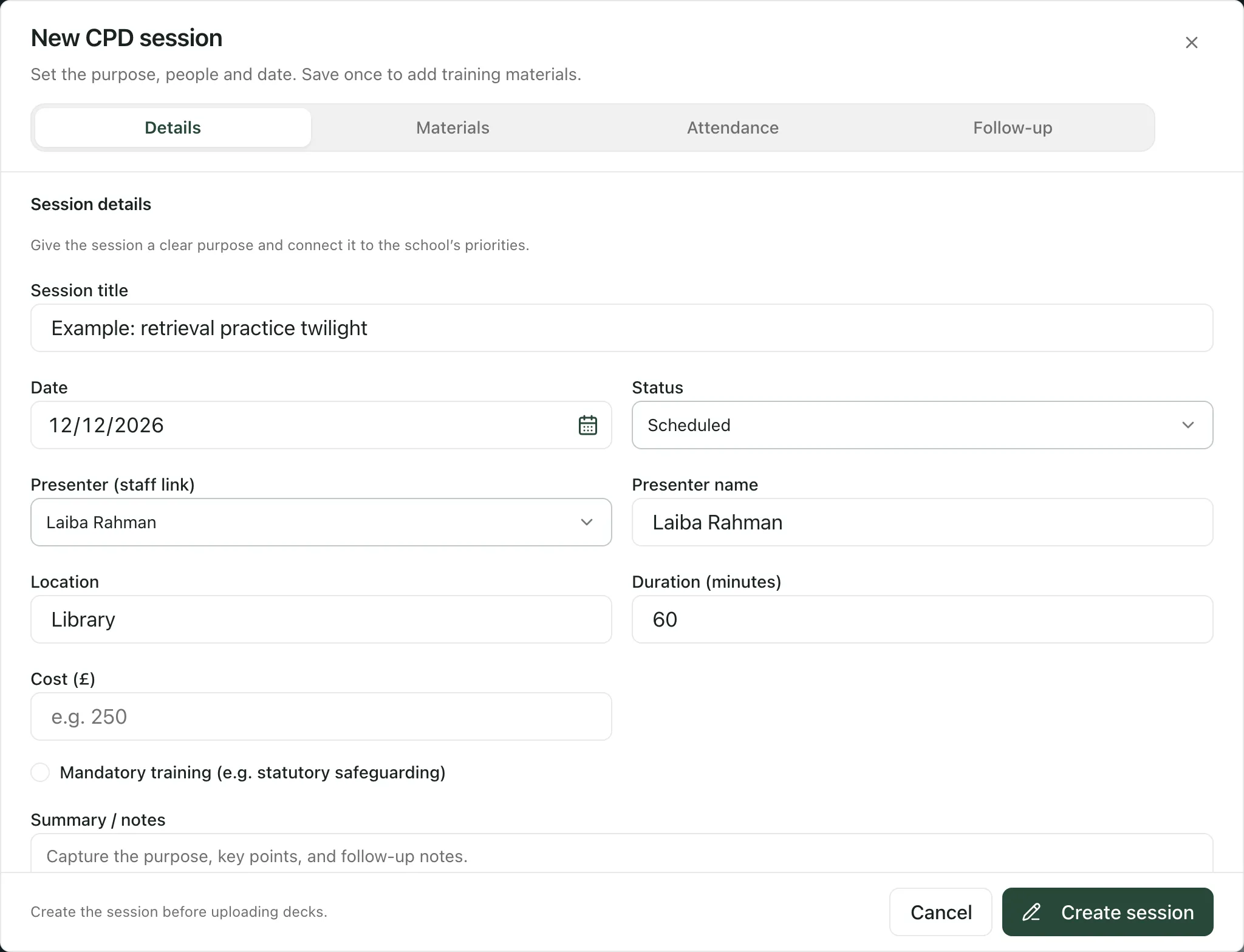
Session title and Date must be filled in. You’ll see “CPD session created.” and the session stays open, so you can carry on.
Add the materials
Section titled “Add the materials”Once the session is saved, click the Materials tab. Under Session materials, click Upload deck to add the PowerPoint or PDF you’ll present. Uploads are saved straight away, and the slides are ready to view once they’ve been processed. Click View slides to present them.
Take attendance
Section titled “Take attendance”- On the Sessions tab, click the session’s title.
- Click the Attendance tab.
- Tick each member of staff who’s expected to attend. Type in Search staff to find someone.
- For each person, set their attendance to Attended, Absent or leave it as Pending.
- For anyone who attended, you can record their evaluation of the session, from 1/5 to 5/5, or leave it as Not rated.
- Click Save changes.
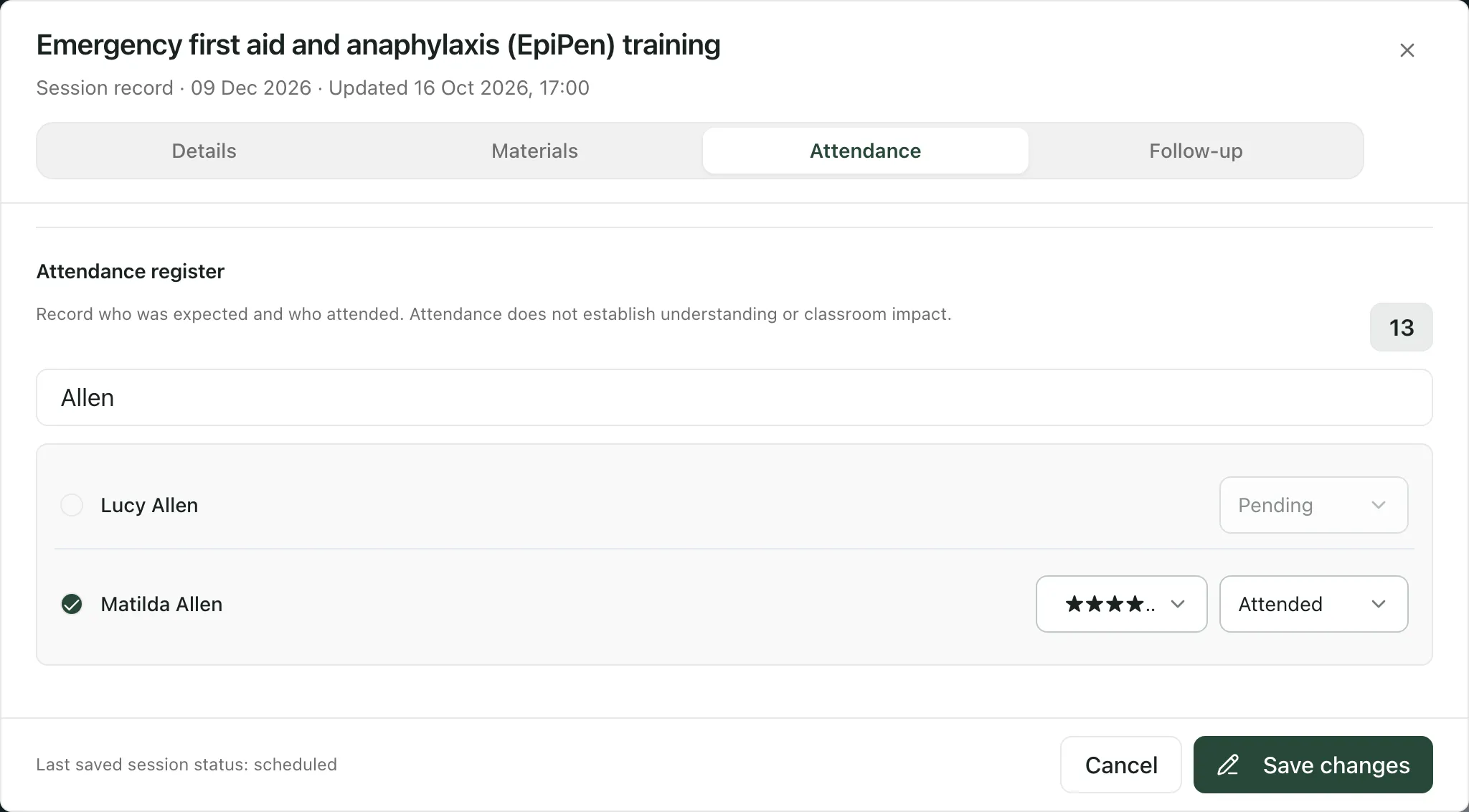
You’ll see “CPD session updated.” If you can update the register but not the rest of the session, the button is Save checklist and you’ll see “Attendance register updated.” instead.
After the session, open the Details tab and change the Status to Completed. Sessions whose date has passed but are still Scheduled show as Awaiting update.
Attendance tells you who was there. It doesn’t show what staff understood or whether practice changed, so record that separately.
Record the follow-up
Section titled “Record the follow-up”On the Follow-up tab, use Session notes and agreed follow-up to record the practice you agreed, who will review it and what evidence you’ll look at. If the session is linked to a school priority, the priority is listed so you can open it.
Who can do what
Section titled “Who can do what”- By default, all staff can view the CPD workspace, and most staff can plan sessions, including teachers, TAs, DSLs, SENCos and leaders.
- Headteachers, senior leaders, DSLs, SENCos, office managers and administrators can change any session. Other staff can change the sessions they created.
- Updating the attendance register needs checklist permission. By default, headteachers, senior leaders, SENCos, office managers and administrators have it. Without it, the Attendance tab shows the register but you can’t change it.
Schools can change who has access. A session you can’t change shows View only at the bottom.
- The Prevent duty template is offered only where the Prevent duty applies, so schools outside the UK may not see it.
- The Training needs, Requests and Reports tabs help you plan CPD from staff needs, respond to CPD requests and report attendance and individual CPD portfolios.
Take the built-in tour
Section titled “Take the built-in tour”Click Take a tour at the top of the page. It walks you through the summary, filters, sessions list and each part of a session.
If something doesn’t work
Section titled “If something doesn’t work”| What you see | What to do |
|---|---|
| “Session title is required.” or “Session date is required.” | Fill in the missing field on the Details tab. |
| “Enter a whole number of minutes and a cost of zero or more.” | Check Duration (minutes) and Cost (£). |
| “Only roles with checklist permissions can update attendee rows.” | Your account can’t change the register. Ask a leader or your Student Radar administrator. |
| View only at the bottom of a session | You can’t change this session. Ask the person who created it or a leader. |
| “Staff could not be loaded. Close and reopen the session to try again.” | Close the session and open it again. |
| “CPD sessions could not be loaded.” | Click Try again. |
| “This CPD session is no longer available.” | It may have been archived or removed. Check the Archive tab. |
| “You do not have permission to view the CPD workspace.” | Ask your Student Radar administrator for access. |