Put a pupil on report
Written for: All staff.
A report card is a short, focused piece of support for one pupil. You choose up to five targets, the lessons in which they’re scored and a daily goal. Each day, the pupil’s coach checks in with them, staff score the targets in each lesson, and the coach checks out with them at the end of the day.
Start a report card
Section titled “Start a report card”- In the sidebar, open Behaviour, then Intervention, and choose Report Cards.
- Click Apply report card at the top of the page.
You can also start from a pupil’s profile: open the Behaviour section and click Apply report card on the Report Card panel.
Choose the pupil and the coach
Section titled “Choose the pupil and the coach”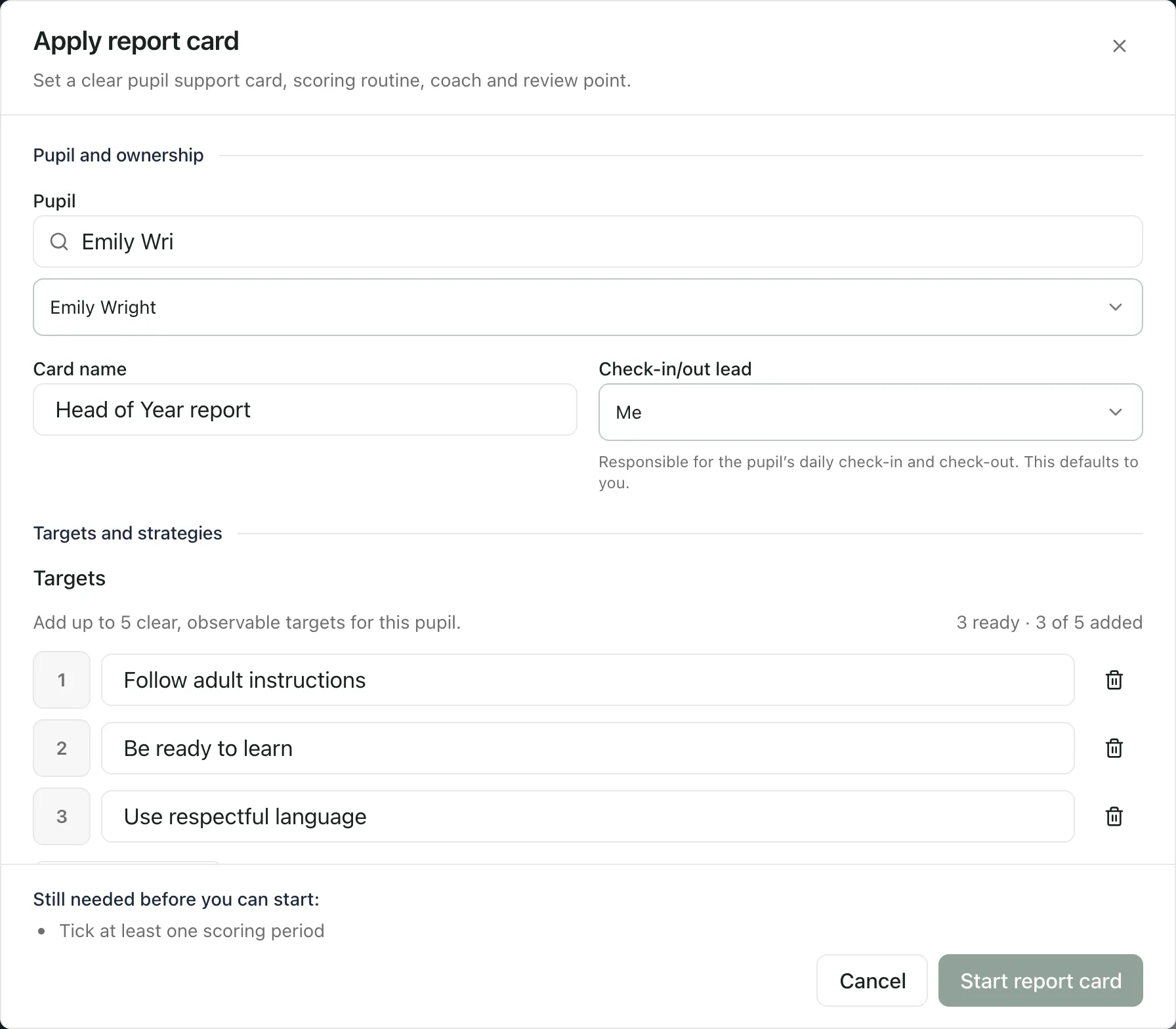
- Under Pupil, type at least two letters of the pupil’s name in Search pupils, then choose them from the list below it.
- Change the Card name if you want to, for example to say who set the card.
- Choose the Check-in/out lead. This is the pupil’s coach, who checks in with them at the start of each day and checks out with them at the end. It starts as Me.
Set the targets
Section titled “Set the targets”The card starts with three example targets. Change the wording so that each one describes something you can see the pupil do, such as arriving on time with the right equipment.
- To add a target, click Add target. A card can have up to five.
- To remove a target, click the bin beside it.
If the pupil has an active Behaviour Support Plan, its strategies are listed under Targets from the active Behaviour Support Plan. Tick a strategy to use it as a target. It stays linked to the plan, and it counts towards the five.
Choose when it’s scored
Section titled “Choose when it’s scored”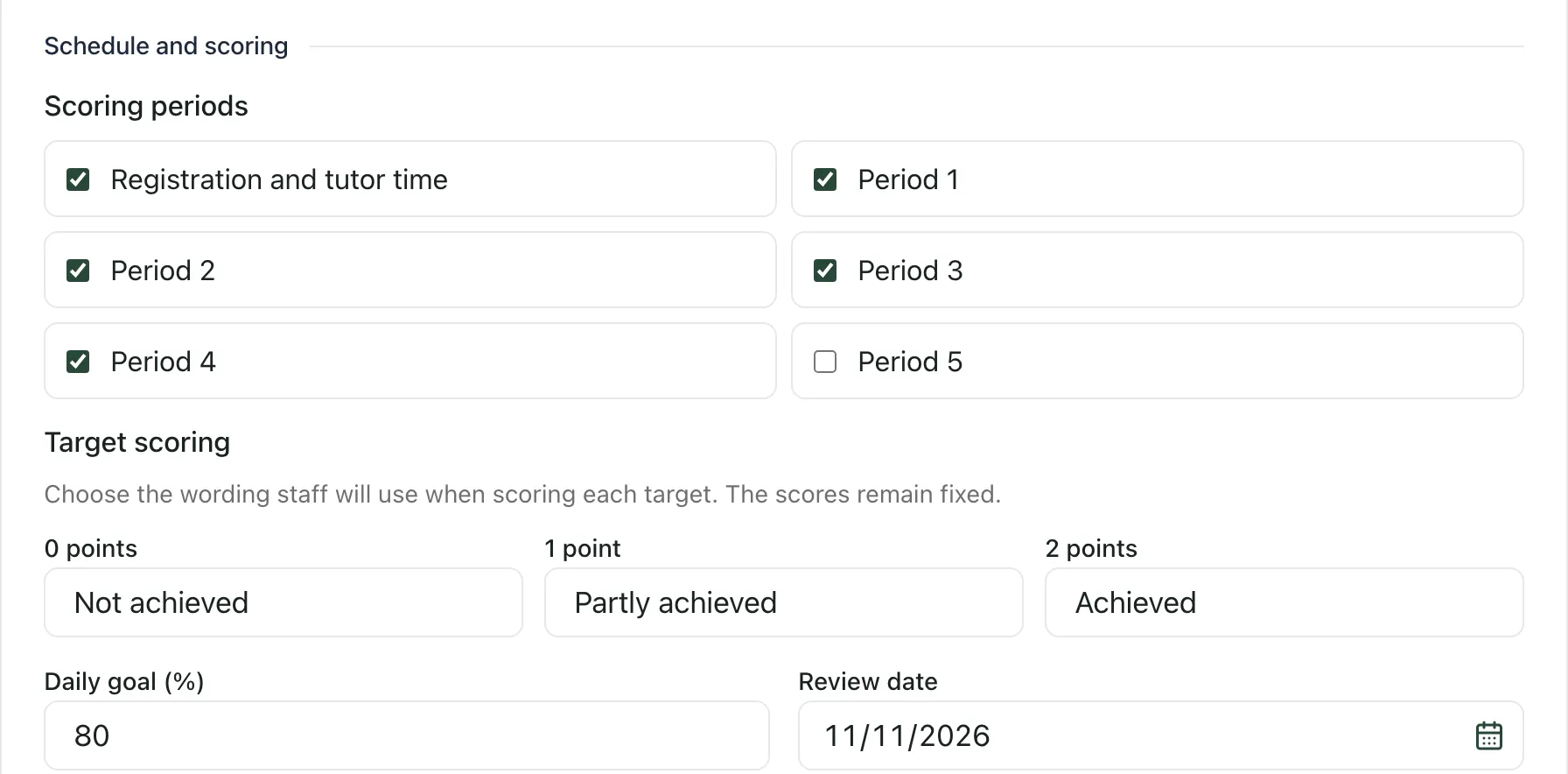
- Under Scoring periods, tick the parts of the day when the pupil’s targets should be scored. The list shows your school’s periods once you’ve chosen a pupil.
- Under Target scoring, check the words staff will see for each score. Scores are always 0, 1 or 2 points. You can only change the words.
- Set the Daily goal (%): the percentage of the available points the pupil is aiming for each day. It starts at 80%.
- If you want to, set a Review date for when you’ll look at how it’s going.
Start the card
Section titled “Start the card”Click Start report card. You’ll see “Report card started”, and the card appears on the Today and Active cards tabs. From today, staff can score the pupil’s lessons.
Start report card stays greyed out until everything it needs is in place. The list under Still needed before you can start: tells you what’s missing, such as a pupil or a scoring period.
Share check-out summaries with parents
Section titled “Share check-out summaries with parents”If you’re allowed to share report cards with parents, you’ll also see Parent visibility. Tick Share coach check-out summaries in the parent app to let parents see each day’s coach summary and overall result. Teacher comments and the scores for individual targets stay staff-only.
Proposals from behaviour rules
Section titled “Proposals from behaviour rules”Your school can set up a behaviour rule that suggests a report card for a pupil, for example after a number of incidents. A suggested card doesn’t start on its own. It waits on the Proposals tab until a member of staff reviews it.
On the Proposals tab, check the pupil’s context, then click Approve to start the card or Reject if it isn’t right for the pupil. Rejecting needs permission to manage report cards.
What happens next
Section titled “What happens next”- To score a lesson, see Score a lesson on a report card.
- To check progress, fade the card or close it, see Review, fade and close a report card.
- One card at a time: a pupil can have only one live report card. If they already have one, you’ll see “This pupil already has a live report card. Open it instead of creating another.”
- Per-school switch: report cards are switched on for each school. If they aren’t on for yours, the page says “Report Cards are not enabled for this school”.
If something doesn’t work
Section titled “If something doesn’t work”| What you see | What to do |
|---|---|
| “Report card not started” | Nothing was saved. The reason is shown under the message. Fix it, then click Start report card again. |
| “This pupil already has a live report card. Open it instead of creating another.” | Close the window and open the pupil’s card from Active cards. |
| “School-wide pupil search is unavailable. No empty result has been inferred.” | Close the window, refresh the page and try again. |
| “School periods are unavailable.” | Close the window and try again. If it keeps happening, your school’s day may not be set up in Student Radar yet. |
| “You do not have permission to start report cards for this pupil. Ask your school administrator to check your access.” | Ask your head of year or your school’s Student Radar administrator. |
| “You cannot share report cards with parents. Untick parent sharing, or ask a senior leader to start the card.” | Untick Share coach check-out summaries in the parent app, then click Start report card again. |
| “One of the chosen periods is no longer in the school day. Close this window and try again.” | Close the window, click Apply report card again and choose the periods again. |
| “Proposal could not be updated” | Click Refresh, then try Approve or Reject again. |
| “Report Cards are not enabled for this school” | Report cards aren’t switched on for your school. Speak to your school’s Student Radar administrator. |