Manage detention types
Written for: Staff who set up detentions for the school.
Detention types are the options staff choose from when they set a detention, such as a break detention or an after-school detention. Each type has a usual length and, if you want, a usual start time, so staff don’t have to type them in each time. You can add new types, change existing ones and stop a type being used for new detentions.
Open the list of types
Section titled “Open the list of types”- In the sidebar, open Behaviour, then Response and Escalation, and choose Detentions.
- Click Manage types, next to Add detention.
If you don’t see Manage types, your account can’t change detention types. Ask your school’s Student Radar administrator.
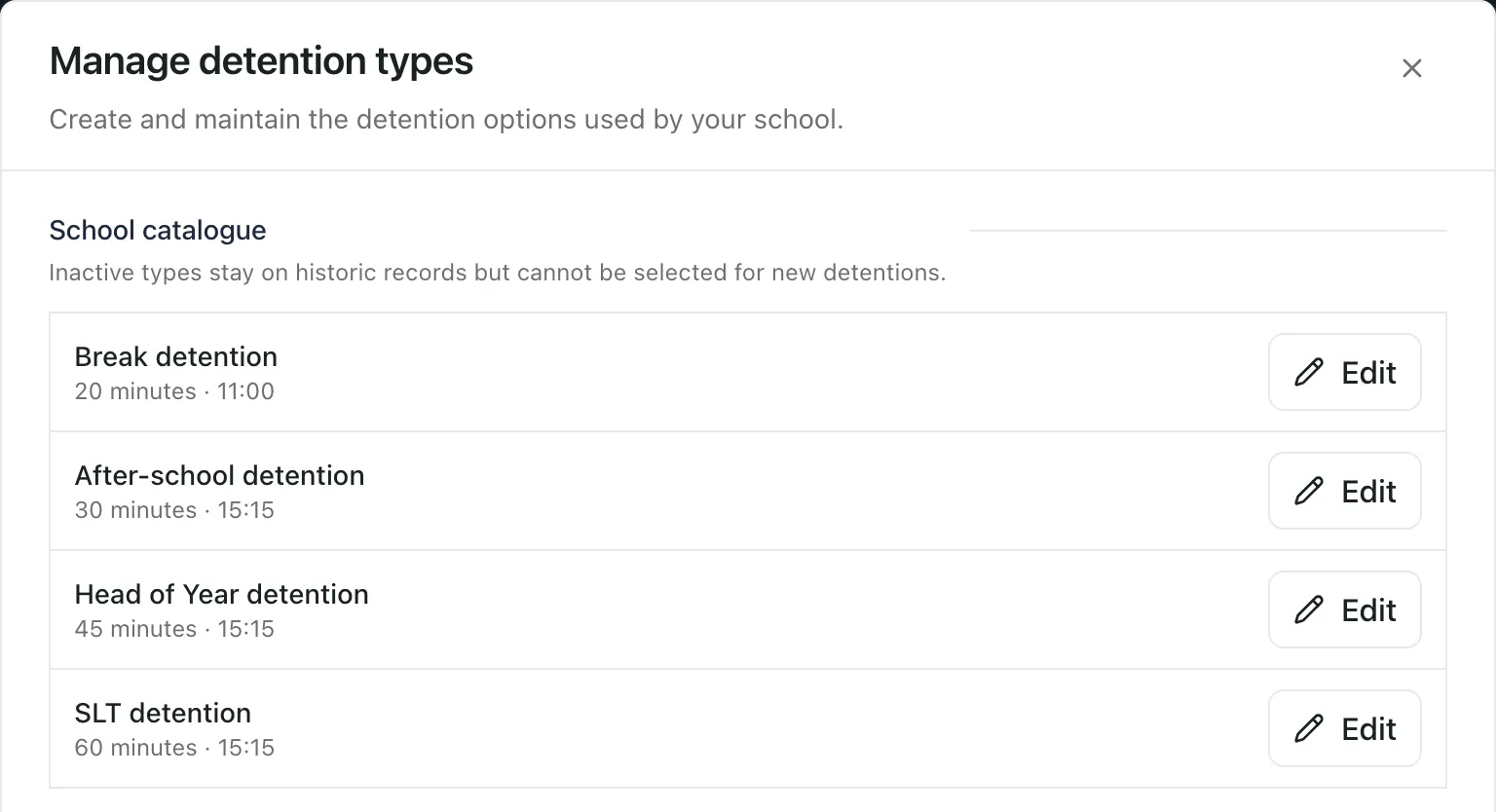
The School catalogue lists your school’s types in order, with each one’s usual length and start time. Types that can’t be chosen for new detentions are marked Inactive.
Add a type
Section titled “Add a type”Under Add a type:
-
Type a Name, such as Department detention. This is what staff see when they set a detention.
-
Set the Default duration (minutes), from 5 to 240.
-
If the detention usually starts at the same time, set the Default start time (optional).
-
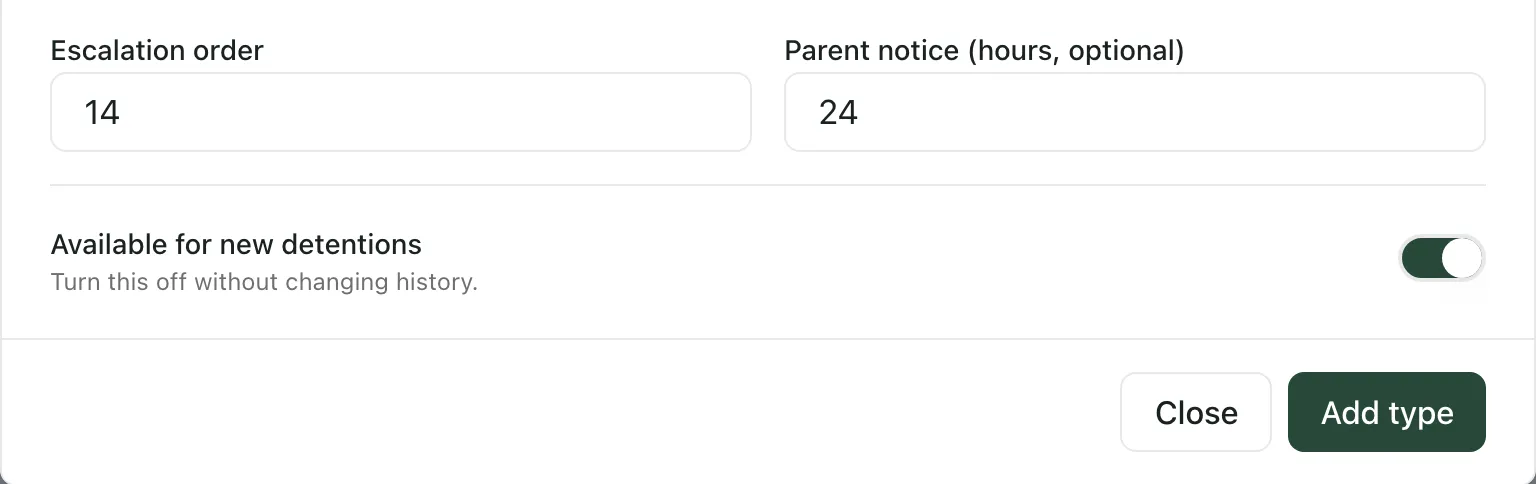
Check the Escalation order. Types are listed in this order, lowest first, so use it to put your detentions in order of seriousness. A new type starts after the last one.
-
If your school gives parents a set amount of notice for this type, enter it in Parent notice (hours, optional), from 0 to 168. Student Radar records this with the type. It doesn’t stop anyone setting a detention at shorter notice.
-
Leave Available for new detentions on.
-
Click Add type. You’ll see “Detention type created”, and the new type appears in the School catalogue.
When staff choose the type in Add detention, its usual start and end times fill in for them. They can still change the times for one detention.
Change a type
Section titled “Change a type”- Click Edit beside the type. The form below changes to Edit type and fills in with the type’s details.
- Make your changes.
- Click Save changes. You’ll see “Detention type updated”.
To go back to adding a new type without saving, click New type.
Changes apply to detentions set from now on. Detentions already set keep their times.
Stop using a type
Section titled “Stop using a type”You can’t delete a detention type, because past detentions still refer to it. Instead:
- Click Edit beside the type.
- Turn off Available for new detentions.
- Click Save changes.
The type is marked Inactive. It stays on past detentions, but staff can’t choose it for new ones. To use it again, turn the switch back on.
Click Close when you’ve finished.
If something doesn’t work
Section titled “If something doesn’t work”| What you see | What to do |
|---|---|
| “Enter a detention type name.” | Type a Name for the type. |
| “Default duration must be between 5 and 240 minutes.” | Change Default duration (minutes) to a whole number from 5 to 240. |
| “Escalation order must be between 1 and 1000.” | Change Escalation order to a whole number from 1 to 1000. |
| “Parent notice must be between 0 and 168 hours.” | Change Parent notice (hours, optional), or leave it blank. |
| “Check the detention type name, duration, order and parent-notice settings.” | Nothing was saved. Check each field, then try again. |
| “You do not have access to the detention register.” | Your account can’t change detention types. Ask your school’s Student Radar administrator. |
| “The detention register could not be loaded.” | If you see this after clicking Add type or Save changes, the type wasn’t saved. Check that no other type has the same name, then try again. |
| “Detention types could not be loaded. The register is still available; refresh before adding a detention.” | Click Refresh on the Detentions page, then click Manage types again. |