Manage your notifications
Written for: All school staff.
Student Radar tells you when something needs your attention, such as a request sent to you, a task or a calendar reminder. Notifications collect under the bell at the top of the screen. You can read them, open the page they came from, and archive the ones you’ve dealt with.
Open your notifications
Section titled “Open your notifications”- Click the bell at the top right of the screen. A red number on the bell shows how many unread notifications you have. It shows 9+ when there are more than nine.
- The Notifications panel opens. Under the title, it says how many are unread, or “All caught up” when there are none.
You can also press N on your keyboard, or click your name at the bottom of the sidebar and choose Notifications. Both open the same panel. On a phone, your account menu is the button with your initials at the top of the screen.
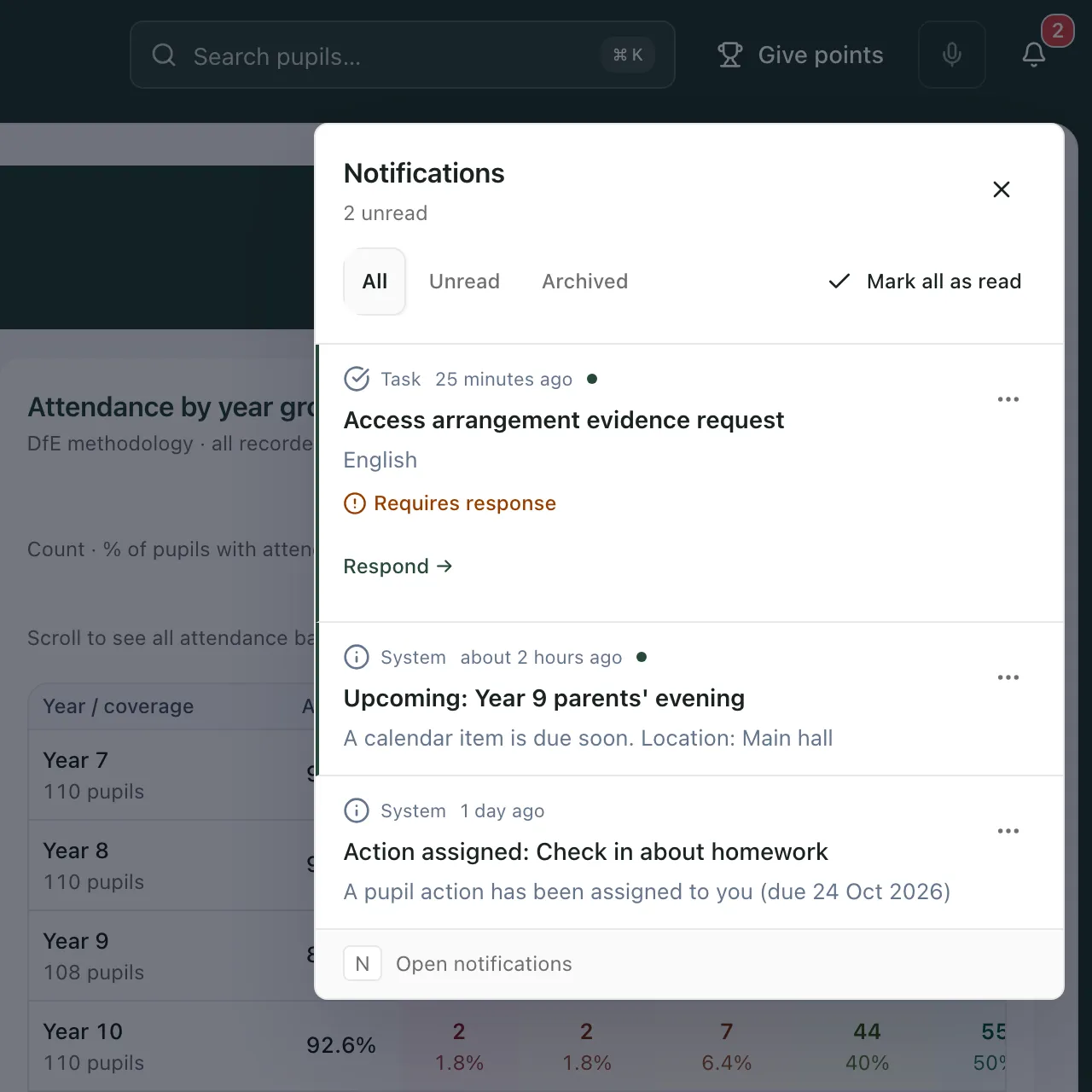
Each notification shows:
- What kind of update it is, such as Task or System, and how long ago it arrived.
- A dot if you haven’t read it yet.
- The title and a short message.
- A link to act on it, such as Respond, when the notification comes from a page you can open.
Use the tabs to choose what you see:
- All: everything you haven’t archived.
- Unread: only the notifications you haven’t read.
- Archived: notifications you’ve archived or cleared.
The panel shows your 20 most recent notifications. If you have more, click the button at the bottom of the list to load 20 more.
Act on a notification
Section titled “Act on a notification”- Click the notification. It’s marked as read. If it links to a page, that page opens and the panel closes.
- Or click the link under the message, such as Respond, to go straight to the page.
Mark as read, archive or delete
Section titled “Mark as read, archive or delete”Click ⋯ on the right of a notification to see its options.
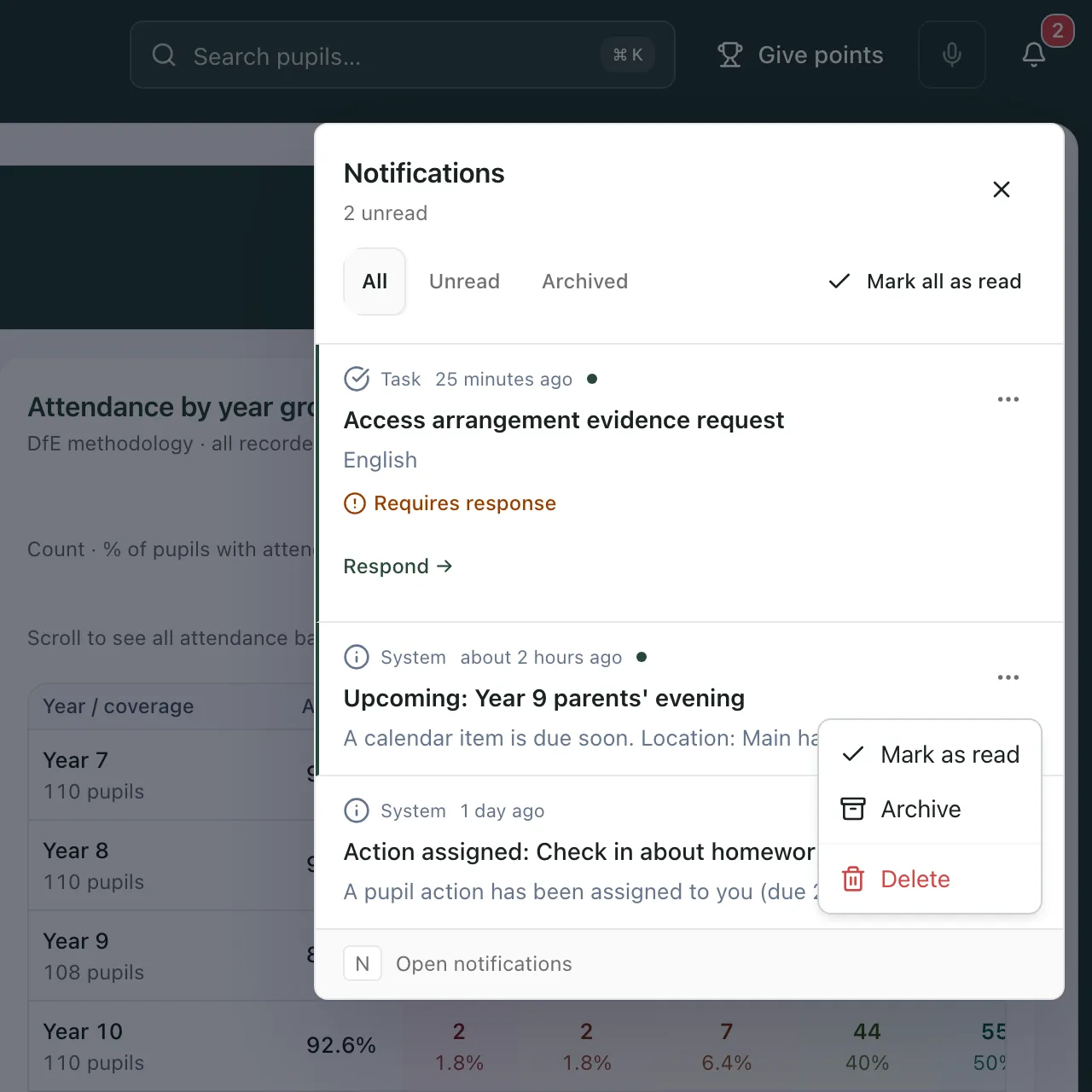
- Mark as read: removes the unread dot. The notification stays in All.
- Archive: moves it to the Archived tab.
- Delete: removes it from your list. It’s kept in the Archived tab rather than deleted for good.
To clear everything at once, click Mark all as read at the top of the panel. This marks your notifications as read and moves them to Archived. If you have older notifications that haven’t loaded yet, the button is greyed out. Load them first, then try again.
Requests that need a response
Section titled “Requests that need a response”Some requests, such as a request for access arrangement evidence, show Requires response. These stay in your list until you respond, and Mark all as read leaves them where they are. Click ⋯ and choose Respond to dismiss, or click the link under the message, to open the request and respond.
- There are no personal notification settings in Student Radar. What you’re notified about depends on the work you’re involved in, such as requests sent to you, tasks and calendar reminders.
- New notifications also appear briefly on screen while you’re working.
- Press ? to see the other keyboard shortcuts, including N for notifications.
If something doesn’t work
Section titled “If something doesn’t work”| What you see | What to do |
|---|---|
| “You’re all caught up!” | You have no notifications in this tab. Check the other tabs. |
| “Unable to load notifications. Retry to check for updates.” | Click Retry notifications. If it keeps happening, reload the page. |
| “Unread count unavailable” | Student Radar couldn’t count your unread notifications. Click Retry under the panel title. |
| “Persistent Pings stay until you respond.” | You cleared or marked all your notifications as read, but some requests still need a response. Open each one and respond to remove it. |
| A notification doesn’t open anything when you click it | Not every notification links to a page. Use the title to find the record yourself, for example in My Actions for a task assigned to you. |