Set up class routines, events and helpers
Written for: Staff and governors.
In Class Overview you can set up the everyday details of a class. Routines are step-by-step classroom sequences, such as a calm start to a lesson, with timings, cues and noise levels for staff and pupils to follow. Class information holds the class teacher, teaching assistant and room, plus class events and helpers that pupils see in the student app.
Open the class overview
Section titled “Open the class overview”- In the sidebar, click Classes.
- Choose the class:
- In a secondary school, click Tutor groups, then the year group and the tutor group. For a subject class, click Teaching classes, then the subject and the class.
- In a primary school, click the year group, then the class.
- Click Class Overview.
Set up a routine
Section titled “Set up a routine”A routine set is a named sequence of steps, such as a morning routine. Each step has a duration, a cue type and a noise level.
-
Click the Routines tab. You can also click Manage routines on the Overview tab.
-
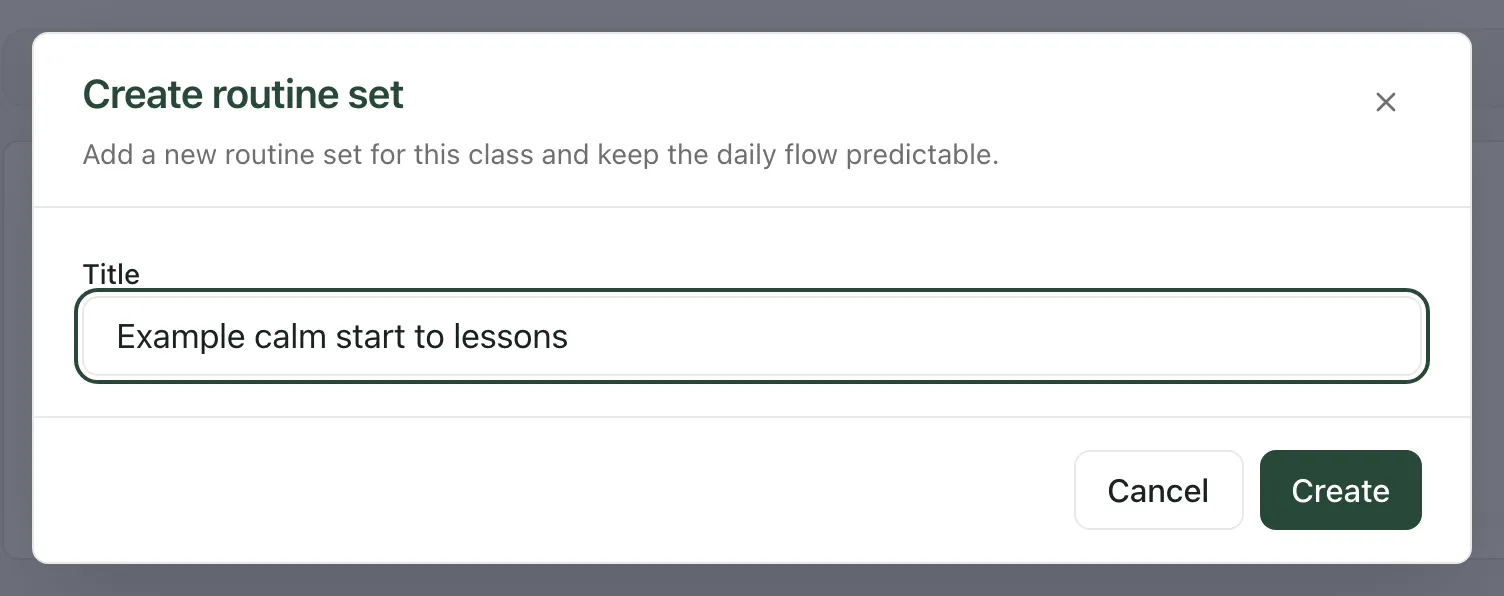
Click Create routine set.
-
Type a Title for the routine, then click Create.
-
Click the routine’s name to open it, then click Add step.
-
Fill in the step:
- Step Name, such as Silent reading.
- Duration (minutes), from 1 to 60.
- Cue Type: Starter, Transition, Focus or Wrap Up.
- Noise Level: Quiet, Calm, Partner Talk or Lively.
- Prompt (optional): a visual cue or instruction for the step.
-
Click Add step. Repeat for each step, in the order you want them.
Each routine shows how many steps it has. Open it to see each step with its cue, length and noise level. To change a routine or a step, click its pencil icon. To delete one, click its bin icon, then click Remove.
Tip: if your class has a cohort strategy brief, its routine strategies each have an Add to routines button, which creates a routine set for you. See Get a one-page brief for a class.
Set up class information, events and helpers
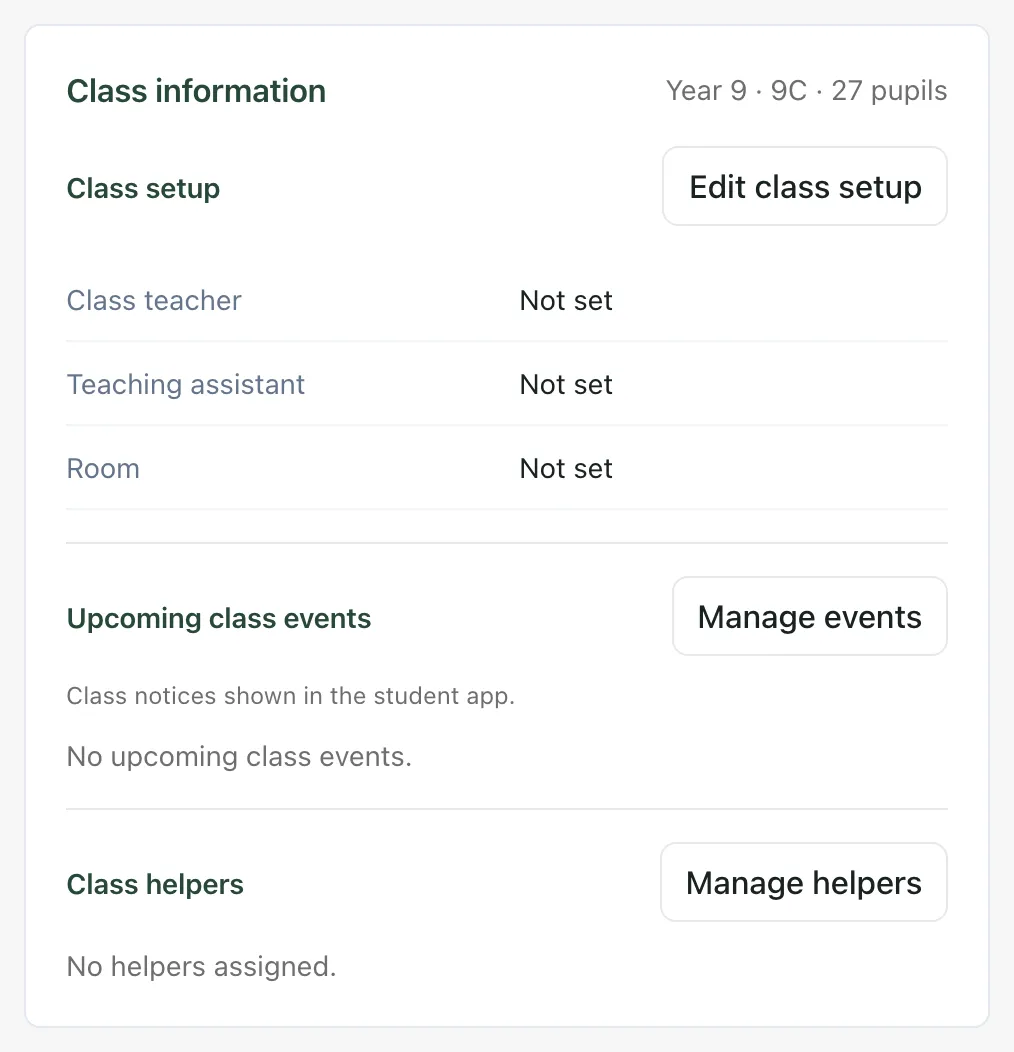
Section titled “Set up class information, events and helpers”Click the Class information tab.
Class teacher, teaching assistant and room
Section titled “Class teacher, teaching assistant and room”- Click Edit class setup.
- Fill in Class Teacher, Teaching Assistant and Room.
- Click Save changes.
Class events
Section titled “Class events”Class events are notices for the class, such as an assembly or a trip, shown to pupils in the student app.
-
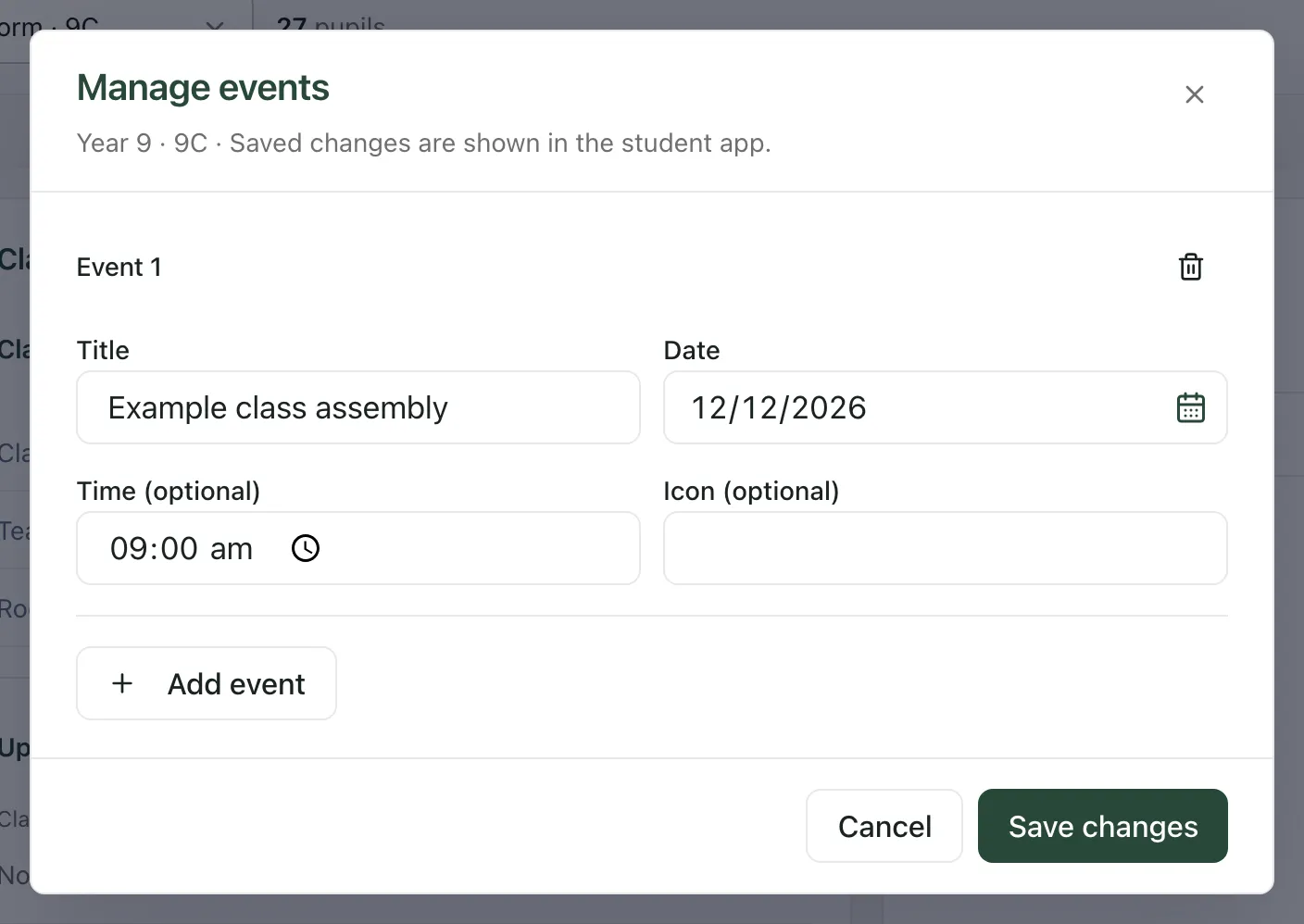
Click Manage events, then Add event.
-
Fill in the Title and Date. You can also add a Time (optional) and an Icon (optional), such as an emoji.
-
To add another event, click Add event again. To remove one, click the bin icon beside it.
-
Click Save changes.
The Class information tab lists the next four upcoming events. Past events aren’t shown.
Class helpers
Section titled “Class helpers”Class helpers are the classroom jobs pupils have, such as book monitor, shown in the student app.
- Click Manage helpers, then Add helper.
- Type the Role, then the Pupil name. As you type, Student Radar suggests pupils from the class. You can also add an Icon (optional).
- Click Save changes.
When your changes are saved, you’ll see “Class information saved”. Pupils in the class see the class setup, events and helpers in the student app, so only add what you’re happy for the whole class to see.
Birthdays
Section titled “Birthdays”The Birthdays panel lists pupils in the class with a birthday in the next 30 days, taken from their pupil records. You don’t need to set it up.
- Unsaved changes: if you close a class information window, or move to another tab or class, without saving, Student Radar asks whether to discard your changes. Click Keep editing to go back and save. A routine or step isn’t kept until you click Create, Add step or Save changes.
- Who can make changes: whether you can change routines and class information depends on your role and your school’s settings. If your account can only view them, saving shows an error and nothing is changed.
- Tour: click Take a tour at the top of the page for a step-by-step guide.
If something doesn’t work
Section titled “If something doesn’t work”| What you see | What to do |
|---|---|
| “No routines yet. Add a routine set to get started.” | Click Create routine set. |
| “Duration must be between 1 and 60 minutes.” | Change the step’s duration to a whole number of minutes from 1 to 60. |
| “Give every event a title and valid date and time.” | Check each event has a title and a date. If you added a time, check it’s a valid time. |
| “Give every helper a role and pupil name.” | Fill in both the role and the pupil’s name for every helper, or remove the helpers you don’t need. |
| “Could not save this change. Your draft is still here. Check your connection and permissions, then retry.” | Check your connection and try again. If it keeps happening, your account may not be able to change routines. |
| “Could not save these changes. Your draft is still here; check your connection and permissions, then retry.” | Check your connection and try again. If it keeps happening, ask your school’s Student Radar administrator. |
| “A linked class record is needed to save class information.” | This class isn’t linked to your school’s MIS yet, so its information can’t be saved. Ask your administrator. |
| “Class information could not be loaded. Editing is unavailable.” | Click Retry. |