Create and switch on a behaviour rule
Written for: Behaviour leads and senior leaders who set up behaviour automation.
A behaviour rule watches for a pattern, such as a pupil reaching three behaviour incidents in ten days, and then does something you’ve chosen, such as giving a pastoral lead a task to check in with the pupil. Every rule starts as a switched-off draft. Before it does anything, you preview who it would affect, get it approved if it needs approval, and switch on that exact version.
Before you start
Section titled “Before you start”You need automation access to create and switch on rules. If you don’t have it, the page says “Automation access required”. Ask your school’s Student Radar administrator.
Open behaviour automation
Section titled “Open behaviour automation”In the sidebar, open Behaviour, then Automation, and choose Rules & Automations. The Behaviour automation page opens on the Rules tab, which lists your school’s behaviour rules and whether each one is Enabled or Disabled.
Start from a template
Section titled “Start from a template”The quickest way to start is from a template your school can use.
- Click the Templates tab.
- Read the Rule summary to check what the rule would do, and its Sensitivity.
- Click Adopt as disabled draft.
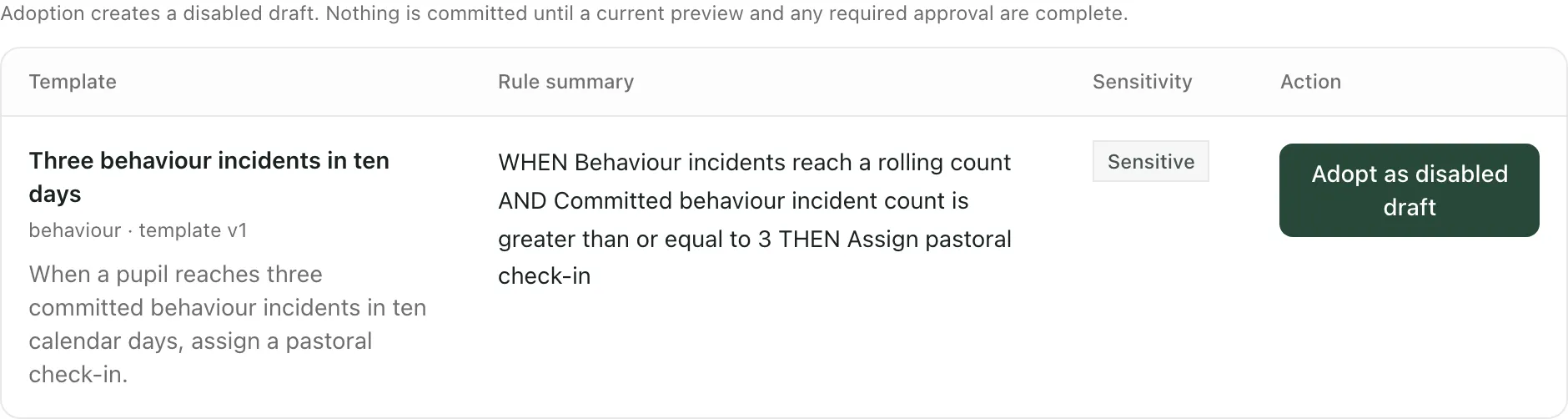
You’ll see “Disabled automation draft created” and the new rule opens on the Rules tab. It doesn’t do anything yet.
Or create your own rule
Section titled “Or create your own rule”-
Click New rule.
-
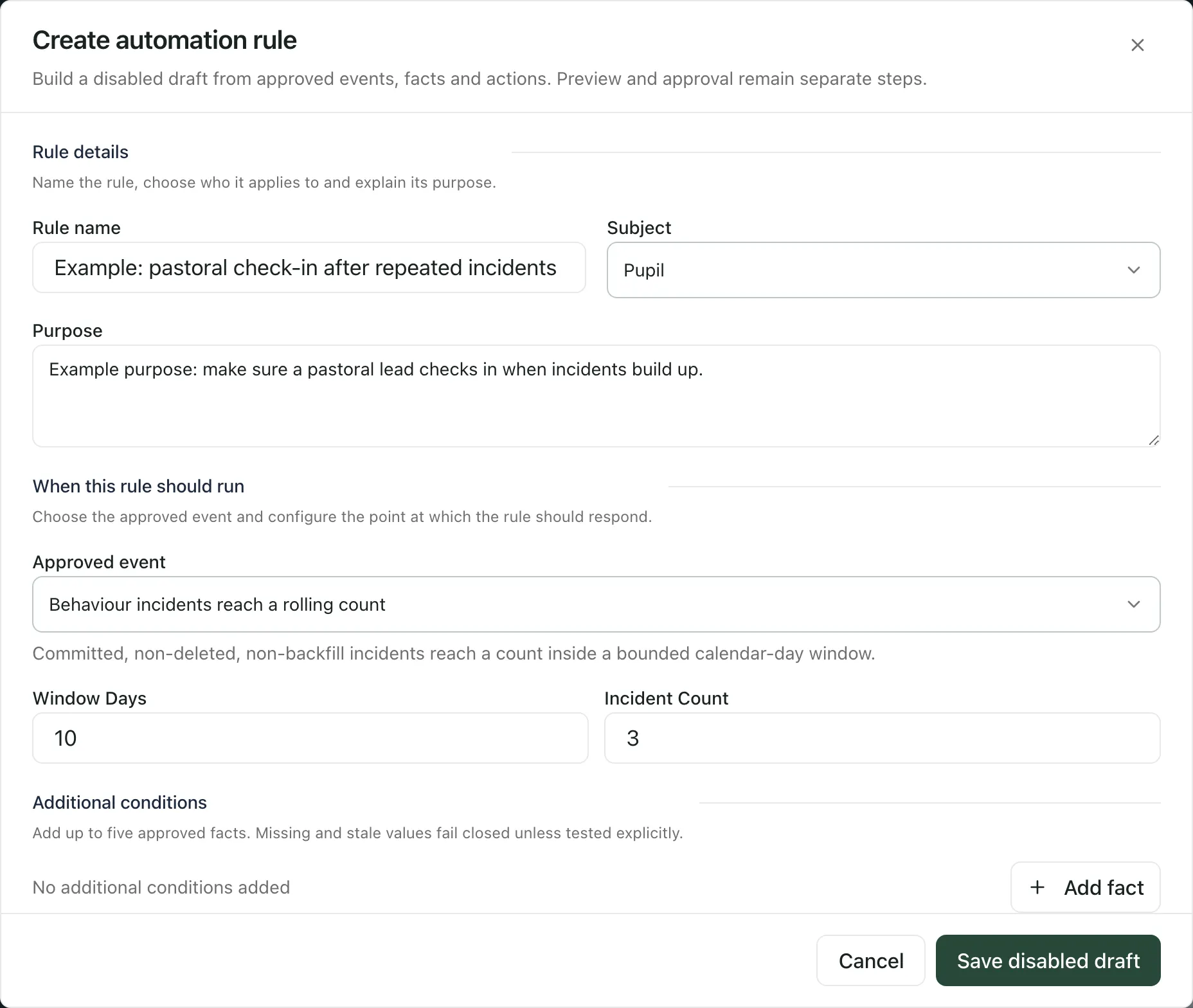
Give the rule a Rule name and, in Purpose, say why your school wants it. Leave the Subject as Pupil.
-
Under Approved event, choose the behaviour incidents event, then set how many incidents and over how many days.
-
If you want the rule to check something else as well, click Add fact under Additional conditions. You can add up to five.
-
Under Ordered actions, choose what the rule should do, such as assigning a pastoral check-in to a role, and fill in its details. Click Add action to add another. A rule can have up to three actions, and they run in order.
-
Under Run limits, set the Cooldown days: how long the rule waits before it can act again for the same pupil. Maximum firings per run caps how much work one run can create.
-
Check the Rule summary at the bottom, then click Save disabled draft.
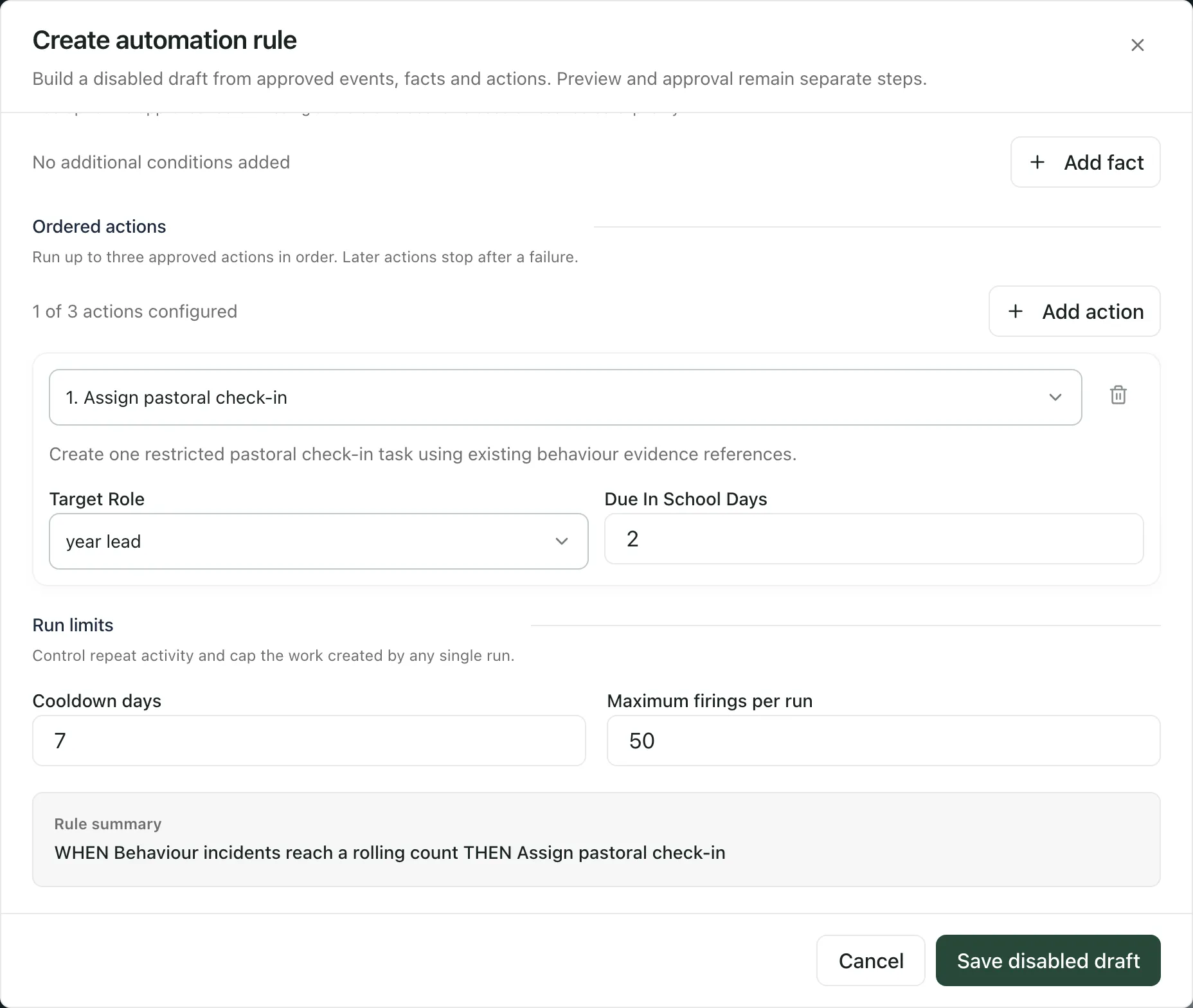
You’ll see “Disabled rule draft saved”. Choose a behaviour event: rules that start from another kind of event are listed on the main Automation page instead of here.
If an action sends a message to families, choose its Delivery mode. Approval draft prepares a message for a member of staff to check and send. Approved auto-send sends it automatically, but only if your school has opted in and an independent approver agrees. If anything it needs is missing, the message falls back to review.
Preview who it would affect
Section titled “Preview who it would affect”- On the Rules tab, click the rule.
- Click Preview current impact.
The preview shows Current matches (pupils who match now), Action targets, Unknown data and Stale data. Unknown and stale records are counted separately, so missing data isn’t treated as a match or a non-match. Check the numbers make sense before you go on.
A preview is for that exact version of the rule and expires after a while. If it has expired, or you’ve changed the rule since, preview it again.
Get approval, if it’s needed
Section titled “Get approval, if it’s needed”Some rules need a second person to approve them, for example rules marked Safeguarding and rules that send messages to families automatically. For these, you’ll see “This version needs approval from a different authorised user before it can be activated.”
- Click Request independent approval.
- Ask a colleague who can approve automation rules to open the rule. They check the rule and its preview, then click Approve exact version or Reject.
You can’t approve your own rule.
Switch it on
Section titled “Switch it on”- Open the rule on the Rules tab.
- Decide whether it should act on pupils who already match:
- Leave Apply to current matches unticked to act only on new events from now on.
- To act on current matches too, tick it and type APPLY CURRENT MATCHES in the box.
- Click Activate exact version.
You’ll see “Automation rule state updated” and the rule shows as Enabled.
Rules only take action when Automation platform is on and Shadow mode is off on the Settings tab. In shadow mode, rules are checked and the results recorded, but nothing is done. If you can’t change these settings, the tab says “You can view this policy but cannot change it.”
Follow what the rule does
Section titled “Follow what the rule does”- Activity lists each time a rule acted, for which pupil (shown as a reference) and what happened to each action.
- Needs attention lists anything that needs a person: missing owners or recipients, stale data, failed actions and approval requests.
A rule’s actions, such as a task, prompt staff to look at a pupil. They aren’t decisions about the pupil, and a completed task doesn’t show that things have improved.
Change or switch off a rule
Section titled “Change or switch off a rule”- To change a rule, open it and click Edit as new draft. Your changes are saved as a new draft, which you preview and activate in the same way.
- To stop a rule, open it and click Disable rule.
If something doesn’t work
Section titled “If something doesn’t work”| What you see | What to do |
|---|---|
| “Automation access required” | Your account can’t use automation. Ask your school’s Student Radar administrator. |
| “Automation could not be loaded” | Click Retry. |
| “No compatible templates” | There’s no template your school’s settings and your access allow. Click New rule instead. |
| “This draft has no current complete preview, so activation is blocked.” | Click Preview current impact, then try again. |
| “A current preview for this exact draft is required.” | The preview has expired or the rule has changed. Click Preview current impact again. |
| “Choose one event and at least one action.” | Give the rule a name, choose an Approved event and at least one action before you save. |
| “Your current school permissions do not allow this automation action.” | Your account can’t do this step. If you were switching on a rule, it may need independent approval first: click Request independent approval. |
| “The rule is not ready for that step. Review its definition, preview, and approval state.” | Check the rule, click Preview current impact again, and get approval if it needs it. |
| “This rule changed elsewhere. Reload it before saving again.” | Someone else changed the rule. Refresh the page, open the rule again and check it before you carry on. |