Share monitoring findings and build an evidence pack
Written for: Teachers, subject leaders, senior leaders and governors who monitor teaching and learning.
Once you’ve recorded a monitoring activity, use Monitoring & QA to write up your findings, check them against the evidence and share them with colleagues. You can then turn the findings into a follow-up action, a review date or a summary for your school’s self-evaluation, and keep the supporting evidence together in one place.
If you haven’t recorded the activity yet, see Plan and record a monitoring activity.
Write up your findings
Section titled “Write up your findings”- In the sidebar, click Leadership, then Teaching & pupils, then Monitoring & QA.
- On the Activities tab, click the activity’s title.
- Click the Findings & review tab and fill in:
- Strengths: what’s working, and which observations support that view.
- Areas for development: what needs attention, including any evidence or views that differ.
- Agreed next steps: what should happen, who needs to be involved and what you’ll review.
- If your school uses its own rating scale, open Optional school-defined rating and fill in Rating scale or criterion and Selected rating. A rating is your professional judgement: Student Radar never works it out from counts of activities.
- Click Save activity.
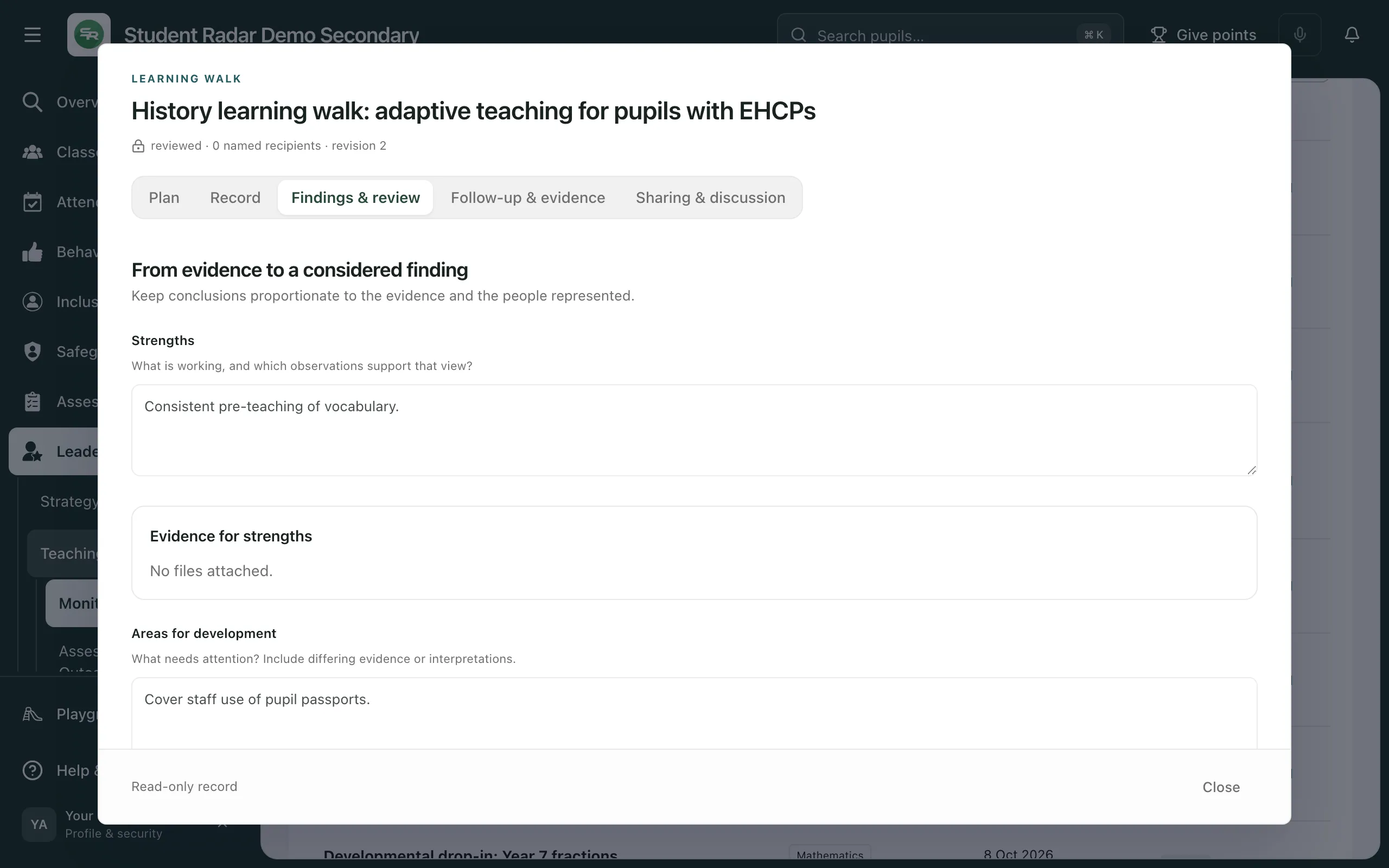
You can attach files that support a strength or an area for development under Evidence for strengths and Evidence for areas for development. They work in the same way as the other attachments on the activity.
Keep your conclusions in proportion to the evidence and the people it represents. On the Record tab, Coverage, missing perspectives and limitations is the place to say what the evidence doesn’t tell you.
Mark the findings as reviewed
Section titled “Mark the findings as reviewed”When you’ve checked the findings against the evidence you recorded:
- Save any changes. You’ll see “Save your changes before reviewing.” if anything is unsaved.
- On the Findings & review tab, click Mark findings reviewed.
You’ll see “Findings reviewed against this revision.” and the button changes to Findings reviewed. If anyone edits the activity after that, it goes back to being a draft or shared activity, so the findings need reviewing again.
Share the activity with colleagues
Section titled “Share the activity with colleagues”Drafts can only be seen by their author and the headteacher. To let anyone else see the activity, share it with them by name.
-
Save the activity. You’ll see “Save your draft before sharing.” until you do.
-
Click the Sharing & discussion tab.
-
Beside each colleague, choose what they can do:
- No additional access
- Can view
- Can comment
- Can edit
To pick a group quickly, click Select SLT or Select subject leaders. These tick named people, so check the list before you save.
-
Click Save sharing. You’ll see “Sharing updated.”
Colleagues can see files attached to the activity in the same way as the activity itself.
Discuss the findings
Section titled “Discuss the findings”At the bottom of the Sharing & discussion tab, type in Add a comment and click Add comment. Everyone who can see the activity can read the discussion. You can’t add comments to an activity that’s been closed or cancelled.
Give the findings somewhere to go
Section titled “Give the findings somewhere to go”The Follow-up & evidence tab connects the activity to work elsewhere in Student Radar. Save the activity first: until you do, you’ll see “Save the activity before connecting follow-up or evidence.” Each connection you make is listed at the top of the tab, with Open to go to it.
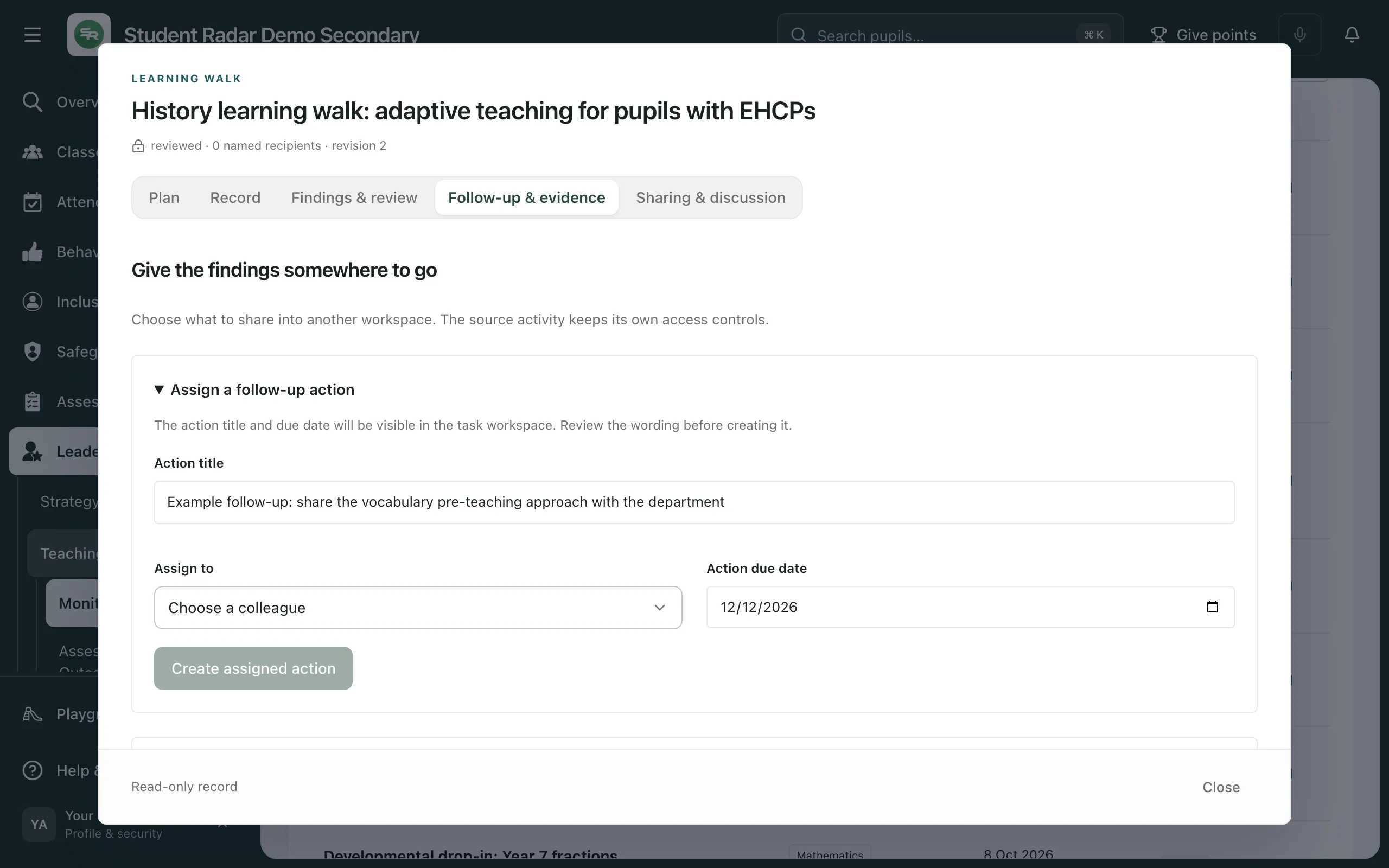
Assign a follow-up action
Section titled “Assign a follow-up action”- Open Assign a follow-up action.
- Fill in the Action title, choose a colleague under Assign to and pick the Action due date. The title and due date can be seen in the colleague’s tasks, so check the wording.
- Click Create assigned action. You’ll see “Follow-up created in My Actions.”
Schedule a review
Section titled “Schedule a review”- Open Schedule a review in Calendar.
- Fill in the Review event title, Review event date, Start time and End time. Times are UK time.
- Click Schedule review. You’ll see “Review scheduled in Calendar.”
This adds an event to your own calendar, with a link back to the activity. Add colleagues to the event in the calendar.
Add a summary to your self-evaluation
Section titled “Add a summary to your self-evaluation”You can do this once the findings are marked as reviewed.
- Open Contribute a reviewed finding to the SEF.
- Under SEF area, choose the area of your self-evaluation the finding belongs to.
- Write the summary in Summary to share with SEF readers.
- Click Approve SEF contribution. You’ll see “Reviewed summary added to the SEF. Existing judgement retained.”
Only the summary you write here is added, and anyone who can read your school’s self-evaluation can see it. It doesn’t change the judgement in that area.
Collect pupil voice through a form
Section titled “Collect pupil voice through a form”For Pupil voice activities, Pupil voice through Forms turns your questions into a form for pupils to fill in. Fill in School privacy notice reference, School lawful basis reference and School retention class, then click Create Forms draft. Only the questions are copied, not your notes or answers. You’ll see “Forms draft created. Open Forms to review, publish and distribute it.” The form isn’t sent to anyone until you publish it from Forms.
Reuse your questions
Section titled “Reuse your questions”To let colleagues use the same questions, open Save these questions as a school template, type a School template name and click Save school template. Only the questions and activity type are shared. Your notes, answers and findings stay in the activity. The template appears in the Template library.
Build an evidence pack
Section titled “Build an evidence pack”Keep the evidence for your findings with the activity:
- Files attached on the Record tab, under each question, and under Evidence for strengths, Evidence for areas for development and Evidence for later review.
- To download a file, open the activity and click Download followed by the file name.
Student Radar doesn’t combine these files into one download for you. If you need a single pack, for example for governors or an inspection, put it together from the files you’ve downloaded, then keep it with your school’s other monitoring documents:
- At the top of Monitoring & QA, click General tasks & evidence.
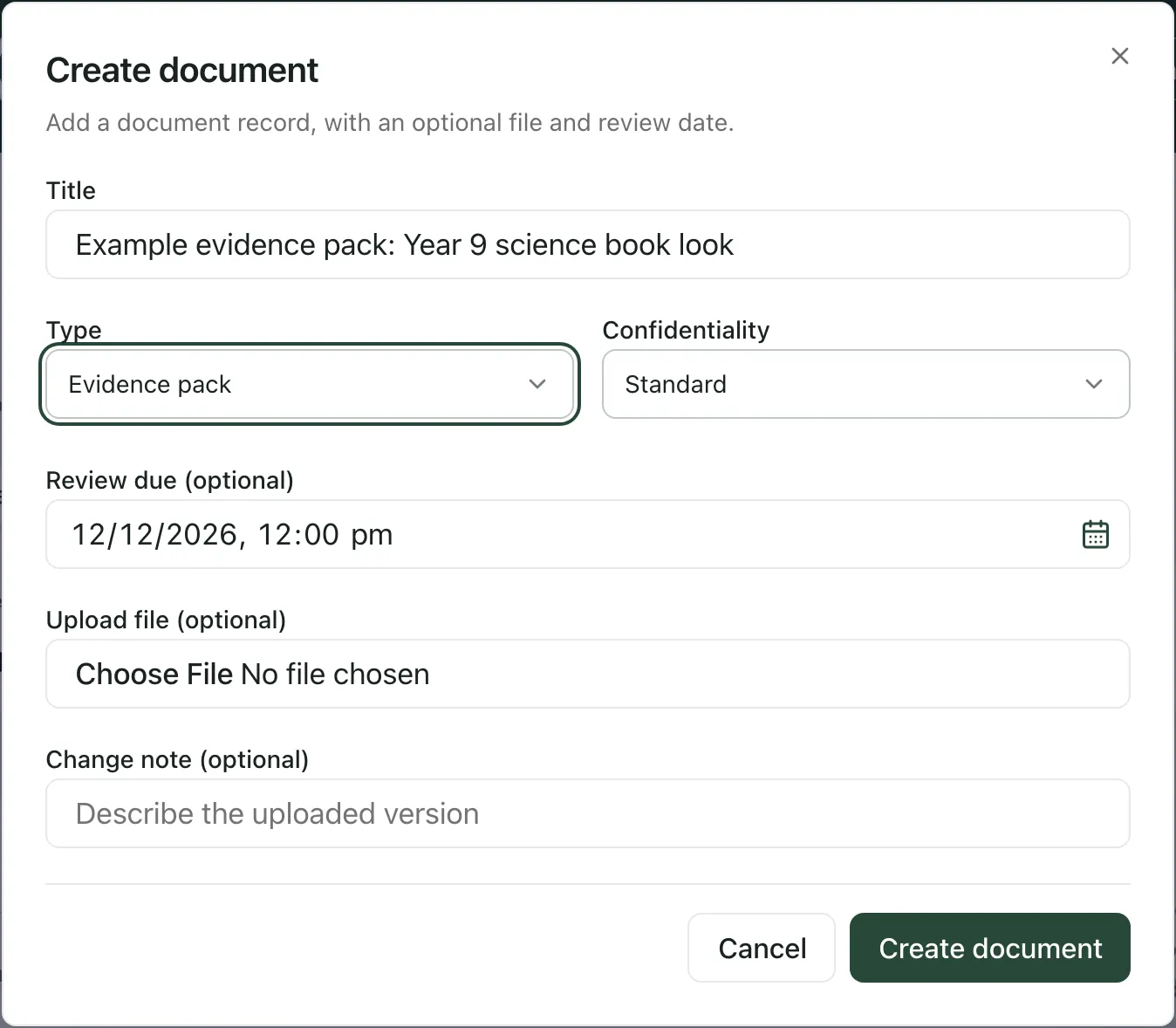
- Click New document.
- Give the document a Title, and under Type choose Evidence pack.
- Under Confidentiality, choose Standard or Confidential.
- Optionally, set Review due, choose the file under Upload file (optional) and add a Change note (optional).
- Click Create document. You’ll see “Document created.”
The document is listed under Documents. Click its title to open it:
- Versions: upload a new version under Upload new version, or Download an earlier one. Old versions are kept.
- Read & sign: sign the latest version, choose which roles should sign it and see who has signed.
- Links: link the document to a Leadership priority, a Leadership action or a Framework node.
To send a version to someone outside Student Radar, such as the local authority or an inspector, click Share link beside it. The link is copied for you and lasts 14 days. Anyone with the link can download that version until it expires, so send it only to the people who need it and follow your school’s data protection policy.
Come back to it later
Section titled “Come back to it later”When you return to the activity on its review date:
- On the Findings & review tab, fill in Later review: what happened? with what has changed, the new evidence and what’s still uncertain. Attach any files under Evidence for later review.
- Click Save activity.
- Click Close reviewed activity. You can only do this once the findings have been marked as reviewed and the later review is filled in. You’ll see “Activity closed with its reviewed outcome.”
Completing a follow-up action doesn’t show that it made a difference, so use the later review to record what the new evidence shows.
If the activity is no longer needed, click Cancel activity. You’ll see “Activity cancelled. The record has been retained.” Closed and cancelled activities can be read but not changed.
- Who can change an activity: its author, and colleagues it’s shared with using Can edit. With Can view or Can comment, the activity shows Read-only record. Schools decide who can create monitoring activities.
- Monitoring cycles: cycles on the Monitoring areas tab have their own steps, sign-off and review, and don’t use this sharing.
If something doesn’t work
Section titled “If something doesn’t work”| What you see | What to do |
|---|---|
| “Save your changes before reviewing.” | Click Save activity, then Mark findings reviewed. |
| “Save your draft before sharing.” | Click Save activity, then go back to Sharing & discussion. |
| “Save the activity before connecting follow-up or evidence.” | Click Save activity first. |
| Approve SEF contribution is greyed out | Mark the findings as reviewed, choose a SEF area and write a summary. |
| Close reviewed activity is greyed out | Save your changes, mark the findings as reviewed and fill in Later review: what happened? |
| “This activity changed while you were working. Reload the saved activity before continuing. Your text is still here.” | A colleague saved the activity while you were working. Copy your text, close and reopen the activity, then add your changes again. |
| “You do not have permission for this monitoring action.” | Your account can’t make this change. Ask the activity’s author for edit access, or ask your school’s Student Radar administrator. |
| “Too many requests. Wait a minute before trying again.” | Wait a minute, then try again. |
| “This file could not be opened. Your access may have changed.” | You can no longer download this file. Ask the activity’s author to check your access. |
| “Attachments on closed or cancelled activities are read-only.” | You can download the files, but you can’t add or remove them. |
| “We could not confirm everything was saved. Your draft is still here. Check Documents before creating again; if the document exists, open it and upload the file there.” | Check Documents. If the document is listed, open it and upload the file under Upload new version. |