Invite a parent to the parent app
Written for: Office staff, school leaders and DSLs.
Parents and carers use the parent app to see information about their child from school. To give a parent access, invite them from Account Connections. The invitation is linked to their children, so once they accept, they’re connected to the right pupils straight away.
Send an invitation
Section titled “Send an invitation”-
In the sidebar, open Administration and choose Account Connections.
-
Click Invite Parent at the top of the page.
-
Type the Parent email.
-
Choose their Relationship to the pupil: Parent, Guardian or Carer.
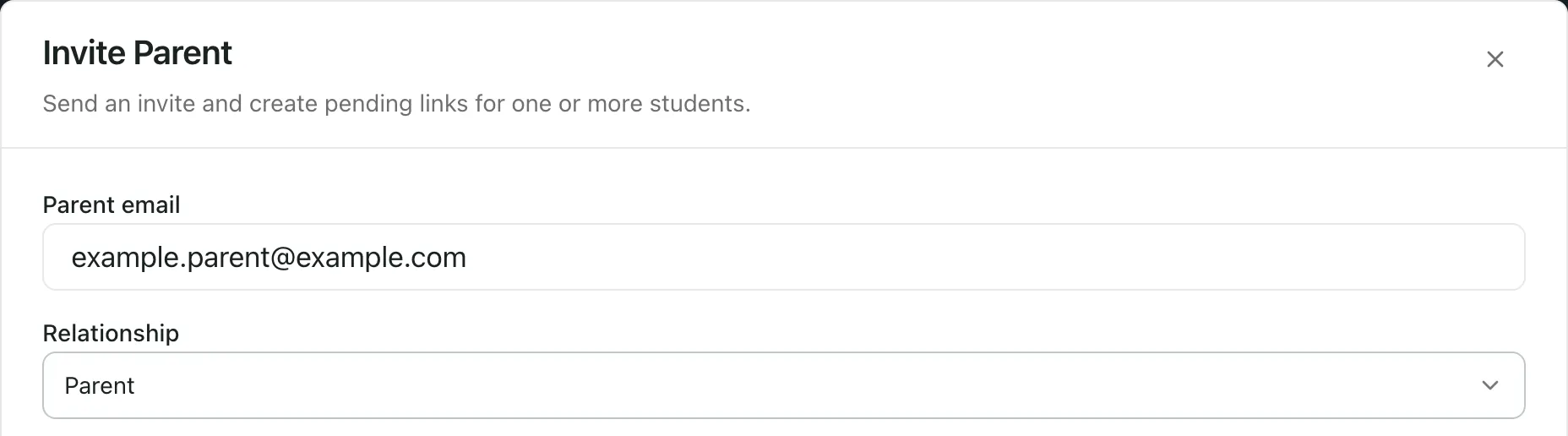
-
Under Linked students, tick each child the invitation is for. Each pupil is listed with their year group and class, so you can pick the right one.
-
Click Send invite.
“Parent invite sent” confirms that the invitation email is on its way. The parent follows the link in the email to set up their account. Until they do, the invitation shows as pending.
If you see “Invite already delivered”, the parent already had an invitation and no new email was sent.
Check whether a parent has accepted
Section titled “Check whether a parent has accepted”- Open the Parent Accounts tab.
- Find the parent. You can type in Search or set Status to Invite pending.
Each row shows the parent’s email, their linked pupils, the relationship and the status. For a pending invitation, Last login shows when the invitation was last sent.
To send the invitation again, click Resend in the parent’s row. To resend several at once, tick their rows and click Send/resend invites.
Manage a parent’s access
Section titled “Manage a parent’s access”On the Parent Accounts tab, use the buttons in a parent’s row:
- Add link: link the parent to another pupil, such as a younger sibling.
- Remove (next to a pupil’s name): unlink them from that pupil.
- Reset password: email the parent a link to reset their password.
- Revoke: cancel the invitation or remove the parent’s access to their linked pupils.
- Access (next to a pupil’s name): review what the parent can see and do for that pupil, once they’ve accepted.
Linking, unlinking, resetting and revoking are usually done by office managers, headteachers or Student Radar administrators.
Take the built-in tour
Section titled “Take the built-in tour”Click Take a tour at the top of Account Connections for a short guide.
- If a pupil’s details in your MIS don’t match up, their name shows “Identity needs checking” and you can’t tick them. Ask the school office to correct the pupil’s name, year or registration group in the MIS. After the next sync, click Reload students.
- The invitation link expires after a set time. If a parent’s link has run out, resend it.
- What families can see in the parent app is set in School Settings.
If something doesn’t work
Section titled “If something doesn’t work”| What you see | What to do |
|---|---|
| “Parent email required” | Type the parent’s email address. |
| “Select at least one student” | Tick at least one pupil under Linked students. |
| “Pupil identity needs checking” | Click Reload students, then tick a pupil whose details are confirmed. |
| “Invite failed” | Check the email address and try again. If it keeps happening, your account may not be able to invite parents. Ask your Student Radar administrator. |
| “Too many invites selected” | Resend fewer invitations at a time. |
| “Account connections unavailable” | Click Refresh. If it keeps happening, contact Student Radar support. |