Set school hours, sessions and attendance codes
Written for: Headteachers, school administrators and office managers.
The School Hours & Operations tab in School Settings holds the official start and end of your school day, the late threshold and the office’s contact hours. Registers use these times, so check them at the start of each year and whenever your school day changes. Schools outside England also set their own attendance codes here.
Set the school day
Section titled “Set the school day”-
In the sidebar, click Settings, then School Settings.
-
Click the School Hours & Operations tab.
-
Under School Hours, set the Start Time and End Time of the school day.
-
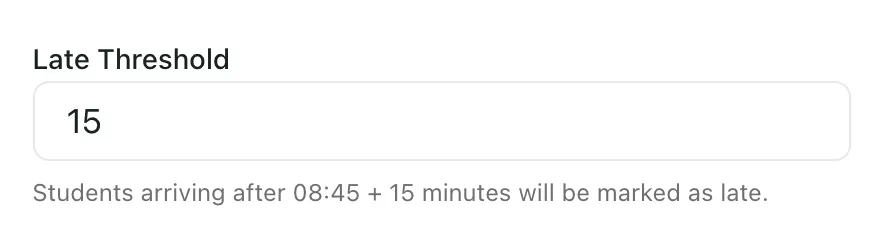
In Late Threshold, enter the number of minutes after the start time when a pupil arriving counts as late. The line underneath shows the result, for example that pupils arriving after 08:45 plus 15 minutes will be marked as late.
-
Under Contact Hours, set Contact Start and Contact End: the times the school office is available for parent contact.
There’s no Save button on this tab. Each change saves on its own a moment after you stop typing, and you’ll see Saving… at the top of the card while it does. If a change can’t be saved, you’ll see “Save failed” and the old value comes back.
When staff record a late arrival on a register, the register shows the late threshold next to the minutes late, so they can check it against your gate-close time.
Set the AM and PM session times
Section titled “Set the AM and PM session times”The morning and afternoon registration sessions have their own start and end times. You change them from any register, not from this tab. See Change the AM and PM session times.
Until someone saves session times, Student Radar works them out from the Start Time and End Time on this tab.
Attendance codes
Section titled “Attendance codes”Schools in England
Section titled “Schools in England”Registers use the DfE national attendance codes, and persistent absence uses the DfE line of 10% of possible sessions missed. There’s nothing to set up here, and the Attendance codes card isn’t shown.
Schools outside England
Section titled “Schools outside England”If your school is in a country without England’s attendance rules, such as Thailand, the tab also has an Attendance codes card. These are your school’s own codes, and no DfE rules apply. Staff choose them when they take the register.
Each code has a letter, a meaning and a Counts as category, which decides how it counts towards attendance:
| Group | Categories |
|---|---|
| Present | Present, Late (counts as present), Approved activity (counts as present) |
| Authorised absence | Authorised absence |
| Unauthorised absence | Unauthorised until a reason is given, Unauthorised absence, Late after the register closed (unauthorised) |
| Not counted | Not counted (not a possible session) |
Set the persistent absence line
Section titled “Set the persistent absence line”- In Persistent absence line, enter the share of possible sessions a pupil must miss to count as persistently absent. It must be between 1% and 50%, to one decimal place. The default is 10%.
- Click Save. You’ll see “Saved.”
Add the starter codes
Section titled “Add the starter codes”If you see a message saying some starter codes aren’t set up yet, click Add starter codes. Student Radar adds the codes your school has never had. You’ll see “Starter codes added.”
Add a code
Section titled “Add a code”- Click Add a code.
- In Code, type the letter or symbol staff will use: 1 to 4 letters, numbers or symbols.
- In Meaning, describe the code in up to 80 characters, such as Medical appointment.
- Choose what it Counts as.
- Click Add code. You’ll see “Saved.”
Change or retire a code
Section titled “Change or retire a code”- To change a code, click Edit, make your changes and click Save.
- To stop staff using a code, click Retire. A retired code shows a Retired badge. Click Restore to bring it back.
Some codes have limits:
- A code marked In use is already on registers, so its letter and category are fixed. You can still change its meaning or retire it. Past marks keep the category they were recorded with.
/(morning) and\(afternoon) are the only codes that mark a pupil present, and they can’t be retired.- Codes that come from your MIS can’t be edited here.
By default, headteachers, administrators, senior leaders, attendance officers and office managers can change attendance codes. Other staff see the codes with “Ask a school leader or attendance officer to change these codes.”
- Alternative provision: in an alternative provision, this tab also has a Default session times card for the usual pupil and staff day.
- Who can change school hours: each part of School Settings has its own permission. By default, headteachers and administrators can change the school hours. If your changes aren’t saved, ask your Student Radar administrator.
- Take the tour: click Take a tour at the top of School Settings for a short guide to each tab.
If something doesn’t work
Section titled “If something doesn’t work”| What you see | What to do |
|---|---|
| “You do not have permission to change these school settings. Ask a school administrator.” | Your account can’t change the school hours. Ask a headteacher or administrator. |
| “Your change was not saved. Check your connection and try again.” | Check your connection, then change the time again. |
| “Unable to load school settings. Retry before making changes.” | Click Retry school settings before you change anything. |
| “Enter a percentage between 1 and 50, to one decimal place.” | Change the persistent absence line to a number such as 10 or 12.5. |
| “Another active code already uses that letter.” | Choose a different letter, or retire the other code first. |
| “Give the code a meaning of up to 80 characters.” | Type a shorter Meaning. |
| “Registers already use this code, so its letter and category are fixed. Retire it and add a new code instead.” | Retire the code, then add a new one with the letter or category you want. |
| “This code comes from your MIS and cannot be edited here.” | Change the code in your MIS. |
| “Someone else changed this code. Reload and try again.” | Reload the page, check the code and make your change again. |
| “Too many changes in a minute. Wait a moment and try again.” | Wait a minute, then try again. |
| “You don’t have permission to change attendance codes.” | Ask a headteacher, senior leader or attendance officer to make the change. |
| “Attendance codes could not be loaded.” | Reload the page. If it keeps happening, contact Student Radar support. |