Customise your referral workflow and forms
Written for: Alternative provision leaders who set up how referrals are handled.
Your referral workflow sets the stages every referral goes through, the answers and evidence each stage needs, and the forms your staff fill in along the way. You build those forms in Custom Forms, then attach them to stages in Workflow settings. Each change you publish becomes a new version of the workflow. New referrals use it, and referrals already under way keep the version they started on.
Before you start
Section titled “Before you start”- Changing the workflow needs permission to set up referrals, which AP leaders usually have. Without it, the Workflow settings button isn’t shown on the Referrals page.
- Building forms needs access to Custom Forms. Some forms need a colleague’s approval before they’re published.
Build a form
Section titled “Build a form”- In the sidebar, open Referrals and choose Custom Forms.
- Click New form and build your questions. For help with the form builder, see Create and publish a form.
- Click Create draft to save it. After that, the button is Save draft.
- Click Publication settings. Under Who is this form for?, tick Staff. Referral forms are filled in by your staff, so only forms with Staff ticked can be attached to a stage.
- Click Publish form. If your provision needs a second person to approve forms, the button is Send for approval instead, and a colleague approves it on the Publication approvals tab.
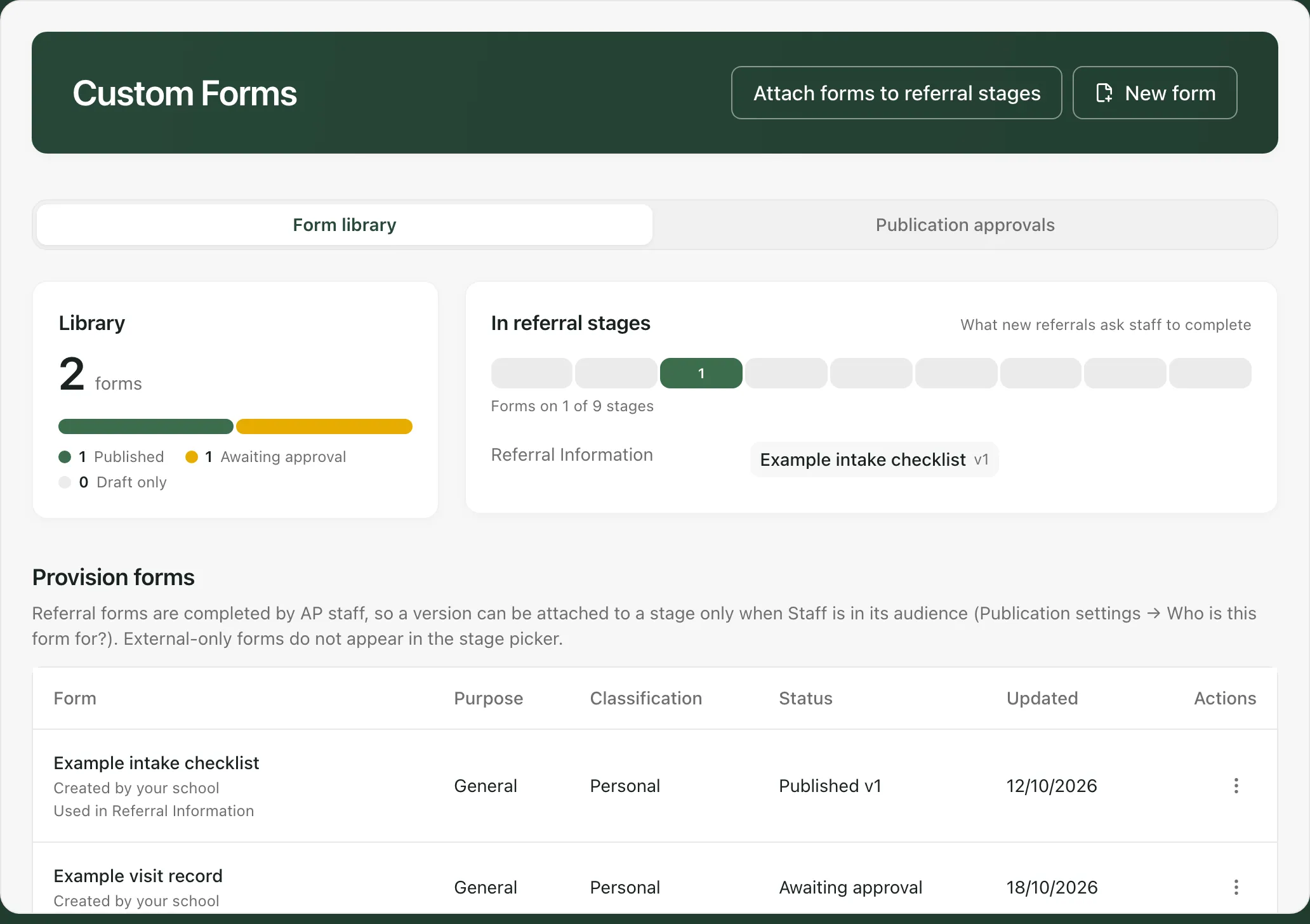
On the Form library tab:
- Library counts your forms that are published, awaiting approval or still drafts.
- In referral stages shows which stages of your active workflow have forms attached. Point at a stage to see its forms.
- Provision forms lists every form. A form that’s attached to a stage says which one.
Open Workflow settings
Section titled “Open Workflow settings”On the Referrals page, click Workflow settings. From Custom Forms, you can also click Attach forms to referral stages.
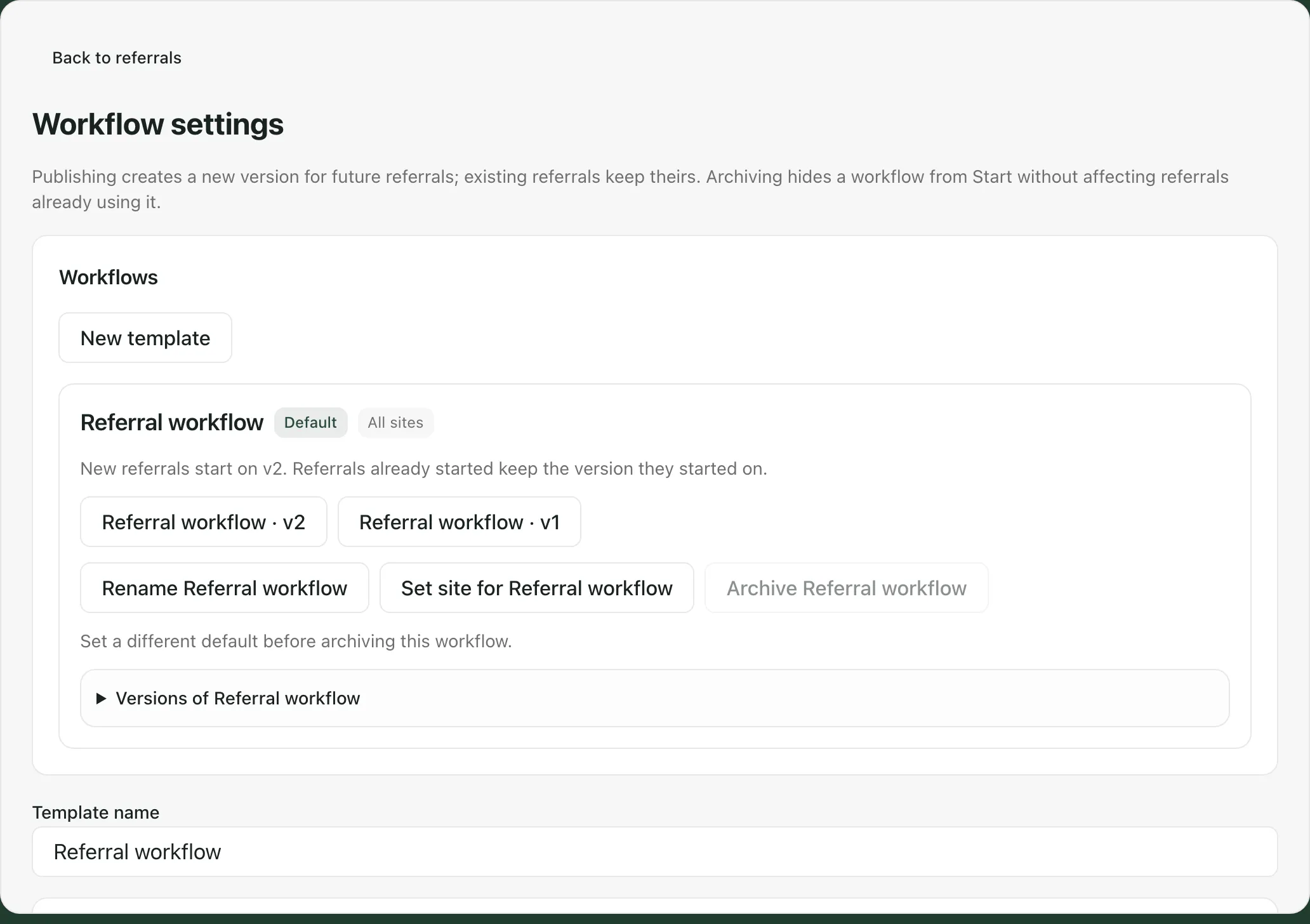
Under Workflows, each workflow shows which version new referrals start on. Click a version to load it into the editor below. Click New template to start a new workflow from the standard stages.
Change the stages and forms
Section titled “Change the stages and forms”-
Under Workflows, click the version you want to change. The editor says which version you’re editing and which version publishing will create.
-
Under Stages, dependencies and default roles, find the stage you want to change.
-
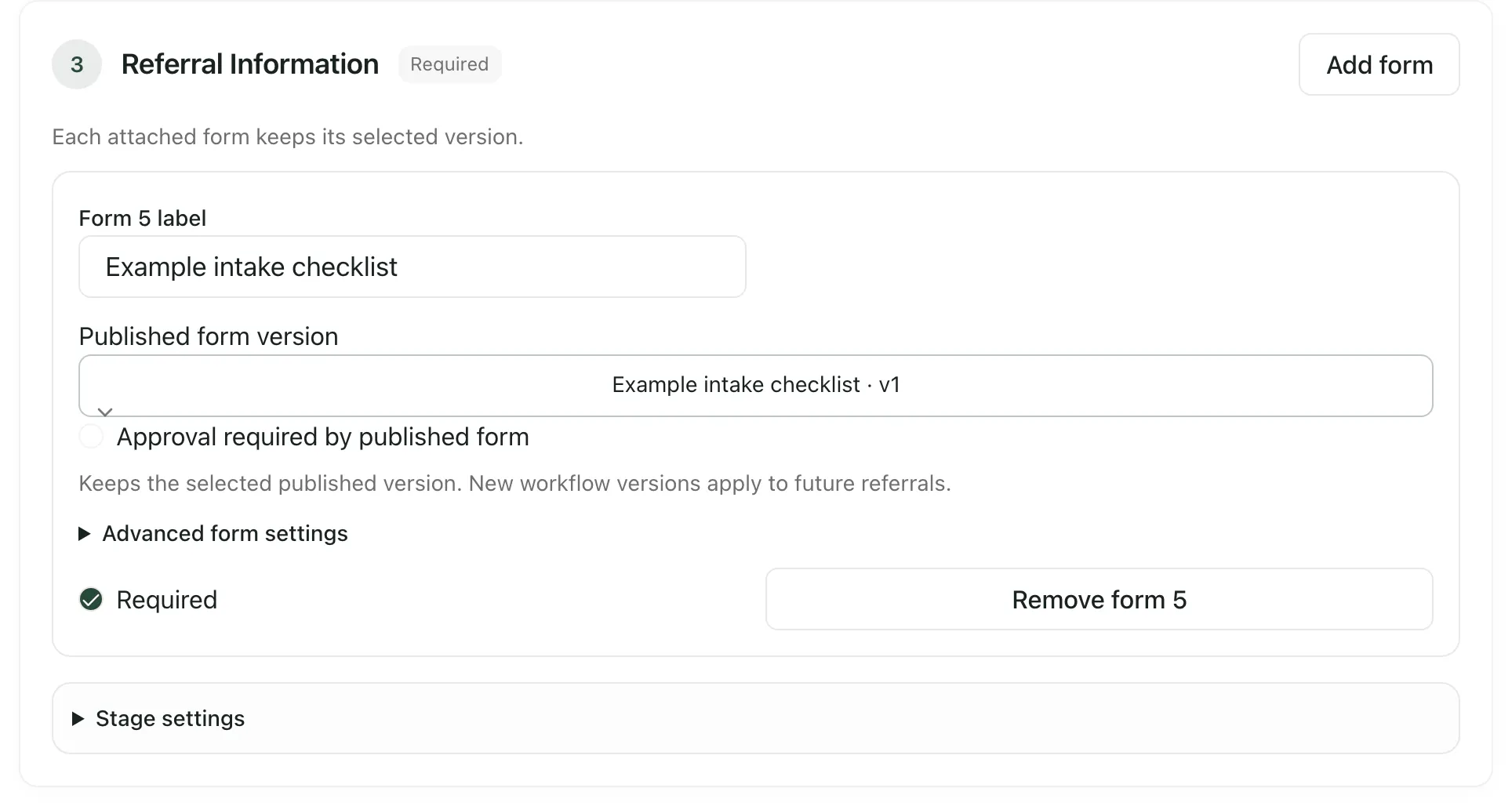
To attach a form, click Add form on that stage, then choose the form in Published form version. Tick Required if the stage can’t be completed without it.
-
To change the stage itself, open Stage settings. You can change the Stage name, its Order and Default owner role, whether it’s a Required stage, and which stages to Complete these stages first.
-
Under Required evidence and answers, set what each stage needs. For each requirement, choose its Stage and Evidence type: Reviewed answer, Reviewed document or Custom form. Click Add requirement to add another.
-
Click Publish new version.
The new version is used for every referral started from now on. Each attached form keeps the exact version you chose, so later changes to the form don’t affect the workflow until you choose the newer version and publish again.
To copy another workflow’s stages and requirements into the one you’re editing, choose it under Start from another template’s stages and click Use these stages.
Move a referral to the newest version
Section titled “Move a referral to the newest version”A referral that’s already under way keeps its version. If a newer version is available, its page says so and offers to review the update. The review lists the new, renamed and removed stages and requirements. Moving keeps everything already recorded on the referral.
Manage your workflows
Section titled “Manage your workflows”Each workflow in the Workflows card has buttons that include its name, such as Rename Referral workflow. Use them to:
- rename the workflow, or set a site if it’s only for one of your sites
- set it as the default, so new referrals start on it (if you have more than one site, you can set a default for each site)
- archive a workflow you no longer use. It stops appearing when someone starts a workflow, and referrals already using it aren’t affected. You can’t archive your default workflow: set a different default first.
To archive or restore a single version, open the list of versions under the workflow.
Settings history at the bottom of the page lists every change and who made it.
Your saved SLA
Section titled “Your saved SLA”Saved SLA holds your provision’s own service level agreement, a PDF or Word file of up to 5 MB. It’s offered whenever you send a placement its SLA at Placement confirmation. Keep it general, with no young person’s details.
- Your steps on referrals: referrals show the standard five steps (Enquiry & triage to Placement confirmation) when your workflow follows the standard stages. If you add, remove or reorder stages, referrals on that workflow may show your own stages instead.
- Attaching a form to one referral: you can also attach a form to a single referral, from a step’s Documents button. This doesn’t change the workflow.
If something doesn’t work
Section titled “If something doesn’t work”| What you see | What to do |
|---|---|
| Workflow settings isn’t shown on the Referrals page | Your account can’t set up referrals. Ask an AP leader. |
| “You do not have permission to access Custom Forms.” | Ask your Student Radar administrator for access to forms. |
| “Only forms published for Staff appear here.” | Your form isn’t in the Published form version list. Open it in Custom Forms, tick Staff under Who is this form for? and publish it again. Then click Refresh forms. |
| “No published forms ready to attach.” | Publish a form for staff in Custom Forms first, then click Refresh forms. |
| Publish new version is greyed out | Every requirement needs a label, and every attached form needs a published version chosen. |
| “A newer template version has been published. Your draft is retained. Reload the versions before publishing again.” | Someone else published first. Reload the page and make your changes on the newest version. |
| “Someone else changed this workflow’s settings. Reload workflows and try again.” | Reload the page and try again. |
| “Set a different default before archiving this workflow.” | Set another workflow as the default, then archive this one. |