Add a parent log entry
Written for: Parents and carers.
The parent log is a way to tell your child’s school what you’ve noticed at home: something that helped, something that was hard, a change in sleep or mood, or how your child is feeling about school. It’s especially useful if your child has special educational needs or a disability (SEND), because it helps staff plan the right support. Only school staff can see your entries.
Write an entry
Section titled “Write an entry”- In the menu, click Parent log. You can also click Add log on Home.
- Under Category, choose what your observation is about: Strength, Trigger, Strategy that helped, Wellbeing, Attendance, Learning, Transition, Communication, Concern or Other.
- Under Response, choose whether you’d like the school to get back to you (see below).
- Under What happened?, describe what happened in a few sentences. Stick to what you saw or heard. You need at least 5 characters.
- Click Submit observation.
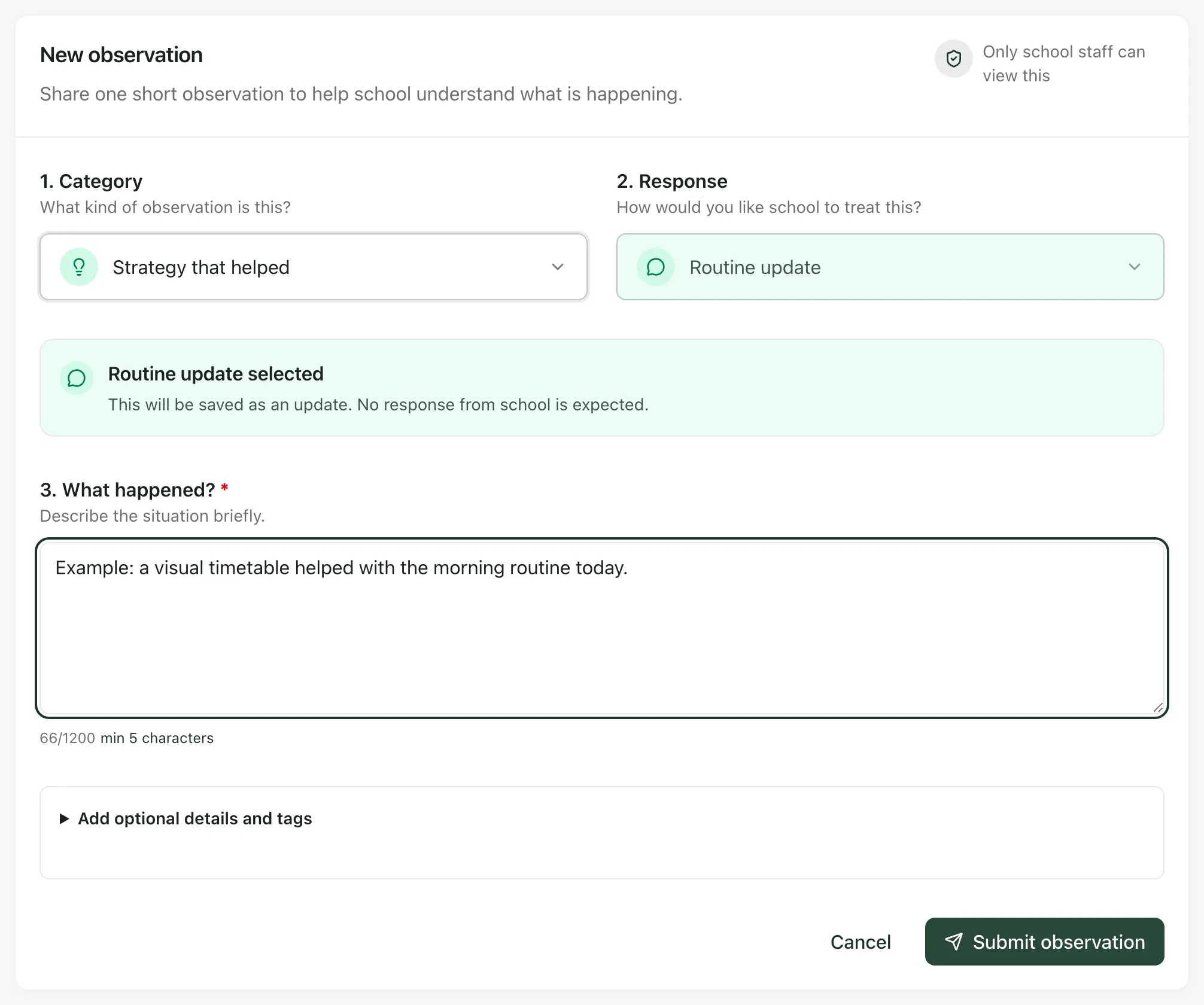
You’ll see “Log sent to school.” Your entry appears under Recent logs.
To clear the form and start again, click Cancel.
Choose how the school should respond
Section titled “Choose how the school should respond”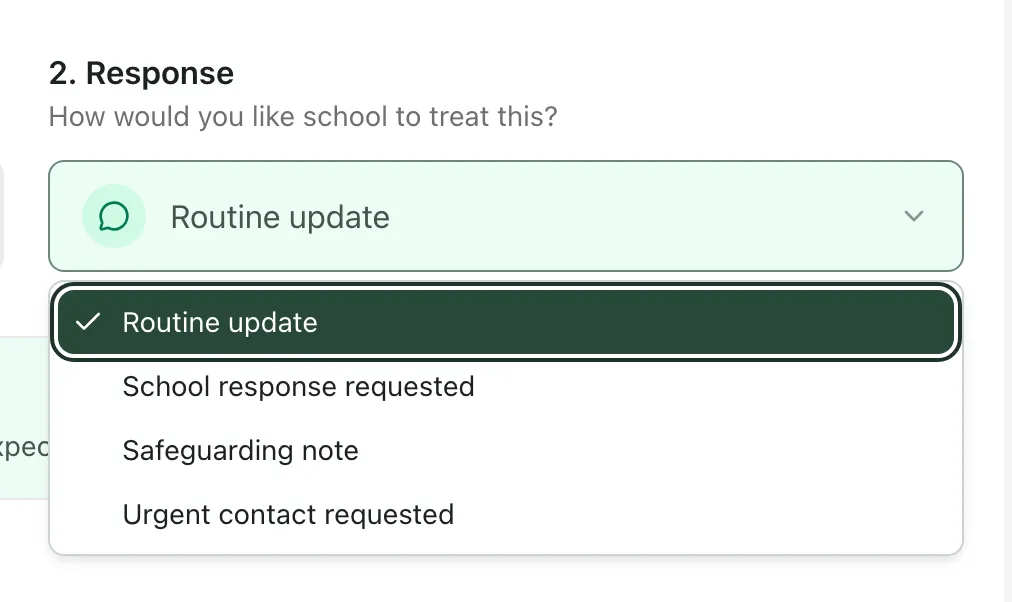
| Response | What it means |
|---|---|
| Routine update | For the school’s information. “No response from school is expected.” |
| School response requested | You’d like someone from school to get back to you. “School staff will see that you would like a response.” |
| Safeguarding note | You have a worry about your child’s safety or wellbeing. The school will flag it for review. |
| Urgent contact requested | You’d like the school to contact you urgently when they review it. |
Important: The parent log isn’t for emergencies, and it may not be read straight away. If you’re worried about your child’s safety, phone the school and ask to speak to the designated safeguarding lead, the member of staff responsible for keeping children safe. If a child is in immediate danger, call 999.
Add more detail
Section titled “Add more detail”Click Add optional details and tags to add:
- Tags: quick labels such as morning, sleep, sensory, friendships, homework, anxiety, transition or communication. Click a tag again to remove it, or click Clear all.
- What helped?: anything that made a positive difference.
- What made it harder?: anything that got in the way.
- Additional context: anything else the school should know.
See your earlier entries
Section titled “See your earlier entries”Recent logs shows your last 5 entries, with the category, a summary, the status, whether you asked for a response and when you sent it. Click View all to see older entries, and click the arrow on a row to read the whole entry.
| Status | What it means |
|---|---|
| Update | The school has received your entry. |
| Reviewed | A member of staff has read and reviewed it. |
| Included | The school has used it as evidence in your child’s support plan. |
| Not used | The school reviewed it but hasn’t used it in your child’s support plan. |
| Escalated | The school has passed it on for further action. |
| Archived | The school has filed it away. |
If you have more than one child at the school, choose the child under Child at the top of the page first. Each child has their own log.
If something doesn’t work
Section titled “If something doesn’t work”| What you see | What to do |
|---|---|
| Submit observation is greyed out | Write at least 5 characters under What happened?. |
| “Your log could not be sent. Please try again.” | Your entry is still in the form. Check your internet connection and click Submit observation again. |
| “The earlier observation was sent. Your current draft has been kept.” | Your first entry was sent while you kept typing. Check the new text, then send it as well. |
| “The earlier observation could not be sent. Your current draft has been kept.” | Check your text and click Submit observation again. |
| “No parent logs yet.” | You haven’t sent any entries for this child yet. |