Take a club register
Written for: All school staff who run clubs and activities.
Record who came to each club session. The register gives you an accurate record of who was at the club and when, which matters for safeguarding and for funded or targeted activities.
Open the club’s register
Section titled “Open the club’s register”- In the sidebar, open Parents and choose Clubs & Activities.
- Under All Clubs, click the club’s name. The club opens with its register.
- Check the Session at the top. It starts on the club’s next session, which is today’s if the club runs today. To mark a different week, choose it from the list.
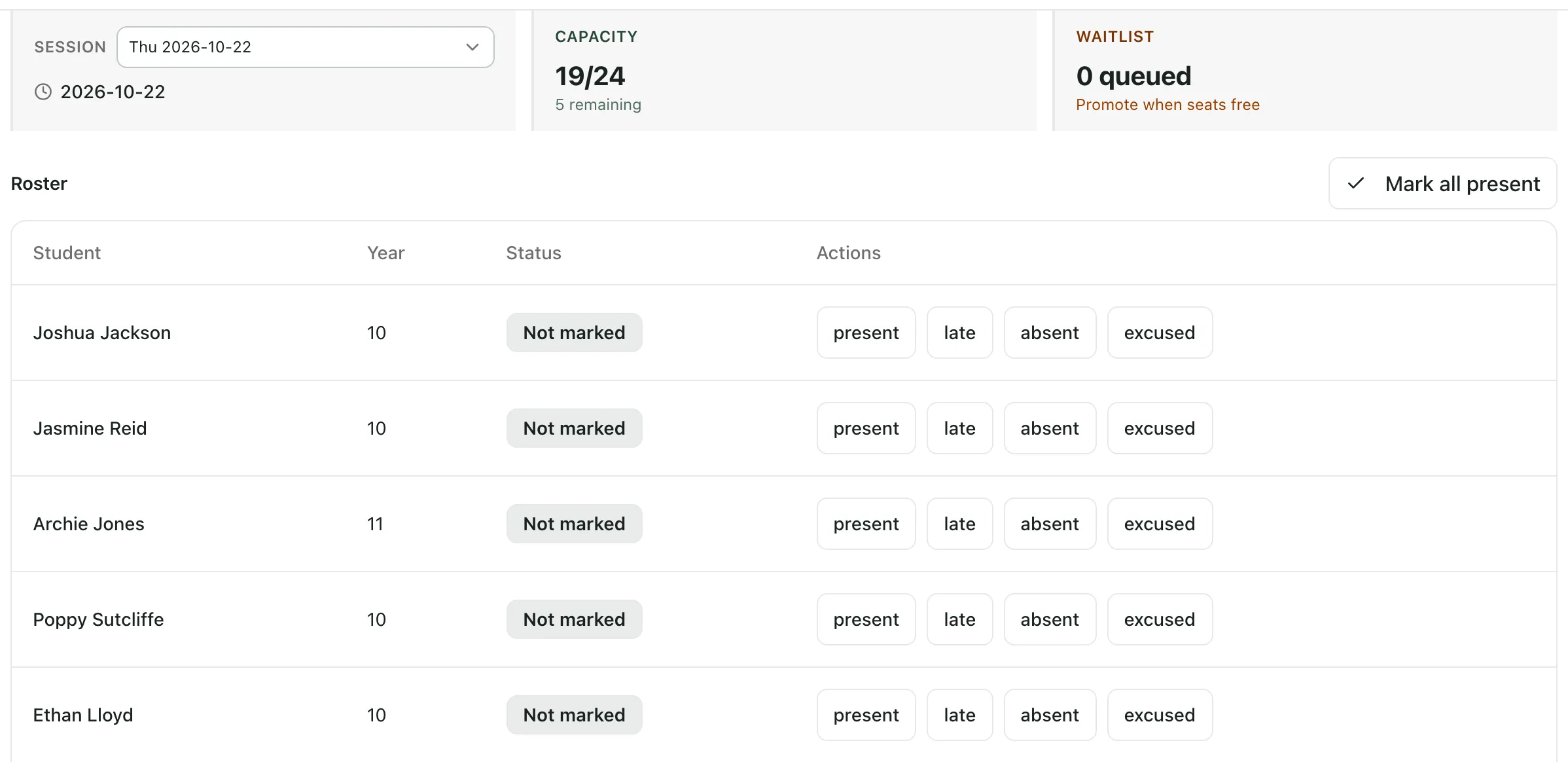
The Roster lists the club’s confirmed members. Each starts as Not marked for the session.
Mark attendance
Section titled “Mark attendance”For each pupil, click present, late, absent or excused. Each mark is saved straight away, and an “Attendance saved” message confirms it. The pupil’s status changes to the mark you chose.
If everyone is there, click Mark all present to mark every pupil on the roster as present in one go. Then change anyone who was late or absent by clicking their mark.
To correct a mark, click a different one. There’s no separate save button.
Before the session: check alerts
Section titled “Before the session: check alerts”Below the roster, Alerts lists club members who have SEND or medical information recorded, so you know who may need support or medication during the session. Click Open pupil record to read their plans and arrangements. A pupil who isn’t listed may still have needs that aren’t recorded in Student Radar, so check with colleagues if you’re unsure.
Print or save the register
Section titled “Print or save the register”Click Export register (PDF) at the bottom of the club to download the register for the session you’ve chosen. Use it to keep a paper copy or to share with the club lead.
- The Session list shows the club’s next session and the five weeks after it. Earlier sessions aren’t listed, so take the register on the day.
- Pupils on the waitlist aren’t on the roster. To add pupils to a club, see Create a club and add pupils.
- Messaging families about a session isn’t available yet.
- For a short guide to the page, click Take a tour.
If something doesn’t work
Section titled “If something doesn’t work”| What you see | What to do |
|---|---|
| “No confirmed members yet.” | The club has no confirmed members. Add pupils first, or promote pupils from the waitlist. |
| “Attendance save failed” | The mark wasn’t saved. Click it again. If it keeps happening, your role may not be able to mark club registers. Ask your Student Radar administrator. |
| “Bulk attendance save failed” | Mark all present didn’t save. Try again, or mark pupils one at a time. |
| “Register could not be exported” | Try Export register (PDF) again in a moment. |
| Mark all present is greyed out | The roster is still loading, or the club has no confirmed members. |