Collect trip consent and complete the risk assessment
Written for: School staff who organise trips and visits.
Once a trip has been proposed, ask families for consent and record the trip’s risk assessment. Both are in the trip’s own workspace in Trips. Parents answer consent requests in the parent app, and you can record a paper or telephone reply yourself. The risk assessment lists each hazard and its controls, and a colleague reviews it before the trip goes ahead.
To start, open Parents in the sidebar, choose Trips and click the trip’s name. To plan a new trip first, see Plan a school trip and submit it for approval.
Ask families for consent
Section titled “Ask families for consent”- Click Consent & comms. Along the top you’ll see how many pupils have Consent granted, Consent pending, Consent declined and Consent not required.
- Under Current roster page, tick the pupils whose families you want to ask. Each pupil’s current consent status is shown next to their name. You can choose up to 100 at a time.
- Under Issue versioned consent request, check the Consent text that parents will agree to, and the Text version.
- Click the Issue button below. It shows how many pupils you’ve chosen, for example Issue to 1 participant.
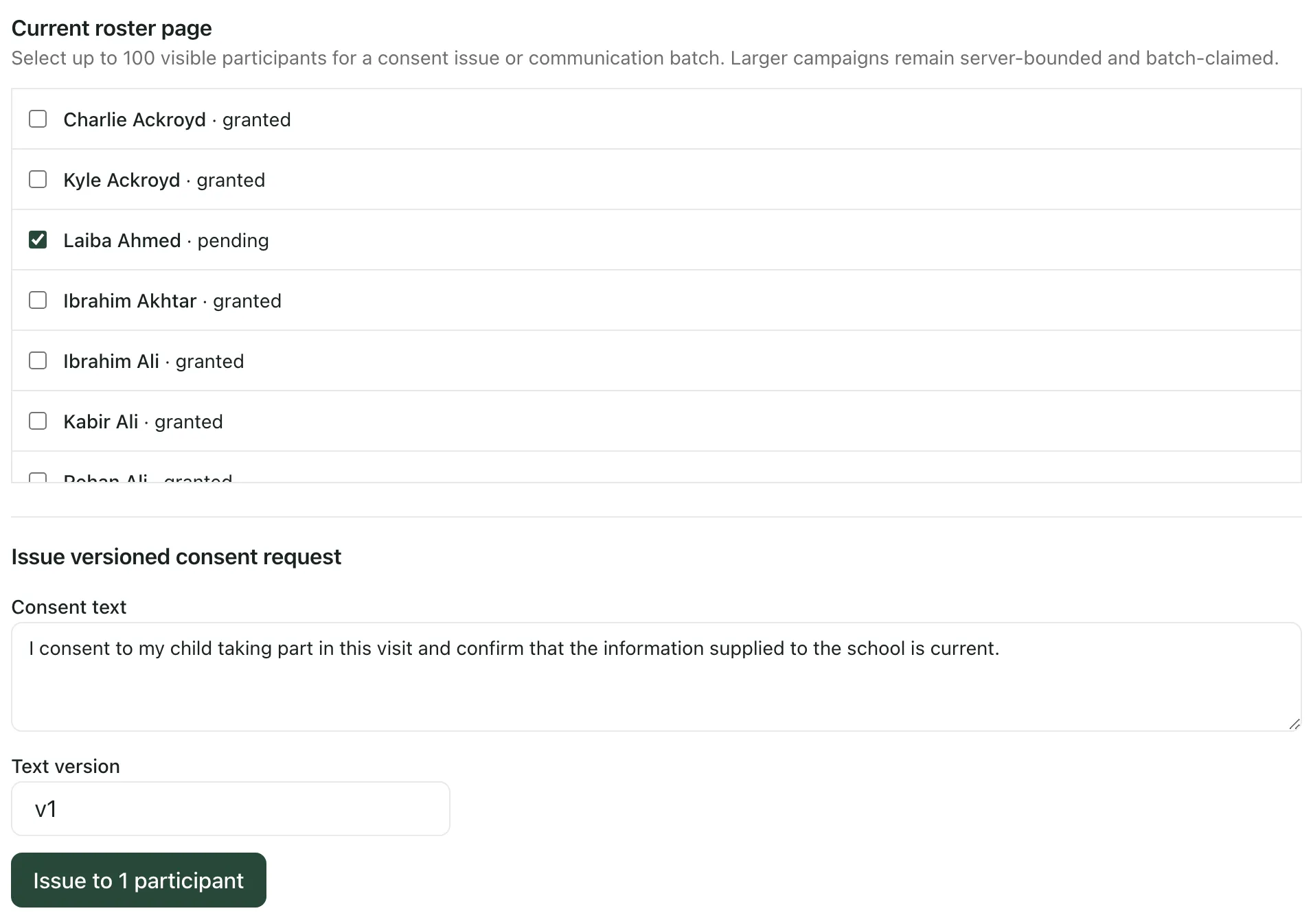
Parents get a notification in the parent app and answer the request under Consents. No email is sent when you issue a request. Their answers update the counts and each pupil’s status.
- Notification only trips record consent as not required.
- On Standing consent trips, a pupil whose parent has already given standing consent for this kind of trip is marked as granted straight away.
- If a parent adds medical or other notes with their answer, they’re counted under Review items pending for an authorised colleague to check. They don’t change the pupil’s health record.
Keep the same wording: use the same Consent text and Text version each time you ask more families. If you change either, every earlier request with the old wording is replaced, families who have already answered are asked again, and the trip gets a new plan revision.
To see consent for every trip quickly, click Consent tracking at the top of the Trips page. Each trip then opens straight on Consent & comms.
Record a paper or telephone reply
Section titled “Record a paper or telephone reply”If a parent replies on paper or by phone, record it under Record paper or telephone consent.
- Choose the pupil under Pending request.
- Choose the Method: Telephone or Paper.
- Choose the Guardian who replied. Only contacts with parental responsibility are listed.
- Choose the Decision: Granted or Declined.
- In Evidence note, write who spoke to whom and what was confirmed.
- Click Record evidenced response.
This needs its own permission. If you don’t see it, ask your school office to record the reply.
Remind families or send an update
Section titled “Remind families or send an update”Once the trip has been published, Governed parent communication appears under the consent request.
- Tick the pupils whose families you want to contact under Current roster page.
- Choose the Communication type, such as Consent reminder, Material change notice or Return update.
- Write the Subject and Message.
- Click Send to selected families.
The message is emailed to the families. Delivery receipts shows how many were sent and how many failed or were skipped. Replies from families appear under Secure family reply threads, where you can answer with Send secure reply.
Complete the risk assessment
Section titled “Complete the risk assessment”- Click Plan & logistics and scroll down to Add structured risk assessment.
- Enter an Assessment title and a Summary.
- Choose the Assessment approach:
- Trip-specific assessment: write the assessment for this trip, hazard by hazard.
- Approved reusable assessment: for a routine visit, link an approved assessment from another trip. Search under Search approved school assessments, then choose it. This trip still needs its own named owner and review.
- For a trip-specific assessment, describe the first hazard:
- Hazard: what could cause harm.
- Controls: what you’ll do to reduce the risk.
- Affected groups: who could be affected, separated by commas.
- Scores from 1 to 5 for the Initial likelihood and Initial severity before the controls, and the Residual likelihood and Residual severity after them.
- Click Stage another hazard to add it to the list and describe the next one. Staged hazards are listed above the boxes, where you can edit or remove them.
- When you’ve added every hazard, click Save draft risk revision.
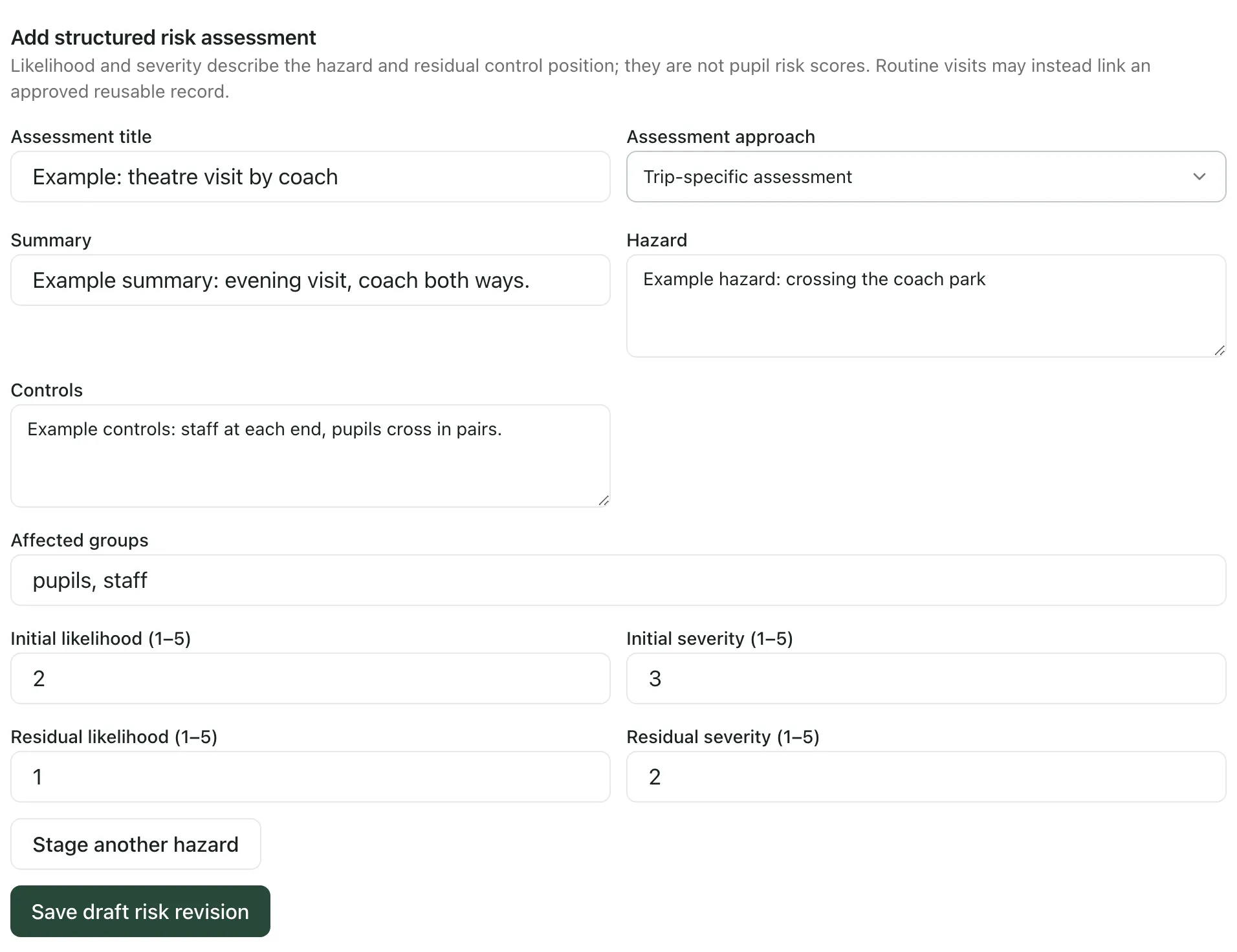
The scores describe the hazard and how well it’s controlled. They aren’t scores for any pupil. Saving creates a new plan revision. If the trip was already approved, it needs approving again.
Review the controls
Section titled “Review the controls”Saved assessments are listed under Human risk review, with their status and number of hazards.
- Click the assessment’s inspect link to read every hazard and control.
- Tick the box to confirm you’ve reviewed the saved evidence for this revision.
- Click Approve controls or Require changes. Click Send to review instead to mark it as ready for a colleague to review.
Follow your school’s educational visits policy on who signs off a risk assessment. The review is recorded against this revision of the plan. It never decides whether a particular pupil can go on the trip: that stays a decision for staff.
Safety and readiness
Section titled “Safety and readiness”If your school has trip safety checks switched on, Safety & readiness shows the trip’s readiness checks. Click Recalculate readiness after making changes. This is a separate switch for each school and may not be on for yours.
If something doesn’t work
Section titled “If something doesn’t work”| What you see | What to do |
|---|---|
| “The consent workspace is unavailable.” | Reload the page. If it keeps happening, ask your Student Radar administrator to check your access. |
| “No trip-specific or reusable risk assessment is linked.” | The trip has no risk assessment yet. Add one under Add structured risk assessment. |
| “Check each hazard, its controls and affected groups. All four scores must be whole numbers from 1 to 5. Your draft has been kept.” | Fix the hazard, then save again. |
| “No approved school assessment matches this search.” | Try a different search, or write a Trip-specific assessment instead. |
| “Saved hazard detail is unavailable. Inspect the source evidence before approving these controls.” | Open the assessment and read its hazards before approving. |
| “The trip has changed. Reload its current revision before making this change.” | Someone else changed the trip. Reload the page and try again. |
| “The change could not be saved. Your entries have been kept. Check the current trip revision before trying again.” | Reload the trip. Consent can only be requested while the trip is in planning or published. |
| “No communication campaigns recorded.” | No messages have been sent to families for this trip yet. |