Build your comment bank
Written for: Teachers writing termly reports.
The Comment bank in Report Writer holds phrases you use again and again in pupil reports. Add a phrase once, then add it to any report with one click. The comment bank is shared across your school, so everyone writing reports can use the same comments.
Open the comment bank
Section titled “Open the comment bank”In the sidebar, click Assessment, then Reports, then Report Writer. The Comment bank is on the right of the page.
Add a comment
Section titled “Add a comment”- Below the list of comments, type a short name for the comment in Label (e.g. Strong reader).
- Type the phrase in Comment text.
- Click Add to bank.
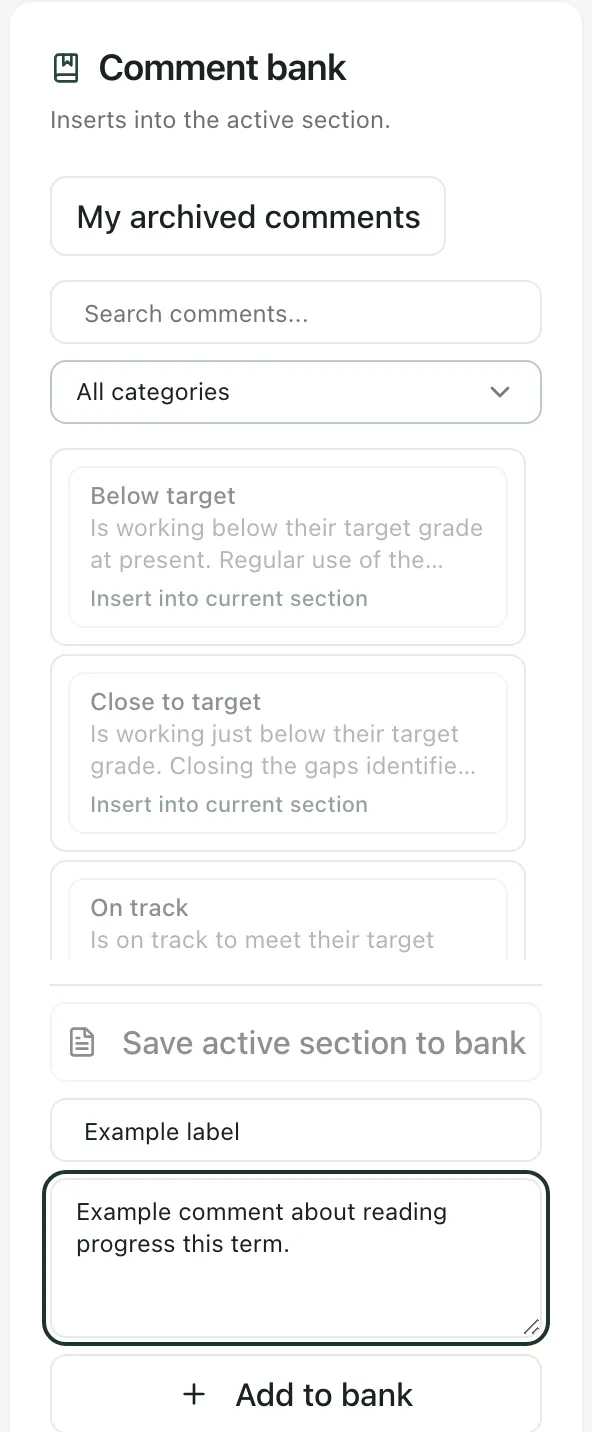
The comment is added to the list. Write comments that work for any pupil: leave out names and details about a particular child.
Save a section you’ve written
Section titled “Save a section you’ve written”If you’ve written a paragraph in a report that you’d like to reuse:
- Click in that section of the report.
- Click Save active section to bank. The section’s title and text are copied into the label and comment boxes.
- Edit the label and text so the comment works for any pupil, removing their name and any details about them.
- Click Add to bank.
Use a comment in a report
Section titled “Use a comment in a report”- Open a pupil’s report that has a draft. See Write and approve pupil reports.
- Click in the section where the comment should go. The line under Comment bank shows which section comments will go into.
- Click the comment. Its text is added to the end of the section.
- Edit the text to fit the pupil, then save the report as usual.
Comments are greyed out until a report draft is open.
To find a comment, type in Search comments…, or choose a category in All categories.
Change or archive your own comments
Section titled “Change or archive your own comments”Comments you added have Edit and Archive buttons. You can’t change other people’s comments, but you can use them.
- Edit: click Edit, change the label or text, then click Save comment changes.
- Archive: click Archive, then Confirm archive. An archived comment stays in the bank but can’t be added to reports.
- Restore: click My archived comments, find the comment, click Restore, then Confirm restore. Click Show active comments to go back to the full list.
Changing or archiving a comment doesn’t change reports it has already been added to.
- Who can use the comment bank: anyone who can open Report Writer: teachers, SENCos, safeguarding leads, senior leaders and headteachers by default. Teaching assistants can’t. Schools can change who has access.
- Categories: comments you add here go into the general category.
If something doesn’t work
Section titled “If something doesn’t work”| What you see | What to do |
|---|---|
| “Comment not saved” with “Label and text are both needed” | Fill in both the label and the comment text, then click Add to bank again. |
| “Comment not saved” with “Could not save the comment” | Try again. If it keeps happening, ask your school’s Student Radar administrator. |
| “This comment changed or is no longer available. Reload the bank before trying again.” | Someone else changed the comment. Reload the page, then try again. |
| “You no longer have permission to change this comment.” | You can’t change this comment. Ask whoever added it, or add your own version. |
| “Use a label up to 200 bytes and comment text up to 6,000 bytes.” | Shorten the label or the comment text. |
| “No comments match this filter.” | Clear Search comments… and set the category back to All categories. |
| “No comments yet — save reusable phrases below.” | Your school’s comment bank is empty. Add the first comment using the boxes below the list. |
| “Could not load the saved reports, pupil list or comment bank.” | Click Try again. |