Sign in with an email code
Written for: School, trust and alternative provision staff.
Staff don’t have a Student Radar password. Instead, you type your work email address and Student Radar emails you a one-time code. Enter the code and you’re signed in.
Ask for a code
Section titled “Ask for a code”-
Go to the Student Radar sign-in page.
-
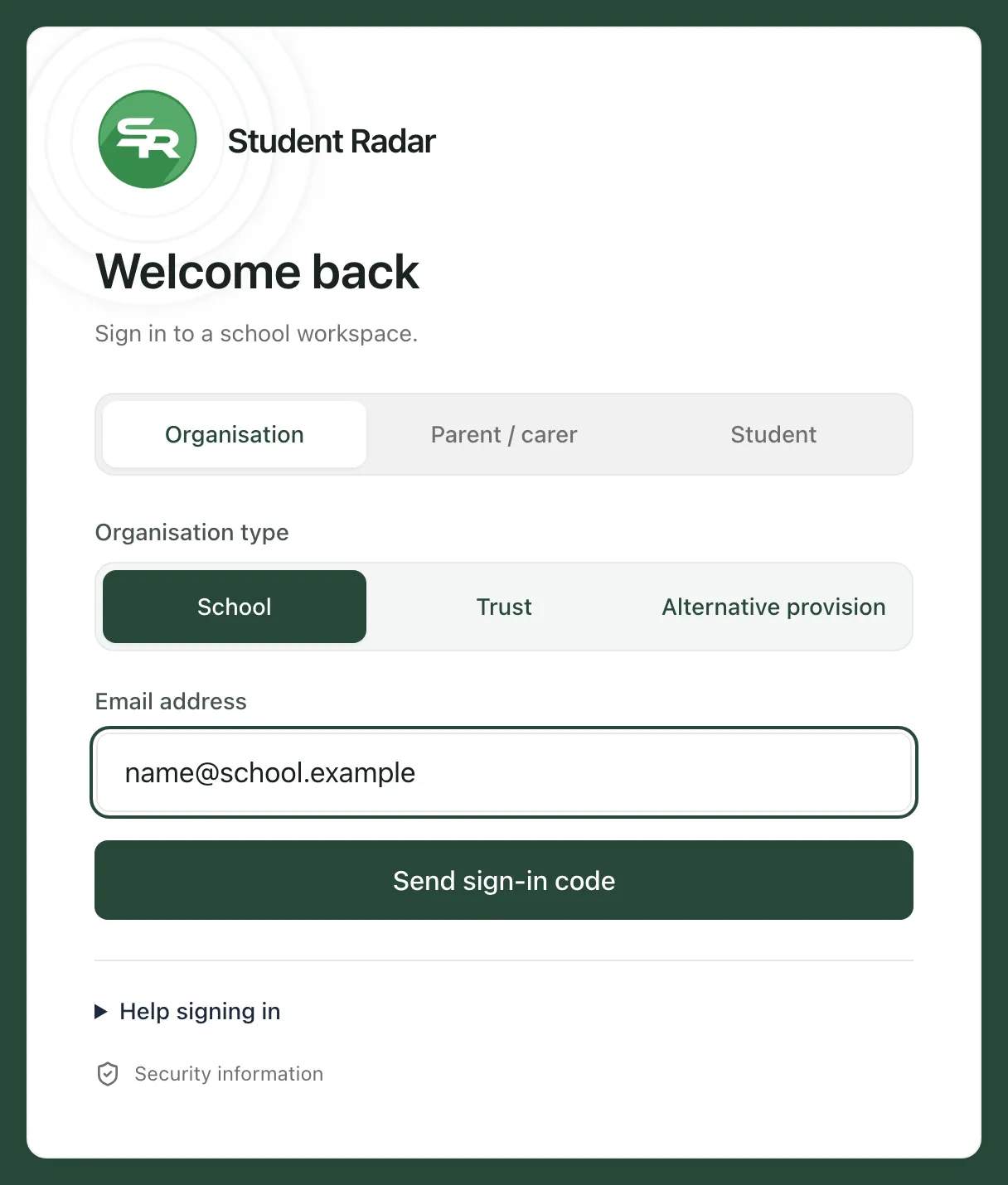
At the top, make sure Organisation is selected. Parent / carer and Student are for parents and pupils.
-
Under Organisation type, choose where you work: School, Trust or Alternative provision.
-
In Email address, type your work email address. Use the address your school invited.
-
Click Send sign-in code.
If your browser supports passkeys, you’ll also see Sign in with a passkey above the email box. You can use either. See Sign in with a passkey.
Enter the code
Section titled “Enter the code”The page changes to Check your email and shows “If this address can sign in, a code will arrive shortly. Check your junk or spam folder too.”
- Open the email from Student Radar. It contains a 6-digit code.
- Type the code into the six boxes on the sign-in page.
- Click Sign in. You’ll see “Code accepted. Signing you in…”
Only enter a code you asked for yourself, and never share it with anyone.
If the code hasn’t arrived, check your junk or spam folder. After a minute you can click Resend code. Until then, the button counts down the seconds. If you typed the wrong address, click Change email and start again.
After you sign in
Section titled “After you sign in”- If you work in one school, it opens straight away.
- If you work in more than one school, trust or alternative provision, you’ll see Welcome to Student Radar and a list of the places you can open. Click the one you want. If you chose an Organisation type on the sign-in page and you have only one of that type, it opens automatically. See Switch between schools.
- If you were following a link to a particular page when you were asked to sign in, Student Radar takes you back to that page.
To sign out, click your name at the bottom of the sidebar and choose Sign out.
Get help on the sign-in page
Section titled “Get help on the sign-in page”Click Help signing in under the form for a reminder of what to check.
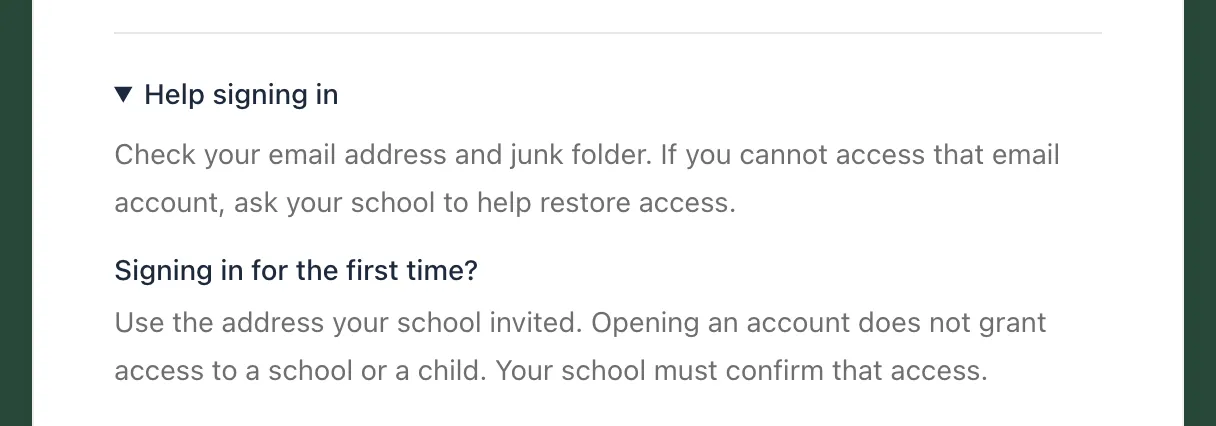
Signing in for the first time doesn’t on its own give you access to a school or a pupil. Your school must confirm your access first. If you’ve been invited, see Accept your invitation and set up your account.
If something doesn’t work
Section titled “If something doesn’t work”| What you see | What to do |
|---|---|
| No code arrives | Check your junk or spam folder, and check you typed the address your school invited. If you can’t get into that email account, ask your school for help. |
| “Enter a valid email address.” | Check the address for typing mistakes, such as a missing @ sign or full stop. |
| “Please wait before requesting another code.” | You’ve asked for several codes in a short time. Wait until the button stops counting down, then try again. |
| “The code is incorrect or has expired. Check it or request another.” | Check you typed the code from the most recent email. If it still doesn’t work, click Resend code. |
| “This is taking longer than usual. Please keep this page open.” | Keep the page open and wait. Don’t click again. |
| “Sign-in is unavailable right now. Please try again shortly.” | Wait a few minutes and try again. |
| “We could not verify your organisation access” | Click Sign out and sign in again. If it keeps happening, contact your school’s Student Radar administrator. |