Open and share a class whiteboard
Written for: Staff who teach a class.
The whiteboard is a board for your lesson: write, draw and annotate on a blank canvas or on your own slides. You can prepare it privately, then share it to pupils’ devices with a join code when you’re ready. Opening a board doesn’t share it. Pupils only see it after you start sharing.
Open the whiteboard for a class
Section titled “Open the whiteboard for a class”- In the sidebar, click Classes.
- Choose the class:
- In a secondary school, click Tutor groups, then the year group and the tutor group. For a subject class, click Teaching classes, then the subject and the class.
- In a primary school, click the year group, then the class.
- Click Whiteboard.
- The Whiteboard page lists classes. If you came from a teaching class, only that class is shown. Otherwise, every class you can access is listed: type the class or year in Search classes, for example 9C or Y9.
- Click the class.
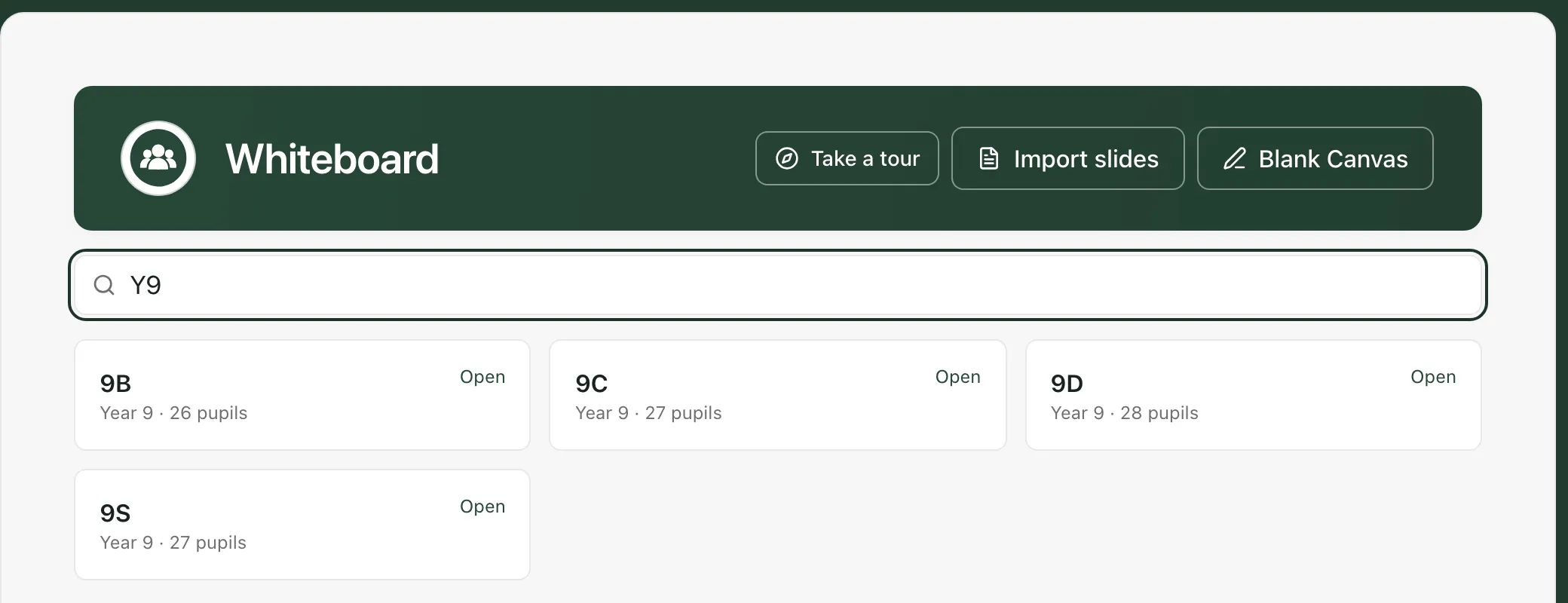
To start without a class, click Blank Canvas for an empty board with no class list, or Import slides to open a board and upload a PowerPoint deck.
Prepare the board
Section titled “Prepare the board”A new board asks how you want to begin. Click Upload to bring in a PowerPoint deck, or Blank canvas to start with an empty page.
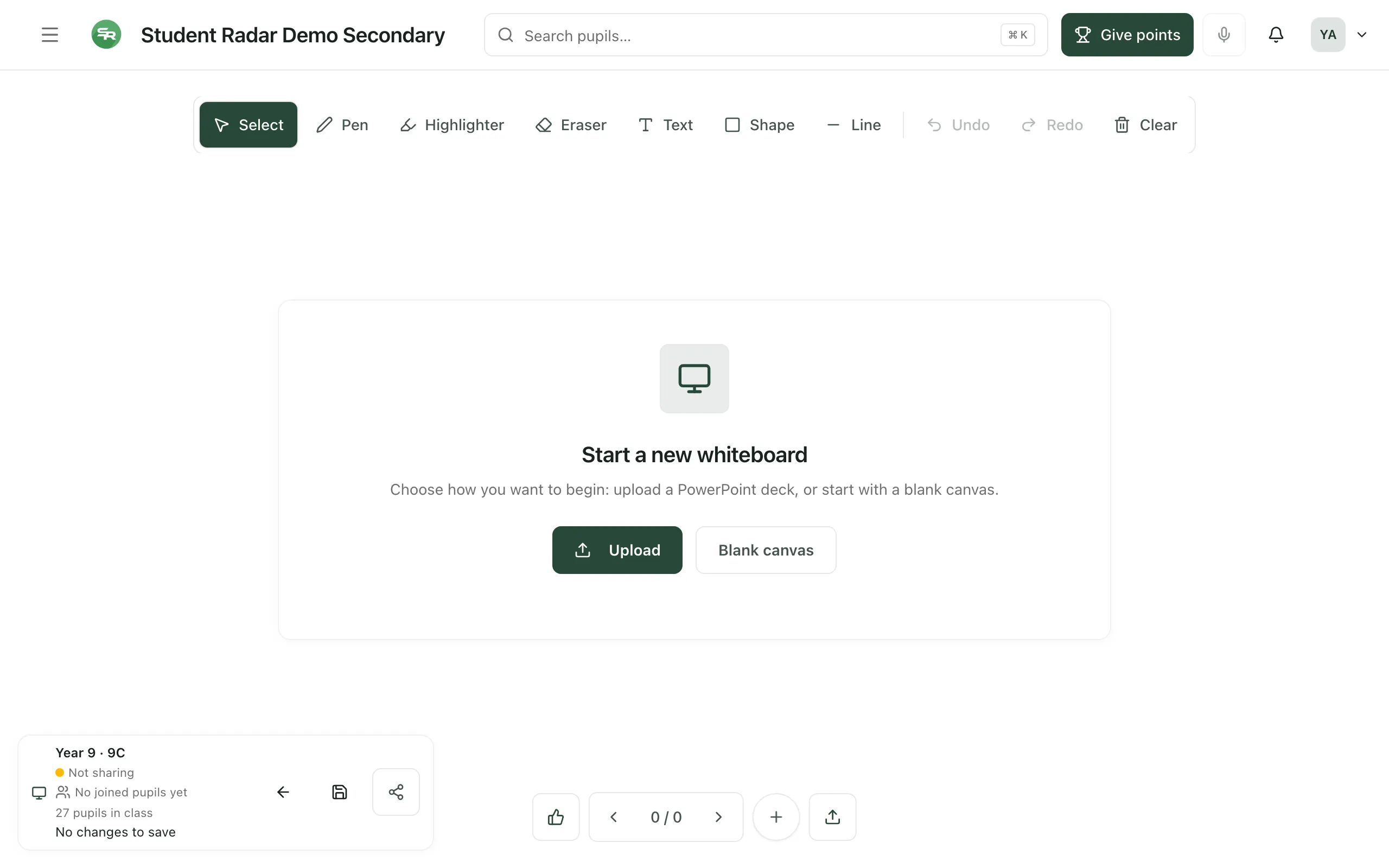
- Drawing tools: across the top are Select, Pen, Highlighter, Eraser, Text, Shape and Line, with Undo, Redo and Clear. Clear removes all the drawings on the current page.
- Pages: at the bottom, use the arrows either side of the page count to move between pages. The plus button adds a New page, and the upload button next to it adds more slides or media.
- Status card: at the bottom left you’ll see the class, whether the board is Not sharing or Sharing, how many pupils have joined, and whether your changes are saved.
Student Radar saves your board a couple of seconds after each change. To save straight away, click Save whiteboard, the disk button on the status card. If the board can only be saved on your device for now, the card says so.
Share the board with pupils
Section titled “Share the board with pupils”- On the status card, click Share to class, the share button on the right.
- Under Open on pupil devices, click Start sharing.
- A join code and a QR code appear. Pupils scan the QR code, or go to
/linkin Student Radar and type the join code. You can also click Copy join link to send them the link. - Check the status card. It says Sharing, shows the code and counts the pupils who have joined.
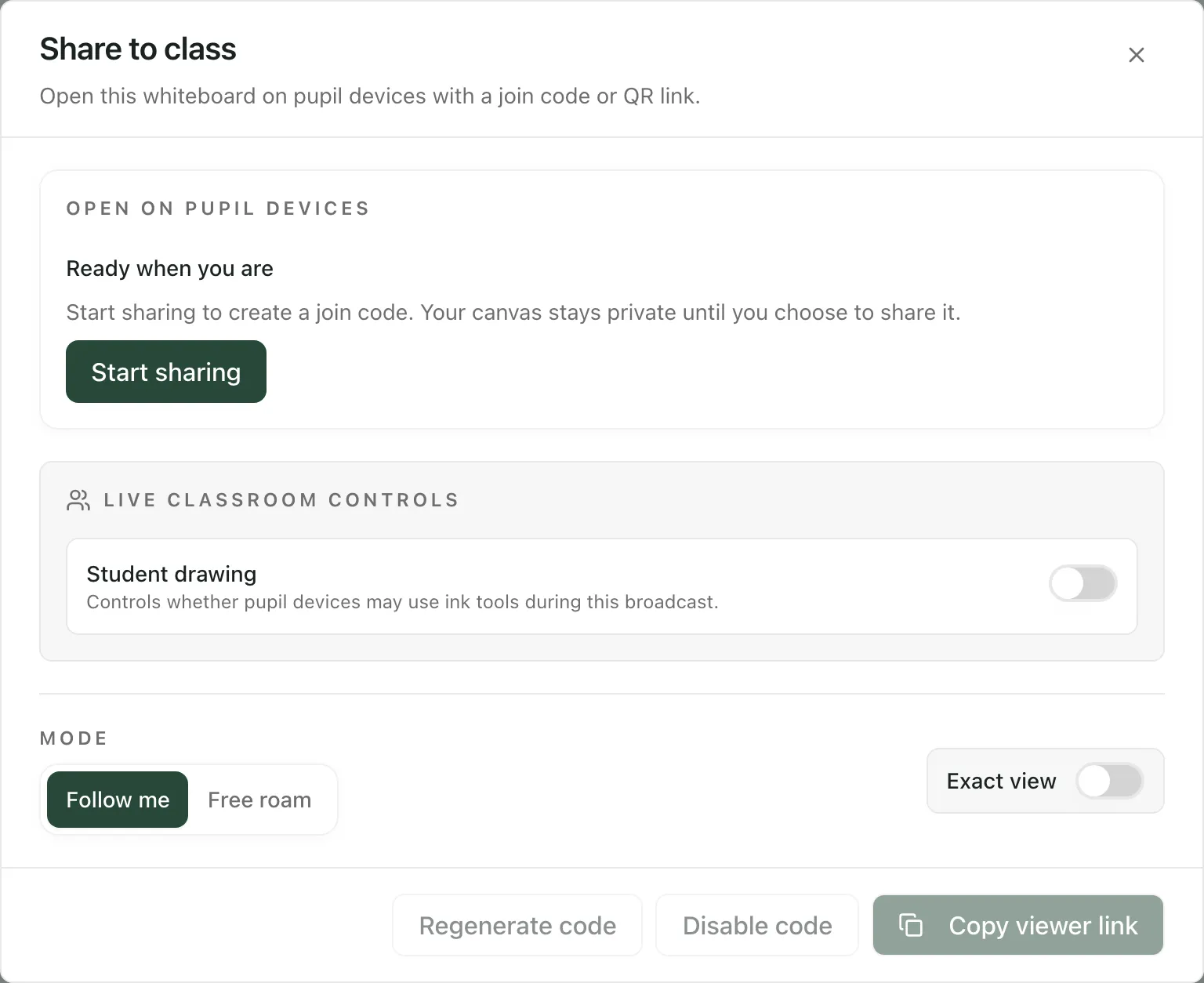
In the same window you can choose:
- Student drawing: whether pupils can draw on the board on their own devices.
- Mode: Follow me keeps pupils on the page you’re showing. Free roam lets them move between pages themselves.
To stop new pupils joining with the code, click Disable code. To give the class a new code, click Regenerate code. If joining is disabled, click Resume sharing to turn it back on.
When you’ve finished, click Exit whiteboard, the back arrow on the status card, to go back to the Whiteboard page.
Take the tours
Section titled “Take the tours”On the Whiteboard page, click Take a tour. It explains the page, then opens a preview board and walks you through its controls before bringing you back. The tour doesn’t start sharing or create a join code.
- Boards without a class: a board opened with Blank Canvas or Import slides has no class list. To use the class’s pupils on the board, go back to Whiteboard and choose the class.
- One tab at a time: a board can only be open in one browser tab. If you open it again in another tab, Student Radar asks you to carry on in the first one.
If something doesn’t work
Section titled “If something doesn’t work”| What you see | What to do |
|---|---|
| “Classes could not be loaded. Please try again.” | Click Retry. |
| “No classes with a recorded year and class name are available.” | No classes with a year group and class name are recorded for you. Use Blank Canvas, or ask your administrator. |
| “Try a different search.” | No class matches what you typed. Clear the search box or try the class name, for example 9C. |
| “The class list could not be loaded. Please try again.” | Click Retry, or Back to whiteboard to choose again. |
| “This board is already open in another tab.” | Carry on in the other tab, or click Back to whiteboard. |
| “Could not start sharing” | Pupils can’t see the board yet. Check your connection, then click Start sharing again. |
| “Unable to save this board. Keep it open and retry after reconnecting.” | Keep the board open. When your connection is back, click Save whiteboard. |