Record a penalty notice decision
Written for: Attendance leads, safeguarding leads and senior leaders in schools in England.
Penalty consideration lists pupils whose unauthorised absence means their case should be reviewed. Use it to look at the evidence, record where each case has got to and record any penalty notice that has been issued.
Student Radar doesn’t decide on, issue or send penalty notices, and a threshold never issues a notice automatically. Decisions belong to the authorised lead in your school, following your school’s attendance policy, your local authority’s procedures and current government guidance. Nothing in this guide is legal advice.
Open the list
Section titled “Open the list”- In the sidebar, click Attendance, then Statutory cohorts.
- Click the Penalty consideration tab.
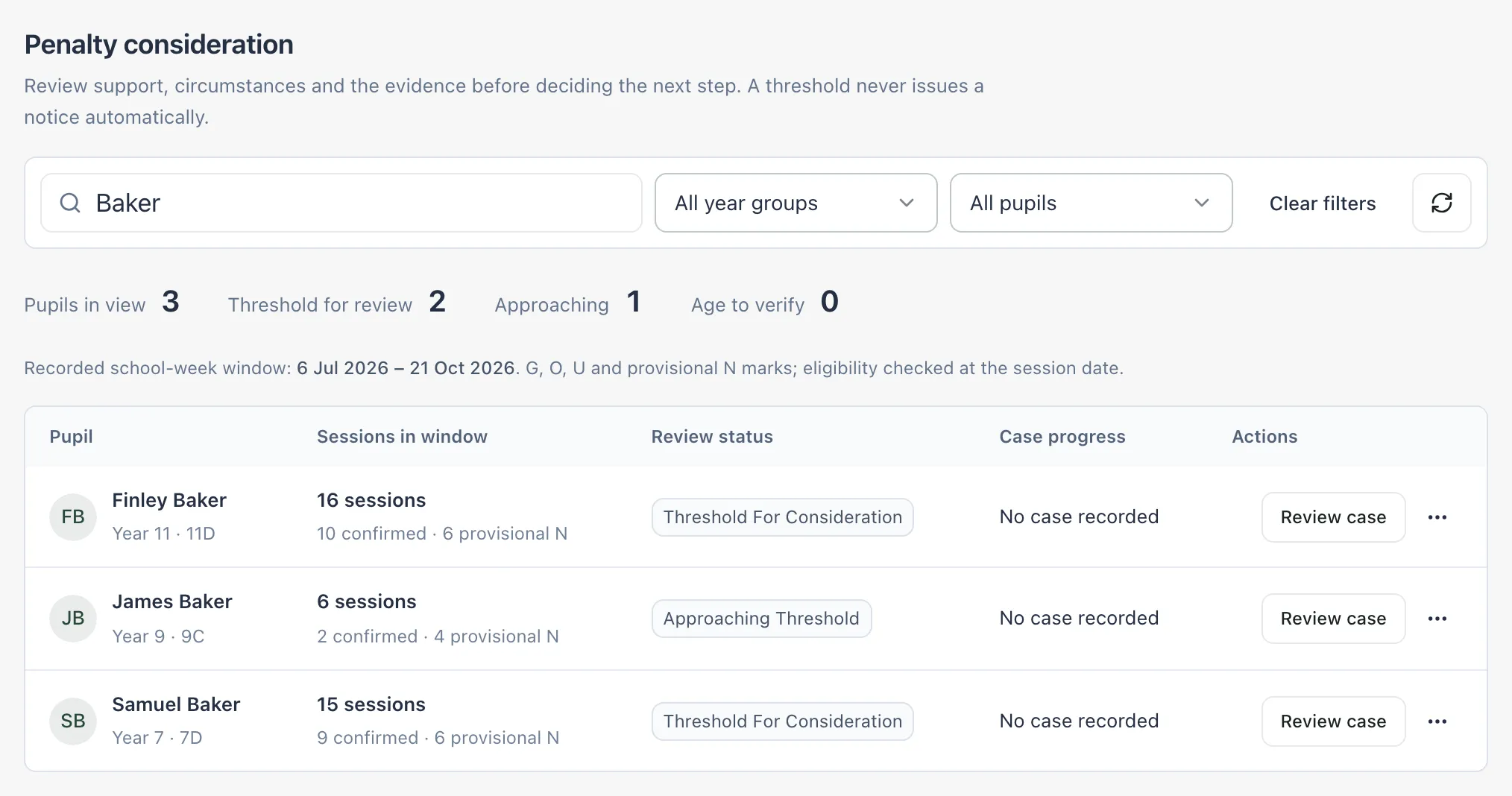
The line above the table gives the recorded school-week window. Within it, the page counts each pupil’s G, O and U marks and any N marks still waiting for a reason. For each pupil, the table shows:
- Sessions in window: the total, split into confirmed sessions and provisional N marks.
- Review status: Threshold for consideration at 10 or more sessions, Approaching threshold at 6 to 9, or Tracked case / notice for a pupil with an open case or notice. Verify date of birth means the pupil’s date of birth is missing, so their eligibility can’t be confirmed.
- Case progress: the latest decision recorded, or No case recorded.
Use the status list to show Threshold for review, Approaching threshold or Open cases / notices.
Check the evidence first
Section titled “Check the evidence first”Before recording a decision:
- Make sure every N mark has its reason. Once a reason is recorded, the count may change. See Resolve unexplained absences.
- Review the support offered. Click ⋯ on the pupil’s row and choose Open pastoral pathway to see the support and communication recorded for them.
- Look at the pupil’s attendance. Click the pupil’s name to open their profile.
Record the case progress
Section titled “Record the case progress”-
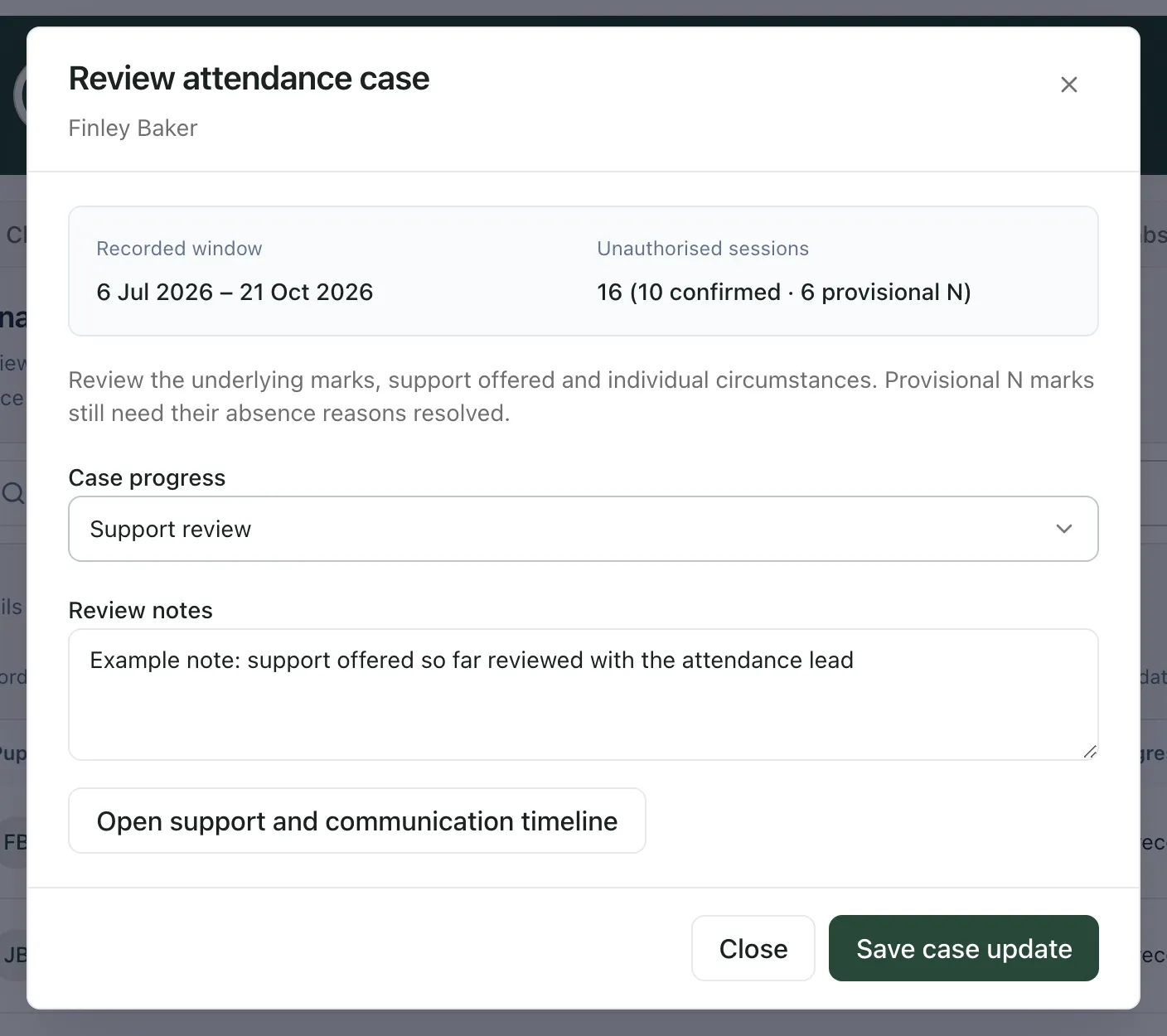
Click Review case on the pupil’s row.
-
Check the Recorded window and the Unauthorised sessions.
-
Under Case progress, choose where the case has got to: Monitoring, Threshold for consideration met, Support review, Notice to Improve sent, Penalty notice requested, Penalty notice issued, Second notice issued, Alternative action considered, Prosecution considered or Resolved.
-
Under Review notes, record the reasons for the decision, for example the support offered and the circumstances considered.
-
Click Save case update.
The new progress shows in the Case progress column. To see the support and communication timeline from the dialog, click Open support and communication timeline.
Record an issued notice
Section titled “Record an issued notice”Only record a notice after it has been issued through your local authority’s agreed process.
-
Click ⋯ on the pupil’s row, then Record an issued notice.
-
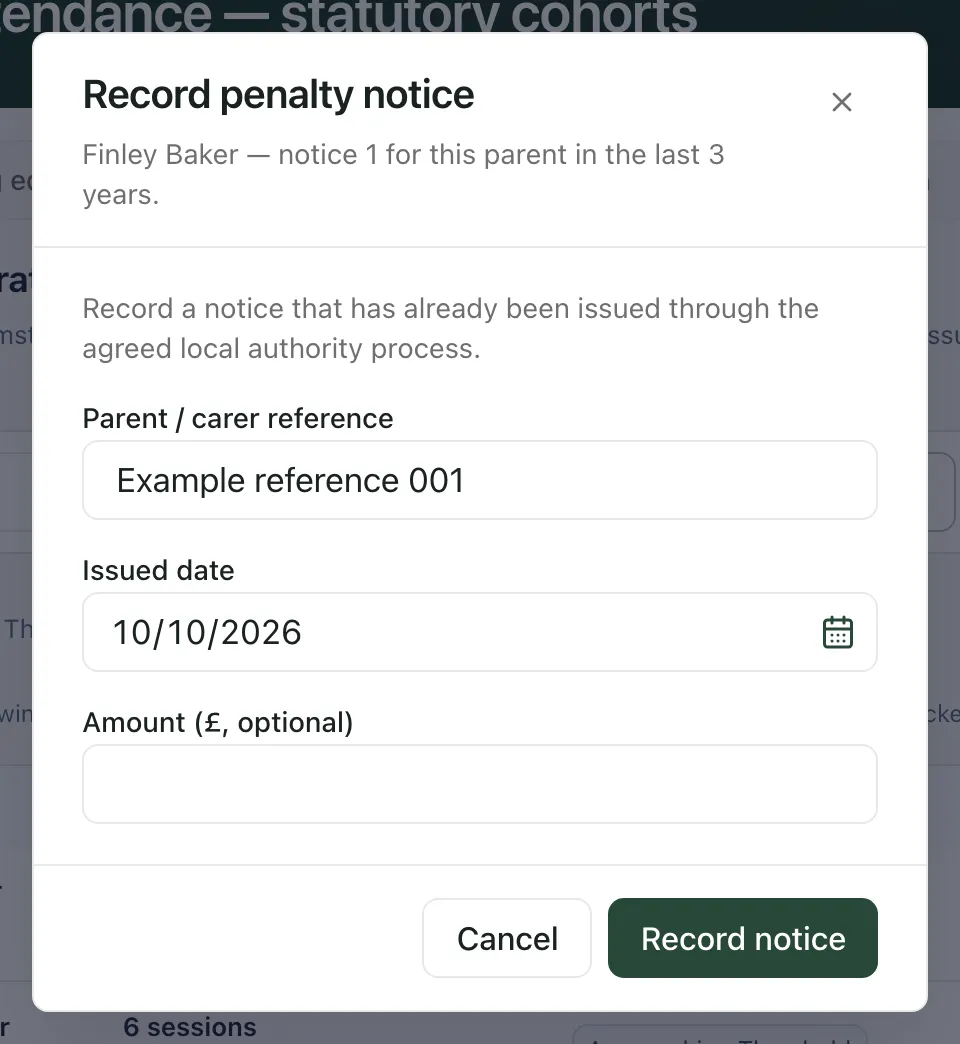
Enter the Parent / carer reference your school uses for the parent the notice was issued to.
-
Enter the Issued date, and the amount under Amount (£, optional) if you have it.
-
Click Record notice.
The dialog numbers the notice for that parent and child over the last 3 years. Once two notices are recorded for the same parent and child in that time, it shows a message and won’t record another. After you record a notice, the pupil’s row shows Notice history recorded. Update the Case progress too, for example to Penalty notice issued.
Record an issued notice isn’t offered while the pupil’s date of birth is missing.
Export the list
Section titled “Export the list”If your account is allowed to export, click Export this page below the table. It downloads the pupils on the current page, with their sessions and case progress, as a CSV file. Store and share it in line with your school’s data protection policy.
- England only: Statutory cohorts follows English attendance law and guidance, so it isn’t available to schools in other countries.
- Who can record decisions: your school decides who can update cases and record notices. If you only have read access, the case dialog says so and has no save button.
- From Attendance Support: in Attendance Support, Formal support and legal consideration links here with Open statutory attendance consideration. See Choose an attendance strategy for a pupil.
If something doesn’t work
Section titled “If something doesn’t work”| What you see | What to do |
|---|---|
| “Date of birth is missing. Compulsory school age and eligibility have not been confirmed.” | Ask whoever manages pupil records at your school to add the pupil’s date of birth. |
| “You have read access to this case.” | Your account can view the case but not change it. Ask your attendance lead to record the decision. |
| “No current threshold row” | The pupil has no current sessions counted in the window. Check the Case progress you recorded before. |
| “This record already exists. Refresh to review the current entry.” | Someone else has already recorded this. Click the refresh button beside the filters and check the case again. |
| “Your access could not be verified. Ask your school administrator to check your attendance permissions.” | Ask your school’s Student Radar administrator to check your access to statutory attendance. |
| “Register unavailable” | Click Try again. If it keeps happening, wait a minute and try again. |
| “Could not export this page” | Try Export this page again. If it keeps failing, ask your school’s Student Radar administrator. |