Enter GCSE results and view Attainment 8
Written for: Secondary assessment leads, exams staff and senior leaders.
Use KS4 Measures to record your Year 11 pupils’ GCSE grades, subject by subject, and see each pupil’s Attainment 8 score worked out from them. You can also download the figures as a spreadsheet. Progress 8 can’t be shown yet: see About Progress 8.
Open KS4 Measures
Section titled “Open KS4 Measures”- In the sidebar, click Assessment, then Analysis, then KS4 Measures.
- Check the Academic year at the top.
The page opens on the latest academic year with KS4 results you can see. If there are none yet for the current year, a message above the results says which year is showing. Choose another year under Academic year to change it.
Enter grades
Section titled “Enter grades”- Click the Results entry tab.
- Under Subject, click the subject you want. If it isn’t listed, click Add subject (see Add a subject).
- Find the pupil and click their grade. It’s saved straight away: there’s no save button.
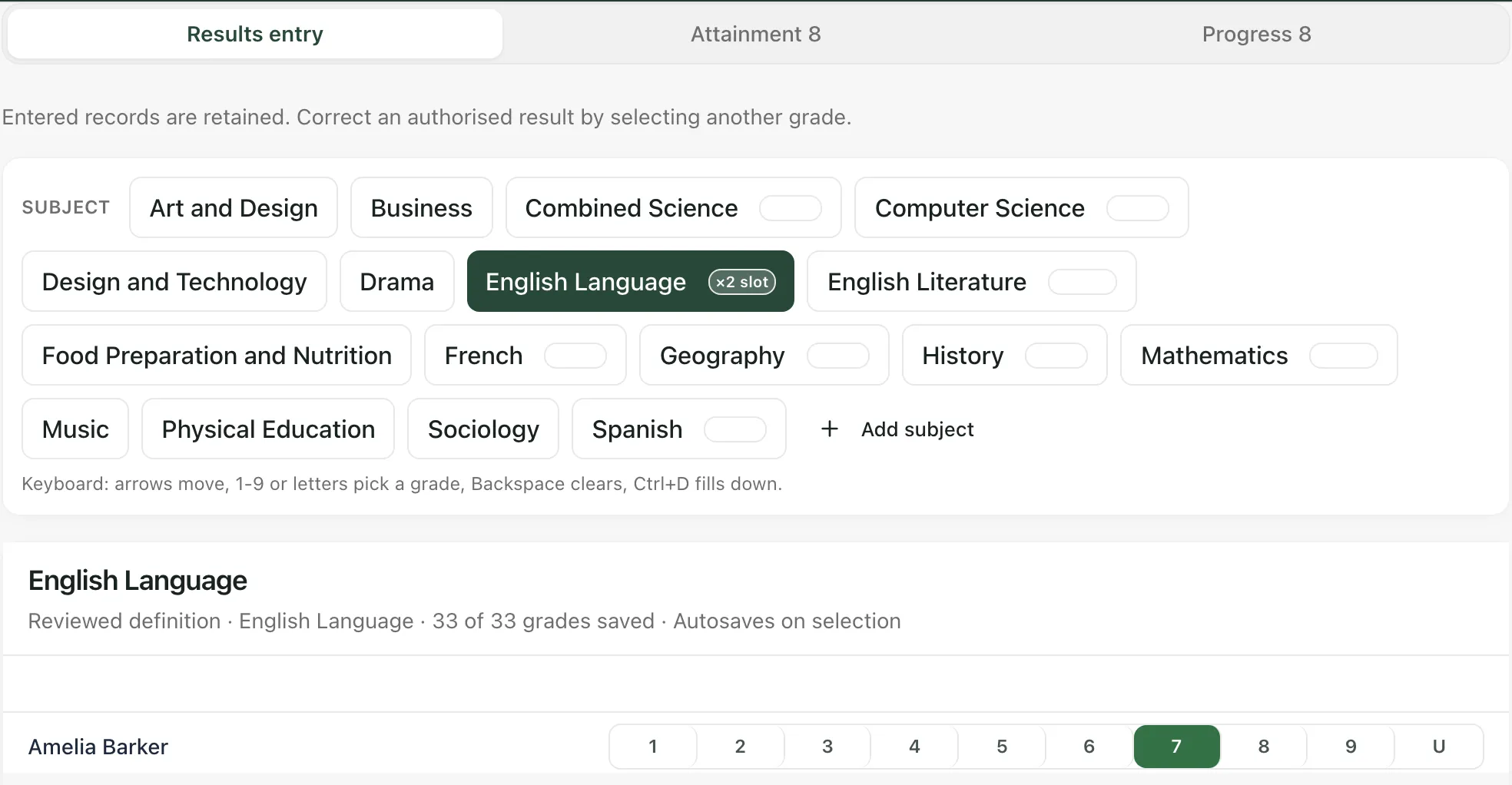
Under the subject’s name you’ll see its grade scale, its place in Attainment 8 and how many of the pupils listed have a grade saved, for example 33 of 33 grades saved.
To correct a grade, click the right one. Saved grades can’t be cleared, only replaced.
Use the keyboard
Section titled “Use the keyboard”Click a pupil’s grade row, then:
| Key | What it does |
|---|---|
| Arrow keys | Move between pupils. |
| 1 to 9, or a letter | Saves that grade for the pupil. |
| Ctrl+D | Copies the pupil’s grade to every pupil below. |
Each grade you pick with a key is saved straight away, so check the pupil before you press a key.
Which pupils are listed
Section titled “Which pupils are listed”For the current academic year, the grid lists your Year 10 and Year 11 pupils. Turn off Show Years 10-11 only to see every pupil you can access.
For an earlier year, the switch reads Show pupils with, followed by the year and results only, and lists the pupils who have results for that year and are still on roll.
Add a subject
Section titled “Add a subject”- On the Results entry tab, click Add subject.
- Under Reviewed qualification definition, choose the qualification if your school has reviewed one. Without one, the subject’s grades are recorded but don’t count towards Attainment 8.
- Type the Subject name.
- Under Attainment 8 role, choose English Language, English Literature or Maths, or leave it as Standard subject.
- For a standard subject, choose its EBacc bucket: Science / Computer Science, History / Geography, Modern or ancient language, or Open (non-EBacc).
- Choose the Grade scale.
- Click Add subject.
The subject appears in the list straight away. It’s kept once you’ve saved a grade for it.
Read Attainment 8
Section titled “Read Attainment 8”Click the Attainment 8 tab.
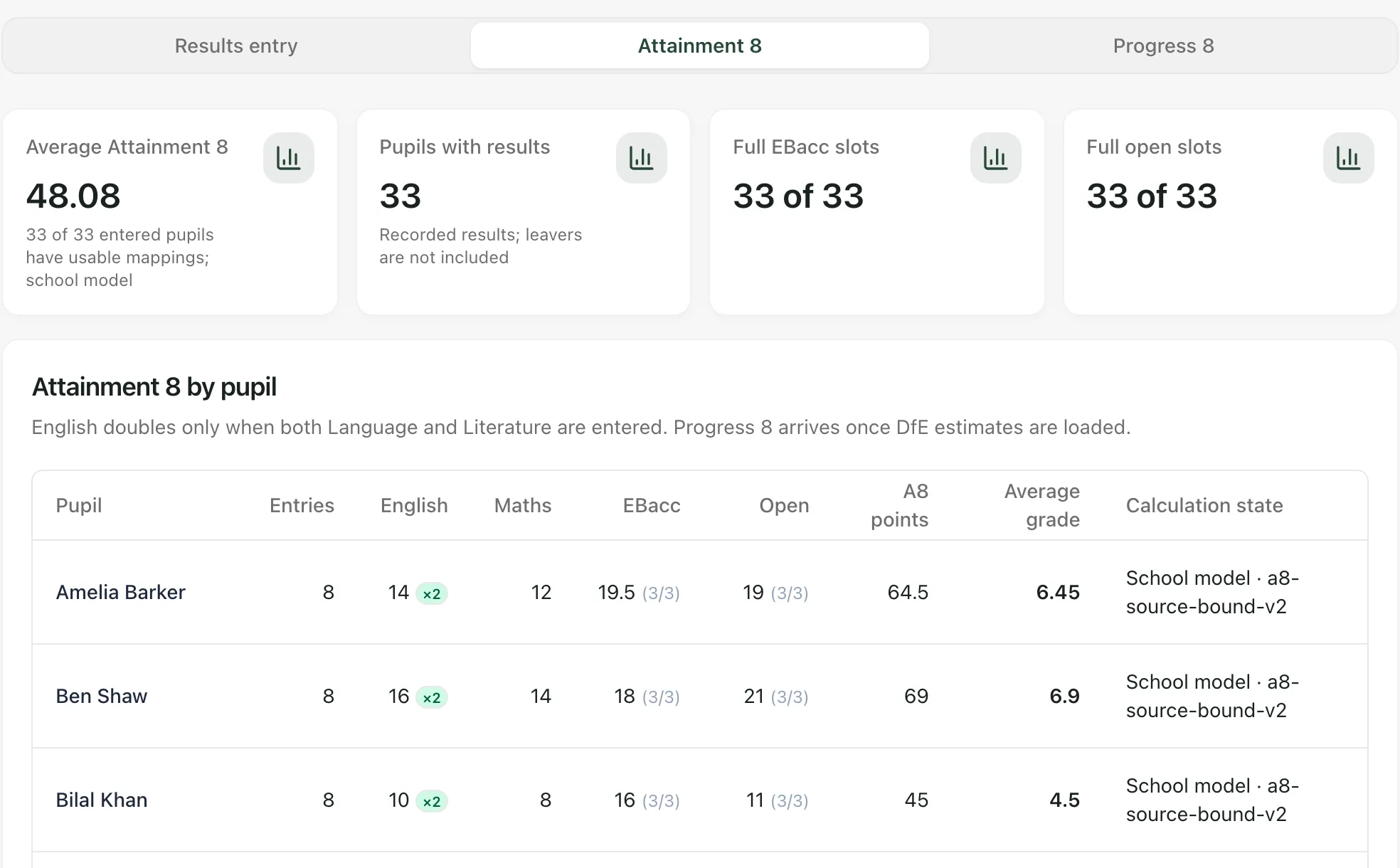
The four cards show:
- Average Attainment 8: the average across pupils whose grades can all be counted, and how many pupils that is.
- Pupils with results: how many pupils have grades entered. For the current year, you’ll also see this as a percentage of the pupils listed.
- Full EBacc slots: how many pupils have all three EBacc slots filled.
- Full open slots: how many pupils have all three open slots filled.
Attainment 8 by pupil lists each pupil’s points for English, maths, the EBacc slots and the open slots, their total (A8 points) and their Average grade (the total divided by 10). English is counted double only when both English Language and English Literature are entered; a ×2 beside the English points shows when it has been. The figures in brackets show how many of the three EBacc and open slots are filled.
If some of a pupil’s grades can’t be used, for example because a subject has no reviewed qualification definition, Calculation state says how many entries couldn’t be used. The Average Attainment 8 card says how many pupils have grades that can all be used.
If not all the pupils listed have results yet, a Partial data note warns that the figures may not represent the whole year group yet.
Who the figures cover
Section titled “Who the figures cover”- The current year: the figures cover the pupils you can see who are listed, not a rebuilt statutory cohort.
- An earlier year: if your account can see school-wide figures, the cards count every pupil with results that year, including pupils who have since left, and small groups are withheld. The table lists only pupils still on roll. Otherwise, the figures cover only pupils still on roll, so they aren’t the statutory cohort.
These are figures worked out in Student Radar from the grades you’ve entered. They aren’t your school’s official performance measures.
Download the figures
Section titled “Download the figures”Click Export scoped KS4 measures CSV to download each pupil’s Attainment 8 figures for the academic year shown, as a CSV file you can open in a spreadsheet. The file includes only pupils you can see.
About Progress 8
Section titled “About Progress 8”Progress 8 isn’t available in Student Radar yet. It needs each pupil’s KS2 reading and maths results and the Department for Education’s estimates for the year, and neither can be loaded at the moment. The Progress 8 tab explains this, and Import KS2 priors and Upload DfE estimates are greyed out.
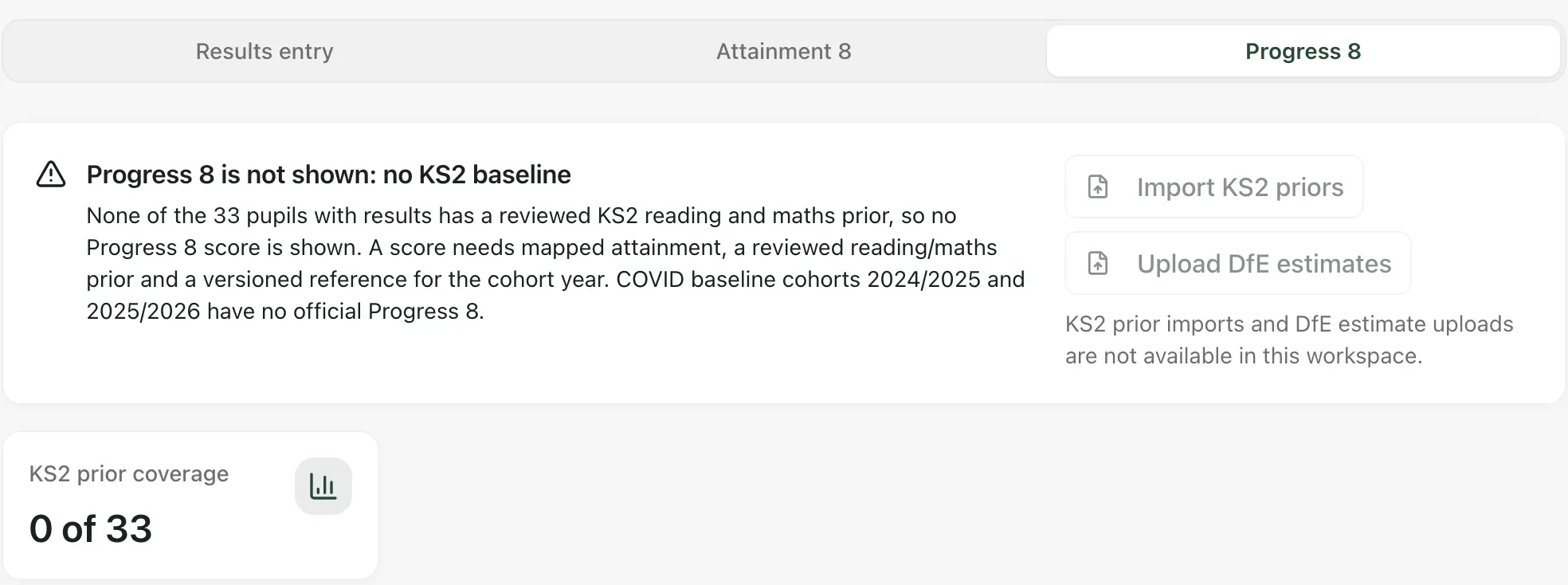
The tab also notes that the cohorts whose KS2 tests were cancelled because of COVID have no official Progress 8.
- England only: KS4 Measures is for schools in England. It isn’t available to schools in Thailand.
- Who can use it: teachers, SENCos, safeguarding leads, senior leaders and headteachers can open it by default. Teaching assistants can’t. Whether you can save grades depends on your account’s assessment access, and schools can change who has access.
- Set-up for Attainment 8: if you look after KS4 set-up for your school, you’ll also see Review KS4 configuration. This is where you confirm each qualification’s point rules and discount family for the year, so its grades count towards Attainment 8. Existing grades are kept when you change it.
- Other assessments: for your school’s own assessments, see Enter assessment marks for your class. To see results across the school, see Review attainment from whole school to pupil.
If something doesn’t work
Section titled “If something doesn’t work”| What you see | What to do |
|---|---|
| “Could not load the KS4 results and measures. Try again before entering grades.” | Click Try again before you enter any grades. |
| “Could not save the grade” | The grade wasn’t saved. Click it again. If it keeps happening, ask your school’s Student Radar administrator to check your assessment access. |
| “Grades are retained. Choose a grade to correct this record.” | Saved grades can’t be cleared. Click the right grade instead. |
| “Grades save as you enter them” | You pressed the save shortcut. There’s nothing to save: each grade saved when you picked it. |
| “No KS4 results entered for this year yet.” | Enter grades on the Results entry tab, or choose another Academic year. |
| “Add a subject to start entering KS4 results.” | Click Add subject. |
| “KS4 configuration could not be loaded.” | Click Retry configuration. |