Build a safeguarding report
Written for: Designated Safeguarding Leads, deputies and senior leaders.
Safeguarding Reports turns your safeguarding figures into a report you can review and share: a termly pack for governors, a monthly assurance pack for the DSL and headteacher, a record quality pack, or a report you design yourself. Reports contain counts, trends and breakdowns, not individual pupils’ records.
A report describes your records over a period. It supports the judgements governors and leaders make about safeguarding; it doesn’t make them. Read every report in full before you share it, and share it only as your school’s procedure allows.
Open Safeguarding Reports
Section titled “Open Safeguarding Reports”In the sidebar, open Safeguard, then Oversight & Assurance, and choose Reports.
Choose the Report window at the top: Last 3 months, Last 6 months or Last 12 months. It applies to every report you create on the page.
Use a template
Section titled “Use a template”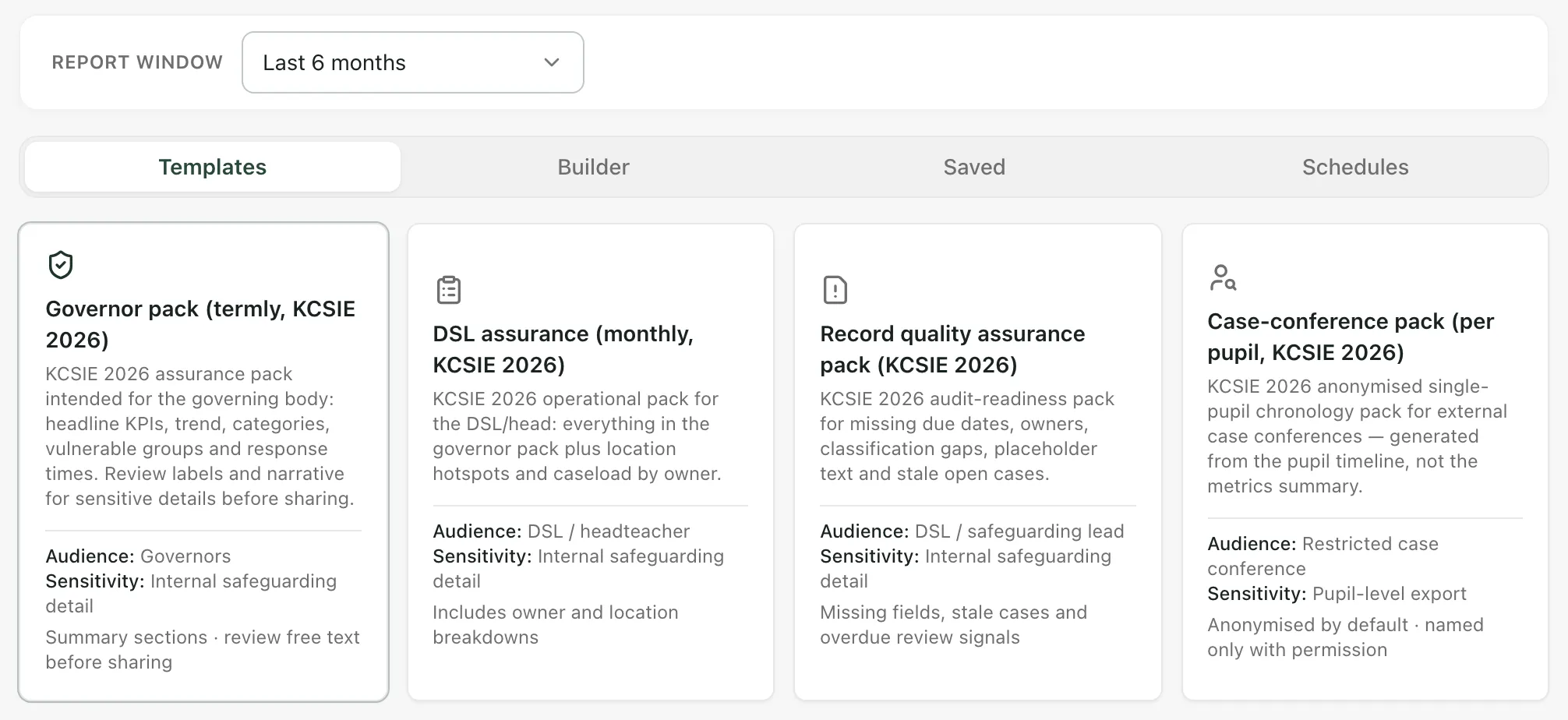
On the Templates tab, click a card. Each one shows who it’s for and how sensitive it is:
- The termly governor pack: headline figures, the monthly trend, concern categories, vulnerable groups and response times.
- The monthly DSL assurance pack: everything in the governor pack, plus location hotspots and caseload by owner, which names members of staff.
- The record quality assurance pack: missing due dates and owners, unclassified concerns, placeholder text and stale open cases.
- The case-conference pack: a pack for one pupil, made from their safeguarding chronology rather than these figures. Click Choose pupil case in DSL Action Board, open the pupil’s case and use its export. It’s anonymised by default.
Below the cards, you see what the chosen report includes. Then preview it, as described under Check the report before you share it.
Add a narrative
Section titled “Add a narrative”The governor and DSL packs have a Leadership narrative: a few paragraphs explaining the figures for your readers.
- Click Draft with AI. Student Radar drafts the narrative from the report’s figures only. It never names a pupil or member of staff.
- Read each paragraph and edit it so it says what you mean. Click Remove to take out a paragraph you don’t want.
The draft is a starting point. Check every statement against the figures and what you know, correct anything that’s wrong or misleading, and make sure the conclusions are yours.
Build your own report
Section titled “Build your own report”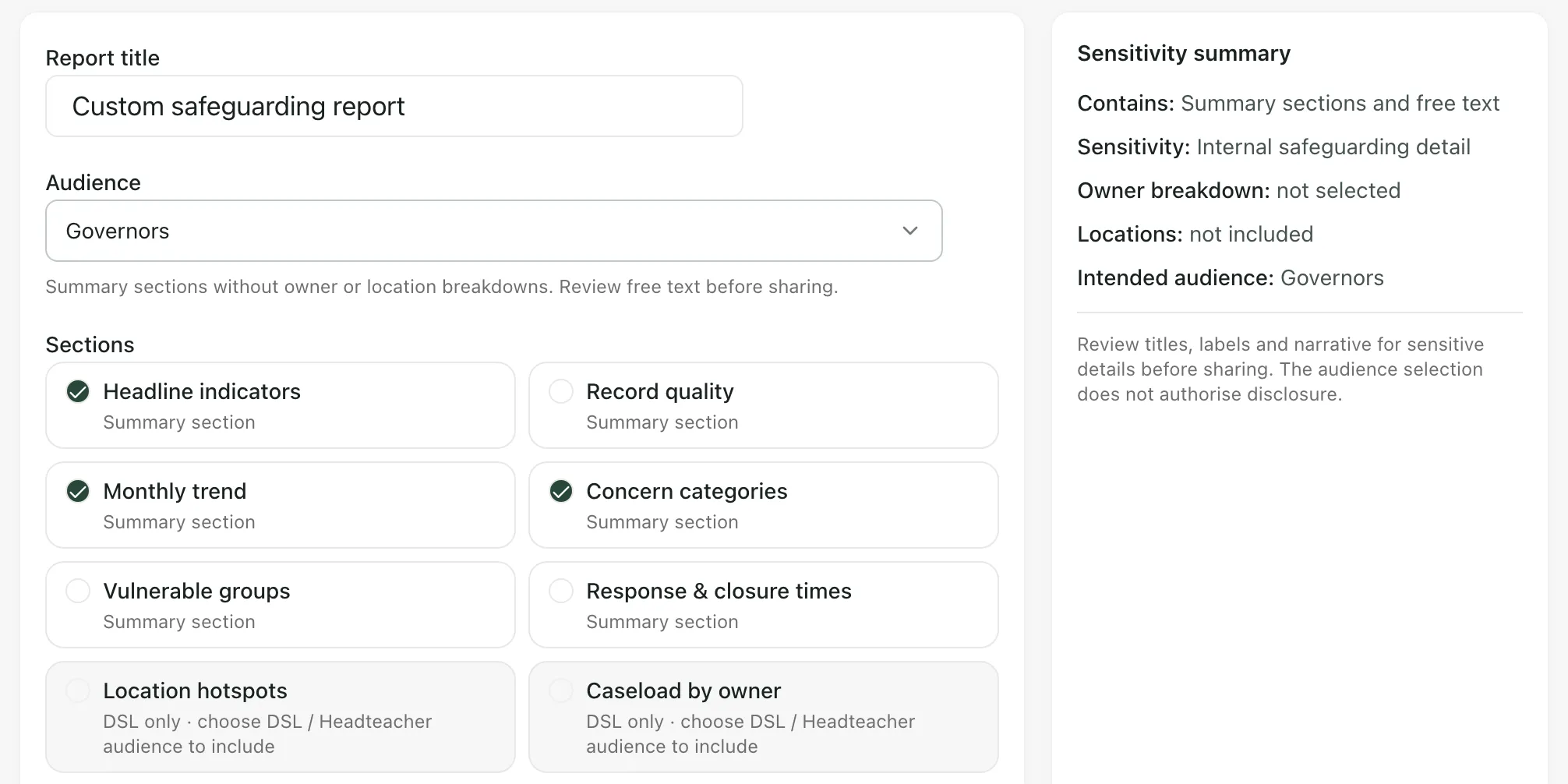
- Click the Builder tab.
- Enter a Report title.
- Choose the Audience: Governors, SLT, DSL / Headteacher or External case conference.
- Under Sections, tick what to include: Headline indicators, Record quality, Monthly trend, Concern categories, Vulnerable groups, Response & closure times, Location hotspots and Caseload by owner.
Location hotspots and Caseload by owner are DSL only. You can tick them only when the audience is DSL / Headteacher. The Sensitivity summary on the right shows what your report contains and who it’s suitable for. Choosing an audience doesn’t give anyone permission to see the report.
Check the report before you share it
Section titled “Check the report before you share it”Under the template or builder:
- Preview report: open the whole report to read.
- Save to library: keep a draft in the Saved tab.
- Download PDF or Download Word: download a copy.
The first time you do any of these, Student Radar captures the figures as they are at that moment and keeps that version in the Saved tab. The report won’t change when records change later. Click Refresh source as new draft to capture the latest figures as a new version.
To review a report:
- Click Preview report and read everything: the narrative, every table and every note.
- Tick I reviewed the full text, tables, notes, source window and coverage of this exact version.
- Click Accept full report if it’s right, or Reject full report if it isn’t.
A report that hasn’t been accepted is marked DRAFT. If you edit the narrative after accepting the report, it becomes a new draft that needs reviewing again. Accepting a report records your review. It doesn’t approve sharing it: follow your school’s procedure for that.
Find a saved report
Section titled “Find a saved report”The Saved tab lists your school’s reports, newest first. Each shows whether it’s been reviewed, when it was generated and by whom, its audience, its window and how many sections it has. Click Open full report to read and review it, or PDF or Word to download it. Use Newer reports and Older reports to page through.
If something doesn’t work
Section titled “If something doesn’t work”| What you see | What to do |
|---|---|
| “Report unavailable” | Read the message with it, then try again. If you changed school or signed in again, reload the page first. |
| “Narrative unavailable” | The narrative couldn’t be drafted. Try again later, or write the narrative yourself. |
| “DRAFT — unsaved narrative changes; prior review does not apply” | You’ve edited the narrative. Preview the report and review it again. |
| A section is greyed out in the builder | It’s DSL only. Change the Audience to DSL / Headteacher, if that’s who the report is for. |
| “No report history yet” | No reports have been saved. Create one from Templates or the Builder. |
| “Saved safeguarding reports could not be loaded.” | Click Try again. |