Book a room or resource
Written for: All school staff.
Resource Booking lists the rooms, equipment and vehicles your school shares, such as the hall, an ICT suite, a set of laptops or the minibus. You can see what’s free in a week and book a slot, so two groups don’t end up wanting the same thing at the same time.
Find a resource
Section titled “Find a resource”In the sidebar, open Administration and choose Resource Booking.
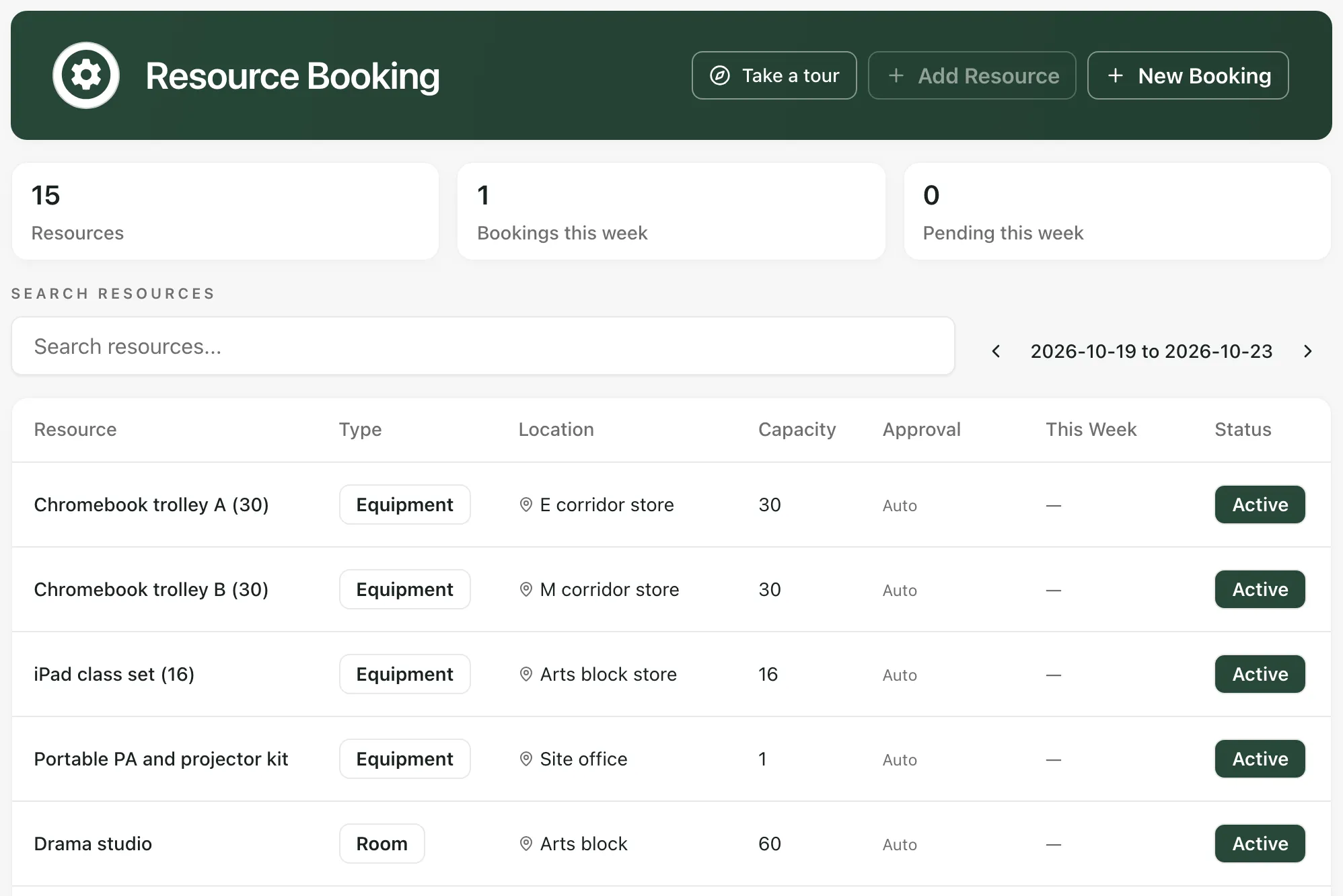
- The totals at the top show how many Resources there are, and the Bookings this week and bookings Pending this week for the week shown.
- Type in Search resources… to find a resource by name, type or location.
- Use the arrows next to the dates to move back or forward a week.
- In the list, Approval shows Auto when bookings are confirmed straight away, or Required when someone has to approve them. This Week shows how many bookings the resource has in the week shown.
Check when it’s free
Section titled “Check when it’s free”Click a resource’s name to see its week, from Monday to Friday. Each day lists its bookings, with the times and what they’re for, or No bookings if it’s free.
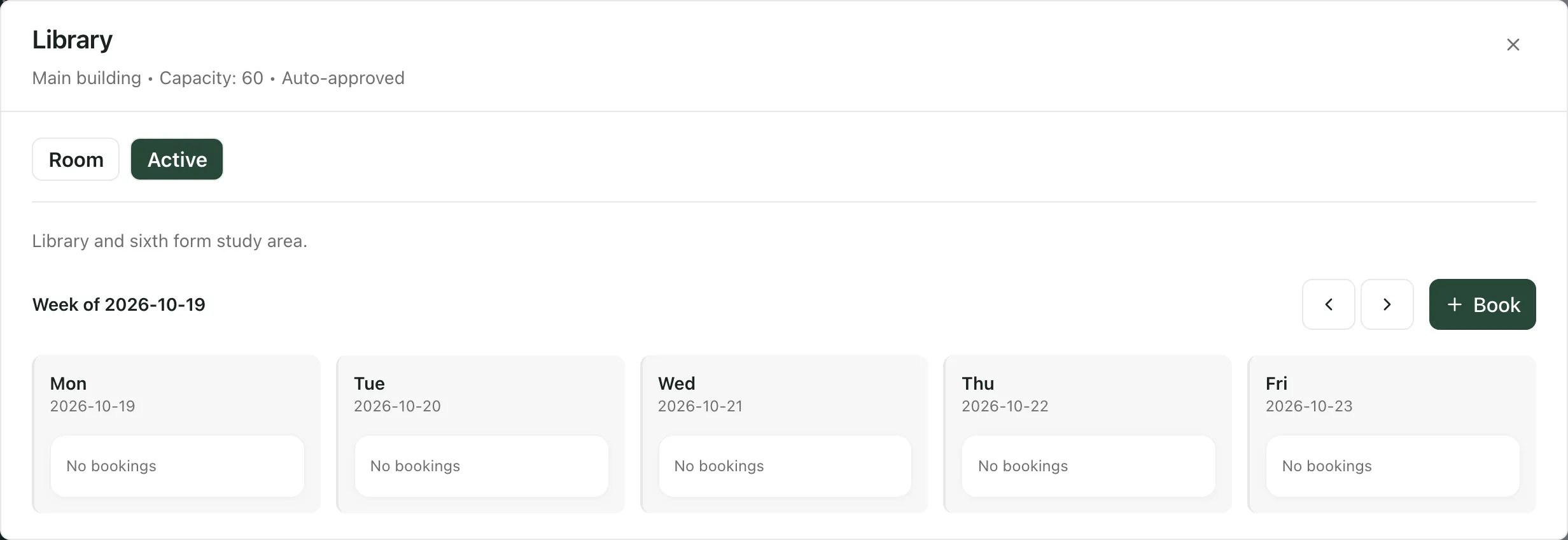
Use the arrows to look at another week.
Make a booking
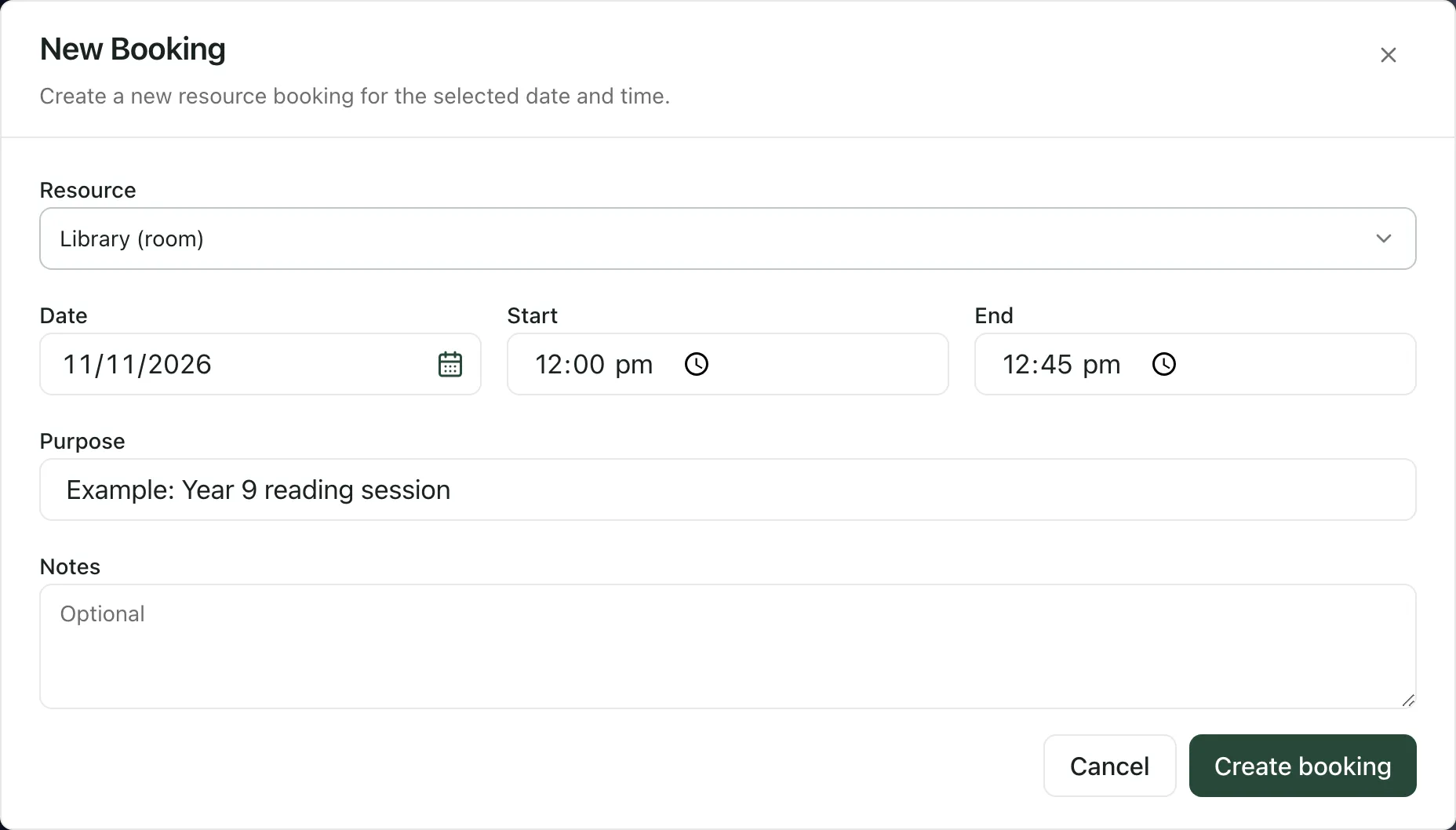
Section titled “Make a booking”- Click Book on the resource’s week. To book a particular day, you can click the day’s name instead. You can also click New Booking at the top of the Resource Booking page.
- Check the Resource. It’s filled in when you start from a resource’s week.
- Set the Date, then the Start and End times.
- If you like, say what it’s for in Purpose and add any Notes.
- Click Create booking.
A “Booking created” message confirms it:
- “Approved.” means the slot is yours.
- “Sent for approval.” means the resource needs approval, so the booking shows as pending until it’s approved.
If the time overlaps someone else’s booking, you’ll see “That time overlaps an existing booking.” Choose another time or another resource.
Cancel a booking
Section titled “Cancel a booking”Open the resource, find your booking in its week and click Cancel on the booking. You can cancel bookings you made.
See bookings in the Calendar
Section titled “See bookings in the Calendar”To see a room’s bookings alongside other events, open Calendar, click Calendars & filters and add the room or resource.
Take the built-in tour
Section titled “Take the built-in tour”Click Take a tour on the Resource Booking page for a short guide.
- Add Resource is greyed out unless you’re a Student Radar administrator or headteacher. Ask them if a room or piece of equipment is missing from the list.
- New Booking is greyed out when the school has no active resources.
- Inactive resources can’t be booked.
If something doesn’t work
Section titled “If something doesn’t work”| What you see | What to do |
|---|---|
| “That time overlaps an existing booking.” | Check the resource’s week, then choose a free time or another resource. |
| “End time must be after start time” | Change the End time so it’s later than the Start time. |
| “Failed to create booking.” | Check the details and try again. If it keeps happening, your role may not be able to book. Ask your Student Radar administrator. |
| “Failed to cancel booking.” | Usually only the person who made a booking can cancel it. Ask them, or your Student Radar administrator. |
| “No resources match your search” | Check the spelling, or clear the search box to see every resource. |
| “We couldn’t load resource bookings” | Click Retry. |