Schedule a recurring report
Written for: Senior leaders, headteachers and data leads who keep regular copies of assessment data.
Report Automation creates a report for you on a regular schedule, so you don’t have to remember to run it. At the moment, the report you can schedule is the assessment data archive: a private CSV file of your school’s assessment results. Each run saves a new archive in Student Radar for authorised staff to download. Pupil data is never emailed.
Open Report Automation
Section titled “Open Report Automation”- In the sidebar, open Assessment, then Reports.
- Choose Report Automation.
The page opens on Scheduled reports. Template library lists the reports your school can schedule, and your school’s schedules are listed below it.
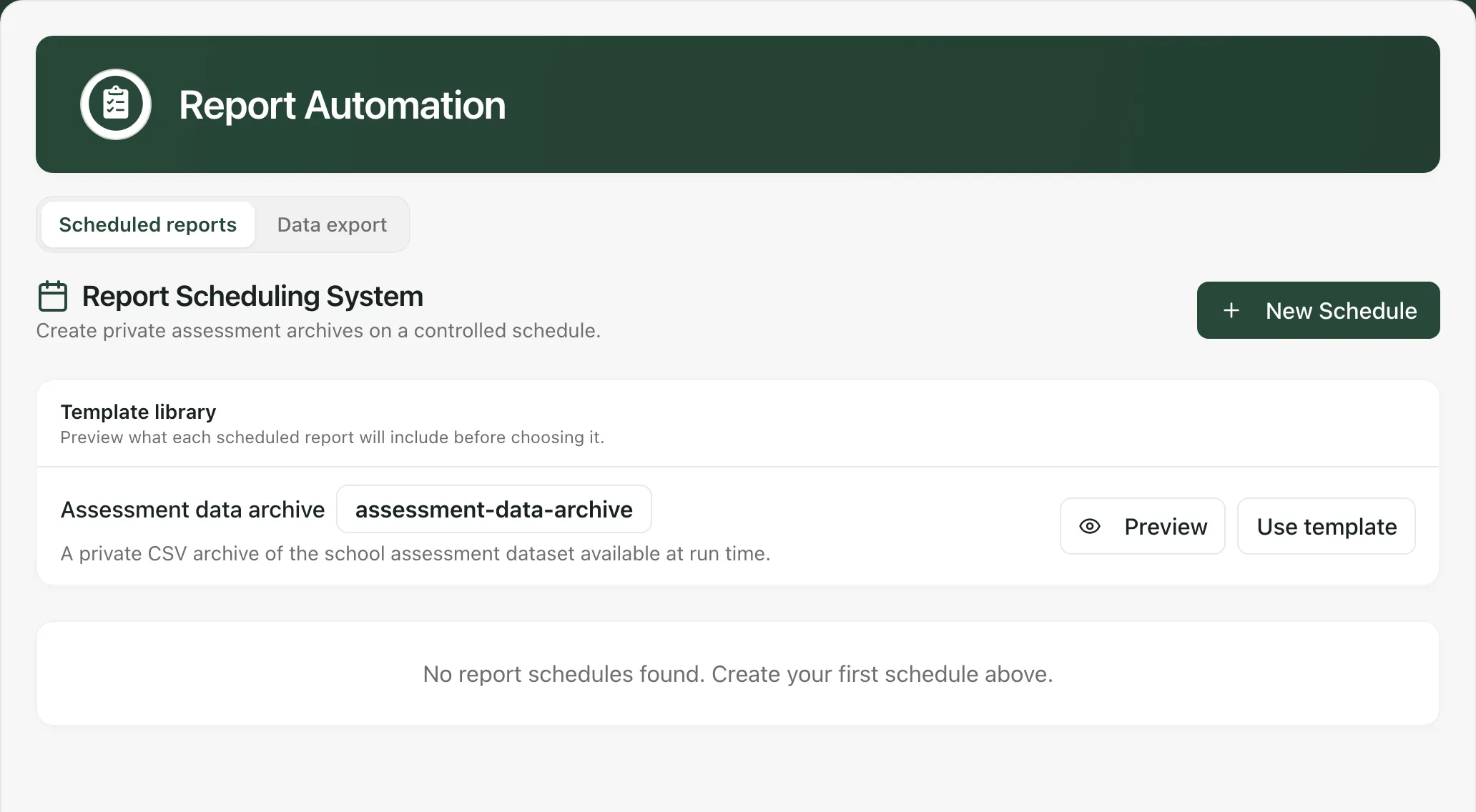
Check what the report includes
Section titled “Check what the report includes”Click Preview next to the template. Report preview shows what each archive contains and how it’s kept. It’s a preview of the layout only, so no pupil data is shown.
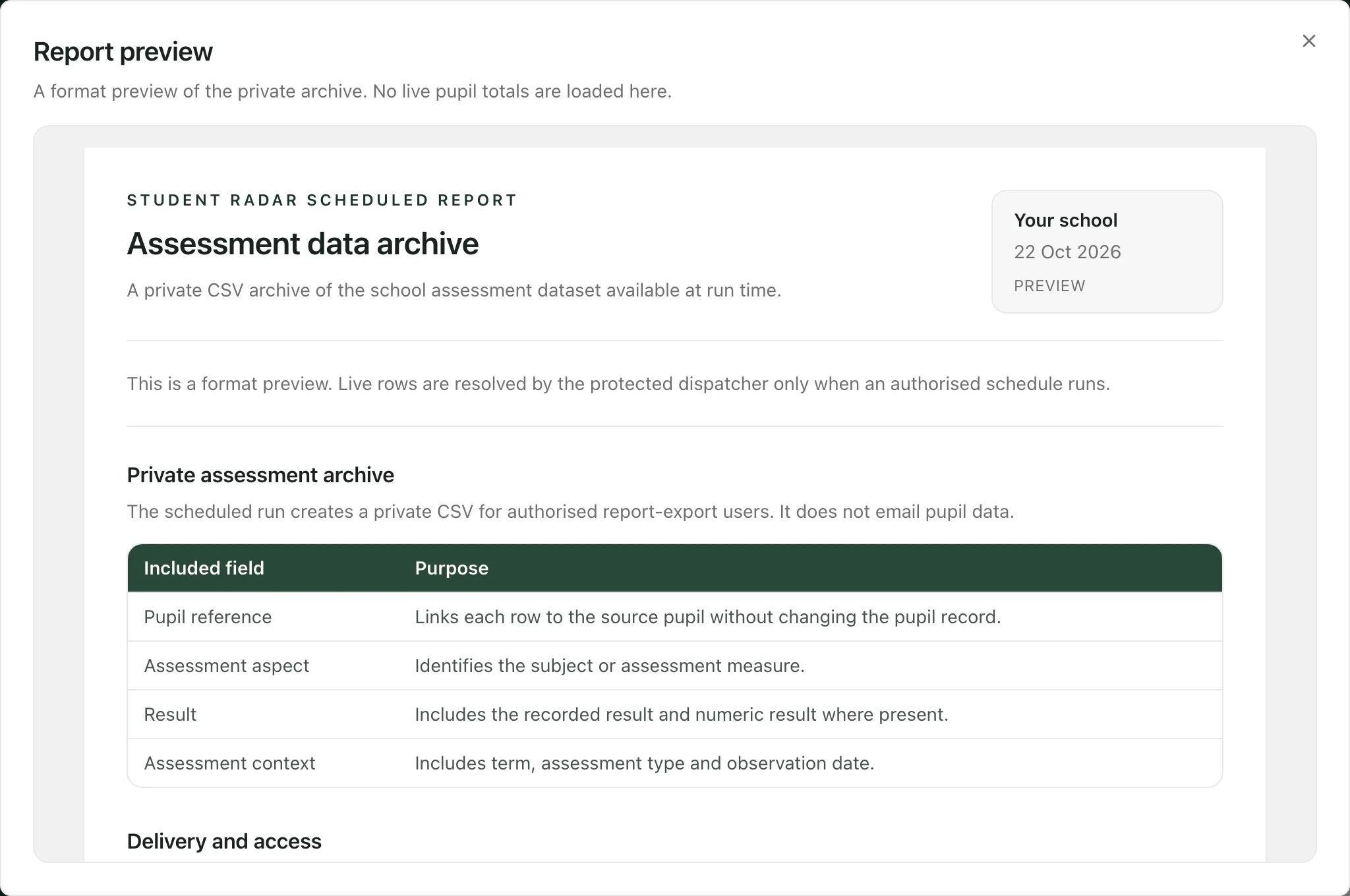
Each archive includes:
- Pupil reference: links each row to the pupil without changing the pupil’s record.
- Assessment aspect: the subject or measure.
- Result: the recorded result, and the numeric result if there is one.
- Assessment context: the term, assessment type and observation date.
Archives are kept only for your school’s report retention period. Creating an archive and each download are recorded.
Set up the schedule
Section titled “Set up the schedule”- Click Use template next to the report, or click New Schedule.
- In Create report schedule, check the Schedule name. It’s filled in from the template, and you can change it.
- Check the Report template.
- Choose a Frequency:
- Daily: every day at 6:00 AM.
- Weekly: every Monday at 6:00 AM.
- Monthly: on the first day of each month at 6:00 AM.
- Three times a year: on 1 January, 1 April and 1 September at 6:00 AM.
- Leave Activate schedule immediately switched on to start the schedule straight away, or switch it off to set it up paused.
- Click Create schedule.
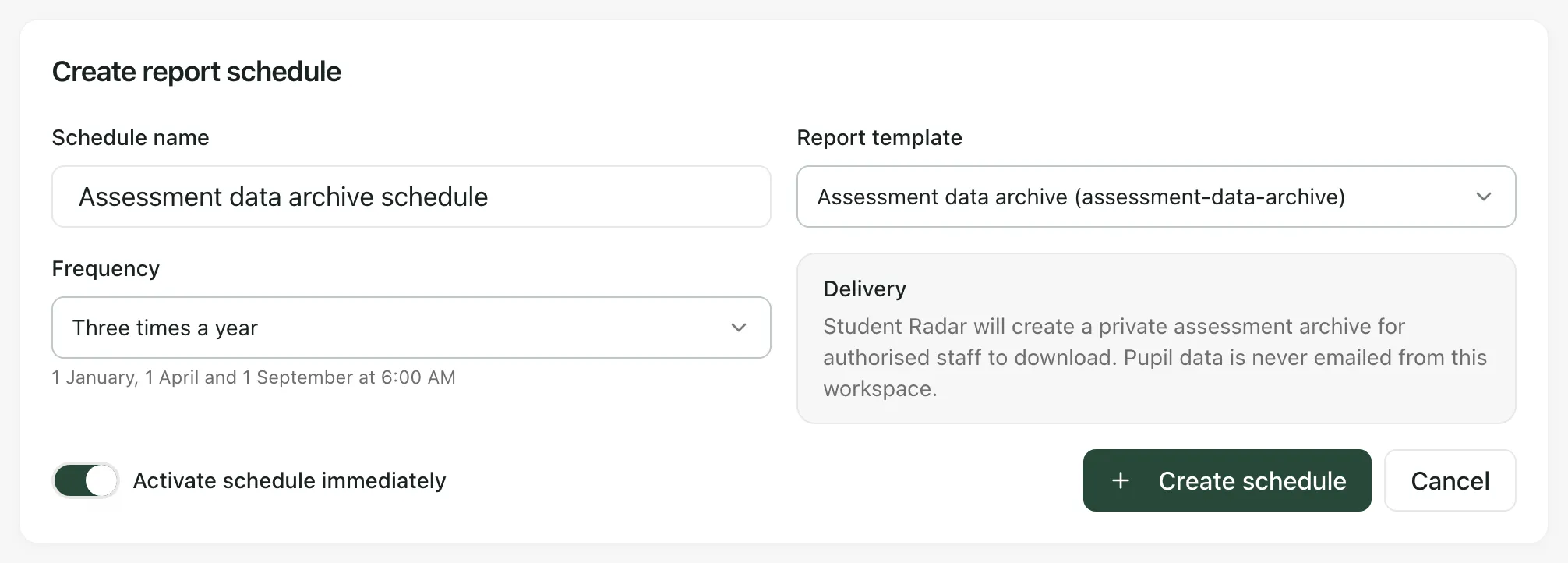
You’ll see “Schedule created” and the schedule appears in the list. Your school can have only one active assessment archive schedule at a time.
Keep an eye on your schedules
Section titled “Keep an eye on your schedules”Each schedule shows whether it’s Active or Paused, how often it runs and, once it has run, the time of its Last run and Next run.
- Click Pause to stop a schedule for now, and Activate to start it again.
- Click the bin button to delete a schedule. Deleting a schedule doesn’t delete the archives it has already created.
- If a schedule shows Last run failed, the last archive wasn’t created. If it keeps happening, contact Student Radar support.
If a schedule shows Delivery review required, Student Radar couldn’t confirm whether its last run finished. It won’t try that run again by itself, in case that creates a second archive. Click Review run, check whether the archive arrived, then type a reason of at least 10 characters in Reason for skipping this run and click Skip blocked run. The next run then goes ahead as normal.
Download an archive
Section titled “Download an archive”- Click the Data export tab.
- Under Scheduled assessment archives, find the archive and click its download button.
- In Reason for download, say why you need the data, in at least 10 characters.
- Click Download archive.
The reason is kept with the download record. An archive that’s past its retention period shows as Expired and can’t be downloaded.
Who can use Report Automation
Section titled “Who can use Report Automation”You need permission to view scheduled reports to open the page. Setting up, pausing and deleting schedules also needs permission to manage report schedules and to export full assessment data. By default, leaders such as headteachers, senior leaders, DSLs and SENCos have these. Schools can change who has access, so if you can’t use the page, ask your Student Radar administrator.
If something doesn’t work
Section titled “If something doesn’t work”| What you see | What to do |
|---|---|
| “You do not have permission to view scheduled reports or controlled exports.” | Your account can’t open Report Automation. Ask your Student Radar administrator. |
| New Schedule is greyed out | Hover over it. “You need report schedule management permission to create a schedule.” means you can view schedules but not set them up. |
| “Please provide a schedule name and report template.” | Fill in Schedule name and choose a Report template. |
| “Only one active assessment archive schedule is allowed. Pause the current archive schedule before activating another.” | Pause your current archive schedule first, or switch off Activate schedule immediately. |
| “This school has reached the report schedule limit. Delete an unused schedule before creating another.” | Delete a schedule you no longer need. |
| “This schedule has a run awaiting delivery review. Resolve that run before pausing or deleting the schedule.” | Click Review run and skip the blocked run first. |
| “This report template is not available for scheduled use.” | The template has been withdrawn. Delete the schedule and create a new one from the Template library. |
| “Report schedules could not be loaded. Please try again.” | Click Try again. |