Read safeguarding analytics
Written for: Designated Safeguarding Leads, deputies and senior leaders.
Safeguarding Metrics turns your school’s safeguarding records into figures for oversight: how many cases are open, whether reviews are on time, how quickly the team responds, and what kinds of concern are being recorded. Use it to check the health of your safeguarding work, spot patterns and prepare for governors or an inspection.
The figures describe your records, not individual children. They can only be as complete as what staff have recorded, and they don’t measure the impact of your work. Use them to ask questions and decide where to look, then check the cases themselves before you draw conclusions. Decisions about a child stay with the DSL and the professionals involved.
Open Safeguarding Metrics
Section titled “Open Safeguarding Metrics”In the sidebar, open Safeguard, then Oversight & Assurance, and choose Analytics.
The figures cover the safeguarding records your account can access. If your access covers only part of the school’s records, the figures cover only that part.
Read the headline figures
Section titled “Read the headline figures”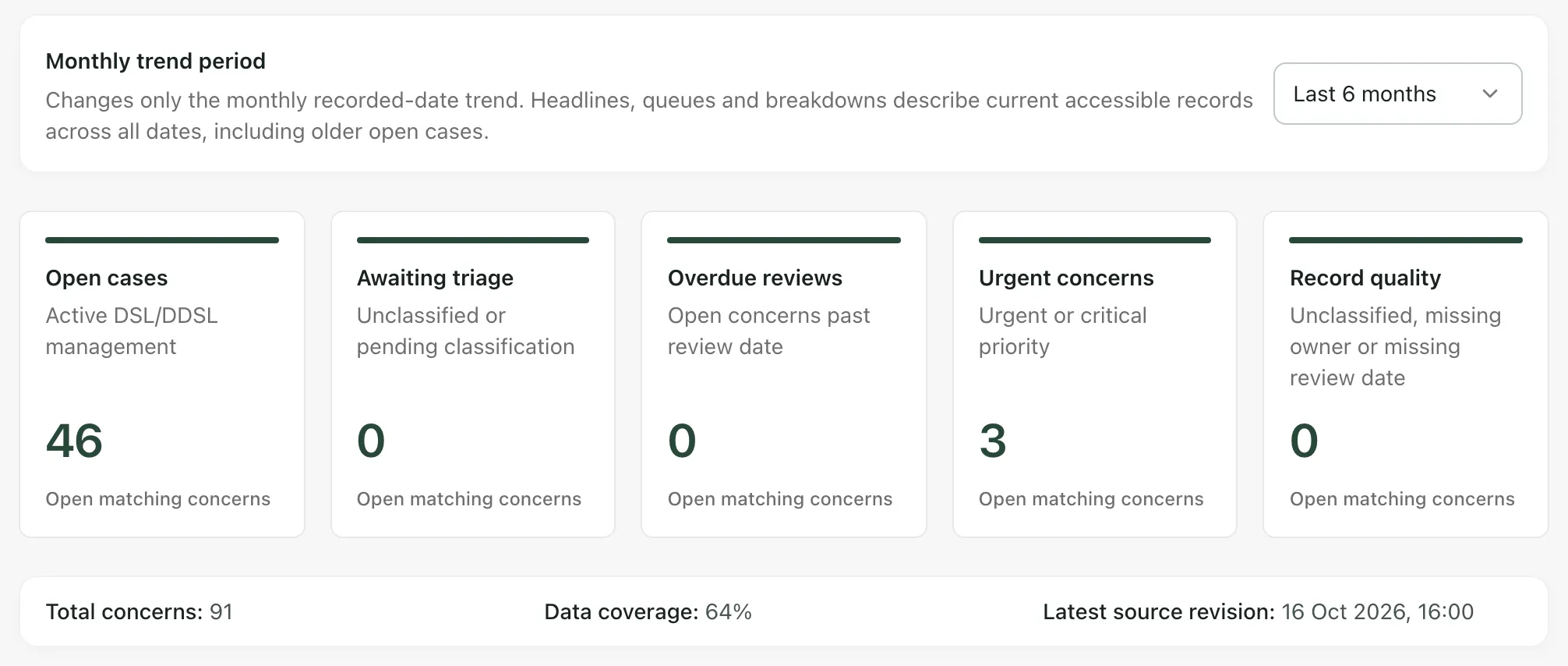
The five cards count your current records across all dates, including older cases that are still open:
- Open cases: cases the safeguarding team is actively managing.
- Awaiting triage: concerns that haven’t been classified yet.
- Overdue reviews: open concerns past their review date.
- Urgent concerns: concerns with urgent or critical priority.
- Record quality: records with no classification, no owner or no review date.
Click a card to see the concerns behind the number. Click Open current source case to open one, and Close queue when you’re done. Student Radar checks your access again for every case you open. If a card says Queue unavailable, the figure couldn’t be fully confirmed, so don’t read it as zero.
Below the cards:
- Total concerns: every concern record you can access.
- Data coverage: the share of those records with a category, priority, status, location, reporter and date all filled in. A low figure means the other figures rest on incomplete records.
- Latest source revision: when a record was last updated. It isn’t a report or closure date.
An Assurance note appears when something needs attention, such as cases open for more than 7 days or overdue reviews. If there are record quality issues, Record quality details breaks them down.
Read the trends and breakdowns
Section titled “Read the trends and breakdowns”Monthly trend period changes only the Concern Volume Trend chart. Choose Last 3 months, Last 6 months or Last 12 months. Everything else on the page covers all dates.
- Concern Volume Trend: new concerns, urgent or critical concerns and closures by month. The chart needs at least 3 records to draw. It shows when concerns were recorded and closed, not how many cases were open in past months.
- Operational Timeliness: how long open concerns have been open, as an average, a median and the oldest case. The denominator is the number of open concerns.
- Priority Distribution and Top Categories: how concerns spread across priority levels and the most common categories.
- Vulnerable Groups: concerns for pupils in groups such as Child in Need, looked-after, Pupil Premium, SEN support or young carers. For each group you see the number of Pupils, how many have concerns, the Concern rate and the Share of all concerns. A pupil can be in more than one group.
- Response Timeliness & Caseload: average days to first recorded action, cases open beyond 7 days, and how long closed cases took to close. Caseload by owner shows each member of the team’s open and total cases.
- Location Hotspots: concerns by where they were recorded as happening.
Small numbers
Section titled “Small numbers”Take care with small groups. When a group has only a few pupils, one child can change its rate a great deal, so always read the rate alongside the number of pupils. Some groups may be small enough that people could work out who is in them. Don’t share group figures, owner caseloads or location detail beyond the people who need them, and follow your school’s procedure before you share any figures outside the safeguarding team.
Missing information isn’t the same as nothing happening. For example, a case with no recorded action date may still have had action taken. Where figures are unavailable, the page says so instead of showing zero.
Export the figures
Section titled “Export the figures”- Click Export at the top of the page. Export metrics summary opens.
- Choose the Format: CSV or Excel (.xlsx).
- Click Export. The summary downloads to your computer.
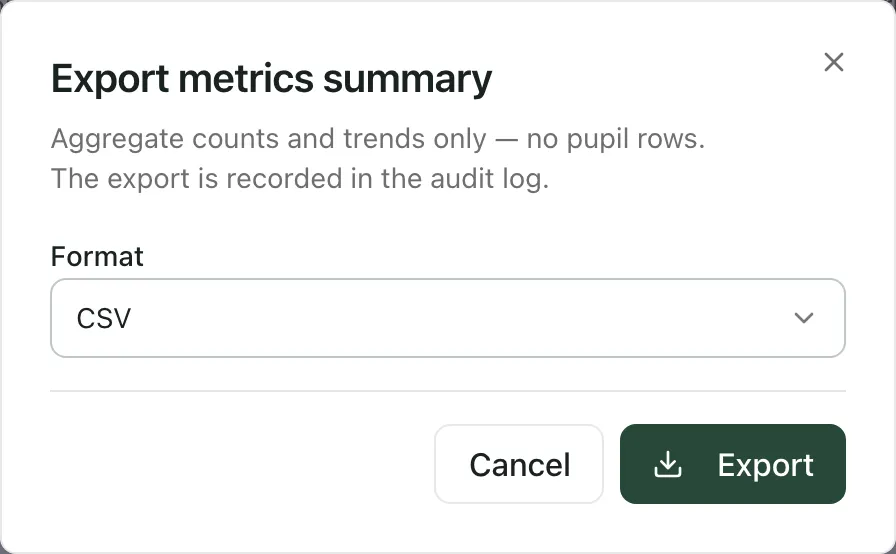
The export contains counts and trends only, with no pupil rows. Every export is recorded in the audit log. For a report to share with governors or leaders, use Reports instead: it lets you review the content before you share it.
Take the built-in tour
Section titled “Take the built-in tour”Click Take a tour at the top of the page. It walks you through the trend period, the headline figures and the trends.
If something doesn’t work
Section titled “If something doesn’t work”| What you see | What to do |
|---|---|
| “Metrics unavailable” | Click Try again. If it keeps happening, wait a minute and try again. |
| “Insufficient live data” | There are no concern records you can access yet. |
| “Some concern counts are unavailable” | Some figures couldn’t be fully confirmed. Unavailable doesn’t mean there’s nothing to do: check the DSL Action Board. |
| “Insufficient live data for trend analysis. At least 3 live concern records are required.” | The trend chart needs at least 3 records. |
| “Pupil group metrics are unavailable under the current source coverage or access. This does not mean there are no pupils or concerns in these groups.” | Click Retry group metrics. Group figures may not be available for your account. |
| “The matching concern queue is unavailable. No record count can be inferred from this failure.” | Click Retry queue. |
| Export is greyed out | Wait for the figures to finish loading. If they didn’t load, click Try again first. |
| “Export not authorised” | Your account can’t export these figures. Ask your DSL. |