Set up the school day and behaviour points
Written for: Headteachers, school administrators and behaviour leads.
Two tabs in School Settings decide how behaviour points work in your school. On Day & Points you can set out the periods of your school day and limit how many positive points a pupil can receive. On Behaviour you choose the behaviours staff give points for, how many points each is worth, and when pupils are escalated.
Choose the behaviours staff give points for
Section titled “Choose the behaviours staff give points for”-
In the sidebar, click Settings, then School Settings.
-
Click the Behaviour tab. You might need to scroll the row of tabs to see it.
-
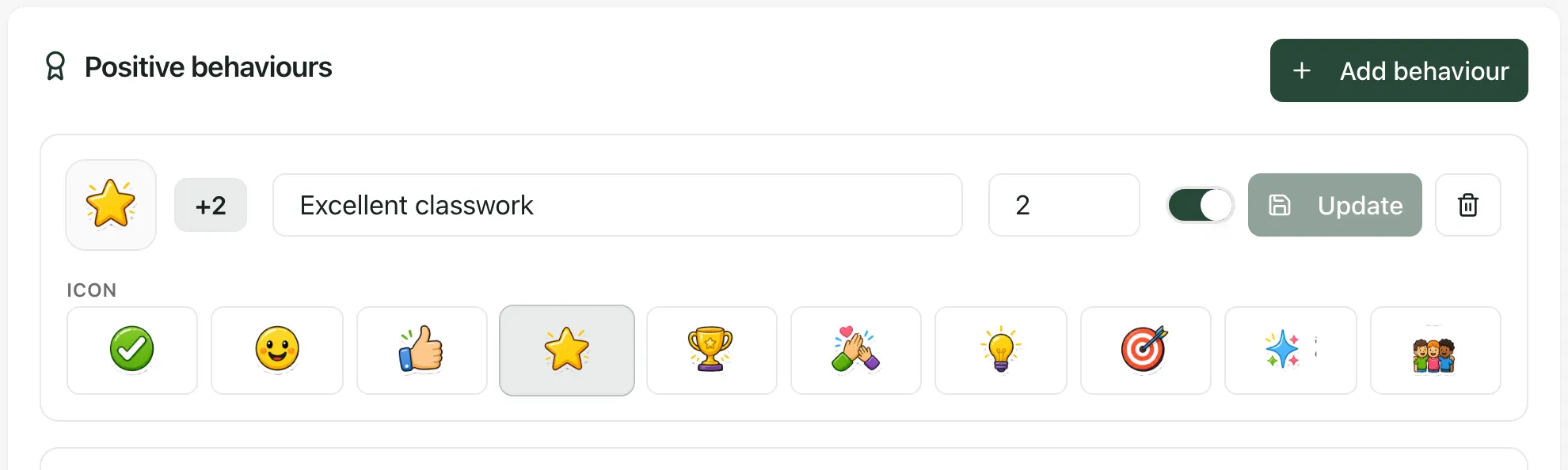
Scroll to Positive behaviours or Negative behaviours.
-
For each behaviour you can:
- change its name and the number of points it’s worth;
- choose an icon under Icon;
- switch it on or off with the switch next to the points.
-
To add a behaviour, click Add behaviour on the card, then type its name and points.
-
To remove a behaviour, click the bin button on its row.
-
Click Save changes at the top of the tab. You can also click Update on the row you changed. Either button saves all your changes on the tab.
You’ll see “Behaviour settings saved”. The badge at the top of the tab shows Unsaved changes until you save, then Up to date. To throw away changes you haven’t saved, click Reload.
The behaviours that are switched on are the reasons staff choose from when they give points. To stop staff using a behaviour but keep it in the list, switch it off rather than deleting it. See Give points from anywhere.
Set when pupils are escalated
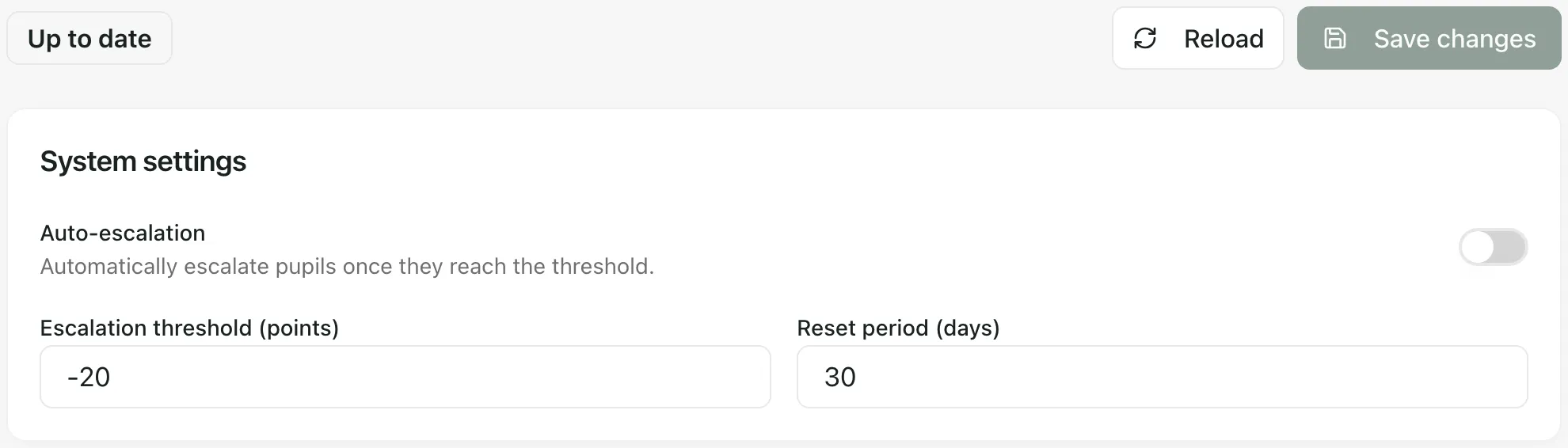
Section titled “Set when pupils are escalated”At the top of the Behaviour tab, under System settings:
- Auto-escalation escalates pupils automatically once they reach the threshold.
- Escalation threshold (points) is the number of net points that triggers escalation. Because it’s measured in net points, it’s usually a negative number, such as -20.
- Reset period (days) is how often those counts start again.
Under Wave escalation thresholds, each of the four waves has its own Threshold and Max duration (weeks), and a switch that turns automatic escalation on or off for that wave. Student Radar suggests a wave for each pupil by comparing their net points with these thresholds. A suggested wave is a prompt to review the pupil’s support, not a decision.
Click Save changes when you’ve finished.
Limit positive points with the day schedule
Section titled “Limit positive points with the day schedule”Caps stop any one pupil receiving too many positive points. They’re off unless you switch them on.
-
Click the Day & Points tab.
-
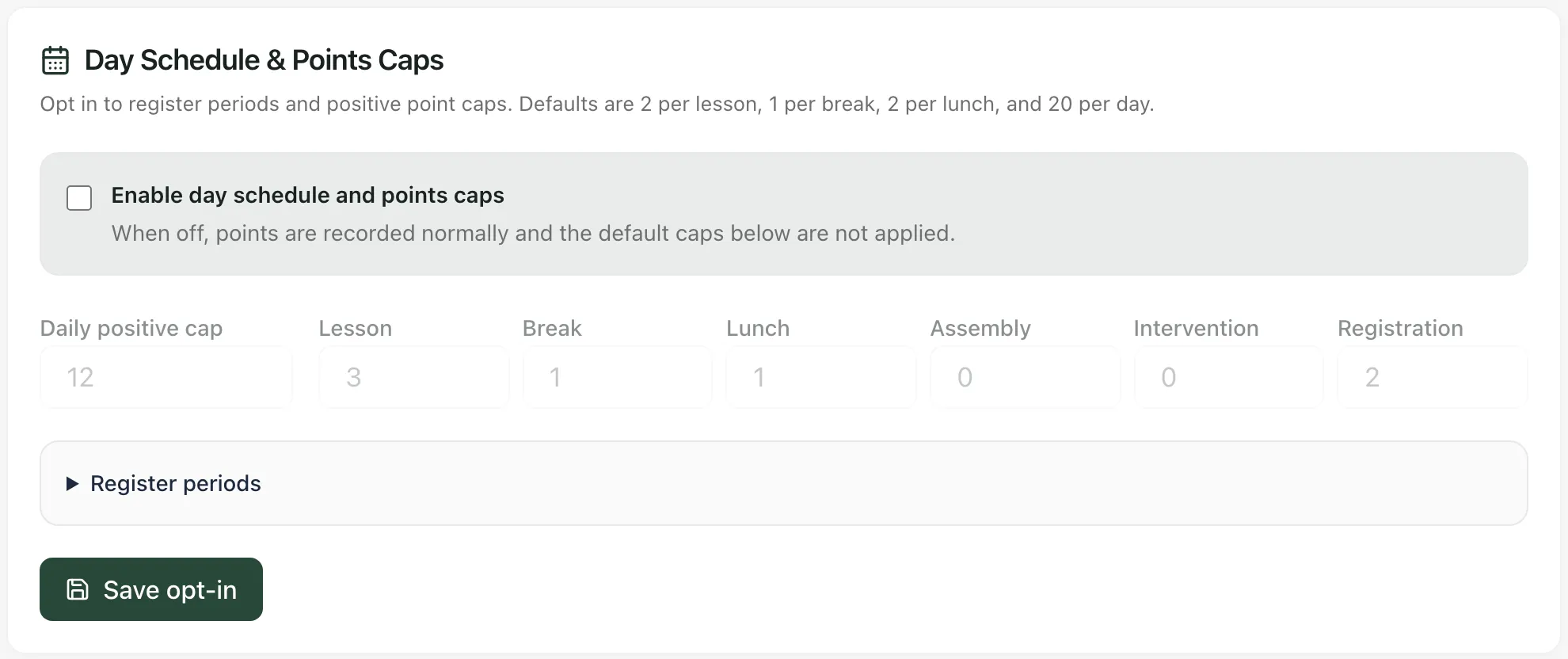
Tick Enable day schedule and points caps.
-
In Daily positive cap, enter the most positive points a pupil can receive in one day.
-
Under Lesson, Break, Lunch, Assembly, Intervention and Registration, enter the most positive points a pupil can receive in one period of that kind. The defaults are 2 per lesson, 1 per break, 2 per lunch and 20 per day. A cap of 0 means no positive points in that kind of period.
-
Click Register periods to open your day. Each period has a name, a type, a start and end time, and a Register tick. Change them to match your timetable. Click Add slot to add a period, or the bin button to remove one.
-
Click Save schedule. If you’ve left caps switched off, the button is Save opt-in.
You’ll see “Schedule saved”. Registers and point caps then use this day.
How the caps work
Section titled “How the caps work”When caps are on and a member of staff gives positive points, Student Radar checks how many the pupil has already received today and in the current period. If a cap is reached, the pupil receives fewer points, or none, and the message after giving points ends with “School limits applied.”
- Caps apply only to positive points. Needs-work points are never capped.
- Caps use the periods in your day. While caps are on, a time that isn’t in any period has a cap of 0, so no positive points can be given then. Make sure your periods cover the whole time staff give points, including breaks and lunch.
- Periods mustn’t overlap, and each must start before it ends. If they do, the problem is shown above the save button and you can’t save until you fix it.
- Who can change these settings: the day schedule and the behaviours each have their own permission. By default, headteachers and administrators can change both, office managers can change the day schedule, and senior leaders can change the behaviours. If a tab’s controls are greyed out or a save is refused, ask your Student Radar administrator.
- Take the tour: click Take a tour at the top of School Settings for a short guide to each tab.
If something doesn’t work
Section titled “If something doesn’t work”| What you see | What to do |
|---|---|
| “You need permission to manage day schedules and point caps to edit these settings.” | Your account can’t change the day schedule. Ask your Student Radar administrator. |
| “Unable to load the day schedule. Retry before making changes.” | Click Retry schedule. |
| “Daily cap must be a positive whole number.” | Enter a whole number of 0 or more in Daily positive cap. |
| “Schedule not saved” | The schedule wasn’t saved. Check your permissions and connection, then try again. |
| “Unable to save behaviour settings” | Your changes weren’t saved. Check you have permission to manage behaviour rules, then click Save changes again. |
| “Unable to load behaviour configuration. Retry to view the current rules.” | Click Retry behaviour configuration. |
| “Changes were saved, but the current behaviour rules could not be reloaded. Reload before making further changes.” | Click Reload saved behaviour settings before you change anything else. |