Ping a colleague about a pupil and reply to pings
Written for: All school staff.
A Ping is a short question to a colleague about a pupil, such as how they’re getting on in a lesson. The colleague replies through Student Radar, and the question and reply stay together on the pupil’s record, so the information isn’t lost in an email or a corridor conversation.
Send a Ping
Section titled “Send a Ping”-
Open the pupil’s profile. For example, search for them at the top of the screen.
-
Click Ping at the top of the profile, next to Raise concern.

-
On the Ping a colleague tab, fill in:
- Ping type: what the Ping is about, for example Attendance, Behaviour or SEND.
- Send to: the colleague you want to ask. The list shows colleagues who can see this pupil.
- Template (optional): pick a saved template to add set questions for your colleague to answer, or leave it as Free-form (no template).
- Subject: your question in a few words.
- Reason: why you’re asking, for example Routine check-in or Meeting prep.
- Evidence tags (optional): tick any that describe the information you need, such as Teacher observation or Child voice.
- Message: any context or detail that will help your colleague answer.
- Due date (optional): when you need the answer by.
-
Click Send Ping.
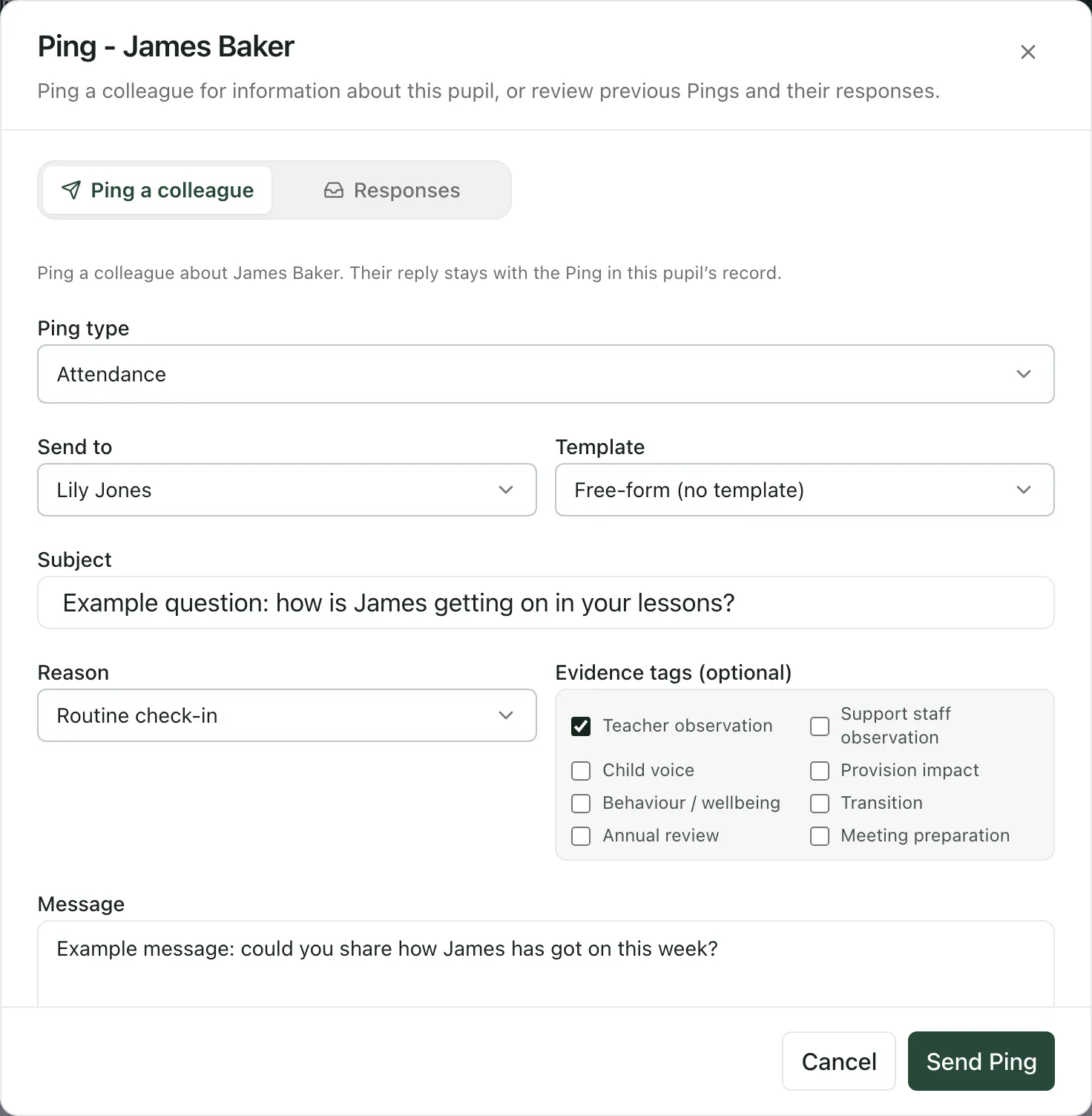
The Ping goes into your colleague’s My Pings list. The window then switches to Responses, where you can follow it.
Send Ping stays greyed out until you’ve chosen a colleague, added a subject and chosen a reason. The line beside the button tells you what’s still missing.
If the pupil has an annual review in progress, you’ll also see Attach to annual review. Tick it to add the reply to the review as well.
See the replies
Section titled “See the replies”There are two places to see Pings about a pupil and their replies:
- Click Ping on the pupil’s profile, then click Responses.
- Open the pupil’s profile and click Pings under Pupil sections.
Each Ping shows its subject, status and type, and when it was sent and answered. Click a Ping to see the message, any template questions and the reply. Use Ping type to show one type only. You only see the Pings you have access to.
Reply to a Ping
Section titled “Reply to a Ping”- In the sidebar, open Overview and choose My Pings. This lists the Pings colleagues have sent you. The figures at the top show how many are open and how many you have in total.
- Find the Ping. At first the list shows only open Pings. To see others, change the filter from Open to All, Pending, In progress or Completed.
- Click Respond.
- Read your colleague’s message. If they used a template, answer each question. Questions marked with an asterisk must be answered.
- Type your answer under Your reply (or Anything else to add? if there were questions).
- Click Submit response.
Your reply is saved with the Ping on the pupil’s record, and your colleague can read it under Responses. Respond only appears for open Pings you haven’t answered yet. To read a Ping and its reply again, click View.
Safeguarding
Section titled “Safeguarding”Mark as safeguarding limits who can see a Ping to the person who sent it, the colleague who receives it and the Designated Safeguarding Lead and their deputies. Only safeguarding leads can switch it on, so it’s greyed out for most staff.
A Ping isn’t the way to report a worry about a pupil’s safety. If you’re worried about a pupil, click Raise concern on their profile and follow your school’s safeguarding procedure.
- If you don’t see Ping on a pupil’s profile, your school hasn’t given your role permission to send Pings. Ask your school’s Student Radar administrator.
- A colleague shown with (account not linked) can’t receive Pings until their Student Radar account is linked to their staff record.
If something doesn’t work
Section titled “If something doesn’t work”| What you see | What to do |
|---|---|
| “Could not load colleagues for this pupil.” | Click Retry colleagues. |
| “This colleague needs a linked account before they can receive a Ping” | Choose someone else, or ask your school’s Student Radar administrator to link your colleague’s account. |
| “The original Ping was not confirmed. Recover it before submitting another.” | Student Radar couldn’t confirm the Ping was saved. Click Recover original Ping so it isn’t sent twice. |
| “No Pings yet for this pupil. Use Ping beside Raise Concern to start one.” | Nobody you can see has sent a Ping about this pupil yet. |
| “Pings could not be loaded. Retry to see the Pings sent to you.” | Click Retry Pings. |
| “No requests match this view.” | There are no Pings with the status you’ve chosen. Change the filter to All. |
| “Add a message before submitting” | Type your reply before you click Submit response. |
| “The original reply was not confirmed. Recover it before submitting another reply.” | Click Recover original reply so your answer isn’t saved twice. |