Create a multi-agency plan
Written for: Designated Safeguarding Leads, deputies and senior leaders.
When a child has support from other agencies, such as a Family Help plan, a Child in Need plan or a child protection plan, Multi-Agency keeps your school’s record of it in one place: who leads, which agencies are involved, when it’s reviewed, what’s been agreed and every contact with partners. Each change is recorded with who made it and why.
The plan in Student Radar is your school’s record. It doesn’t replace the local authority’s processes or records, and the decisions about the plan belong to the DSL and the agencies involved. Follow your school’s safeguarding procedure and your local safeguarding partnership’s arrangements.
Before you start: add agencies to the directory
Section titled “Before you start: add agencies to the directory”The lead agency on a plan has to come from your school’s agency directory, so add the services you work with first.
- In the sidebar, open Safeguard, then Multi-Agency Working, and choose Multi-Agency.
- Click the Agency directory tab, then Add agency.
- Enter the Name, and choose the Type and Category.
- Add the contact details you have: Primary contact, Role / title, Email, Secure email, Phone, Referral route and Emergency / out-of-hours route. Enter the Last verified date so colleagues know how current they are.
- Set Can be shared with partners to show whether these details can be shared outside school.
- Click Save.
To change an agency later, click the pencil next to it.
Create the plan
Section titled “Create the plan”The Plans tab lists your school’s plans. Use the status buttons (All, active, review, draft and closed) to narrow the list.
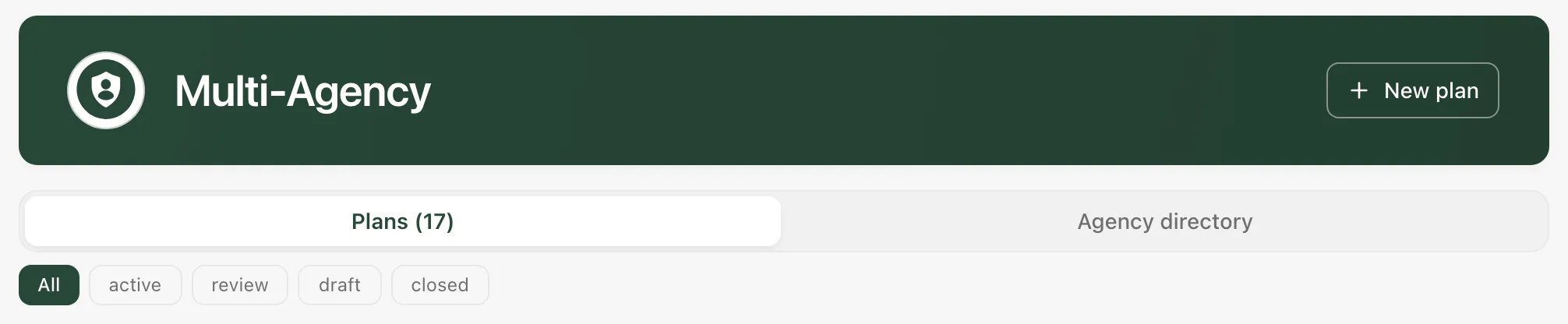
- Click New plan. New multi-agency plan opens.
- Under Pupil, search for the pupil and choose them.
- Choose the Plan type: Family Help, Child in Need (s.17), Child Protection Plan (s.47), Team Around the Child, Team Around the Family, Core Group, Strategy Discussion or Other plan.
- Choose the Lead agency from the directory, or leave it unassigned for now.
- Enter the Start date and Next review date.
- Under Reason / presenting concern, say briefly why the plan is being opened. Keep it factual.
- Choose the Information-sharing basis your DSL has reviewed for this plan: Consent recorded, Safeguarding / multi-agency working, Consent not required due to safeguarding concern or Information shared under statutory duty. Recording a basis doesn’t give any partner access to the plan.
- Click Create plan.
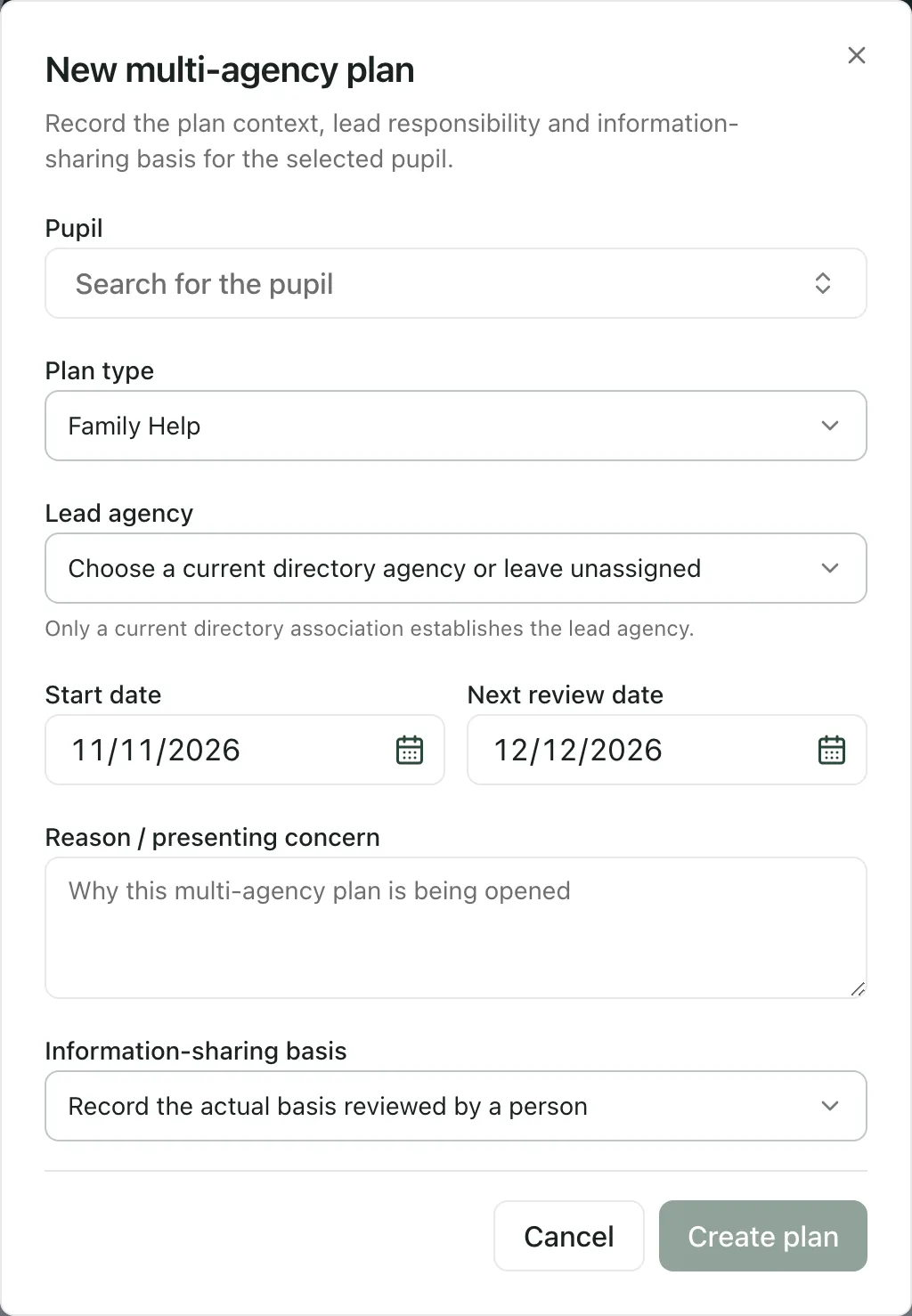
Create plan stays greyed out until you’ve chosen a pupil, written a reason and chosen a sharing basis. When the plan is saved, you see “Plan created” and it appears on the Plans tab.
Keep the plan up to date
Section titled “Keep the plan up to date”Click a plan on the Plans tab to open it. Every change you make asks for a Reason for this plan decision of at least 5 characters, recorded with your name. Fill it in first.
Under Plan quality, Student Radar lists anything missing from the plan, such as Start date missing, No agencies linked or Review overdue. Use it as a checklist, not a judgement on the plan.
The plan has these tabs:
- Overview: the plan’s context, dates and decision history. To change the status, choose a new Status and click Record status decision. To fix the record, use Correct lead agency and Record lead correction, or Correct plan dates.
- Agencies: under Add agency, choose an agency from the directory, its Role and the Named professional, then click Add.
- Meetings: Team Around the Child and Team Around the Family meetings for the pupil. Click Open TAC scheduling to plan one, or Log meeting outcome to record what was agreed.
- Actions: under Plan actions and ownership, add a New action title, describe it, set the Action due date and time and choose the Responsibility, then click Create linked action. You can take responsibility yourself or leave the action explicitly unassigned. Naming an outside professional in the action doesn’t give them an account.
- Communications: the Communication log. Record each contact with a partner: the Date and time, the Direction, the Channel, the Agency / person, a Summary and any Outcome / decision. Click Log entry.
- Shared access: give a partner read-only access to a reviewed copy of selected parts of the plan (see below).
- Linked records: what’s linked to the plan. Open chronology, Open actions and Open meetings take you to those pages.
A review date is a reminder. Reaching it doesn’t record that a review took place: record the review and its outcome yourself.
Share the plan with a partner
Section titled “Share the plan with a partner”On the Shared access tab, under Partner access, you can create a one-time link to a reviewed copy of the plan for a partner agency.
- Enter the partner’s email, how many days the link should last (1 to 30) and your reason for sharing.
- Under Finite sections to review, tick the sections to include.
- Click Review selected facts and read exactly what the partner will see.
- Click Issue reviewed link, then Copy link.
Student Radar doesn’t send the link. Send it yourself through a secure route your school has agreed with the partner. Anyone who has the link can open it, so send it only to the named person. The email address is a label for your records, not a check on who opens the link. You can revoke a link at any time from the same tab.
Only share what your information-sharing basis and your school’s procedure allow. If you’re unsure, ask your DSL or your data protection officer before you share.
If something doesn’t work
Section titled “If something doesn’t work”| What you see | What to do |
|---|---|
| “No multi-agency plans recorded yet. Start one with “New plan”.” | No plans have been recorded yet, or none you can see. Click New plan to start one. |
| Create plan is greyed out | Choose a pupil, write a reason of at least 5 characters and choose an information-sharing basis. |
| The agency you want isn’t in Lead agency | Add it to the Agency directory first. Only current directory agencies can lead a plan. |
| “Plan was not created” | Check the details and try again. |
| “Plan outcome unconfirmed” | Don’t create the plan again yet. Close the window, check the Plans tab and refresh before trying again. |
| “The plan changed after this view was loaded. Review the current source before sending a new decision.” | Someone else has changed the plan. Click Refresh reviewed source, check the changes, then make yours. |
| “Multi-agency plans and agency information could not be loaded.” | Click Try again. |
| “Plan details could not be loaded. Linked agencies, communications and meetings are unavailable.” | Click Try again. |