Record notes from a parent meeting
Written for: School staff who hold parent meetings.
After a booked meeting, such as a parents’ evening appointment, write it up in the meeting record. You note who came, keep notes for staff, and write the summary you agreed with the family. Then you turn what was agreed into actions or support. Every follow-up item is checked and accepted by a member of staff before anything is created, and the family summary is only shared when someone publishes it.
Open the meeting record
Section titled “Open the meeting record”- In the sidebar, open Parents and choose Meetings & Appointments.
- On Programme setup, click the programme under Programmes, for example your parents’ evening.
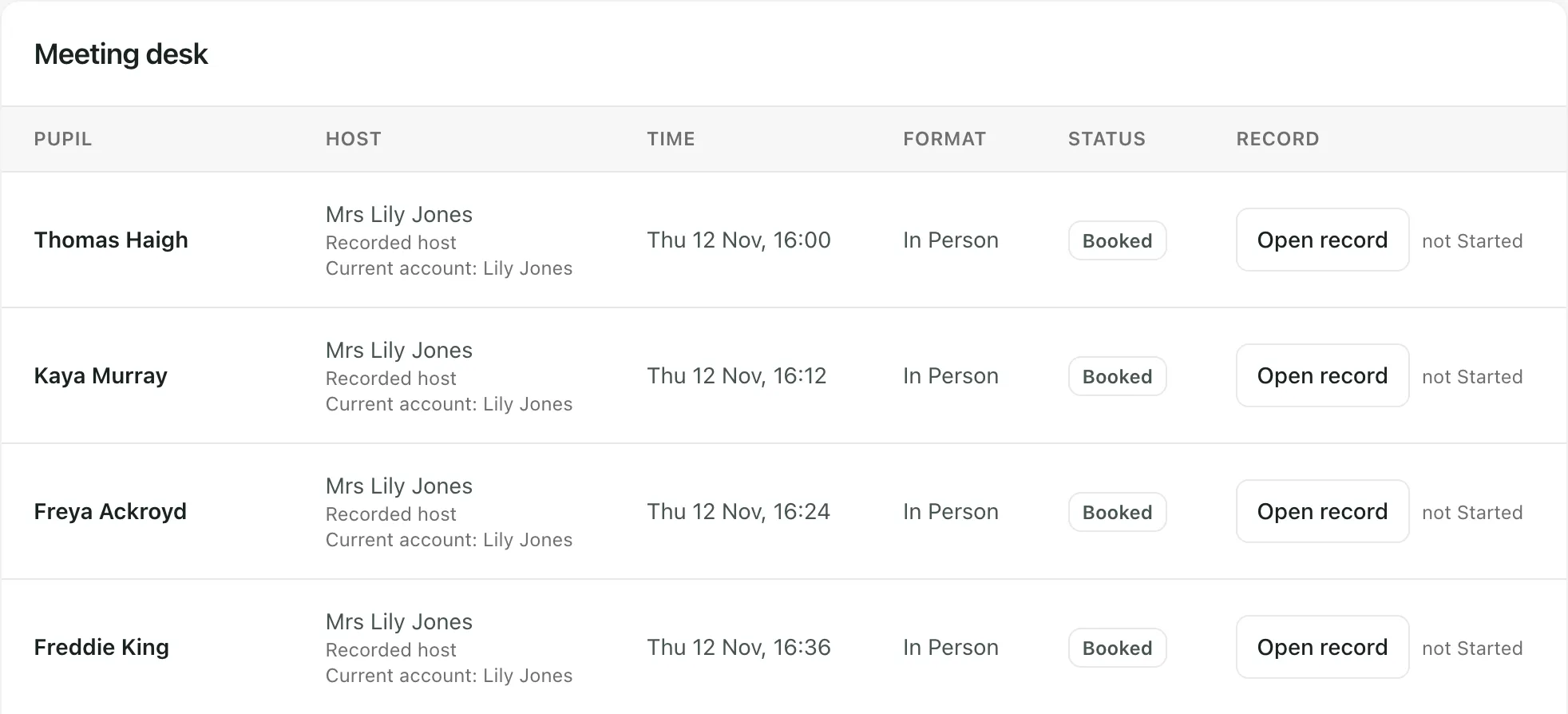
- Click Meeting desk. Each booking is listed with its pupil, host, time, format and status. The record’s progress is shown next to Open record.
- Click Open record for the meeting you want to write up.
The Meeting record and follow-up window opens. Across the top are the pupil, the appointment time and the Record state.
Record what happened
Section titled “Record what happened”- Under Meeting outcome, choose Completed or No show. Leave it on Not recorded if you don’t know yet.
- Under Participants present, set each person to Present, Absent or Unknown.
- In Internal notes, write your notes for staff. These are never shown to the family.
- In Agreed family summary, write what you agreed with the family, in words they’ll understand. It stays private until the follow-up is finalised and a member of staff publishes it.
- Click Save record.
You can come back and change the record until the follow-up is finalised.
Turn what was agreed into follow-up
Section titled “Turn what was agreed into follow-up”Everything under Reviewed follow-up is a suggestion until a member of staff accepts it. You can add items yourself, ask Student Radar to draft them from your notes, or both.
Add an action yourself
Section titled “Add an action yourself”- Under Add a manual action, write the agreed next step.
- Choose the member of staff who will do it and, if there is one, the due date.
- Tick Parent-visible after publication if the family should see this action once the summary is published.
- Click Add for review.
To add support, an intervention or a review date instead, use Add another manual outcome. Choose the Outcome type (Provision, Intervention or Review date), fill in the details, such as Agreed support and the Start, End and Review dates, then click Add outcome for review.
Draft follow-up from your notes
Section titled “Draft follow-up from your notes”- Save your Internal notes first.
- Click Draft from evidence.
Student Radar uses AI to suggest actions, support and summary wording from your notes. Pupil names are replaced before your notes are sent for drafting. Suggestions are labelled Drafted from meeting evidence.
Check every suggestion: AI drafts can miss things, misread notes or suggest something nobody agreed. Read each one against what was actually said, edit it, and reject anything that wasn’t agreed. A suggestion is a prompt for your judgement, not a decision.
If the AI service isn’t available, your notes are kept as a manual review draft instead.
Accept or reject each item
Section titled “Accept or reject each item”For each item, check and edit the wording, the Staff assignee and the Due date, then click Accept or Reject. An accepted action needs a real member of staff as its assignee.
When every item has a decision, click Finalise reviewed outcomes. Each accepted item is applied once:
- Accepted actions go to the assignee’s My Actions.
- Accepted support, interventions and review dates are added to the pupil’s SEND records if you have permission to change them. If you don’t, they wait in the Follow-up queue for a colleague who does. You’ll see “Acceptance will send this item to an authorised SEND reviewer. It will not disappear or fail open.” on items like this.
Share the summary with the family
Section titled “Share the summary with the family”After finalising, click Publish family summary. Families linked to the pupil can then read the agreed summary, and any actions you marked as visible to them. Publishing is a separate step, so nothing is shared until you choose to.
Optional recording
Section titled “Optional recording”If your account can record meetings, the record also has an Optional recording section. Recording is off by default and needs the agreement of everyone present.
- Mark who is present and click Save record.
- Ask everyone present, just before you start, whether they agree to the meeting being recorded. Under Consent from people present, set each person to Agreed, Declined or Unknown.
- Click Start recording, then Stop and upload at the end. You can also upload an audio file under Upload supported audio.
- Click Transcribe to turn the recording into a staff-only transcript that Draft from evidence can use.
Recording stays disabled unless everyone present has agreed. Recordings can be up to 90 minutes. The audio is deleted once it’s transcribed, and the transcript is deleted when the follow-up is finalised or after seven days.
The follow-up queue
Section titled “The follow-up queue”Click Follow-up queue to see meetings whose follow-up is still open. Click Review outcomes to open one.
If you can approve follow-up for the whole school, you’ll also see SEND outcomes awaiting authorised review. Check each item and click Apply provision, Apply intervention or Update review date, or click Reject suggestion if it isn’t appropriate.
If something doesn’t work
Section titled “If something doesn’t work”| What you see | What to do |
|---|---|
| “Meeting record unavailable” | Click Try again. If it keeps happening, ask your school’s Student Radar administrator to check access. |
| “This meeting changed in another window. It has been refreshed.” | Someone else changed the record. Check the refreshed record and make your change again. |
| “Every accepted action needs a real staff assignee.” | Choose a Staff assignee for each action you’re accepting. |
| “Accept or reject every outstanding suggestion before finalising.” | Click Accept or Reject on every item, then finalise. |
| “Manual review draft prepared” | AI drafting wasn’t available. Your notes were kept as a draft: add and review the follow-up by hand. |
| “Save participant attendance before recording. Manual notes remain available.” | Mark who is present and click Save record first. |
| “Recording remains off” | Everyone marked present must agree before recording. You can still write notes by hand. |
| “No completed meetings are waiting for follow-up.” | There’s nothing left to review on the Follow-up queue for this programme. |