Create an attendance action from a pupil profile
Written for: All school staff.
When a pupil’s attendance needs following up, you can turn it into an action from the Attendance section of their profile. Student Radar fills in the details from the attendance concern, so you only need to check them and add anything else.
Open the pupil’s attendance
Section titled “Open the pupil’s attendance”- Search for the pupil at the top of the screen and open their profile.
- Under Pupil sections, click Attendance.
Under the four attendance cards, a panel sums up what needs following up. It’s called Attendance needs review when there’s something to look at, and Attendance review when there isn’t.
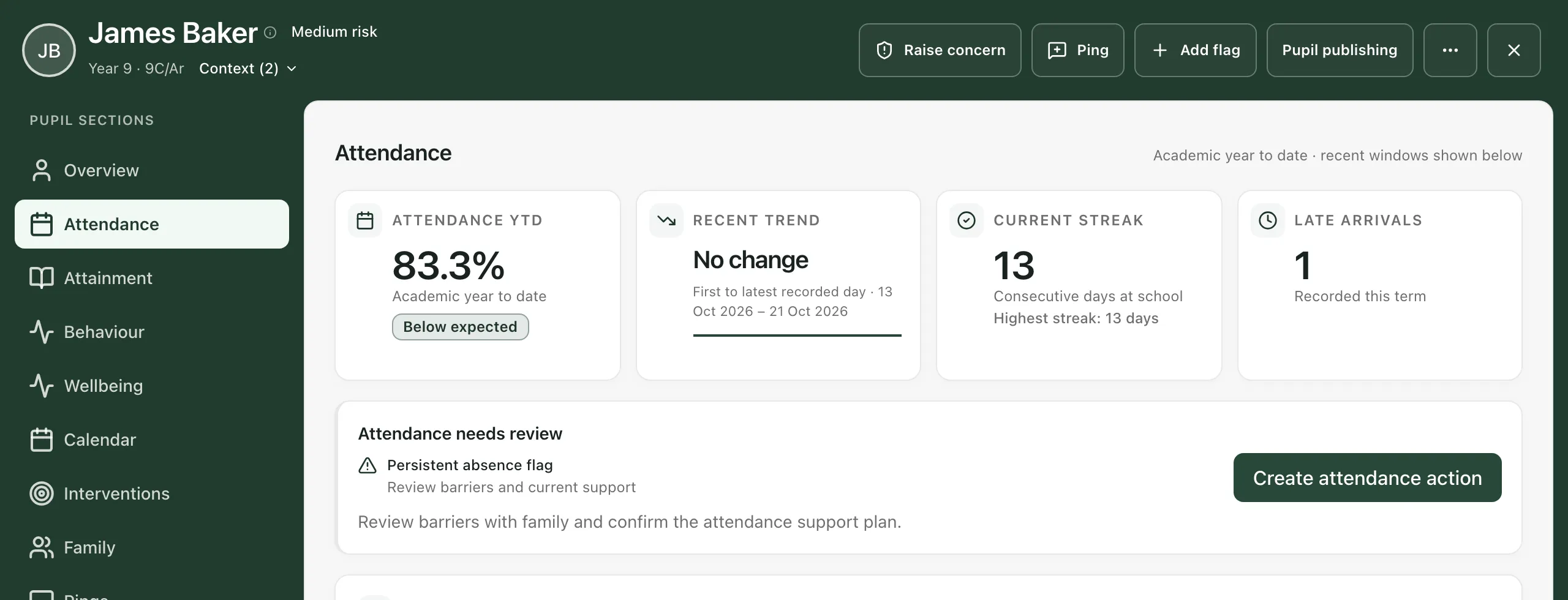
The panel can list:
- Attendance below expected, with the pupil’s attendance so far this year.
- Frequent late arrivals, when the pupil has been late more than five times this term.
- Persistent absence flag, when the pupil has missed 10% or more of their possible sessions.
- Current absence streak, when the pupil has missed more than three sessions in a row.
Underneath is a suggested next step. Persistent absence isn’t flagged until the pupil has at least 20 possible sessions, so a pupil who has just joined shows Absence flags available after 20 possible sessions instead.
Create the action
Section titled “Create the action”-
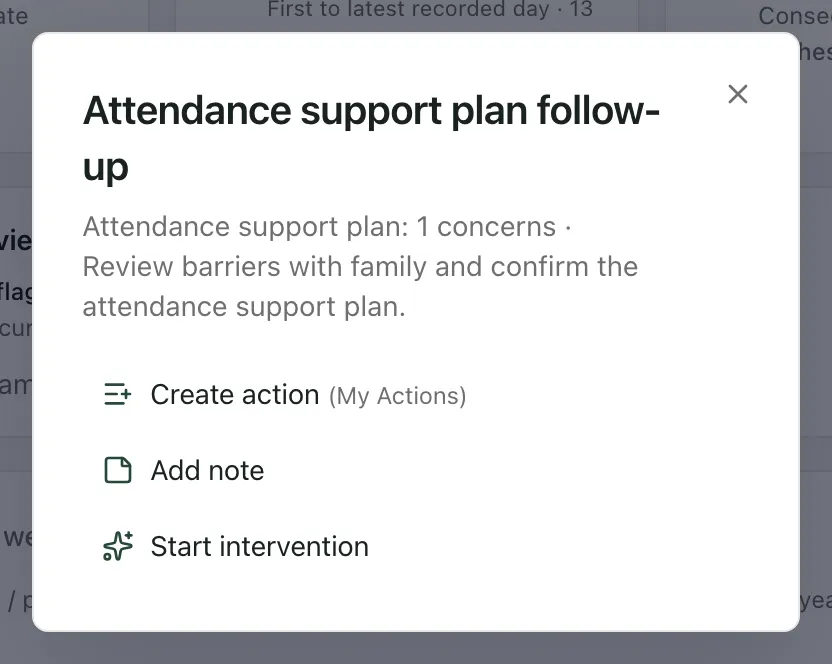
Click Create attendance action. A small window opens, named after the follow-up, for example Attendance support plan follow-up.
-
Click Create action.
-
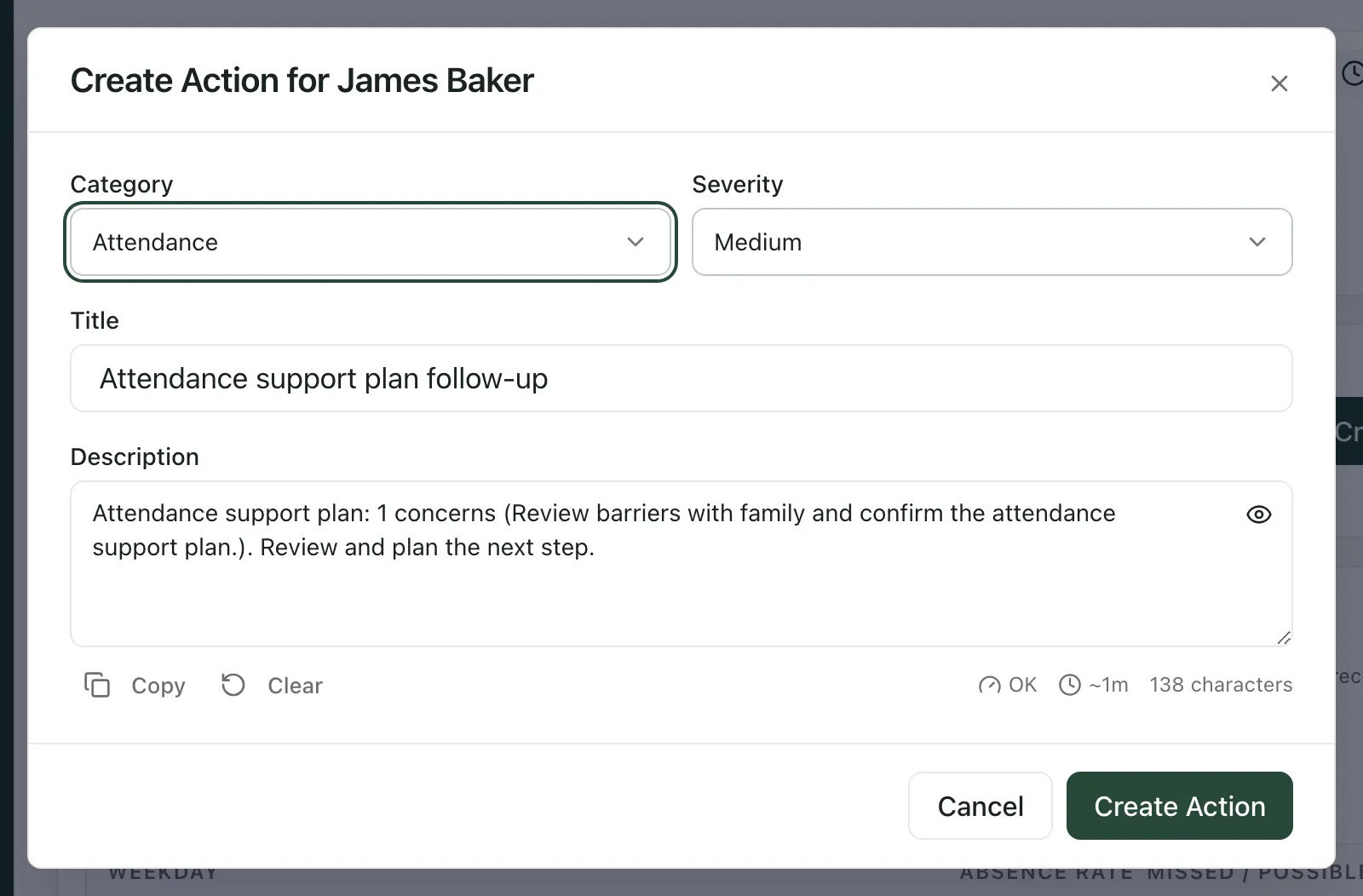
The Create Action for window opens with the details filled in:
- Category is Attendance.
- Severity is Medium. Change it if the follow-up is more or less urgent.
- Title and Description describe the concern and the suggested next step.
-
Edit the Title and Description so a colleague reading them later knows what needs to happen. For example, add who will call home and by when.
-
Click Create Action.
You’ll see “Action created”, and the action is added to the pupil’s Actions section.
Tip: The window says (My Actions) beside Create action, but actions created here don’t have an owner. They appear on the pupil’s Actions section as unassigned, not in anyone’s My Actions list. To add an action to your own list, open My Actions and use Add, then Pupil action. See Assign a pupil action to a colleague.
Other choices
Section titled “Other choices”The same window offers two other ways to follow up:
- Add note: records a note about the pupil’s attendance, filled in from the concern. Use it when you want to record what you’ve noticed rather than plan a task.
- Start intervention: opens the intervention options for this pupil, so you can add them to an intervention.
The follow-up depends on what the panel found:
| What the panel found | Follow-up |
|---|---|
| Persistent absence, or attendance below 90% | Attendance support plan follow-up |
| More than five late arrivals this term | Punctuality plan follow-up |
| Nothing urgent | Attendance review follow-up |
- Safeguarding concerns: an attendance action isn’t a safeguarding referral. If a pupil’s absence worries you, click Raise concern at the top of their profile and follow your school’s safeguarding procedure.
- Governors: governor accounts don’t see Create attendance action.
If something doesn’t work
Section titled “If something doesn’t work”| What you see | What to do |
|---|---|
| “Missing information” with “Please add a title and description” | The Title or Description is empty. Fill both in, then click Create Action again. |
| “Missing school context” | Student Radar couldn’t work out which school you’re in. Refresh the page and try again, or contact your administrator. |
| Create attendance action isn’t shown | Your account can’t create actions for this pupil, for example a governor account. Ask a member of staff to create it. |