Set up a part-time timetable
Written for: Attendance leads, SENCos, safeguarding leads and senior leaders.
A part-time (reduced) timetable is a short-term arrangement for a pupil who can’t attend full time for now. In Student Radar, each one is a dated plan in the Part-time timetables register. The plan records the weekly pattern, the reason, the support and the route back to full time. It also records the parent’s agreement and the approval by the headteacher, DSL or SENCo. Plans are reviewed at six weeks.
Student Radar records the plan. Your school’s attendance policy and your local authority’s guidance decide when a part-time timetable is appropriate and how it must be agreed, so follow those alongside this guide.
Open the register
Section titled “Open the register”- In the sidebar, click Attendance, then Statutory cohorts.
- Click the Part-time timetables tab.
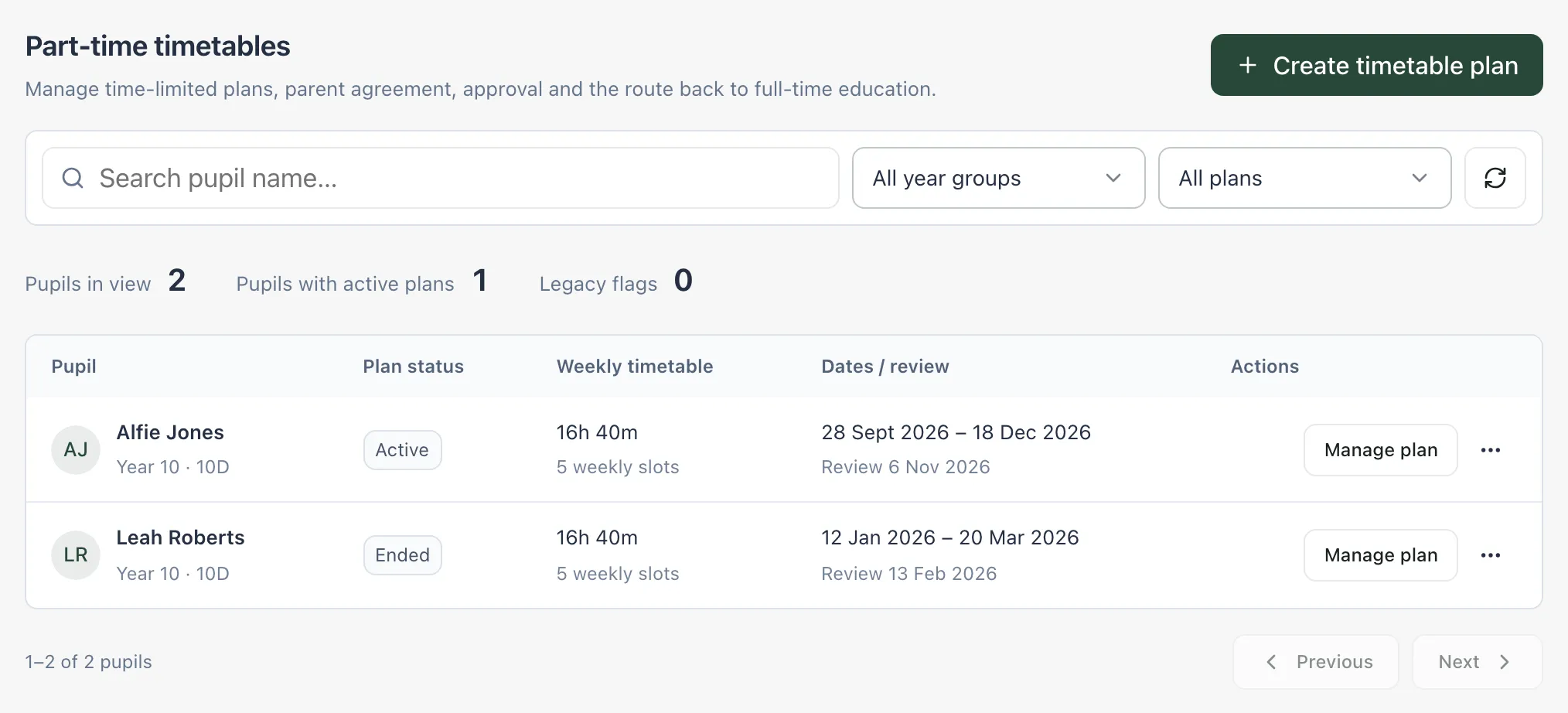
The table shows each pupil’s plan status, the weekly hours on the plan, and the start, end and review dates. A review date that’s due is highlighted. Use the status list to show Active, Draft / awaiting agreement, Review due or Ended plans.
Create the plan
Section titled “Create the plan”-
Click Create timetable plan.
-
Click Search for a pupil, type at least two letters of their name and choose them.
-
Click Continue to plan.
-
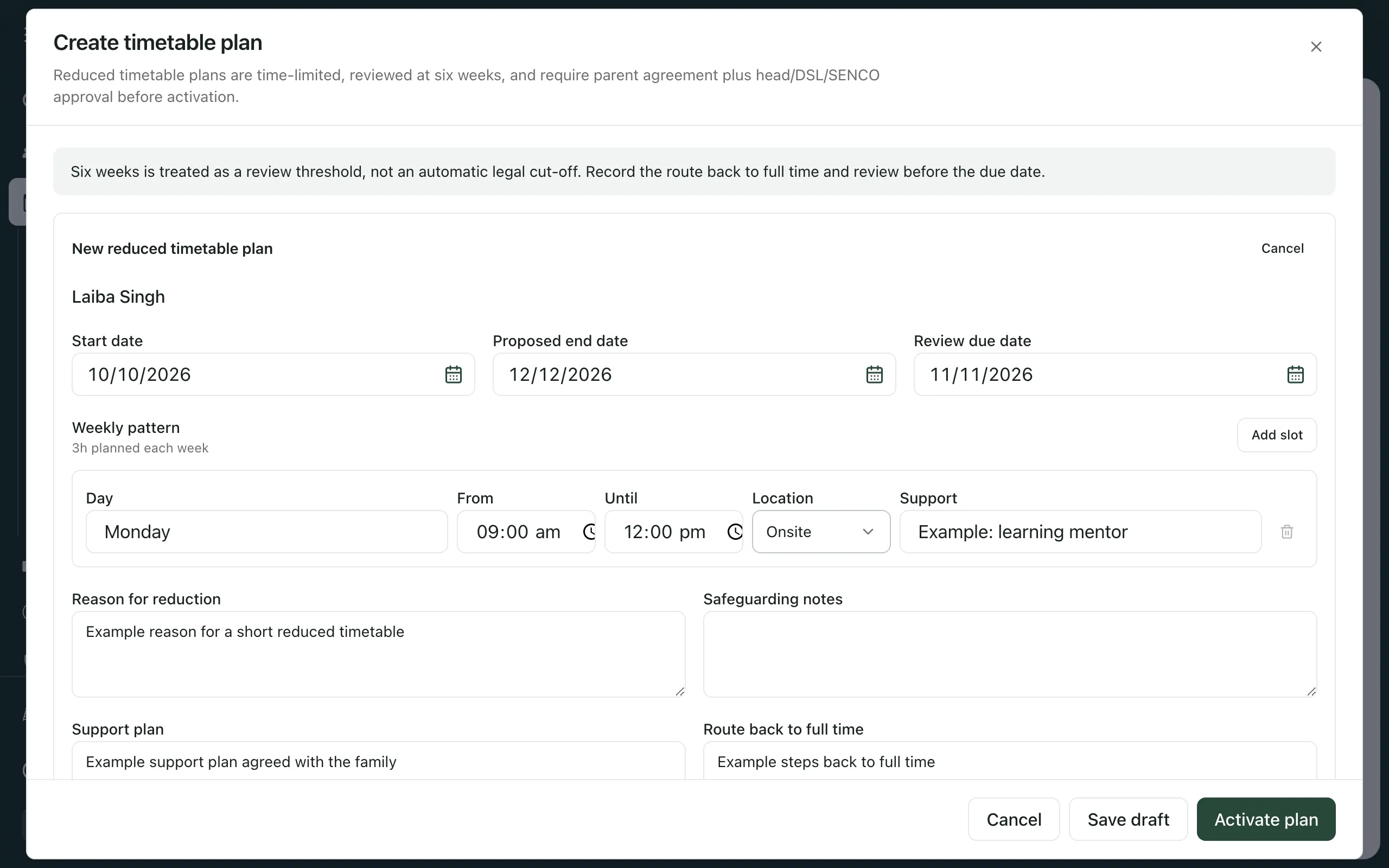
Fill in the dates:
- Start date.
- Proposed end date: when the pupil should be back to full time.
- Review due date: set to six weeks after the start date. Change it if you agree an earlier review.
-
Under Weekly pattern, set when the pupil will attend. For each slot, enter the Day, the times From and Until, whether it’s Onsite or Offsite under Location, and any Support. Click Add slot for each extra slot. The total hours a week are shown under Weekly pattern.
-
Fill in the Reason for reduction, the Support plan and the Route back to full time. Add Safeguarding notes if there’s something staff need to know.
-
Click Save draft.
The plan is saved as a draft. It doesn’t take effect until the parent has agreed and it has been approved.
Record agreement and approval
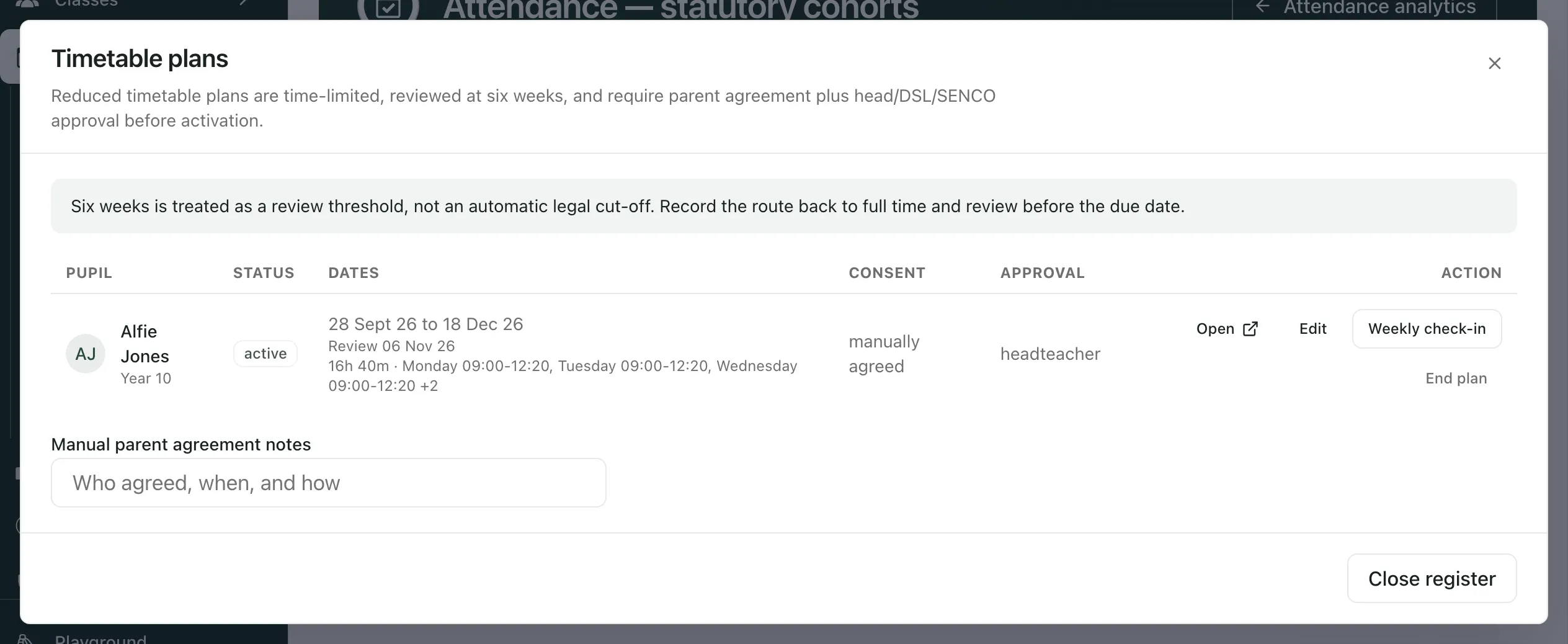
Section titled “Record agreement and approval”- On the pupil’s row, click Manage plan.
- Record the parent’s agreement in one of two ways:
- Click Request consent. Student Radar marks consent as requested and gives your attendance office a task to get the parent’s agreement.
- If the parent has already agreed, type who agreed, when and how in Manual parent agreement notes, then click Mark agreed.
- A headteacher, DSL or SENCo approves the plan. Under Approval, they choose their role, then click Approve. Only staff allowed to approve plans can do this.
- Click Edit, check the plan, then click Activate plan.
To be activated, a plan needs a proposed end date, a reason, a support plan, a route back to full time, at least one weekly slot, the parent’s agreement and approval.
Check in each week and review
Section titled “Check in each week and review”While the plan is active, click Manage plan, then Weekly check-in to record how the week went:
- Check the Check-in date, Week start and Next check-in dates.
- Under Proposed weekly pattern, change the slots if the timetable is changing.
- Add Support notes, Route back notes, Pupil feedback and Parent feedback.
- Click Save weekly check-in.
The saved check-in appears in the list below the form. If the new pattern keeps or adds time, click Apply to update the plan. If it reduces the pupil’s time, the parent must agree and the change must be approved first: use Request consent or Mark agreed, then Approve, then Apply.
Review the plan before its review date. When the pupil is back to full time, or the plan should stop, click End plan and confirm. To delete a draft you no longer need, click Remove, then Remove draft.
- England only: Statutory cohorts follows English attendance law and guidance, so it isn’t available to schools in other countries.
- Who can change plans: your school decides who can create, approve and end plans. If Create timetable plan is greyed out, your account can view the register but not add to it.
- Legacy flags: a pupil marked as part time before plans were introduced shows Legacy flag — plan needed. Click Create plan on their row to record a dated plan.
- Six weeks: the six-week review is a point to review the plan. It isn’t an automatic legal cut-off, and it doesn’t end the plan.
If something doesn’t work
Section titled “If something doesn’t work”| What you see | What to do |
|---|---|
| “Check the dates, required information, parent agreement and approval before saving.” | The plan isn’t ready to activate. Check the end date, reason, support plan, route back, weekly slots, agreement and approval. |
| Activate plan is greyed out | Add at least one weekly slot whose end time is after its start time. |
| Mark agreed is greyed out | Type who agreed, when and how in Manual parent agreement notes first. |
| “This record already exists. Refresh to review the current entry.” | Someone else has already saved this. Click the refresh button beside the filters and check the plan. |
| “Your access could not be verified. Ask your school administrator to check your attendance permissions.” | Ask your school’s Student Radar administrator to check your access to statutory attendance. |
| “The register could not be loaded or saved. Please try again. Your entries have been kept.” | Try again. What you typed is still in the form. |