Import behaviour data
Written for: Behaviour leads and staff who manage behaviour data for the school.
If your school records behaviour in another system, you can bring its reports into Student Radar. You upload a report, check its dates and categories, match each row to a pupil, then publish the matched rows. Nothing appears in shared reporting until you publish, and rows you can’t match safely are held back.
At the moment you can import reports from Trackit Lights. Each report is a summary for a period, such as a half term: for each pupil, how many events of each colour and category were recorded, and their class points. It doesn’t include the date, lesson, staff or location of each event, so imported summaries are shown separately from the incident trends on Behaviour Analytics.
Before you start
Section titled “Before you start”- You need permission to manage behaviour settings for the whole school. Without it, the upload window says “School-wide behaviour import and settings permissions are required.”
- Export the report from your behaviour platform with its headings and date range. A report can have up to 1,000 pupils and be up to 5 MB, as a CSV or an Apple Numbers (.numbers) file.
- Reports that include UPNs match to pupils more reliably than names alone.
Upload the report
Section titled “Upload the report”- In the sidebar, open Behaviour, then Insights, and choose Analytics.
- Click Upload behaviour.
- Under Behaviour platform, choose Trackit Lights.
- Under Behaviour CSV or Numbers file, choose your report.
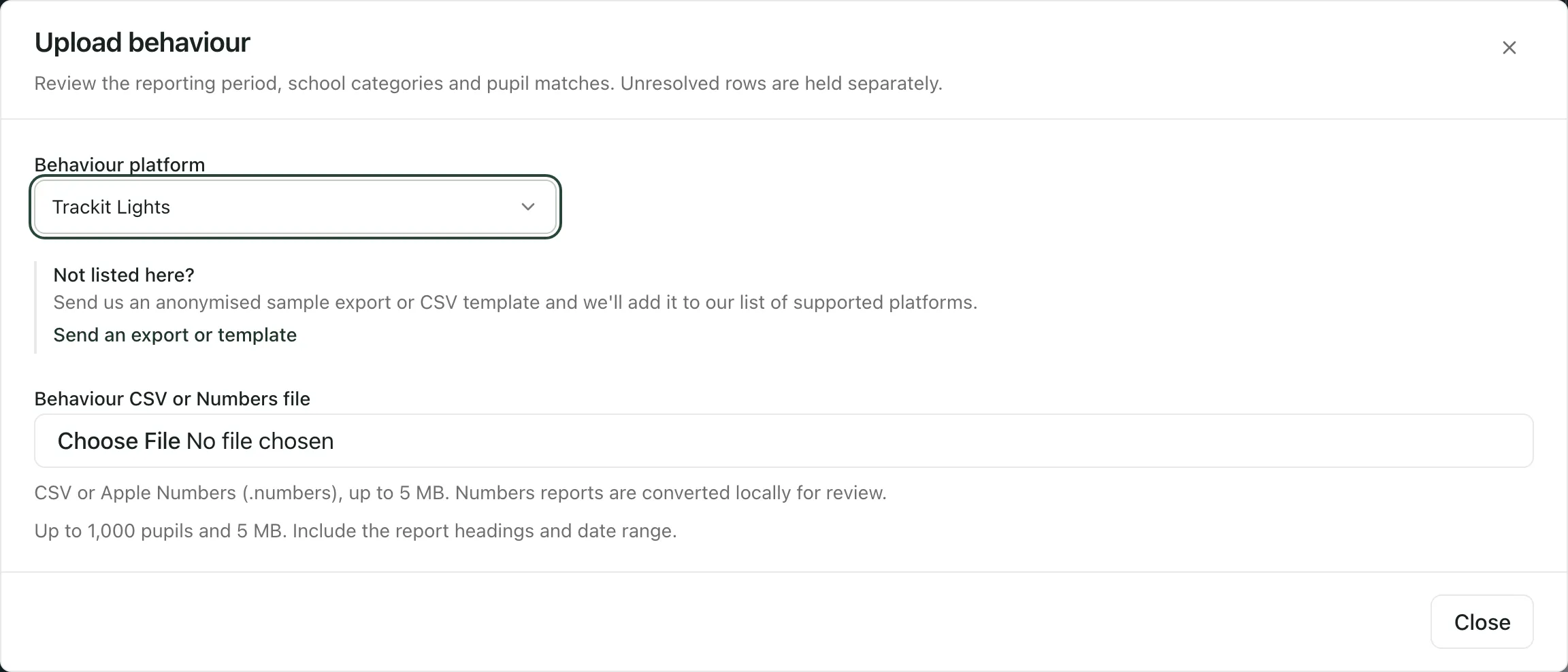
Student Radar reads the file on your computer and shows what it found. Numbers files are converted to CSV on your computer too. Nothing is saved yet.
If your platform isn’t listed, click Send an export or template to email Student Radar support. Attach an anonymised sample export or a CSV template, not real pupil data.
Check the dates and categories
Section titled “Check the dates and categories”- Read any notes at the top. For example, “UPNs are blank. Review suggested full-name matches after upload, or use an export with UPNs.”
- Check the Reporting start date and Reporting end date. Student Radar fills them in from the report where it can. Correct them if they’re wrong.
- Tick I have confirmed these reporting dates, including the end date.
- For each Source category, check the Reporting level: Green, Orange, Yellow, Red, Detention or Ignore. Student Radar suggests a level from the category name and the report’s colour totals, so check every one.
- Look at Original report coverage. It shows how many pupil rows the report has, how many have events, and the total for each colour.
- Click Review pupil matches. It’s available once the dates are confirmed and every category has a level.
If you see “These levels do not match the report’s colour totals.”, the categories you’ve set to a colour don’t add up to that colour’s total in the report. Change the levels until they match. If you’re sure the difference is expected, tick the box under the message to keep them.
Class points are kept exactly as the report gives them. They don’t change anyone’s live points in Student Radar.
Match the rows to pupils
Section titled “Match the rows to pupils”Student Radar links rows to pupils by UPN where it can. Those rows are Ready. Rows it can’t link safely are Held. The line at the top shows how many rows are ready, held and published.
Review suggested name matches
Section titled “Review suggested name matches”If rows are held, click Review suggested name matches. Student Radar lists rows where the full name matches exactly one current pupil, with the class and year from the report and the pupil’s current class and year.
- Tick each match that’s right. Take care with reports from an earlier school year, when pupils were in a different class.
- Tick I have checked the selected pupil identities and class/year context.
- Click the button that confirms the selected matches. The rows become ready, but nothing is published yet.
Names that match more than one pupil, or that conflict with another link, stay held. Click Close name review to go back to the list.
Match a row yourself
Section titled “Match a row yourself”- Use Pupil matches to show Held rows, then click Review on a row.
- Under Find a current pupil, check the name and click Search.
- Choose the right pupil from the list. A first-name match isn’t enough on its own, so check their identity and their class and year at the time of the report.
- In How was this match checked?, say how you checked, for example against the class list.
- Click Confirm pupil match. If you can’t find the right pupil, click Hold this row separately instead. To stop, click Cancel matching.
Publish the matched rows
Section titled “Publish the matched rows”Click the publish button at the bottom of the window. It shows how many matched rows will be published. If no rows are ready yet, it says Save setup and hold rows: this saves your dates and levels and keeps every row held.
If the report covers the same dates as a report you’ve already published, you’ll see the overlapping periods. Tick the box to replace those reports with this one. Earlier versions stay in the import history.
After publishing, the matched rows appear under Imported behaviour summaries at the bottom of Behaviour Analytics, and in the Behaviour section of each matched pupil’s profile. Staff see only the pupils they’re allowed to see. Held rows stay in your import until you match them.
Published matches are locked. To correct one, upload a corrected report and replace the old one.
Come back to an import
Section titled “Come back to an import”Click Upload behaviour again. Your imports are listed under Resume an import. Click Review import to carry on matching or publishing. In an open import, click Download imported CSV to download the file you uploaded.
Read the imported summaries
Section titled “Read the imported summaries”Under Imported behaviour summaries on Behaviour Analytics:
- Choose the Imported reporting period to look at.
- Use Historical group in the export to look at one year, class or house as it was in the report.
- The totals show events of each colour and the class points supplied. The tables show each category and each matched pupil, with the row number from the original report.
A pupil with no events in a report hasn’t necessarily behaved consistently well. It may just mean nothing was recorded, so read it alongside what you know.
If something doesn’t work
Section titled “If something doesn’t work”| What you see | What to do |
|---|---|
| “School-wide behaviour import and settings permissions are required.” | Ask your school’s Student Radar administrator, or a colleague who manages behaviour data, to do the import. |
| “A supported Trackit Lights header could not be found.” | Export the report again from Trackit Lights with its column headings, then choose the new file. |
| “Choose a CSV or Numbers file of 5 MB or less.” | The file is empty or too big. Export a smaller report, for example one year group at a time. |
| “The Numbers file could not be read. Export it as CSV and try again.” | Open the report in Numbers, export it as CSV, then choose the CSV file. |
| “This report has headings but no pupil rows to import.” | Check you exported the right report, with pupils in it. |
| “Enter and confirm the reporting dates; the file does not supply a complete date range.” | Type the start and end dates of the reporting period, then tick the confirmation box. |
| “The CSV or reporting setup could not be validated. Check the file, categories and dates.” | Nothing was saved. Check the dates and that every category has a level, then try again. |
| “That pupil is already linked to another row in this report.” | Check both rows. Each pupil can be linked to only one row in a report. |
| “Add a matching note of 5 to 500 characters.” | Say in How was this match checked? how you confirmed the match. |
| “This review changed. Reload it before continuing.” | Someone else changed the import. Click Reload review, then carry on. |
| “Overlapping reports must use the same start date and an equal or later end date.” | A replacement must start on the same date as the report it replaces. Check the reporting dates. |
| “Published pupil links are locked. Upload a corrected report to replace them.” | Upload a corrected report for the same period and replace the published one. |
| “Too many import requests. Please try again later.” | Wait a few minutes, then try again. |
| “You do not have access to this behaviour import.” | Your access has changed, or the import belongs to someone else. Ask your school’s Student Radar administrator. |