Turn on and approve an automation
Written for: Senior leaders and headteachers who set up and approve school automation rules.
Automation rules watch for something happening in school, such as a pupil’s attendance dropping below 90%, and then do something you’ve chosen, such as creating a review and a task. Every rule starts switched off. Before it does anything, you preview who it would affect, a second person approves it if it needs approval, and you switch on that exact version.
This article covers the main Automation page. For behaviour rules, see Create and switch on a behaviour rule. To act on the suggestions that pupil review rules make, see Act on a pupil review suggestion.
Before you start
Section titled “Before you start”You need automation access, which your school’s Student Radar administrator grants. Adopting, approving and switching on rules, and changing the settings, are separate permissions, so you may be able to do some of these and not others. Without any access, the page says “Automation access required”.
Open Automation
Section titled “Open Automation”- In the sidebar, open Leadership, then Operations.
- Choose Automation.
The cards at the top count your school’s Rules, how many are Enabled and how many items Needs attention. The page opens on Templates.
Start from a template
Section titled “Start from a template”Templates are ready-made rules. You only see templates your school can use, given the information Student Radar holds and the actions your school allows.
- On the Templates tab, read each template’s Rule summary. It says WHEN the rule acts and THEN what it does.
- Check its Sensitivity. Rules marked Safeguarding need a second person to approve them.
- Click Adopt as disabled draft. For a group of linked reminders, the button is Adopt reminder pack.
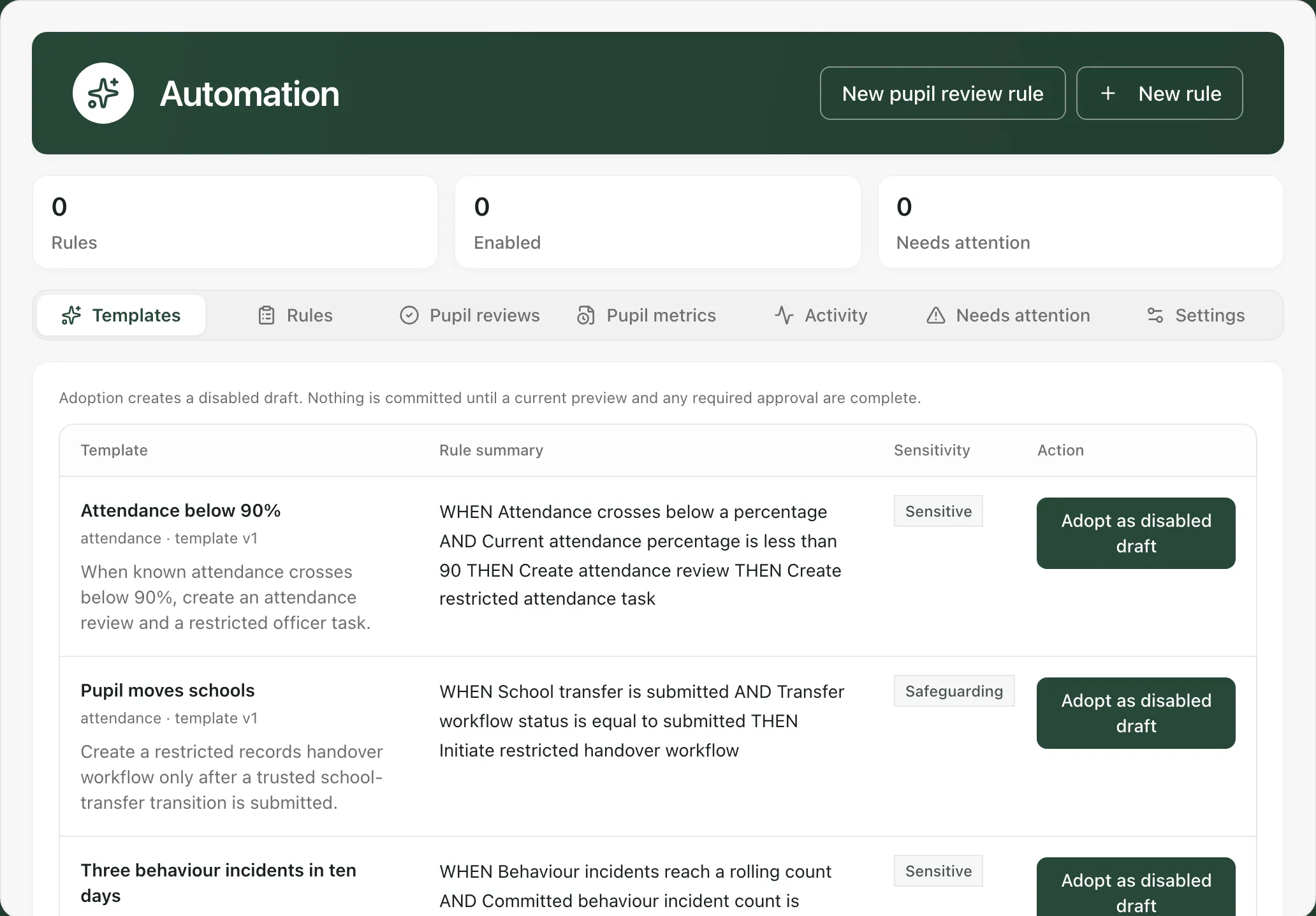
You’ll see “Disabled automation draft created” and the new rule opens on the Rules tab. It doesn’t do anything yet. A template your school has already adopted shows Already adopted.
To build a rule yourself, click New rule, or New pupil review rule for a rule that suggests pupils for review. The rule builder works in the same way as for behaviour rules.
Preview who it would affect
Section titled “Preview who it would affect”- On the Rules tab, click the rule under School rules.
- Click Preview current impact.
The preview shows Current matches (who matches now), Action targets, Unknown data and Stale data. Unknown and stale records are counted separately, so missing information isn’t treated as a match or a non-match. A preview is for that exact version of the rule and expires, so preview again if you’ve changed the rule or the preview has run out.
Approve a rule
Section titled “Approve a rule”Rules marked Safeguarding, and rules that send messages to families automatically, need approval from a second person. The person who wrote or adopted the rule can’t approve it.
- The author previews the rule and clicks Request independent approval.
- The approver opens Automation, clicks the rule on the Rules tab, and reads the rule summary and the preview.
- The approver clicks Approve exact version, or Reject if it isn’t right.
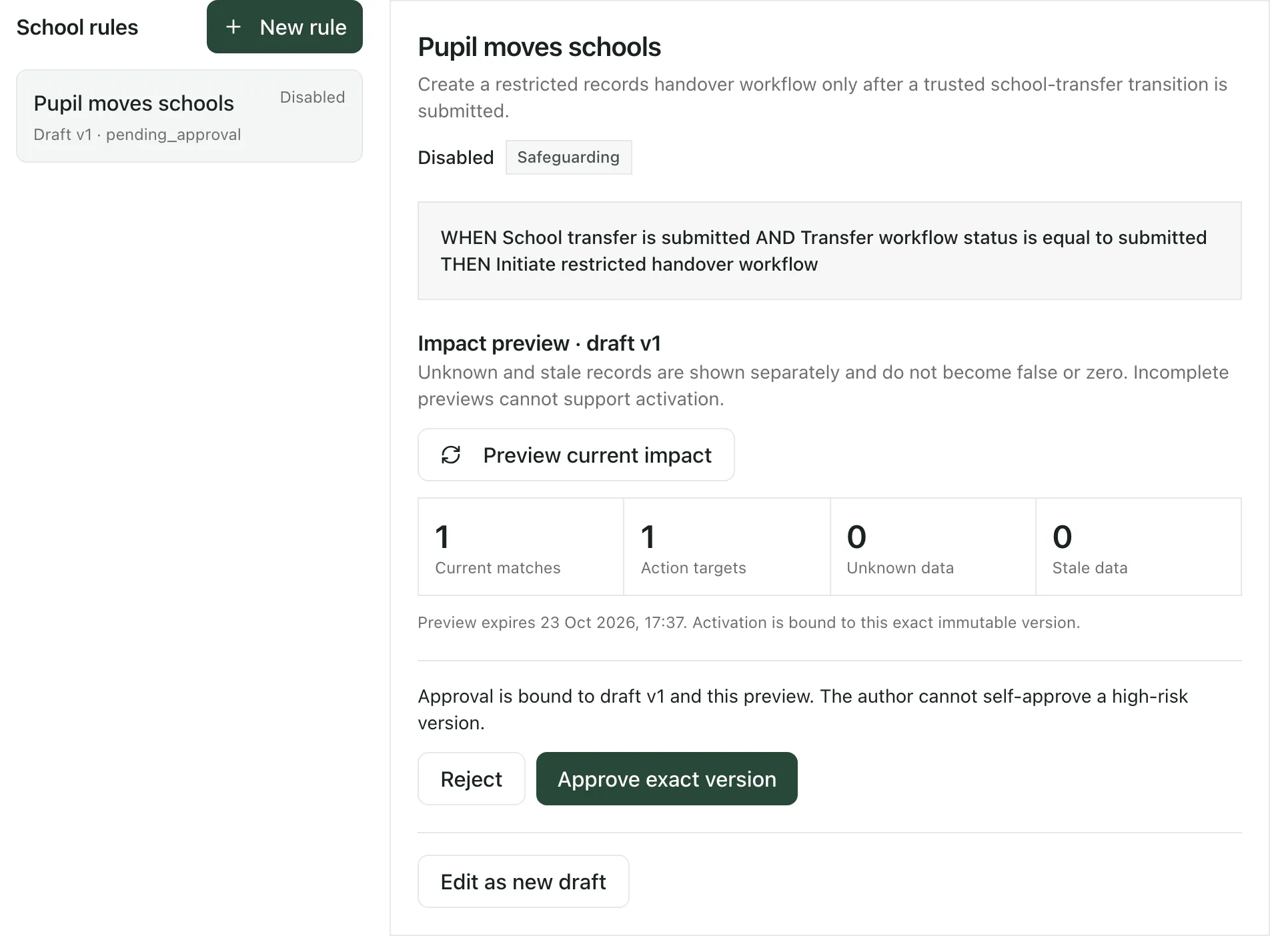
You’ll see “Automation rule state updated”. The approval is for this version and this preview only. If the rule is edited afterwards, the new version needs approving again.
Switch the rule on
Section titled “Switch the rule on”- Open the rule on the Rules tab.
- Decide whether the rule should act on what already matches:
- Leave Apply to current matches unticked to act only on new events from now on.
- To act on current matches too, tick it and type APPLY CURRENT MATCHES in the box.
- Click Activate exact version.
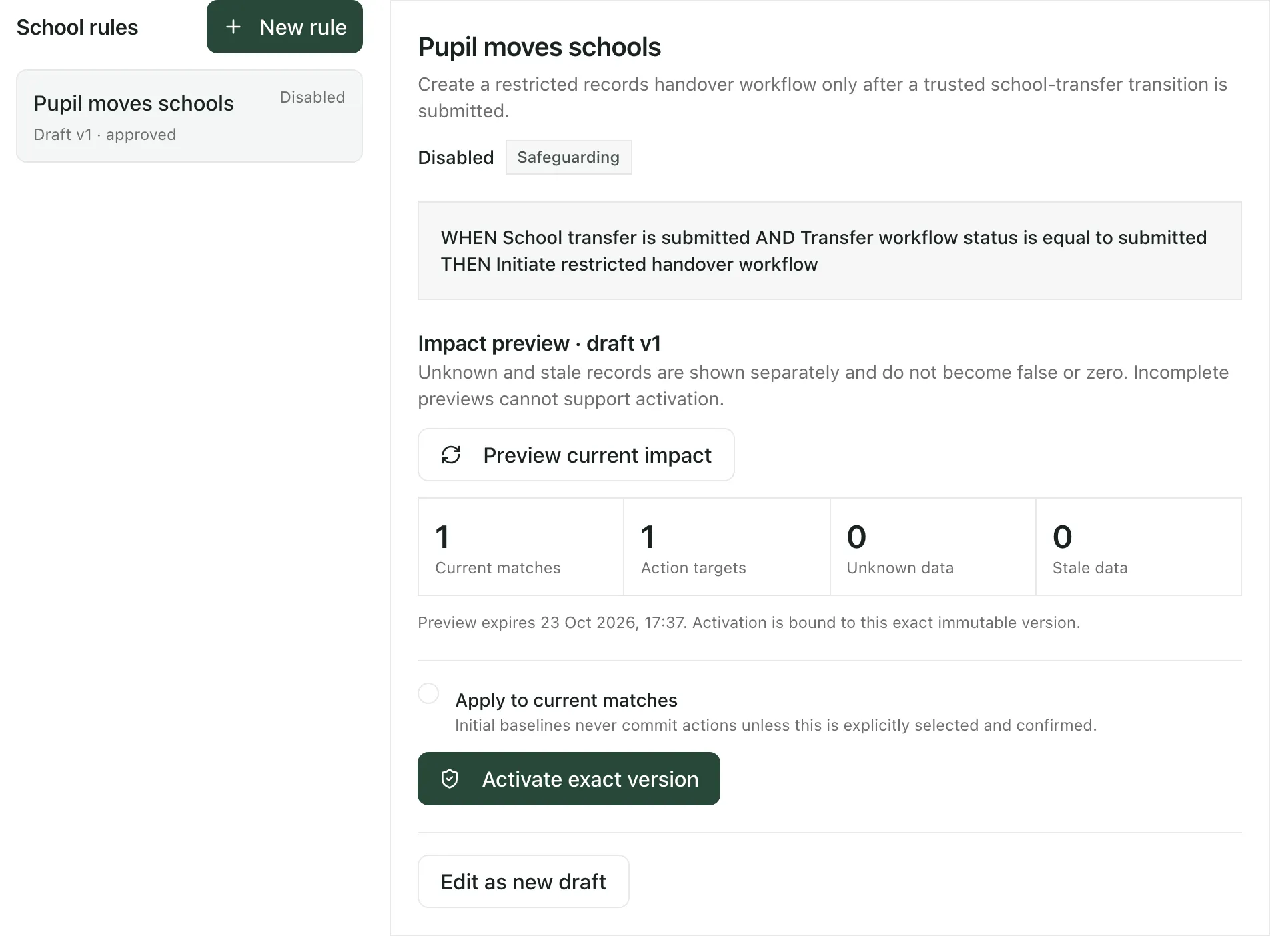
You’ll see “Automation rule state updated” and the rule shows as Enabled.
Check the school’s automation settings
Section titled “Check the school’s automation settings”Rules only take action when Automation platform is switched on and Shadow mode is off, on the Settings tab. In shadow mode, rules are checked and the results are recorded, but nothing is done, which is a safe way to see how a rule behaves first. The Settings tab also sets daily limits on actions and messages. If you can’t change the settings, the tab says “You can view this policy but cannot change it.”
Follow what your rules do
Section titled “Follow what your rules do”- Activity lists each time a rule ran, which pupil or record it was about (shown as a reference) and what happened to each action.
- Needs attention lists anything that needs a person, such as a missing owner or recipient, stale data, a failed action or an approval request.
- Pupil reviews lists the suggestions made by pupil review rules. See Act on a pupil review suggestion.
- Pupil metrics lists the pupil information that pupil review rules can use.
What a rule creates, such as a task or a review suggestion, is a prompt for staff to look more closely. It isn’t a decision about a pupil, and a completed task doesn’t show that things have improved.
Change or switch off a rule
Section titled “Change or switch off a rule”- To change a rule, open it and click Edit as new draft. The changes are saved as a new draft, which you preview, get approved if needed, and activate in the same way.
- To stop a rule, open it and click Disable rule.
If something doesn’t work
Section titled “If something doesn’t work”| What you see | What to do |
|---|---|
| “Automation access required” | Your account can’t use automation. Ask your school’s Student Radar administrator. |
| “Automation could not be loaded” | Click Retry. |
| “No compatible templates” | No template fits your school’s information and permissions. Click New rule to build one instead. |
| “This draft has no current complete preview, so activation is blocked.” | Click Preview current impact, then try again. |
| “This version needs approval from a different authorised user before it can be activated.” | Click Request independent approval and ask a colleague who can approve rules. |
| “A current preview for this exact draft is required.” | The preview is out of date. Click Preview current impact again. |
| “The rule is not ready for that step. Review its definition, preview, and approval state.” | Check that the rule has a current preview and, if it needs one, an approval. |
| Activate exact version is greyed out | The rule needs a current preview and, if it’s high risk, an approval. If you ticked Apply to current matches, type APPLY CURRENT MATCHES exactly. |