Write and sign off a risk assessment
Written for: Alternative provision staff.
Risk Assessments holds a written risk assessment for each pupil on your roll. You record what could cause harm, who is at risk, how likely and how serious it is, and the controls you have in place. Each assessment starts as a draft. It only becomes live when a provision leader signs it off.
Open Risk Assessments
Section titled “Open Risk Assessments”In the sidebar, open Pupils and choose Risk Assessments.
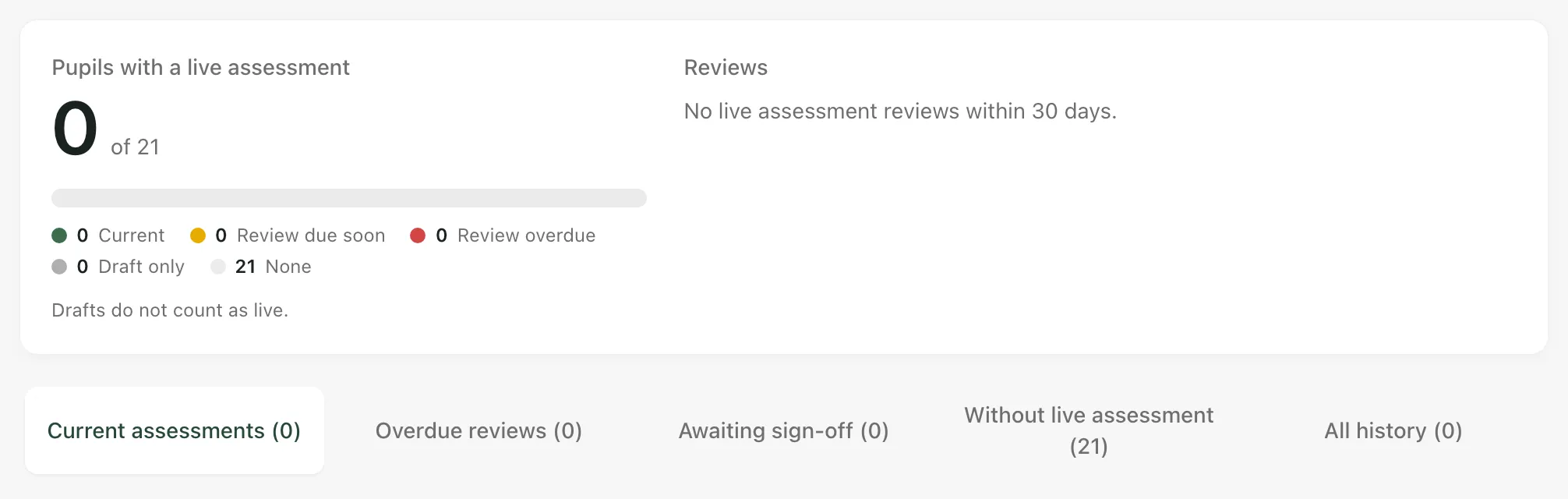
The panel at the top shows how many pupils on roll have a live assessment. The bar splits your roll into:
- Current: a live assessment that isn’t due for review in the next 14 days.
- Review due soon: a live assessment due for review in the next 14 days.
- Review overdue: a live assessment whose review date has passed.
- Draft only: a draft, but nothing live yet. Drafts don’t count as live.
- None: no assessment at all.
Reviews shows the review dates of live assessments around today. Click a dot to open that assessment.
Below the panel, choose what to list:
| Button | What it lists |
|---|---|
| Current assessments | Live assessments and drafts, the soonest review first. |
| Overdue reviews | Live assessments whose review date has passed. |
| Awaiting sign-off | Drafts that a leader hasn’t signed off yet. |
| Without live assessment | Pupils on roll with no live assessment, with Review draft if a draft is waiting. |
| All history | Every assessment, including ones that have been replaced (Superseded) or Archived. |
Use the search box to find a pupil or an assessment title.
Write a new assessment
Section titled “Write a new assessment”- Click New assessment at the top of the page. To start from a particular pupil, open Without live assessment and click Create assessment in their row.
- Fill in the Assessment details:
- Pupil: choose the pupil.
- Overall rating: Low, Medium, High or Very high.
- Title: this starts as Individual risk assessment. Change it if you keep more than one kind, for example for off-site activities.
- Assessed on: the date of the assessment. It can’t be in the future.
- Review due: this starts six weeks from today.
- Context: the background, such as history, triggers, and what the referral and the family told you.
- Under Hazards and controls, fill in each hazard:
- What could cause harm?
- Who is at risk?
- Likelihood (1–5) and Severity (1–5)
- Controls in place: what you do to reduce the risk.
- Click Add hazard for each further hazard. To remove one, click the bin beside it.
- Click Save draft.
You’ll see “A leader can now sign it off.” The draft appears under Awaiting sign-off.
Each hazard shows a residual score, which is its likelihood multiplied by its severity. A score of 15 or more is shown as High, 8 to 14 as Medium and under 8 as Low. The score helps you compare hazards. The Overall rating is your professional judgement, so Student Radar never sets it for you.
If you close the form with unsaved changes, Student Radar asks “Discard assessment changes?” Click Keep editing to go back, or Discard changes to close without saving.
Sign off an assessment
Section titled “Sign off an assessment”Signing off is for provision leaders.
- Click Awaiting sign-off.
- Click the assessment’s title, or click View details.
- Read the context and each hazard, with its residual score, who is at risk and the controls.
- If it’s right, click Sign off and make live. If it needs changes, click Edit instead.
You’ll see “Risk assessment signed off and live”. The list then shows who signed it off, and the assessment counts towards your coverage.
Update, review or archive an assessment
Section titled “Update, review or archive an assessment”- Change an assessment: open it and click Edit. Saving a live assessment turns it back into a draft, so it needs signing off again before it’s live.
- Review it: when a review falls due, read the assessment, update the hazards, controls and Review due date, and save it for sign-off.
- Archive it: open the assessment and click Archive, for example when a pupil has left. Archived assessments stay in All history.
- Who can do what: by default, provision leaders, such as the Leader, DSL and Deputy DSL roles, write, sign off and archive assessments. If you don’t see New assessment or Sign off and make live, your role can’t do that. Ask a provision leader.
- Two-step check: saving, signing off and archiving need a recent two-step check. You must have confirmed your sign-in with a second step, such as your authenticator app, in the last 15 minutes. See Add a passkey or authenticator app.
- Your provision’s words: the page uses your provision’s word for a pupil, such as learner. See Change the words used for pupils and schools.
- If you’re worried about a pupil: a risk assessment doesn’t replace your safeguarding procedure. Raise a concern and follow your provision’s procedure. See Raise a safeguarding concern about a pupil.
If something doesn’t work
Section titled “If something doesn’t work”| What you see | What to do |
|---|---|
| Risk assessments “could not be loaded. Counts and missing records cannot be confirmed.” | Click the retry button under the message. Until the list loads, the counts aren’t complete, so don’t treat a pupil as having no assessment. |
| “give the assessment a title and record at least one hazard.” | Choose the pupil, check the Title isn’t empty and fill in What could cause harm? for at least one hazard. |
| “Could not update the assessment” | The sign-off or archive didn’t go through. Read the reason under the message, then try again. |
An error that mentions recent_aal2_required |
Your sign-in needs a fresh two-step check. Sign out, sign in again and complete the second step, such as your authenticator app, then try again within 15 minutes. |
| “No assessments match your search.” | Check the spelling, or clear the search box. |