Prepare a top-up funding request
Written for: SENCos and inclusion leads.
Use Top-Up Funding to prepare a request to your local authority for additional funding for a pupil’s SEND provision. You record what the school is asking for, gather and review the evidence, track the request through each stage and record the local authority’s decision when it arrives.
Every local authority sets its own top-up funding rules, bands, forms and deadlines. Student Radar keeps your school’s record of the request; it doesn’t send the request to the local authority or judge whether a pupil qualifies. Follow your local authority’s process and submit the request the way it asks.
Open Top-Up Funding
Section titled “Open Top-Up Funding”In the sidebar, open Inclusion, then SEND, then Provision, and choose Top-Up Funding.
You can also start from a pupil on the Provision Map: expand the pupil’s row, open Funding context and next steps and click Prepare top-up evidence bundle or Open funding workspace. Top-Up Funding opens with that pupil’s requests. See Add and cost a provision.
Find a request
Section titled “Find a request”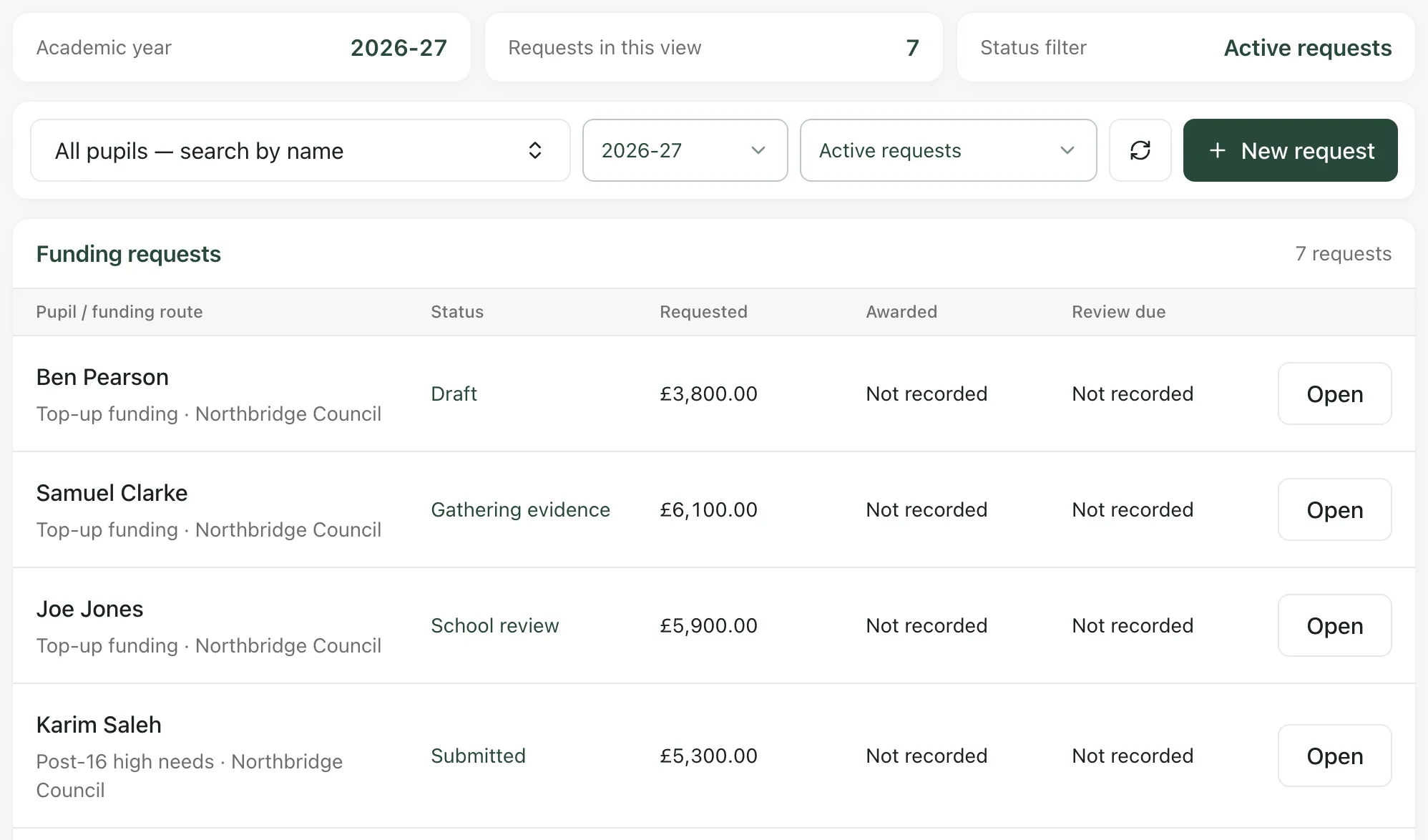
The list shows each pupil’s request for the academic year, with its funding route and local authority, its Status, the amount Requested and Awarded, and when it’s Review due. To narrow it:
- Click All pupils — search by name and type at least two letters of a pupil’s name.
- Choose a different academic year.
- Choose a stage from Active requests to see only requests at that stage.
Click Open to open a request.
Start a new request
Section titled “Start a new request”- Click New request.
- Under Pupil, click Choose pupil for new request, type at least two letters of the pupil’s name and choose them.
- Choose the Funding route, such as Top-up funding, Banding review or High needs top-up.
- Choose the Local authority if your school has set it up. Otherwise, leave Enter a name or leave unrecorded selected and type the name in the box below. You can link it later.
- Click Create request.
As the form says, “An EHCP is not required to record a funding request.” The new request opens at the Draft stage, for the academic year you were looking at.
Record what you’re requesting
Section titled “Record what you’re requesting”The request opens on Overview.
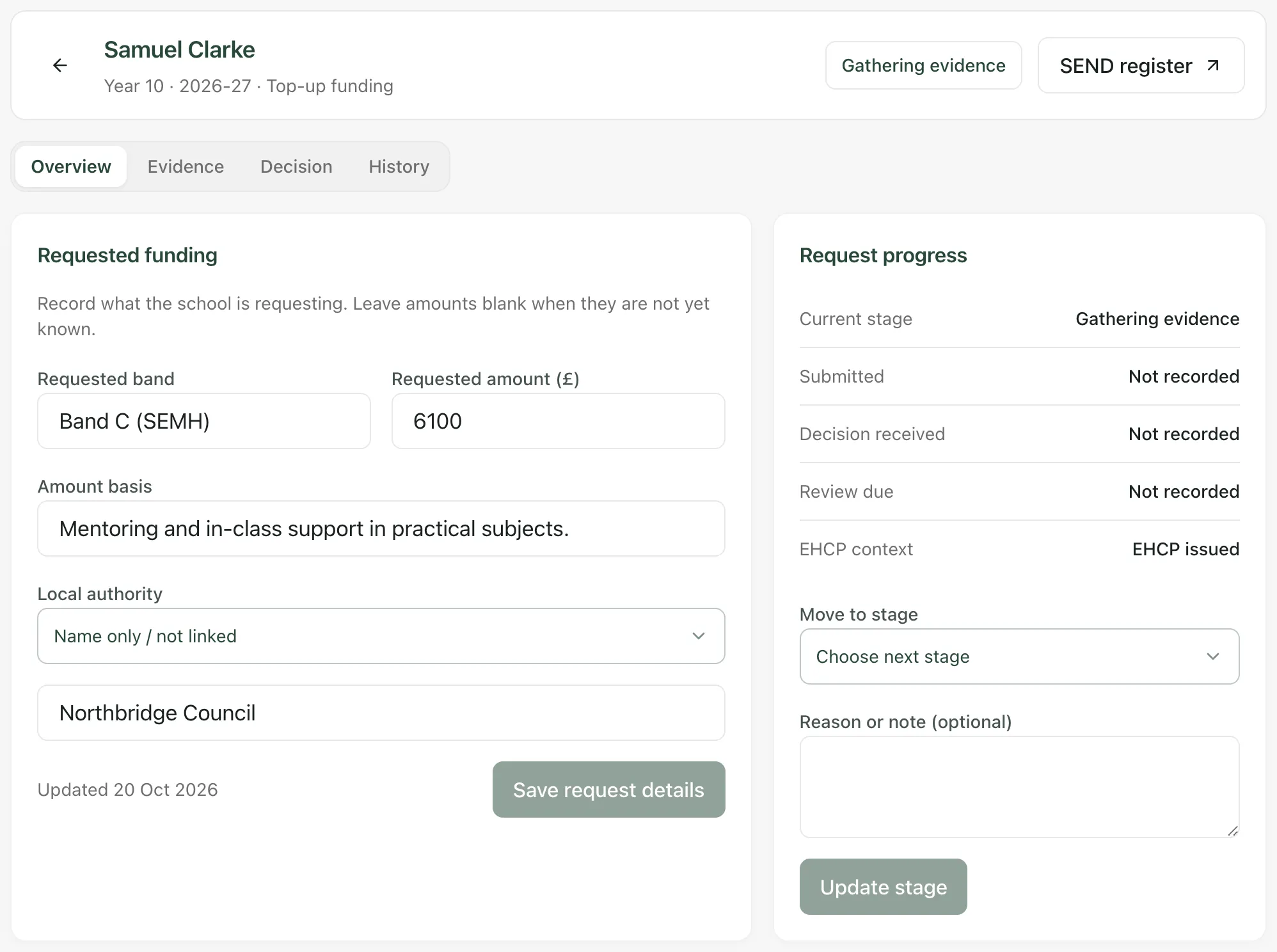
- Under Requested funding, fill in the Requested band and Requested amount (£), if you know them. Leave amounts blank until you do.
- In Amount basis, say how you worked out the amount, for example from the costs of the provision on the pupil’s Provision Map.
- Check the Local authority.
- Click Save request details.
Provision costs in Student Radar are the school’s own estimates, so check them against your school’s records and the local authority’s rates before you request an amount.
If you’ve linked the request to a local authority, Current school-held policy shows the reviewed extracts your school has recorded from that authority’s funding policy, with their source. These are your school’s notes, not a live copy of the local authority’s rules. Click Open policy sources to see or update them, and always check the authority’s current guidance.
Gather the evidence
Section titled “Gather the evidence”- Click the Evidence tab, then click Add evidence.
- Give the item an Evidence title and choose its Evidence type, such as Attendance summary, Annual review or Professional advice.
- Choose its Sensitivity. General evidence suits most items. Health, safeguarding and social care options appear only if your account can see that kind of information.
- Add a Summary (optional).
- Click Add for review.
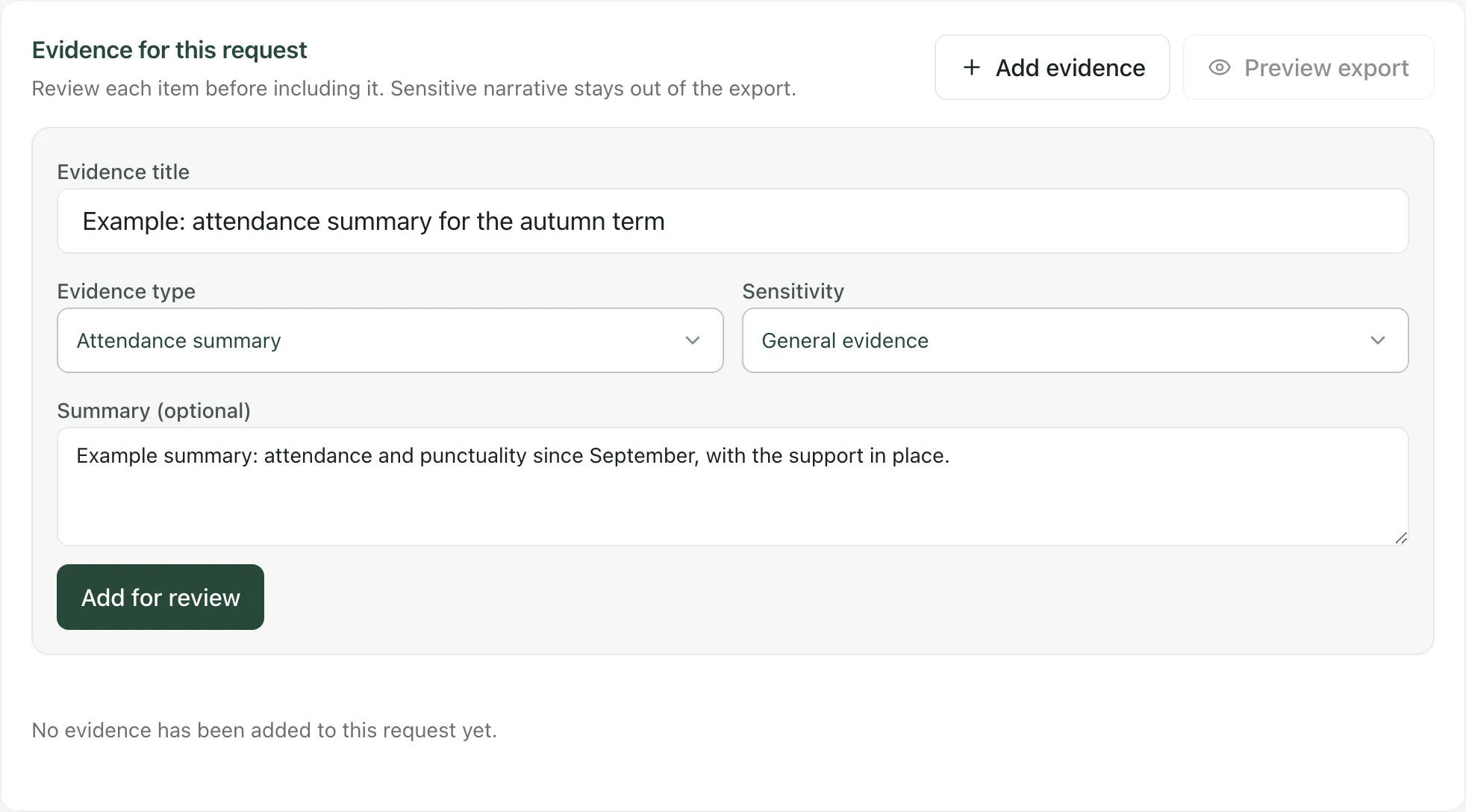
Each item then needs a decision before it can go in the export. Click Include, Exclude or Review later. You must give a reason to exclude an item, and a reason to include sensitive evidence.
Move the request through its stages
Section titled “Move the request through its stages”Under Request progress, choose the next stage from Move to stage, add a Reason or note (optional) and click Update stage. Only the stages that can follow the current one are offered. A typical request moves through:
- Draft
- Gathering evidence
- School review
- Ready to submit
- Submitted, then Acknowledged by the local authority
- With the panel, or Awaiting information if the authority asks for more
- A decision: Approved, Partly approved, Declined or Deferred
Save any changes to the request details first: Update stage stays greyed out while you have unsaved changes.
Download the evidence document
Section titled “Download the evidence document”When the evidence is ready, open Evidence and click Preview export. Review evidence export shows exactly what will be in the document. As it says, “Only included evidence is exported. Sensitive narrative, excluded items and unreviewed drafts are withheld.” Click Download document, then send it to the local authority with its own forms, the way it asks.
Record the local authority’s decision
Section titled “Record the local authority’s decision”- Open the Decision tab.
- Fill in the Awarded band, Awarded amount (£), the date the Decision received and when the award is Review due.
- Add a Decision summary.
- If the request is with the panel, choose the Decision outcome, or leave Keep current stage.
- Click Save decision.
The History tab lists every change to the request, with the date, time and who made it. To take a finished request out of the list, click Archive, then Archive request. The request and its history are kept.
Who can use Top-Up Funding
Section titled “Who can use Top-Up Funding”By default, teachers, SENCos, senior leaders, headteachers and administrators can open Top-Up Funding. Your school can change who has access. What you can do in each request, such as editing it, adding evidence or downloading the document, depends on your funding permissions, so some parts may be read-only.
England only: Top-Up Funding follows the English high needs funding system. It’s switched off for schools in other countries, and the funding context on the Provision Map is hidden.
If something doesn’t work
Section titled “If something doesn’t work”| What you see | What to do |
|---|---|
| “Funding is temporarily view-only. Creating, editing and exporting requests are unavailable.” | You can read requests but not change them for now. Click Check again later. |
| “Funding availability could not be confirmed. Requests remain view-only.” | Click Check again. |
| “No requests in this view” | Change the pupil, year or stage filters, or click New request. |
| “Funding requests could not be loaded” | Click Retry. Your filters are kept. |
| “Creating requests for this pupil is not available with your current permissions.” | Ask your SENCo or school’s Student Radar administrator. |
| “This request is read-only with your current access or at this stage.” | You can read the request but not change it. Ask your SENCo if you need to update it. |
| “Enter an amount of £0 or more, with up to two decimal places.” | Type the amount as a number without a £ sign or commas, for example 6100 or 6100.50. |
| “You do not have permission for this action. Your changes have been kept.” | Your changes weren’t saved. Ask your SENCo or administrator about your funding permissions. |
| “This could not be saved. Your changes have been kept. Please try again.” | Try again. If it keeps happening, click Refresh saved record. |
| “Evidence is not available with your current permissions” | You can’t see this request’s evidence. Ask your SENCo. |
| “No current, reviewed policy facts are available for this authority and academic year.” | Your school hasn’t recorded reviewed policy for this authority yet. Check the authority’s own guidance. |