Set up and fill in your markbook
Written for: Teachers.
The Digital Markbook is a gradebook for your class. Each row is a pupil and each column is an assessment, such as a test, a quiz or a practical. Columns can be grouped into folders, and each column has its own grading scale. You record marks one pupil at a time, and each mark is saved on its own, so there’s no separate save for the whole markbook.
Open the markbook
Section titled “Open the markbook”- In the sidebar, click Classes.
- Choose the class:
- In a secondary school, click Teaching classes, then the subject and the class. For a tutor group, click Tutor groups, then the year group and the tutor group.
- In a primary school, click the year group, then the class.
- Click Digital Markbook.
The markbook shows the pupils in that class. The line above the filters names the class and how many pupils it has. To narrow the list, use the year group and class lists, or type a name in Find pupil….
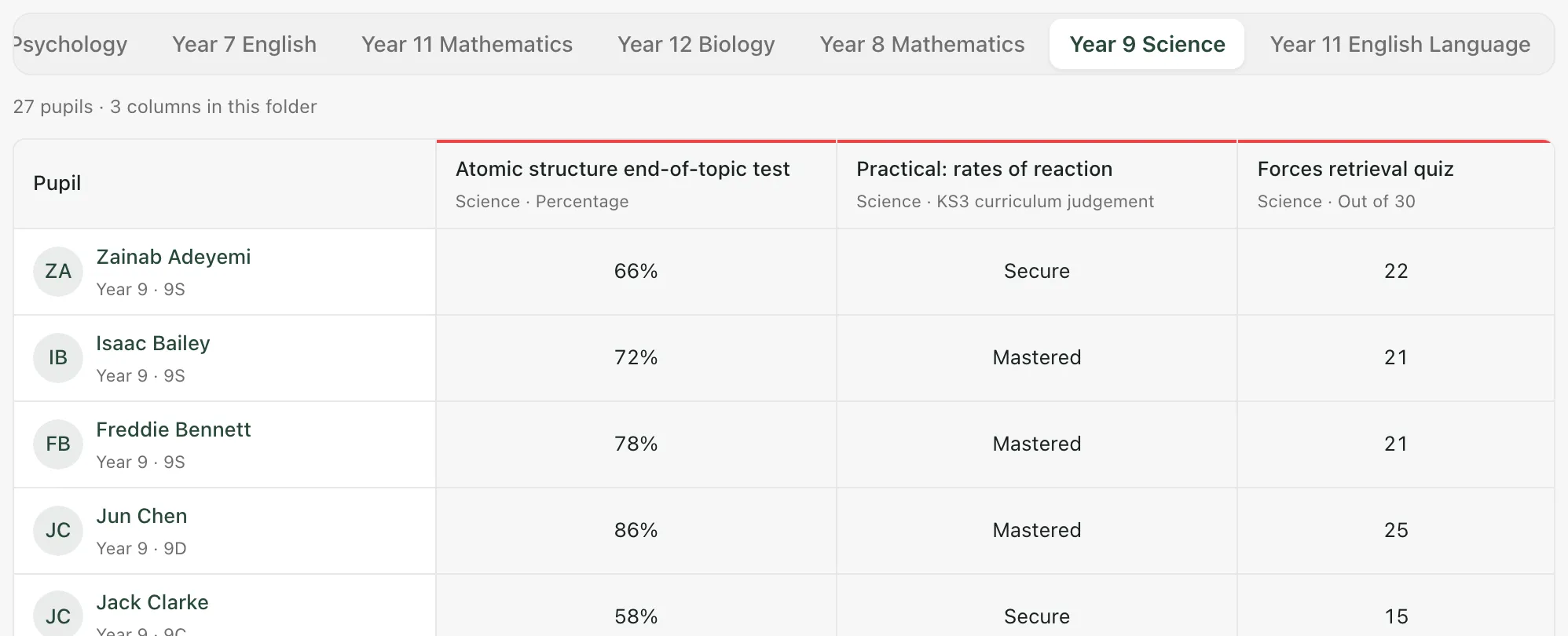
Above the grid, click All columns to see every column, or click a folder to see only its columns. Under each column name you’ll see its subject and grading scale.
Set up folders and columns
Section titled “Set up folders and columns”Folders and columns belong to the whole school, not just your class. Everyone who opens the markbook sees the same folders and columns, with marks for the pupils they teach.
You’ll see Add Column at the end of the toolbar if you can set up the markbook. If you can’t see it, ask your assessment lead to add the columns you need.
Add a folder
Section titled “Add a folder”Use folders to group assessments, for example by term, topic or purpose.
- Click Add Column. The Manage markbook window opens.
- Click the Add Folder tab.
- Enter a Folder name, such as the name of a term or topic.
- Choose a Colour and, if you want to, add a Description.
- Click Add folder.
The folder appears as a tab above the grid.
Add a column
Section titled “Add a column”-
Click Add Column. The Manage markbook window opens on the Add Column tab.
-
Under Column details, enter the Column name and the Subject. Choose a Folder, or leave it empty.
-
Under Assessment scale, choose how the column is marked. Either pick one of the Recommended scales, or choose a Grade type:
Grade type What you record Checkbox (Pass/Fail) Pass or Fail. Numeric points A number, from 0 to 100 unless the scale says otherwise. Percentage A percentage from 0 to 100. Text grades A grade from a list, such as letter grades from A+ to F. Rubric scale A level: Emerging, Developing, Secure or Mastered. Icon scale A face from Needs Help to Excellent! The recommended scales are WTS / EXS / GDS, Pass / Fail, 1-4 Steps, Percentage and Standardised Score (70 to 130). Check the scale under Grade scale preview.
-
Under Column settings, you can set a Weight and a Display colour. The colour only helps you pick out the column. The column summaries on the markbook page don’t use the weight.
-
Click Add column.
There’s no option to rename or remove a column on the markbook page, so check the name and scale before you add it.
Tip: Use a recommended scale where you can. The window reminds you that custom scales “need mapping for cross-class reporting”.
Enter a mark
Section titled “Enter a mark”- Click the pupil’s cell in the column. A window opens with the column name, the pupil and the grading scale.
- Under Mark, type the mark, or choose it from the list. The list or number range comes from the column’s scale.
- If you want to, add Assessment notes.
- Click Save mark.
The mark appears in the grid. A dash (—) means no mark has been recorded yet.
To enter marks for a whole class without opening a window for each one, turn on Entry mode. See Enter marks quickly with rapid entry.
Read the markbook
Section titled “Read the markbook”Along the top, four figures count what’s on screen: Pupils in view, Columns in view, Recorded marks and Unrecorded cells. A blank mark counts as unrecorded, never as zero.
The markbook shows up to 12 columns and 40 pupils at a time. Use Previous columns and Next columns, or Previous pupils and Next pupils, to see the rest.
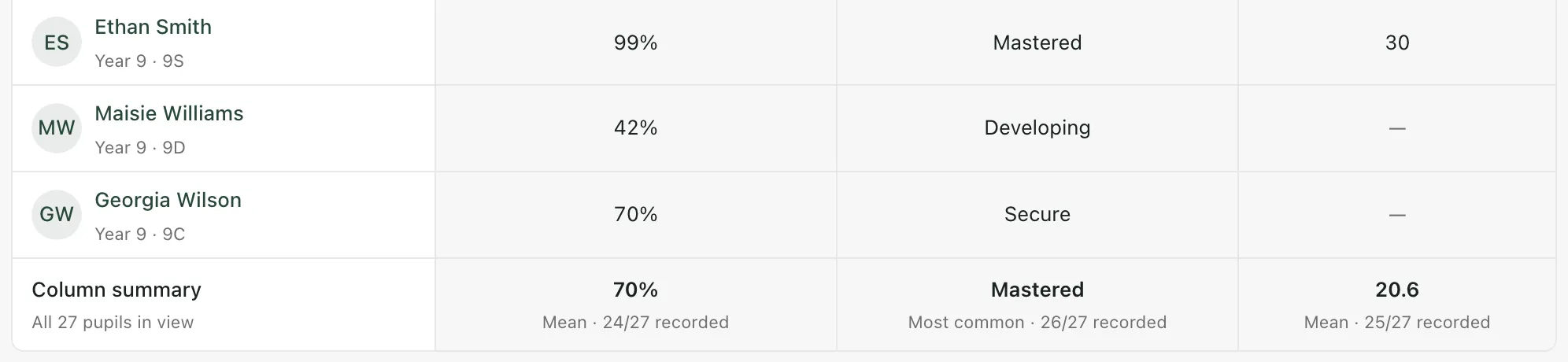
The Column summary row at the bottom summarises each column for the pupils in view:
- Numbers and percentages: the mean mark.
- Pass/Fail: the pass rate.
- Grades and levels: the most common one.
Each summary also says how many pupils have a mark. Turn on Heatmap to shade number and percentage cells. A stronger shade means a larger number on that column’s scale. It isn’t a judgement about the pupil.
Click a pupil’s name to open their profile.
- Who can use the markbook: teachers, SENCos, safeguarding leads, senior leaders, headteachers and office staff can open the markbook by default. Teaching assistants can’t. You can only enter marks for pupils your account can record assessments for. Schools can change who has access.
- Marks from other features: columns linked to homework, and Home Reading columns, get their marks from those features. You can’t change those marks in the markbook.
- Tour: click Take a tour at the top of the page for a step-by-step guide.
If something doesn’t work
Section titled “If something doesn’t work”| What you see | What to do |
|---|---|
| “Ask your assessment lead to set up columns.” | Your account can’t add columns. Ask your assessment lead to add them. |
| “Enter a column name.” or “Enter a folder name.” | Give the column or folder a name, then try again. |
| “Weight must be between 0 and 100.” | Change the Weight to a number from 0 to 100. |
| “Enter a mark before saving.” | Type or choose a mark. To leave a pupil without a mark, click Cancel. |
| “Enter a valid number.” | This column takes a number. Check what you typed. |
| “Choose a grade from this column’s scale.” | Pick a grade from the list for this column. |
| “You have read-only access to this mark.” | You can’t change this mark. It may come from another feature, or your account can’t record marks for this pupil. |
| “This mark changed elsewhere. Your draft is still here; reopen the mark to review the latest result before saving.” | Someone else saved a mark for this pupil while you were editing. Close the window, open the mark again, check it, then save. |
| “You do not have permission to make this change.” | Ask your school’s Student Radar administrator to check your access. |
| “The connection failed. Your draft is still here; please retry.” | Check your connection, then save again. |
| “No accessible pupils match this selection. Choose another year group or class.” | Choose a different year group or class, or set both back to all. |
| “No pupils match your search.” | Click Clear pupil search. |