Invite a member of staff
Written for: School leaders, SENCos, DSLs and Student Radar administrators.
Colleagues get into Student Radar when your school invites them. You choose their role, which sets the pages and actions they get by default, and you can limit them to one class or group. Student Radar then emails them a link to set up their account.
Find the colleague
Section titled “Find the colleague”- In the sidebar, open Administration and choose Staff. The page is called Invite Colleagues.
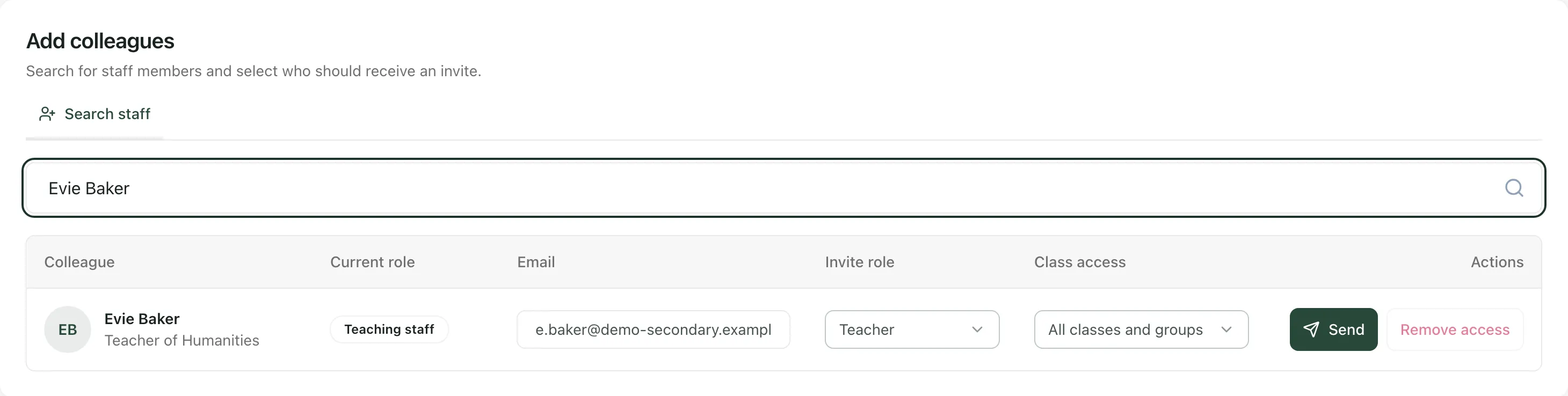
- Under Add colleagues, type in the Search staff box. You can search by name, email address or job title.
The list comes from your school’s staff records, so most colleagues are already there. Each row shows their job title, whether they’re Teaching staff or Support staff, their email address and the invite settings.
Choose their role and class access
Section titled “Choose their role and class access”-
Check the Email box. The invitation goes to this address. If it’s empty or wrong, type the right work email. The box turns red until the address is valid.
-
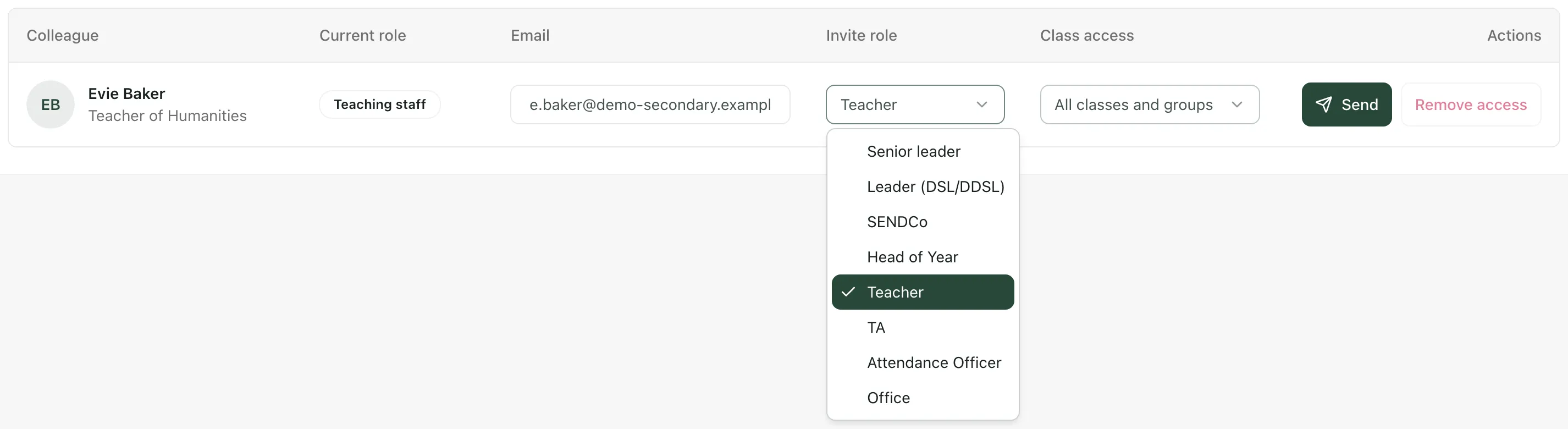
Under Invite role, choose the role that matches their job. Student Radar suggests one from their job title, so check it before you send.
-
Under Class access, leave All classes and groups or choose one class or group to limit what the colleague can see to those pupils.
Head Teacher is only in the list if you’re a headteacher or a Student Radar administrator.
Send the invitation
Section titled “Send the invitation”Click Send in the colleague’s row. Student Radar emails them a link to set up their account, and a message confirms what happened:
| Message | What it means |
|---|---|
| “Invite sent” | The invitation email is on its way. |
| “Invite awaiting approval” | The role needs a second leader to approve the invitation. No email is sent until then. |
| “Invite already delivered” | This colleague already had an invitation, so no new email was sent. |
| “Manual invite created” | The invitation was created, but no email was sent. Contact Student Radar support. |
| “Access granted” | The colleague has access, but Student Radar couldn’t confirm the email arrived. Check with them. |
An Invitation summary window then lists the outcome. Click Close when you’ve read it.
Once a colleague has been sent an invitation or has an account, the button in their row says Update and their email address can no longer be changed here.
Your colleague follows the link in the email to sign in and confirm their details. See Accept your invitation and set up your account.
Invitations for senior roles
Section titled “Invitations for senior roles”Invitations for senior roles, such as Senior leader, Leader (DSL/DDSL) and SENDCo, can need a second SLT member, DSL or SENCo to approve them before the welcome email goes. These show as awaiting approval in the Invitation summary. If an invitation stays waiting, contact Student Radar support.
Check who hasn’t accepted yet
Section titled “Check who hasn’t accepted yet”If your access allows, an Outstanding invitations panel at the top of the page lists colleagues who haven’t accepted their invitation yet, with the role and when it was sent. It shows Awaiting acceptance while the link still works and Link expired once it doesn’t. To send an invitation again, find the colleague in the list and click Update in their row.
Add someone who isn’t in the list
Section titled “Add someone who isn’t in the list”In schools that don’t have an MIS feed, an Add staff member button appears at the top of the page. Fill in their First name and Surname (both required), Work email and Job title, tick Teaching staff if it applies, and click Add staff member. They’re added to your staff list, and you can then invite them as above.
If your school has an MIS feed, add the person in your MIS. They appear here after the next sync.
Take the built-in tour
Section titled “Take the built-in tour”Click Take a tour at the top of the page for a short guide.
- The Remove access button takes away a colleague’s access to your school. It’s greyed out until they have an account. See Change a colleague’s role or remove their access.
- To give a colleague different pages, see Give a colleague access to specific pages.
- In an alternative provision, this page is called Staff and access and works differently.
If something doesn’t work
Section titled “If something doesn’t work”| What you see | What to do |
|---|---|
| “No matching staff” | Check the spelling, or search by surname, email address or job title instead. |
| “No staff found” | Student Radar couldn’t find any active staff records for your school. Ask your Student Radar administrator. |
| Send is greyed out | Enter a valid email address in the colleague’s row. |
| “Add a valid email” | The email address in the row isn’t valid. Correct it, then click Send again. |
| “Only a headteacher or school administrator can invite a Head Teacher.” | Ask your headteacher or Student Radar administrator to send this invitation. |
| “Invite failed” | Check the email address and try again. If it keeps happening, your role may not be able to invite this role. |
| “Unable to load staff” | Click Retry staff fetch. |