Send a form to parents
Written for: School staff who send forms to families.
To send a published form to families, create a campaign. A campaign sends one published version of the form to the parents and carers you choose, between an opening and a closing time. Each family gets an email with a secure link to the form, and parents who use the parent app can also find it there.
Before you start, publish the form. See Create and publish a form.
Set up the campaign
Section titled “Set up the campaign”- In the sidebar, open Parents and choose Forms.
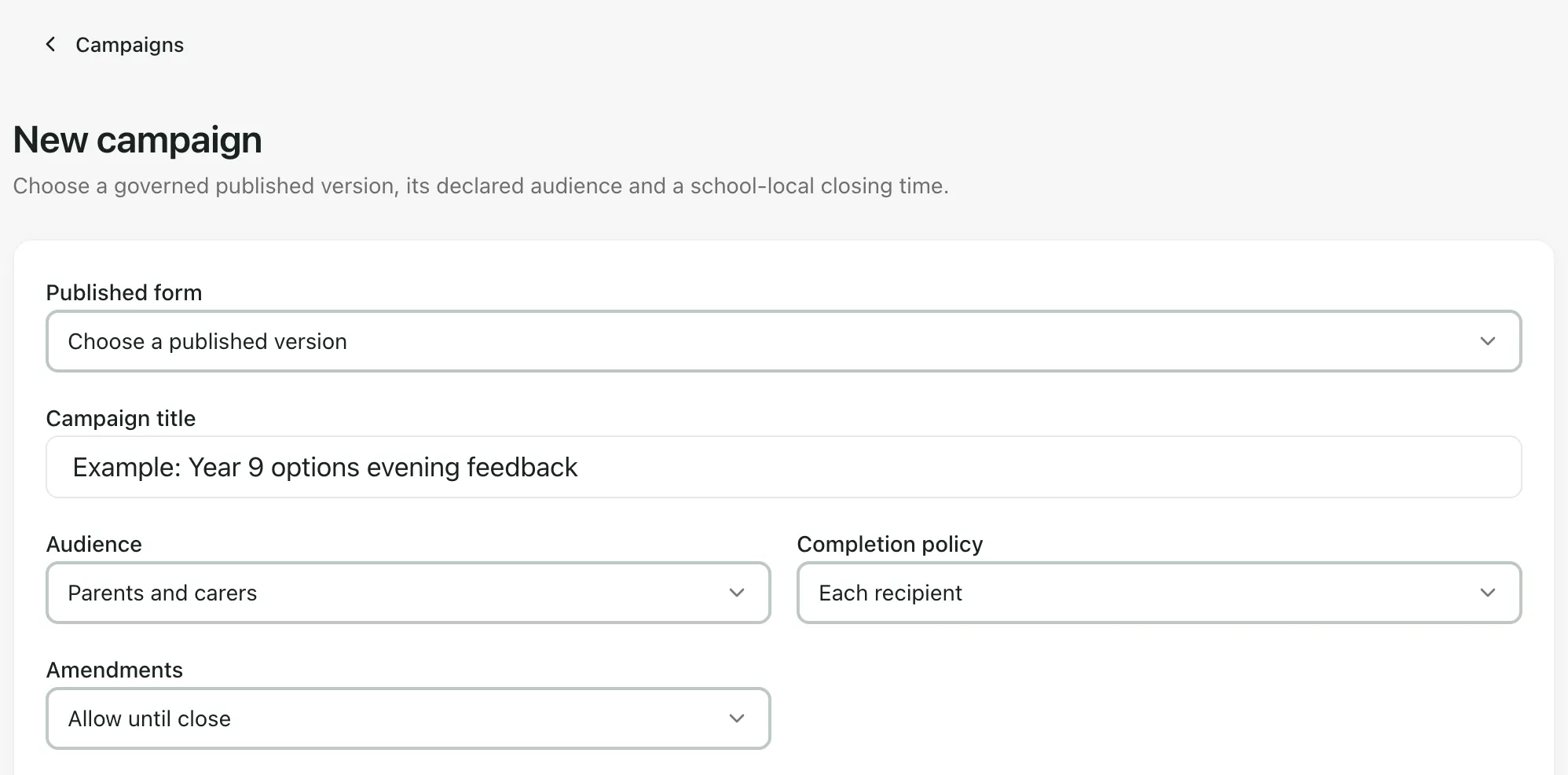
- Click the Campaigns tab, then New campaign. You can also click Create recipient campaign in a published form’s Share window.
- In Published form, choose the form. The list shows each form’s published version.
- Enter a Campaign title. Families see it in the subject of the email they get, so name the event or the decision you need.
- Set Audience to Parents and carers.
- Choose a Completion policy: One response per pupil if one parent answering for each pupil is enough, or Each recipient if every parent or carer you choose should answer.
- Choose whether parents can change their answers under Amendments: Allow until close, No amendments or Consent withdrawal only.
- Set Opens at and Closes at, in your school’s local time.
Choose the families
Section titled “Choose the families”- Scroll down to Recipients.
- Search for pupils with the search box, then tick each pupil whose parents should get the form. Click Load more pupils to see more.
- Check the line under each pupil’s name. It shows how many parent portal accounts they have. Pupils marked No parent portal account can’t be chosen: their parents need a parent app account first. See Invite a parent to the parent app.
You can choose up to 200 pupils in one campaign. The number chosen is shown under Recipients.
Leave Response workflows empty unless your school has agreed how to use them. They aren’t covered here.
Publish the campaign
Section titled “Publish the campaign”- At the bottom of the page, read the panel next to Review and publish. If it says Complete these items to continue, fix each item listed.
- When it says “Ready to review and publish.”, click Review and publish.
- Read the summary in Publish this campaign?, then click Confirm publish.
The campaign appears on the Campaigns tab with its status, number of recipients and closing time. The form version in a campaign can’t be changed after you publish it.
What families get
Section titled “What families get”- An email: each parent or carer gets an email from your school with the campaign title in the subject and a button to open the form. The link stops working when the campaign closes.
- The parent app: parents who use the parent app can also open the form from Forms.
- A check that it’s them: for forms that record consent, a declaration or sensitive information, parents may be asked to sign in to the parent app or to enter a Six-digit access code that Student Radar emails to them.
Follow up responses
Section titled “Follow up responses”On the Campaigns tab, click View responses next to a campaign. You’ll see how many families have opened, submitted or not yet answered the form under Response denominator, and each family’s response under Responses. To read and review answers, see Approve a form and review responses.
- Reminders: the campaign page has an Automated reminders section, but reminders are only sent if your school uses Student Radar’s communications service. Ask your school’s Student Radar administrator before relying on them, and remind families another way if you need to.
- Pupils and staff: you can send some forms to Pupils or Staff in the same way. The Audience list shows who the form was made for.
- Sensitive forms: publishing a campaign for a consent, medical or signature form needs a colleague with permission to publish sensitive campaigns.
If something doesn’t work
Section titled “If something doesn’t work”| What you see | What to do |
|---|---|
| “Choose a published form.” | Choose a form in Published form. If the list is empty, publish the form first. |
| “Add a campaign title.” | Enter a Campaign title. |
| “Set an opening and closing time.” | Fill in Opens at and Closes at. |
| “Closing time must be after opening time.” | Move Closes at later than Opens at. |
| “Select at least one recipient.” | Tick at least one pupil under Recipients. |
| “Select no more than 200 pupils.” | Untick some pupils and send the rest in a second campaign. |
| “No authorised pupils match this search.” | Check the spelling, or clear the search box. You can only choose pupils your account has access to. |
| “None of the selected recipients has an authorised portal account.” | The parents of the pupils you chose don’t have parent app accounts yet. Invite them to the parent app first. |
| “One or more pupils are outside your authorised scope.” | Untick pupils you don’t have access to, or ask a colleague who does to send the campaign. |
| “You do not have permission to perform this campaign action.” | Ask a colleague who can publish campaigns, or your Student Radar administrator. |
| “This campaign has already reached its closing time.” | The campaign has closed. Create a new campaign if you still need responses. |
| “Campaigns could not be loaded” | Click Try again. If it keeps happening, wait a few minutes and reload the page. |