Plan a school trip and submit it for approval
Written for: School staff who organise trips and visits.
Trips keeps everything about a school visit in one place: the plan, the pupils and staff going, approval, consent and safety. You create a proposal, complete the plan, add the people, then submit the plan for approval. Approval, readiness and consent are tracked separately, so an approved trip isn’t automatically ready to go.
To get there, open Parents in the sidebar and choose Trips. Each trip is listed with its Dates, Lifecycle, Approval, Readiness and Revision.
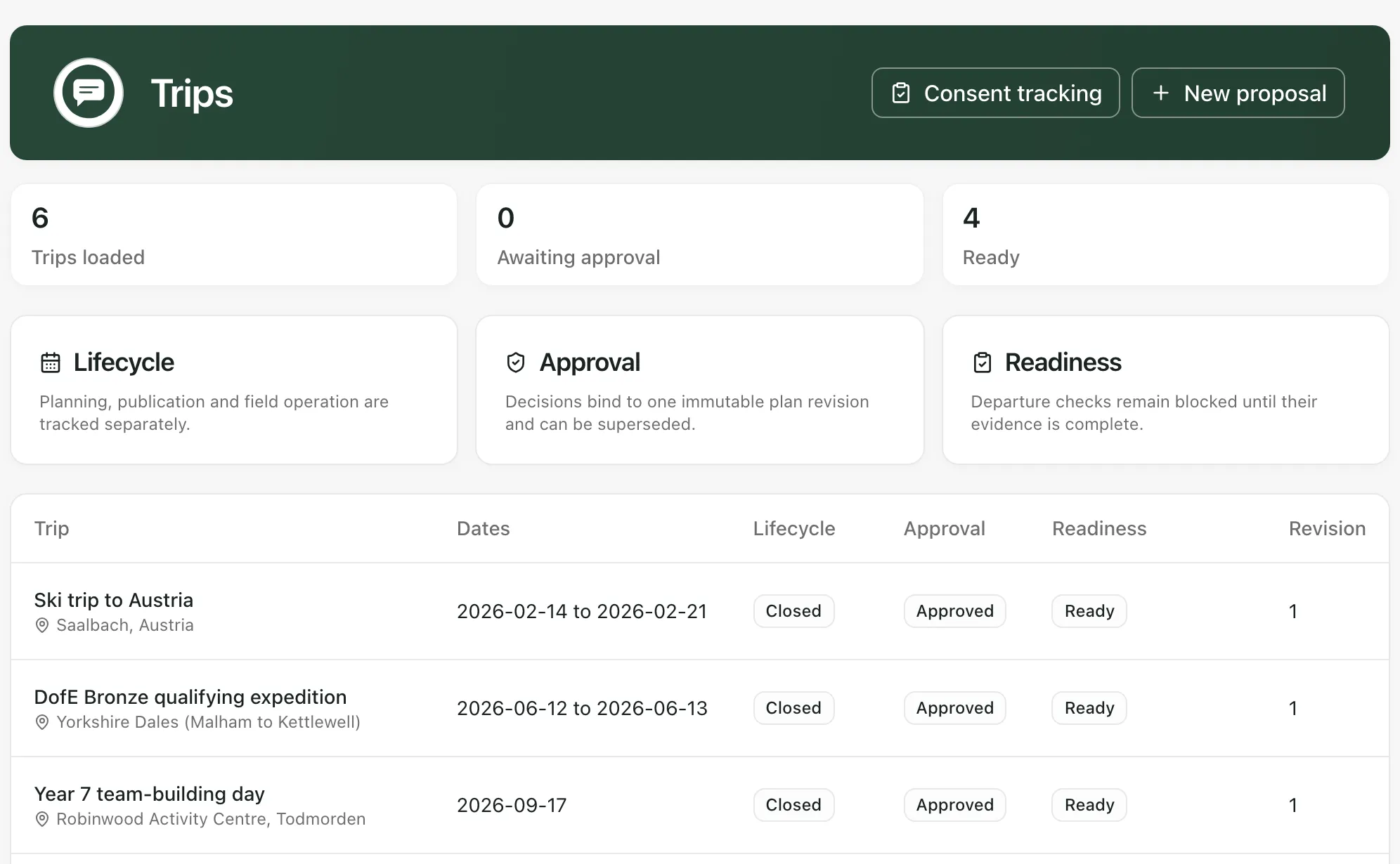
Create a proposal
Section titled “Create a proposal”-
Click New proposal.
-
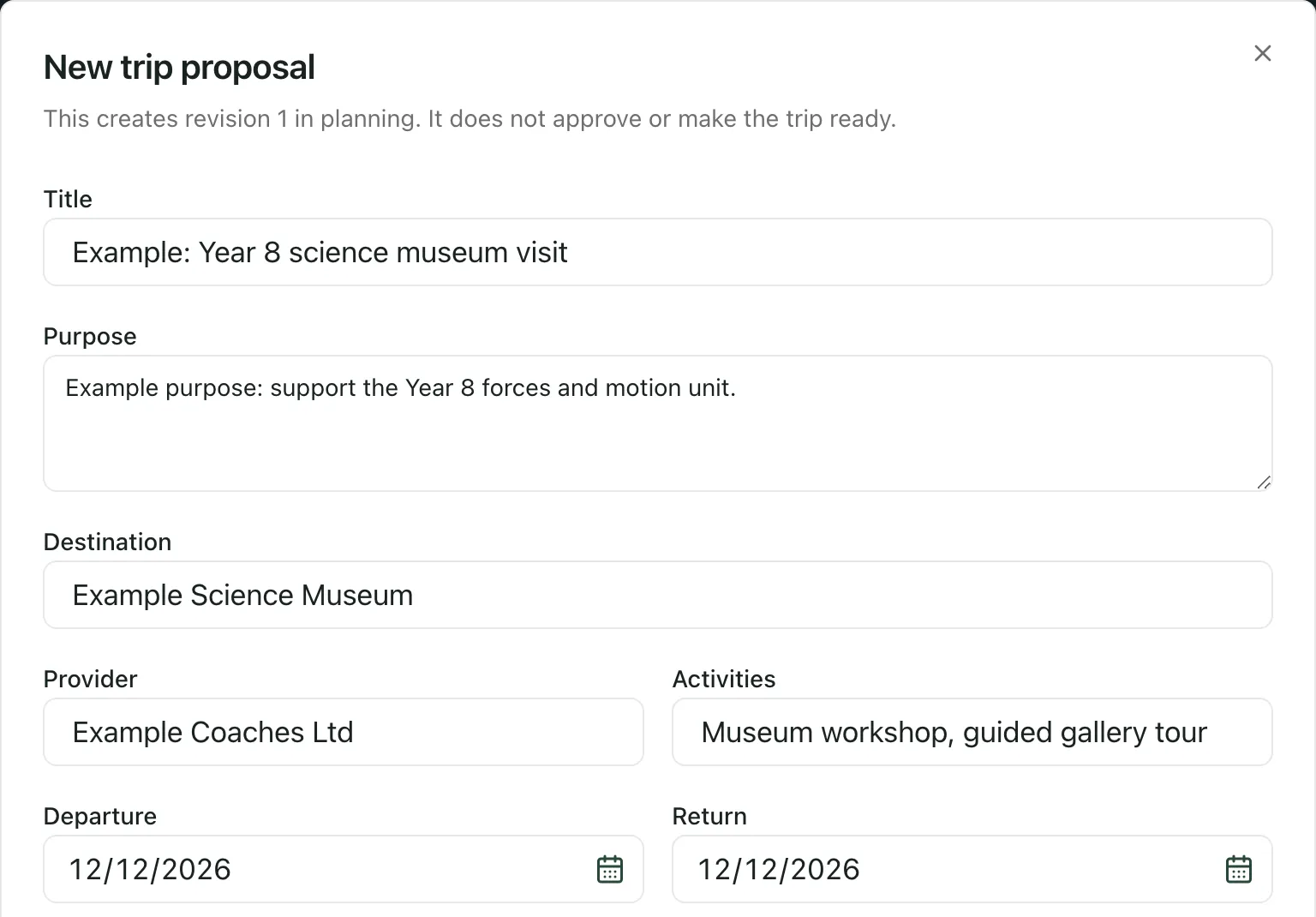
Enter a Title, then the Purpose, Destination and Provider. List the Activities, separated by commas.
-
Set the Departure and Return dates, and the Departure time and Return time. Leave Trip timezone as Europe/London unless the trip is abroad.
-
Choose the Trip type (Routine, Higher risk, Residential, Adventurous or Overseas) and the Risk tier (Routine, Enhanced or High).
-
Choose the Consent mode:
- Explicit consent: parents must give consent for this trip.
- Standing consent: a parent’s standing consent for this kind of trip counts, if they’ve given it.
- Notification only: parents are told about the trip but consent isn’t needed.
-
Fill in the Participant capacity, the Consent deadline, and which year groups or classes the trip is for in Year-group scope and Class scope, separated by commas.
-
Enter the School emergency contact number, the Emergency arrangements and the Contingency arrangements.
-
Click Create proposal.
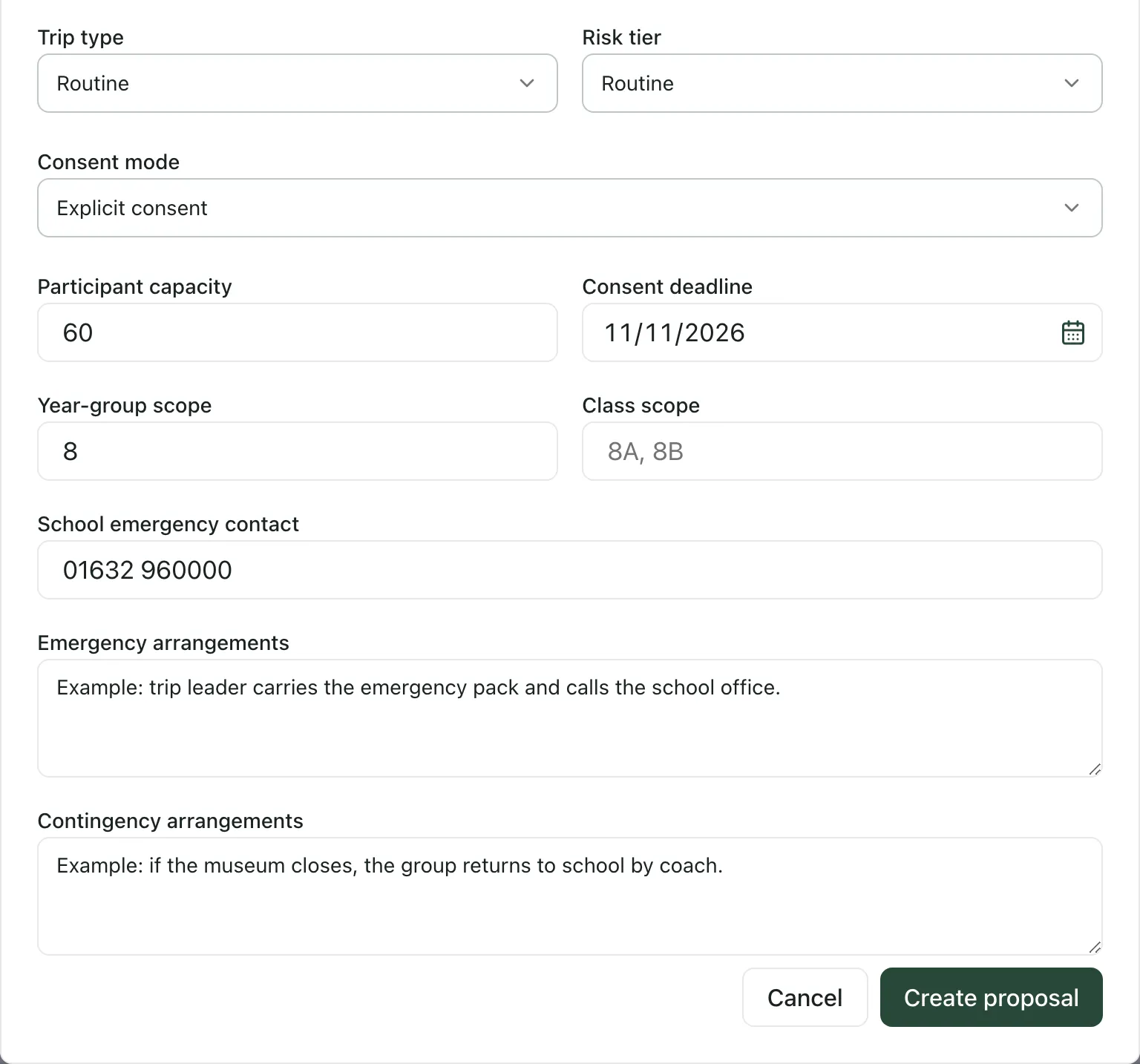
The trip opens at revision 1, in planning. Creating a proposal doesn’t approve it or make it ready. Create proposal stays greyed out until there’s a title, the return date isn’t before the departure date, and the consent deadline is on or before the departure date.
Complete the plan
Section titled “Complete the plan”The trip opens on Overview. Use the buttons along the top to move between areas.
- Click Plan & logistics.
- Under Proposal and operational arrangements, change any of the proposal details and click Save material revision.
- Under Add itinerary item, add each part of the day, such as departure, the activity and the return, with its times, Location and Responsible staff member. Click Save new plan revision after each one.
- Use Add transport leg and Add operational group to record transport and to split the trip into groups.
- Add the risk assessment under Add structured risk assessment. See Collect trip consent and complete the risk assessment.
- Click People.
- Under Add a pupil without replacing the roster, search for a pupil, click Search, then click Add next to them. Choose a Group for added pupils first if you’ve set up groups.
- To add staff, first set the Operational role, Competencies and Operational group, and tick Trip leader or First aider if they apply. Then search under Assign school staff and click Assign. For an adult who isn’t on the staff, enter their External adult name and click Add external adult.
Every saved change creates a new plan revision. “Any material change creates a new immutable revision and supersedes prior approval.” Finish the plan before you submit it, so it doesn’t need approving twice.
Submit the plan for approval
Section titled “Submit the plan for approval”- Click Approval.
- Click Submit current revision for approval.
The trip’s approval status changes to Pending, and the approval stages are listed with their progress. Who approves each stage comes from your school’s approval policy, shown under Versioned approval policy on the same page. You can’t usually approve your own trip.
Approvers open the trip, click Approval and choose Approve stage, Request changes or Reject. Requesting changes or rejecting needs a Decision comment.
- If changes are requested: update the plan, then click Submit current revision for approval again.
- Once every stage is approved: someone with permission to publish trips opens Overview and clicks Publish approved revision. The trip’s lifecycle changes to Published.
- Trip planning is switched on per school: Student Radar turns trip planning on for each school. If it isn’t on for yours, the Trips page says so. Contact your school’s Student Radar administrator.
- Other trip areas: Finance, Advanced visit, Post-trip & closure, safety checks and field mode are separate switches, and they’re off unless your school has them turned on. Areas your school doesn’t have are marked not enabled, or don’t appear.
- Who can do this: if you don’t see New proposal, your account can’t plan trips. Ask your school’s Student Radar administrator.
If something doesn’t work
Section titled “If something doesn’t work”| What you see | What to do |
|---|---|
| “Trip planning is not enabled for this school. Contact your school administrator to discuss availability.” | Trip planning isn’t switched on for your school. Ask your school’s Student Radar administrator. |
| “Your account cannot open trip planning. Contact your school administrator to review access.” | Ask your school’s Student Radar administrator to check your access. |
| “The proposal could not be created. Check your access and the entered details.” | Check the dates and details, then try again. If it still fails, ask your administrator to check your access. |
| “Return time must be after the departure time on a same-day trip.” | Correct the Return time. |
| “Check the itinerary title, dates and times. End time must be at or after the start time. Your entries have been kept.” | Fix the itinerary item’s times, then save it again. |
| “The trip has changed. Reload its current revision before making this change.” | Someone else changed the trip. Reload the page and make your change again. |
| “The change could not be saved. Your entries have been kept. Check the current trip revision before trying again.” | Reload the trip and try again. If submitting for approval keeps failing, ask your administrator to check the school’s approval policy. |
| “This revision cannot be published. Open Approval and check that the current revision is approved.” | Open Approval. The current revision needs every stage approved before it can be published. |
| “No approval run has been submitted for this revision.” | Click Submit current revision for approval. |