Review, fade and close a report card
Written for: Pupils’ coaches, heads of year and other staff who manage report cards.
While a pupil is on report, check regularly how they’re doing against the card’s daily goal. When they’ve been meeting it consistently, you can fade the card, and when it has done its job (or is no longer needed) you close it with an outcome and a summary. Every step is kept in the card’s timeline.
Open the card
Section titled “Open the card”- In the sidebar, open Behaviour, then Intervention, and choose Report Cards.
- Click Active cards to see every live card, including faded ones.
- Click the pupil’s name, or click Open.
Review progress
Section titled “Review progress”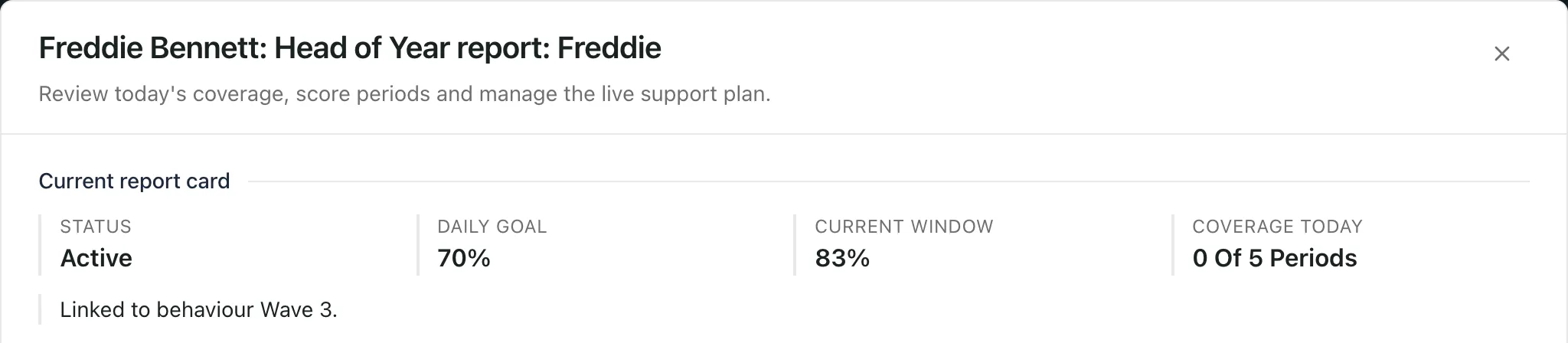
The summary at the top shows:
- Status: Active, Faded or another stage of the card’s life.
- Daily goal: the percentage of points the pupil is aiming for each day.
- Current window: the pupil’s average daily result over the last week, or Insufficient data if there aren’t enough scored days.
- Coverage today: how many of today’s periods have been scored.
Daily trend and completeness lists the pupil’s result for each of the last 10 school days, with how many periods were scored. Days with no scores say Not run, and days the pupil was absent say Absent, excluded. Gaps are left as gaps, so you can tell a low score from a day that wasn’t scored.
When the pupil has met their daily goal on every recent school day, you’ll see Fade review suggested. It’s a prompt to look at fading the card, not a decision. Check the scores and talk to the staff who teach the pupil first.
Further down, Today: target by period shows today’s scores, and Lifecycle timeline lists each change to the card with its date and time. If the card is shared with parents, any comments they’ve added appear under Parent comments.
Check in and check out each day
Section titled “Check in and check out each day”The pupil’s coach meets them at the start and end of each day.
- At the start of the day, click Coach check-in. If you want to, note the pupil’s thoughts in Pupil reflection (optional), then click Save.
- At the end of the day, click Coach check-out. Write a Daily coach summary, which you must fill in, and add a Pupil reflection (optional) if you want to. Click Save.
If the card is shared with parents, only the coach summary and the day’s overall result can be shared. Teacher notes and individual target scores stay staff-only.
Change the card
Section titled “Change the card”Click Edit live plan to change the Card name, the Bespoke targets (one per line), the Scoring labels, the Daily goal (%) or the Review date. Click Save. Targets linked to a Behaviour Support Plan stay attached, and earlier versions of the targets are kept in the card’s record.
Fade the card
Section titled “Fade the card”Fading tells everyone the card is being phased out because the pupil is doing well. A faded card is still scored in the same way, so you can see whether the progress lasts.
-
Click Start fade.
-
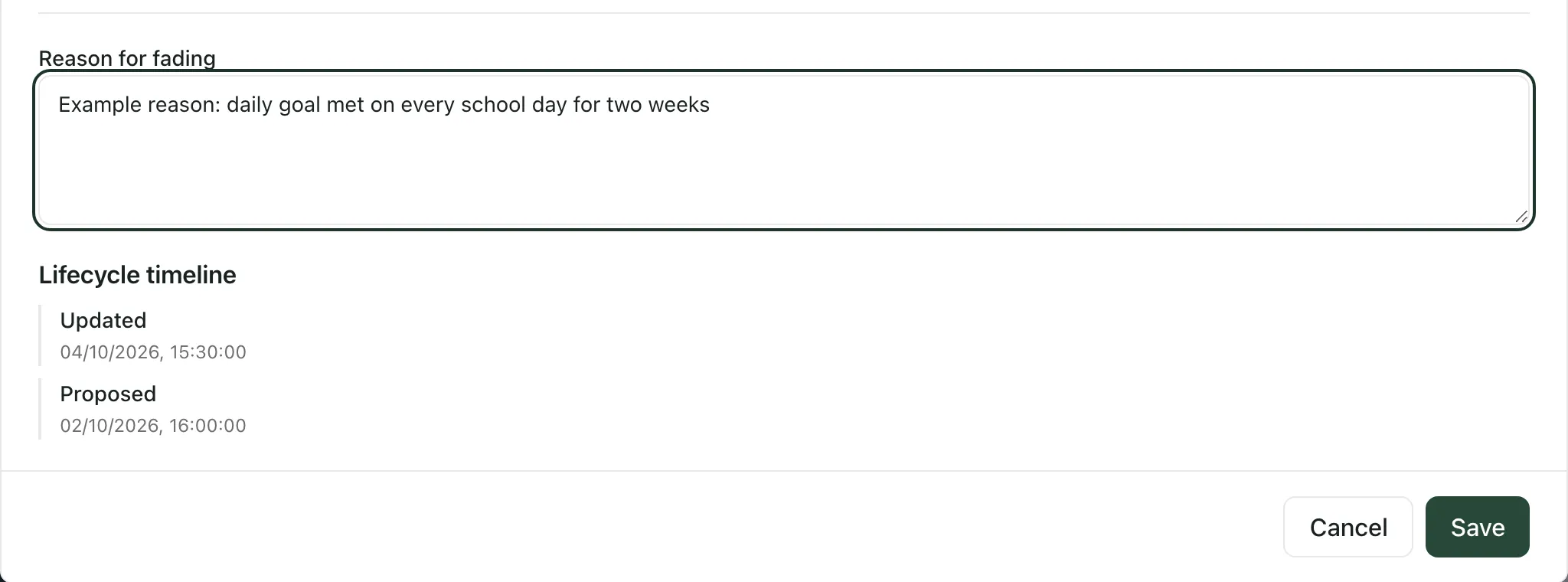
In Reason for fading, explain why, for example that the pupil has met their goal every day for two weeks.
-
Click Save. You’ll see “Fade recorded”, and the card’s status changes to Faded.
Save stays greyed out until you’ve written a reason. To stop without fading, click Cancel.
Close the card
Section titled “Close the card”Close the card when it has done its job, or when it’s no longer the right support.
-
Click Close report card.
-
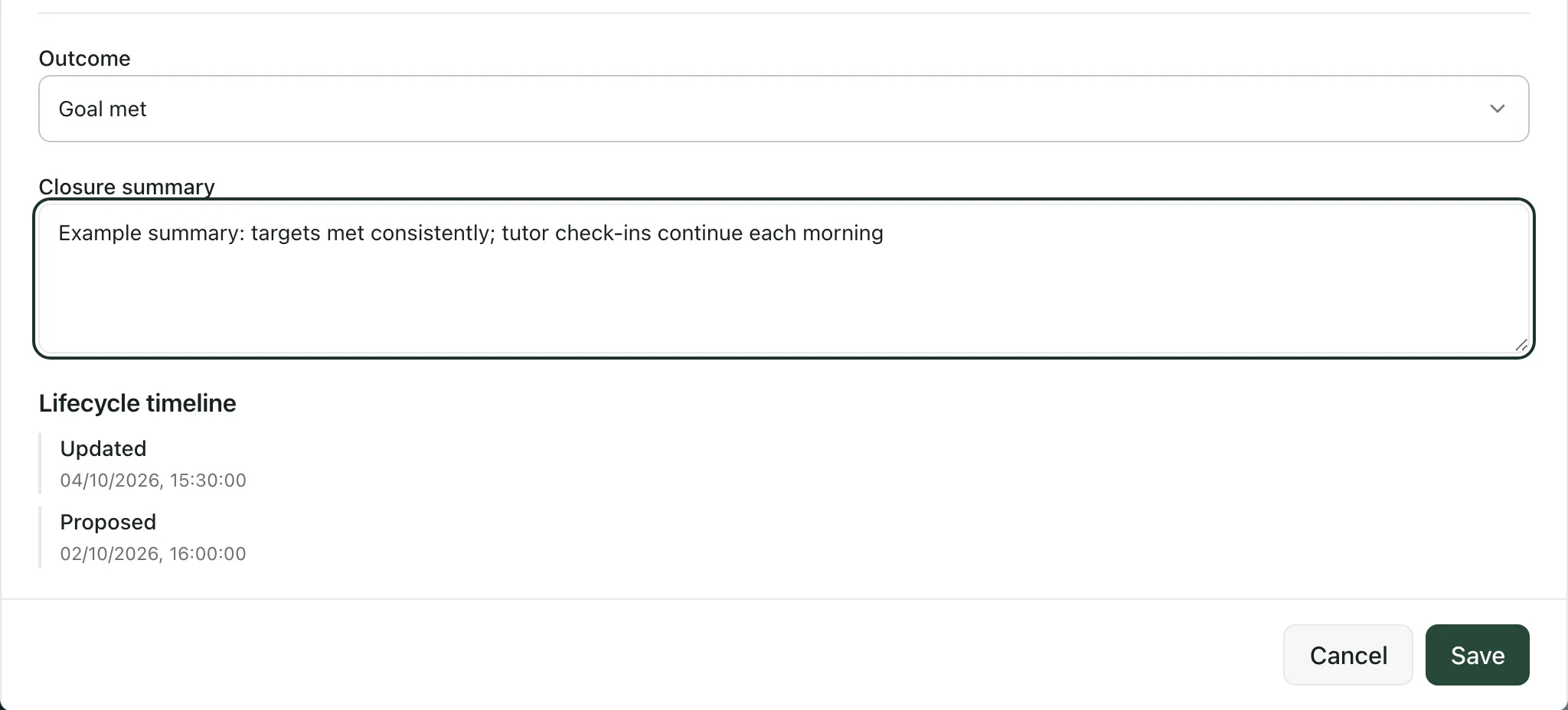
Choose the Outcome: Goal met, Partially met, Not met or No longer required.
-
In Closure summary, sum up how the card went and what happens next.
-
Click Save. You’ll see “Report card closed”.
A closed card moves to the History tab. It can’t be scored any more, and it can’t be reopened. If the pupil needs a report card again, start a new one. See Put a pupil on report.
- Who can do what: Start fade, Close report card, Coach check-in, Coach check-out and Edit live plan appear only if your account is allowed to manage or close report cards. Staff who only score lessons see Score a period. See Score a lesson on a report card.
- Fading and closing: you can fade an active card. You can close an active or faded card.
- Per-school switch: report cards are switched on for each school. If they aren’t on for yours, the page says “Report Cards are not enabled for this school”.
If something doesn’t work
Section titled “If something doesn’t work”| What you see | What to do |
|---|---|
| “Update not saved” | Nothing was changed. The reason is shown under the message. Check the form, then click Save again. |
| “The report-card record is unavailable” | Close the card and open it again from the list. If it keeps happening, click Refresh on the page first. |
| “The report-card trend is unavailable.” | Click Retry trend. The rest of the card still works. |
| “Insufficient scored days for a trend.” | The card hasn’t been scored on enough school days yet. Check again after a few days of scoring. |
| “Report cards are unavailable” | Click Refresh. Until the list loads, it doesn’t mean there are no cards. |
| “You do not have access to Report Cards” | Ask your school’s Student Radar administrator to check your access, then click Check access again. |