Review progress against SEND targets
Written for: SENCos and inclusion leads.
Outcome Tracking brings together the targets in pupils’ current ISPs and the reviews staff have recorded against them. Use it to see which targets need reviewing, look at the evidence for each one and record your judgement of the progress you’ve seen, with your confidence and the next step. The judgements are made by staff. Student Radar doesn’t work out progress for you, and a target being reviewed or a task being done isn’t treated as evidence that support worked.
Open Outcome Tracking
Section titled “Open Outcome Tracking”In the sidebar, open Inclusion, then SEND, then Provision, and choose Outcome Tracking.
Targets appear here once they’re saved in a pupil’s current ISP. If a pupil has no ISP, or their ISP has no targets, they won’t be listed.
Read the summary
Section titled “Read the summary”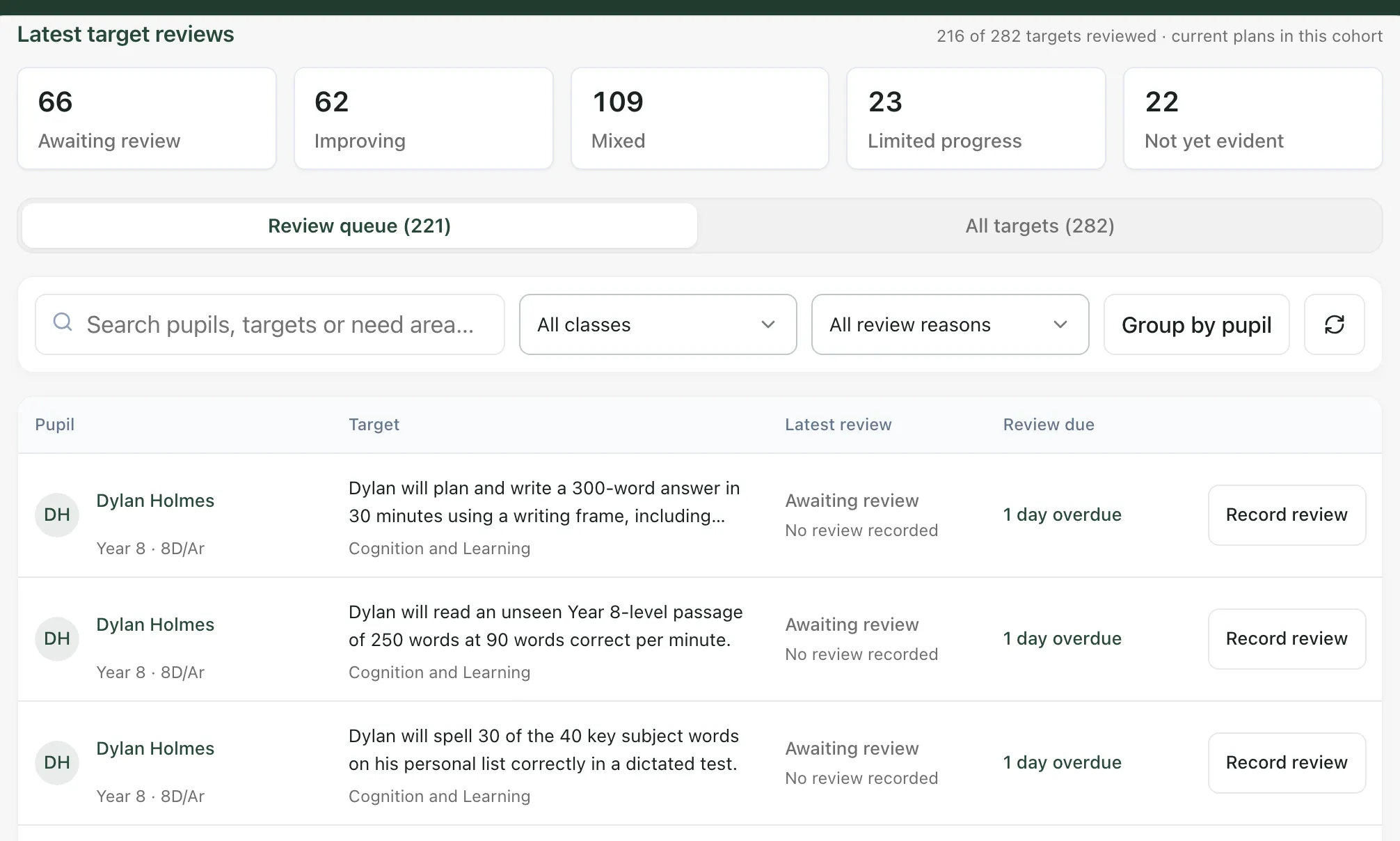
Latest target reviews counts the latest recorded judgement for every current target, and shows how many targets have been reviewed. There’s one box for each judgement:
| Box | What it counts |
|---|---|
| Awaiting review | Targets with no finished review yet. |
| Improving | Targets whose latest review found evidence of progress. |
| Mixed | Some positive signs, but progress is uneven or inconsistent. |
| Limited progress | Little change observed so far. |
| Not yet evident | A review has taken place, but progress can’t be judged yet. |
Click a box to list the targets behind it. As the page says, “An unreviewed target is awaiting review; it is not evidence of limited progress.”
Work through the review queue
Section titled “Work through the review queue”Review queue lists every target that needs looking at, in the order of the reasons below, then by pupil surname. A target leaves the queue once its latest review finds it Improving with High confidence or Moderate confidence; you’ll still find it under All targets.
Under Review due, each target shows its next review date, taken from the pupil’s ISP, or how many days overdue it is. Below that, the reason it’s in the queue:
- Overdue review: the review date has passed and no review has been recorded since.
- No review recorded: nobody has reviewed this target yet.
- Weak or early evidence: the latest review was marked Early indication only or Professional judgement only.
- Mixed / limited progress: the latest judgement was Mixed, Limited progress or Not yet evident.
To narrow the list:
- Type in Search pupils, targets or need area….
- Choose a class from All classes.
- Choose a reason from All review reasons. On All targets, this filter is All judgements instead.
- Click Group by pupil to gather each pupil’s targets together.
Click Refresh targets, the round arrow at the end of the filters, to reload the targets.
Look at a target’s evidence
Section titled “Look at a target’s evidence”Click the pupil’s name or the target to open Target and reviews.
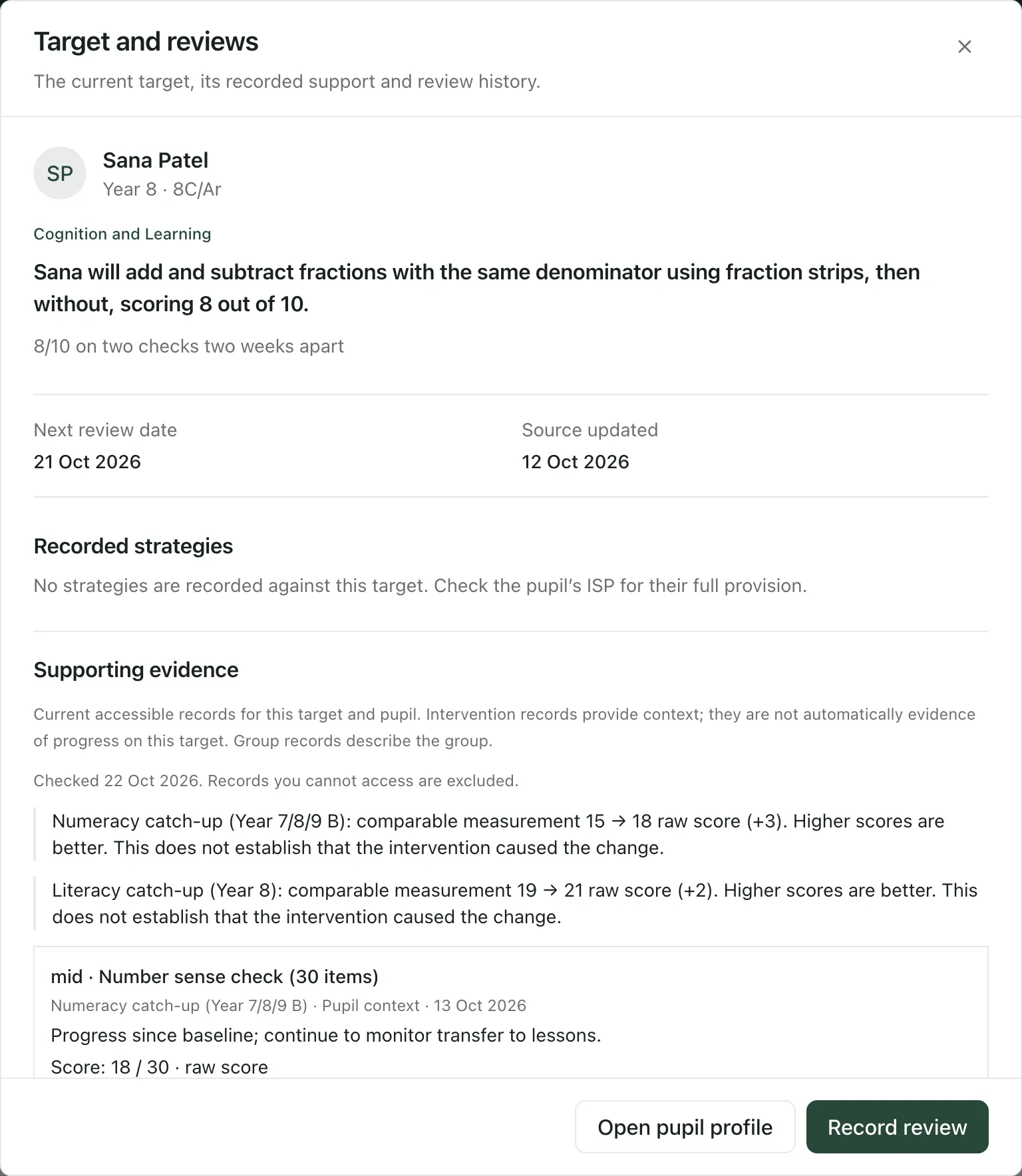
It shows:
- The target, its area of need and its success criteria.
- Next review date and Source updated, the date the target was last changed in the ISP.
- Recorded strategies: the support recorded against this target in the ISP.
- Supporting evidence: intervention records and assessment scores you can access for this pupil. Where there’s a comparable start and later score, it shows the change. As the page says, this “does not establish that the intervention caused the change.”
- Review history: every recorded review of the target, with its judgement, evidence, confidence, notes and next step.
Click Open pupil profile to see the rest of the pupil’s record.
Record a target review
Section titled “Record a target review”- Click Record review on the target’s row, or in Target and reviews. To start from the top of the page instead, click Record target review, then search for the pupil or target in Find a pupil or target and click it.
- Check the Review date. It can’t be later than today.
- Under 1. What progress have you observed?, choose Improving, Mixed, Limited progress or Not yet evident.
- Under Supporting evidence, tick any records you want to cite in the review (up to 30).
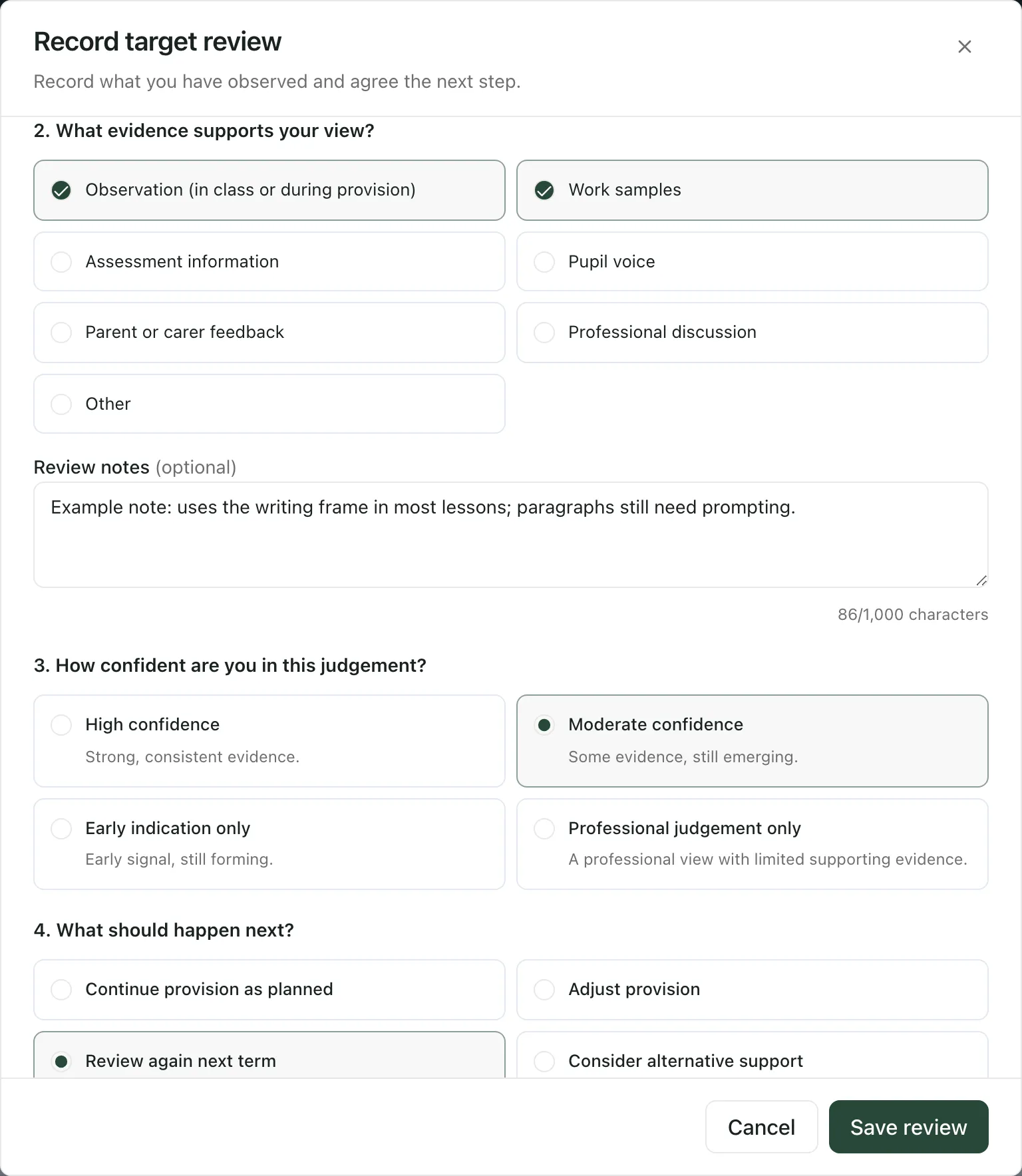
- Under 2. What evidence supports your view?, tick at least one source, such as Work samples or Pupil voice. Add Review notes if you want to describe the evidence or context (up to 1,000 characters).
- Under 3. How confident are you in this judgement?, choose High confidence, Moderate confidence, Early indication only or Professional judgement only.
- Under 4. What should happen next?, choose Continue provision as planned, Adjust provision, Review again next term or Consider alternative support.
- Click Save review.
The summary, the queue and the target’s review history update straight away.
The next step you choose is a record of what you intend to do. It doesn’t change the pupil’s provision or book a review. As the form says, “Update the pupil’s ISP separately to change provision or arrange a review.”
Take the built-in tour
Section titled “Take the built-in tour”Click Take a tour at the top of Outcome Tracking. It walks you through the summary, the review queue and the full list of targets and, if you can record reviews, the review form.
Who can use Outcome Tracking
Section titled “Who can use Outcome Tracking”By default, teachers, year leads, SENCos, safeguarding leads, senior leaders, headteachers and office staff can open Outcome Tracking. Teaching assistants can’t. Your school can change who has access.
You’ll only see targets for pupils whose SEND plans you can access. Record review appears only for pupils whose plans you’re allowed to update, so you may be able to read a target without reviewing it.
If something doesn’t work
Section titled “If something doesn’t work”| What you see | What to do |
|---|---|
| “Targets could not be loaded. Refresh to try again. Check your Outcome Tracking and pupil access with your school administrator.” | Click Retry loading targets. If it keeps happening, ask your school’s Student Radar administrator. |
| “No current targets available in your access” | None of the pupils you can access has targets in a current ISP. Add targets to the pupil’s ISP first. |
| “No targets need review in this selection” | Nothing in the queue matches. Click Show all current targets or check All targets. |
| “No targets match these filters” | Change the search or filters, or click Show all current targets. |
| “Choose a judgement, at least one evidence source, your confidence and a next step.” | Answer all four questions in the form, then click Save review again. |
| “Enter a valid review date on or before today.” | Change the Review date to today or an earlier date. |
| “The save could not be confirmed. Your draft is still here. Retrying an unchanged draft is safe. If the target or evidence changed, reopen the review to refresh it.” | Click Save review again without changing anything. It won’t record the review twice. |
| “Your review access has changed. Reload the targets before recording a review.” | Reload the page. If Record review no longer appears, ask your SENCo. |
| “Supporting evidence could not be loaded. This does not mean no evidence exists. Refresh the target if it has changed, or retry this evidence view.” | Click Retry evidence. |
| “Your staff access could not be verified for Outcome Tracking.” | Your account can’t use Outcome Tracking. Ask your school’s Student Radar administrator. |