Evidence your compliance duties
Written for: Alternative provision leaders.
The Compliance Checklist lists the duties an alternative provision in England is expected to meet and be able to show: registration and placements, safeguarding, attendance and behaviour, health and safety, policies and governance, and data protection. For each duty, you record where you are, link the evidence, and give someone the job of reviewing it.
The checklist is your record of your own judgement. Student Radar doesn’t decide whether you meet a duty.
Open the checklist
Section titled “Open the checklist”In the sidebar, open Compliance and choose Compliance Checklist.
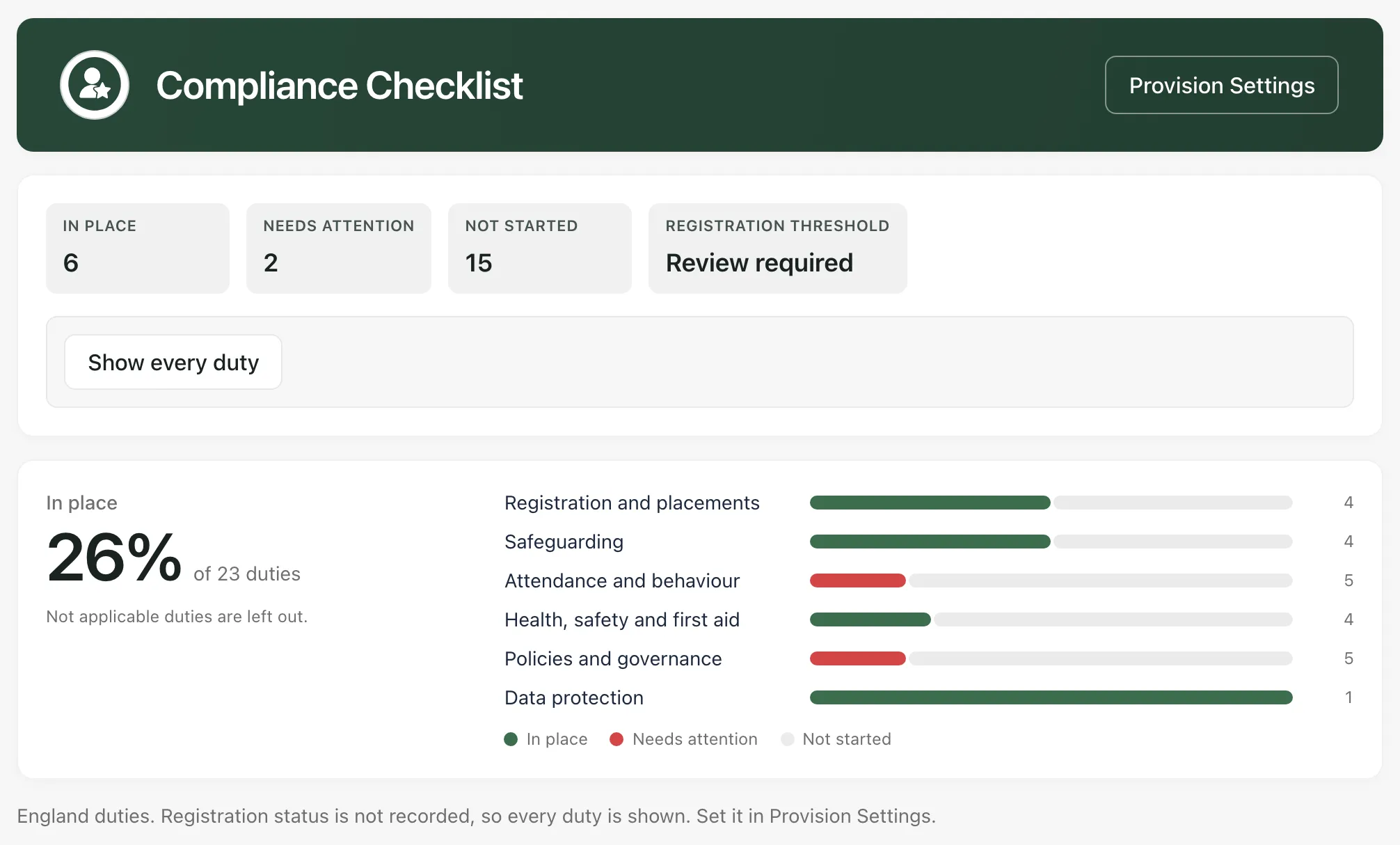
The banner counts the duties that are In place, Needs attention and Not started. The percentage below is the share of duties that are in place. Duties you’ve marked Not applicable are left out. The bars show the same split for each section.
Registration threshold sums up the independent-school registration review further down the page. Click it to open Placements.
Make sure you see the duties that apply to you
Section titled “Make sure you see the duties that apply to you”Some duties apply only to registered schools and some only to unregistered providers. Which ones you see depends on the Provider registration status in your provision’s settings.
- Click Provision Settings at the top of the checklist.
- Open the Setting Profile tab and set Provider registration status. See Set up your provision profile and activate AP operations.
Until it’s set, the checklist shows every duty. To see every duty at any time, click Show every duty. Click Only duties that apply to go back.
Read a duty
Section titled “Read a duty”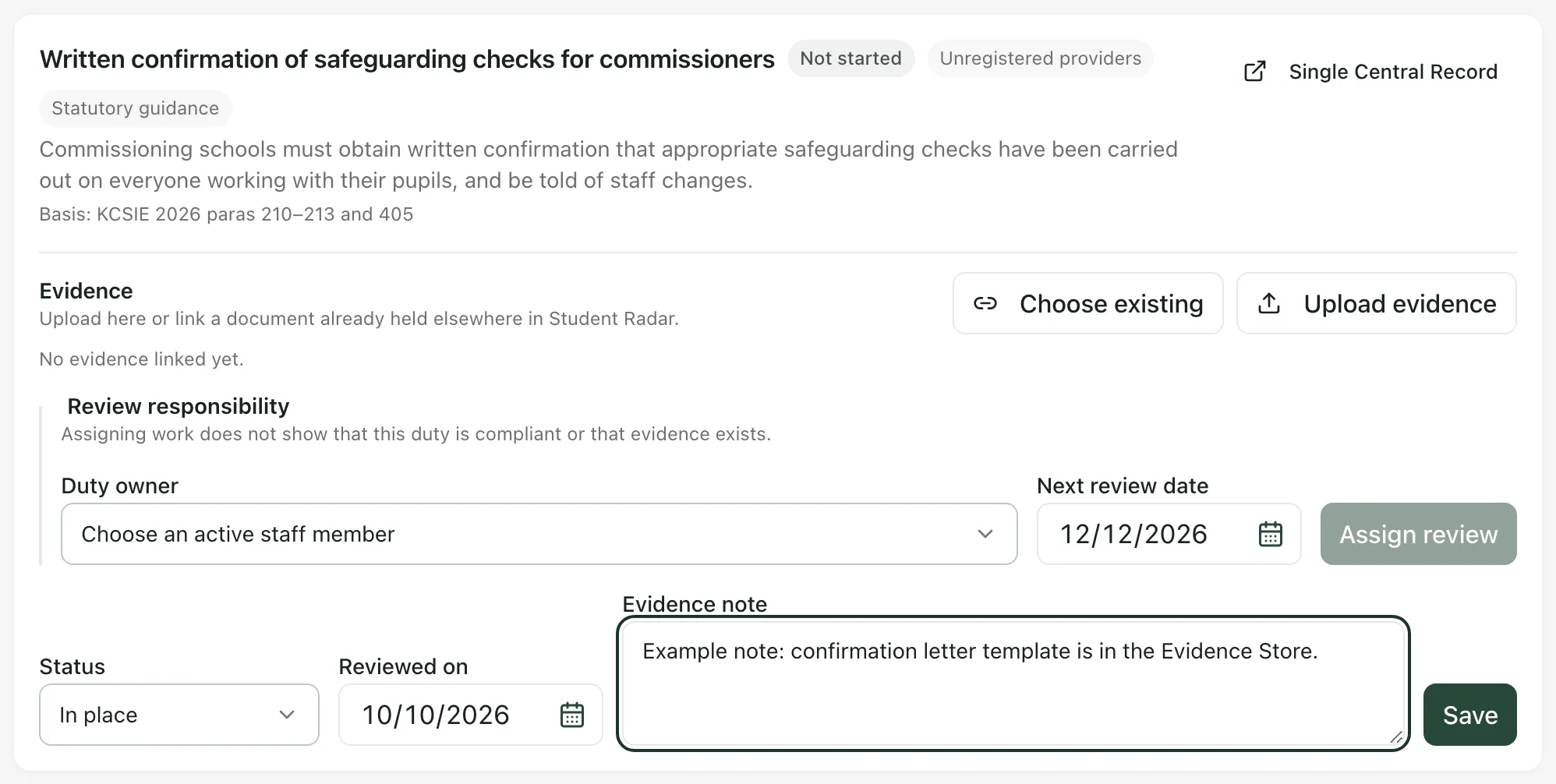
Each duty shows:
- its status
- who it applies to: Registered settings, Unregistered providers or All provisions
- what kind of duty it is: Legal duty, Statutory guidance or Guidance
- what’s expected, and the guidance it’s based on
- when it was last reviewed
Many duties have a button for the page where the work is done, such as Single Central Record or Commissioning Schools.
Record where you are with a duty
Section titled “Record where you are with a duty”- Under Status, choose Not started, In place, Needs attention or Not applicable.
- Under Reviewed on, enter the date you checked it.
- Under Evidence note, say where the evidence is, who owns it and what’s still outstanding.
- Click Save on that duty.
You’ll see “Checklist updated”. Each duty has its own Save button, so save one before you move on to the next.
Add evidence to a duty
Section titled “Add evidence to a duty”Under Evidence, you can upload a new document or link one that’s already in Student Radar.
To upload a document:
- Click Upload evidence.
- Check the Evidence title. It starts as the duty’s name.
- Under File in, choose Evidence Store or Policies.
- Under Confidentiality, choose Standard or Confidential.
- Choose the File. It can be up to 25 MB.
- Click Upload and link.
The document is filed where you chose and linked to the duty.
To link documents you already have:
- Click Choose existing.
- Search for the documents and tick them. You can choose up to 20 at a time.
- Click Link selected.
Linked documents are listed under the duty. Click one to open it in the Evidence Store or Policies.
Give a duty an owner and a review date
Section titled “Give a duty an owner and a review date”Under Review responsibility:
- Choose the Duty owner.
- Choose the Next review date. It can’t be in the past.
- Click Assign review. If the duty already has an owner, the button says Update assignment.
The review then appears in the owner’s actions and on the calendar. Assigning a review doesn’t show that the duty is met or that evidence exists. Update the duty’s status and evidence when the review is done.
Continuous review work, near the top of the page, counts the review work across all duties, such as how much is overdue or missing evidence. Click Open Work or Open Calendar to work through it. See Manage your tasks in My Actions.
The registration review
Section titled “The registration review”If your provision isn’t recorded as a registered school, Independent-school registration review looks at your recorded placements, such as hours, compulsory school age, EHC plans and looked-after status. It tells you when they suggest you should review whether you need to register as an independent school, and which facts are missing.
This is a prompt for human review, not a decision about your registration. Read the DfE registration guidance it links to, and record your decision against the Registration requirements reviewed duty.
- Who can do what: by default, provision leaders can update the checklist. Adding evidence also needs permission to manage documents. If you can’t see Save or Upload evidence, ask a provision leader.
- Two-step check: linking or uploading evidence needs a recent two-step check. You must have confirmed your sign-in with a second step, such as your authenticator app, in the last 15 minutes. See Add a passkey or authenticator app.
- England only: the duties are those that apply in England.
If something doesn’t work
Section titled “If something doesn’t work”| What you see | What to do |
|---|---|
| Compliance records “could not be loaded. Counts and missing records cannot be confirmed.” | Click the retry button under the message. Until the checklist loads, the totals aren’t complete. |
| “Could not save this item” | Read the reason under the message, then click Save again. |
| “Evidence files must be 25 MB or smaller.” | Make the file smaller, or split it, and upload it again. |
| “Give the evidence a clear title before uploading it.” | Fill in Evidence title, then click Upload and link. |
| “Choose an active staff member and a review date from today onwards.” | Choose a Duty owner and a Next review date that isn’t in the past. |
| “This assignment changed elsewhere. The latest assignment has been reloaded.” | Someone else changed the owner or date. Check the new details before you change them again. |
| “You do not have permission to view or assign AP compliance review work.” | Ask a provision leader to assign reviews. |
| “Placement records could not be loaded. Registration indicators are unavailable.” | Reload the page. The registration review can’t be shown until placements load. |
An error that mentions recent_aal2_required |
Your sign-in needs a fresh two-step check. Sign out, sign in again and complete the second step, then try again. |