Report or explain an absence
Written for: Parents and carers.
Use Requests in the parent portal to tell your child’s school about an absence. You can let them know in advance, for example about a medical appointment, or explain an absence that has already happened, for example if your child was ill. You can then see whether the school has reviewed it.
Send an absence request
Section titled “Send an absence request”- In the menu, click Requests.
- Click New request.
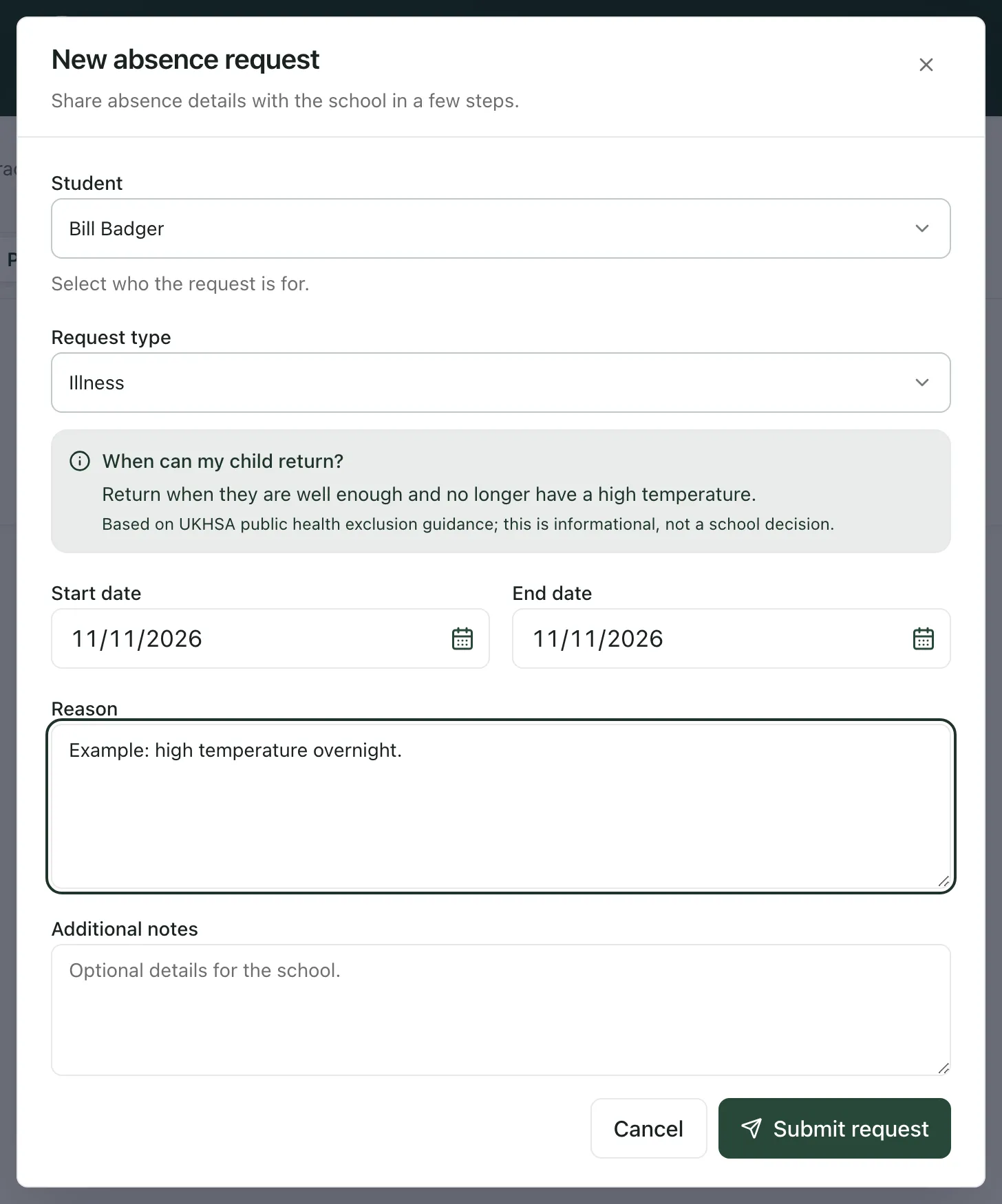
- Under Student, check the right child is chosen. If you have more than one child at the school, pick the one the request is for.
- Choose the Request type: Illness, Medical appointment, Family reason, Holiday or Other.
- Enter the Start date and End date. For a single day, use the same date in both.
- In Reason, explain briefly what happened or why your child will be away.
- Add anything else the school should know under Additional notes. This is optional.
- Click Submit request.
You’ll see “Request submitted” and “Your absence request has been sent to the school.” The request appears on the Pending tab.
When you choose Illness and describe the illness, a box headed When can my child return? may appear. It gives general guidance from the UK Health Security Agency (UKHSA) about when children can go back to school after common illnesses. It’s for information only, not a decision by the school. If you’re not sure, ask the school or your doctor.
Explain an absence the school has recorded today
Section titled “Explain an absence the school has recorded today”If the school marks your child as absent today, you may get a notification, and a notice may appear at the top of Home. Click Explain absence on the notice, or click the notification. The New absence request form opens for that child, so you can tell the school what happened.
Check what happened to your request
Section titled “Check what happened to your request”On Requests, use the tabs:
- Pending: requests the school hasn’t reviewed yet. The number shows how many there are.
- Closed: requests the school has reviewed, and requests you’ve cancelled.
- All: every request.
Each card shows the type of absence, its status, your child’s name, the dates, the number of days and your reason. Click a card to see the details, including a Status timeline of when you sent it and when the school reviewed it. If the school declines a request, any notes they add are shown under Reviewer notes.
While a request is waiting, you’ll see “Review in progress. We will notify you once it is updated.”
Cancel a request
Section titled “Cancel a request”You can cancel a request while it’s still pending, for example if your plans change.
- On the Pending tab, click the request.
- Click Cancel request.
You’ll see “Request cancelled”. The request moves to the Closed tab.
- Sending a request doesn’t mean the absence is authorised. The school decides, in line with its attendance policy. This is especially important for holidays in term time.
- If your school also asks you to phone or email on the first morning your child is off, keep doing that as well.
- The school can only see requests you’ve sent. Nothing is shared until you click Submit request.
If something doesn’t work
Section titled “If something doesn’t work”| What you see | What to do |
|---|---|
| “Invalid date format (YYYY-MM-DD)” | Fill in both Start date and End date. |
| “End date must be on or after start date.” | Check the dates. The end date can’t be before the start date. |
| The form won’t send and the Reason box is highlighted | Type a reason. It can be short. |
| “Unable to submit request” | Your request wasn’t sent. Check your internet connection and try again. |
| “Absence requests are currently unavailable.” | Try again later. If you need to tell the school about an absence today, contact the school office directly. |
| “We could not load requests” | Click Try again. |
| “Once a student is linked to your account, you can submit absence requests here.” | The school hasn’t linked your account to your child yet. Contact the school office. |
| “Unable to cancel request” | Try again. If the school has already reviewed the request, it can no longer be cancelled. |