Complete the EYFS Profile and parent reports
Written for: Reception teachers and early years leads.
At the end of Reception, you record each child’s EYFS Profile: an outcome for each of the 17 Early Learning Goals, with notes on how they learn and your comments. Student Radar shows whether the child has reached a good level of development (GLD), and uses the profile for the child’s parent report and their transition report for Year 1.
Open Profiles & Reports
Section titled “Open Profiles & Reports”- In the sidebar, click Assessment, then EYFS, then Profiles & Reports.
- Under Child, type part of the child’s name and choose them from the list.
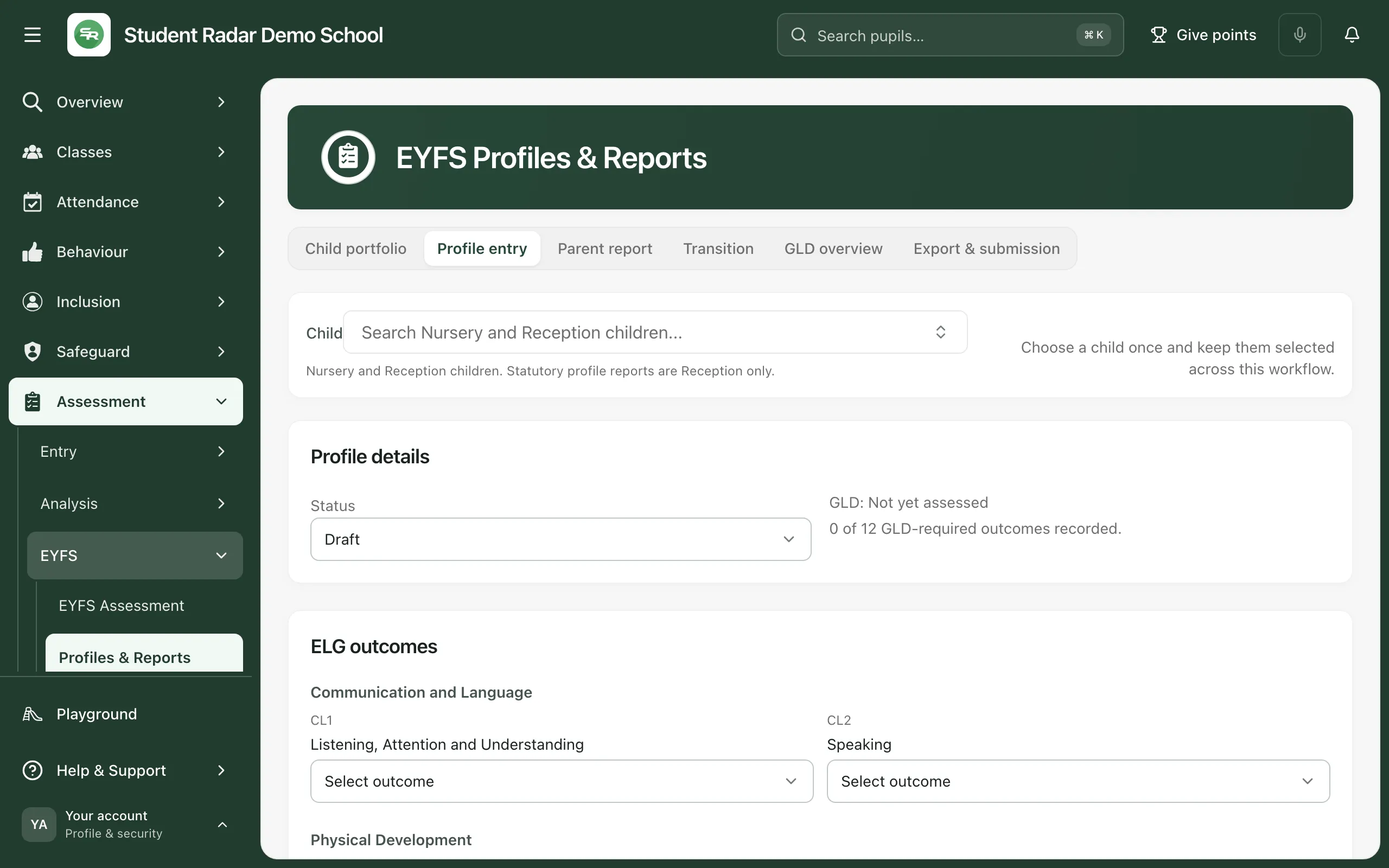
The child stays selected as you move between the tabs. The list includes Nursery and Reception children, but the profile and its reports are for Reception children only. If you choose a Nursery child on one of those tabs, you’ll see Reception child required: choose a Reception child, or click Open child portfolio to see the Nursery child’s observations.
Record the profile
Section titled “Record the profile”-
Click the Profile entry tab and choose the child.
-
Under ELG outcomes, choose an outcome for each goal:
- Emerging (1): the child isn’t yet at the expected level for the goal.
- Expected (2): the child is meeting the goal.
- Exempt (A): the goal doesn’t apply to the child.
The goals are grouped by area: Communication and Language, Physical Development, Personal, Social and Emotional, Literacy, Mathematics, Understanding the World, and Expressive Arts and Design.
-
If any outcome is Emerging, fill in Barriers to learning and Successful strategies. You can’t save the profile without them. Add SEND provision details if they apply.
-
Under Characteristics of Effective Learning, describe how the child learns: Playing and Exploring, Active Learning and Creating and Thinking Critically.
-
Add your Teacher comments.
-
Leave Status as Draft while you’re working on it.
-
Click Save profile. You’ll see “EYFS profile saved”.
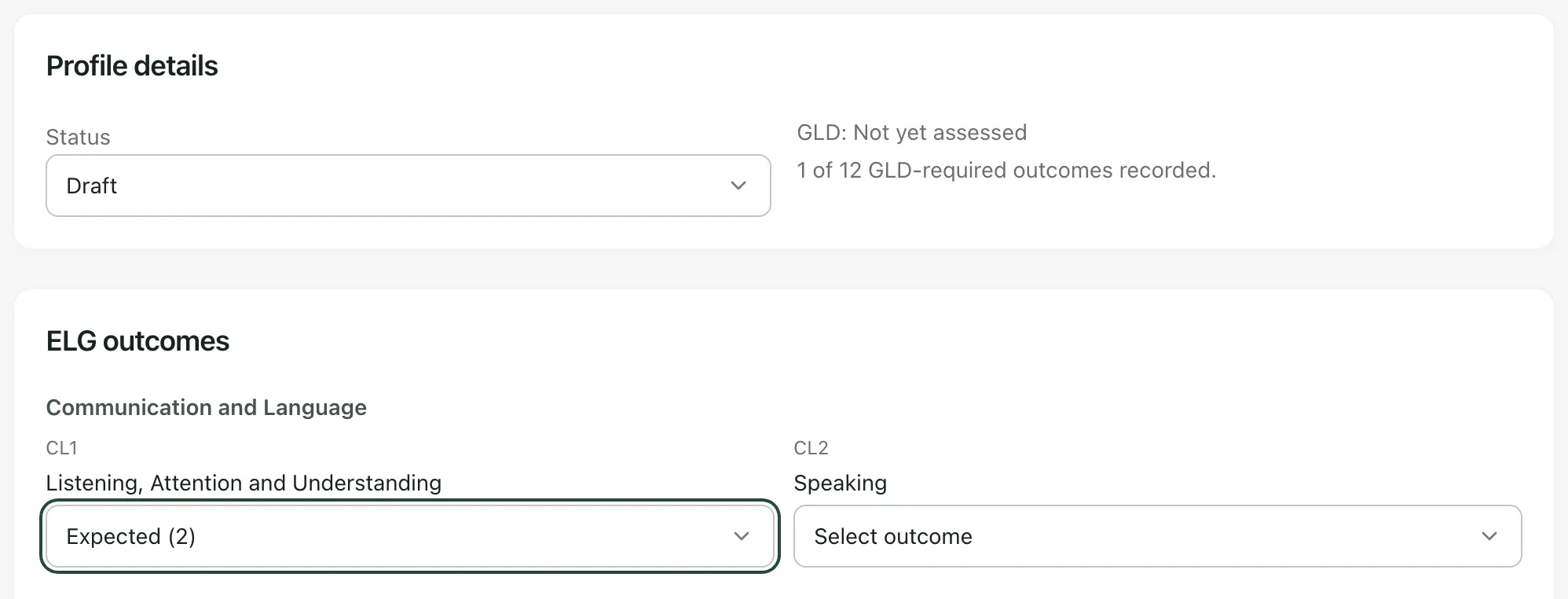
Choose each outcome from your own knowledge of the child and your evidence, alongside your setting’s moderation. Outcomes aren’t filled in from the EYFS checklist: you record them here.
Good level of development
Section titled “Good level of development”Profile details shows the child’s GLD and how many of the 12 goals that count towards it have an outcome, for example 1 of 12 GLD-required outcomes recorded.
| GLD | What it means |
|---|---|
| Not yet assessed | Not every goal that counts towards GLD has an outcome yet. |
| Achieved | All 12 goals that count towards GLD are Expected. |
| Not yet | All 12 have an outcome, but at least one isn’t Expected. |
The 12 goals are those in Communication and Language, Personal, Social and Emotional, Physical Development, Literacy and Mathematics. If any of them is Exempt, a note under the GLD line says how many: an exemption is shown as an exemption, not as Emerging.
Complete and lock the profile
Section titled “Complete and lock the profile”When the profile is finished and checked, change Status to Complete or Submitted, and click Save profile. Only staff who can approve assessments can choose these.
A complete or submitted profile is locked: you’ll see “This profile is locked. An authorised reviewer must reopen it before editing.” To change it, someone who can approve assessments clicks Reopen profile, gives a Reason for reopening and clicks Confirm reopening. The profile goes back to Draft.
Check the parent report
Section titled “Check the parent report”Click the Parent report tab with the child selected. It shows the summary for the child’s family:
- Status: Not generated, Draft, Approved (when the profile is complete) or Sent.
- The child’s GLD status.
- The outcome for each goal: Emerging, Expected, Exempt or Not set.
- Your teacher comments.
The report explains to families that Emerging means their child is still working towards the expected level, and Expected means they’re meeting the goal by the end of Reception.
If the child has no profile yet, you’ll see “No EYFS parent report yet”. Click Generate report to go to Profile entry and record it, or Open EYFS portfolio to look at the child’s evidence first.
This tab doesn’t send the report to families. Share it using your school’s usual way of reporting to parents.
Prepare the transition report
Section titled “Prepare the transition report”Click the Transition tab with the child selected. The Year 1 Transition Report brings together the child’s outcomes, barriers to learning, successful strategies, SEND provision, how they learn and your comments, for their Year 1 teacher. It’s built from the profile, so update the profile to change it.
See the whole Reception year
Section titled “See the whole Reception year”The GLD overview tab shows the share of Reception children whose observations this year show all 12 GLD goals as secure, how many children are included, and how many have incomplete or conflicting records. Demographic breakdown compares groups of children with the whole year.
These figures come from your observations, not from completed profiles, so they aren’t formal GLD results. Use them to see where children may need support before you complete the profiles.
To send the profiles to your local authority, see Export EYFS Profile data for the local authority.
- Who can use this page: teachers, SENCos, safeguarding leads, senior leaders and headteachers can open it by default. Teaching assistants can’t. You can only see and record profiles for children your account has access to. Schools can change who has access.
- Academic year: the profile is for the current academic year.
- Day-to-day judgements: see Record Early Learning Goal judgements. The Child portfolio tab shows a child’s judgements, observations and evidence.
If something doesn’t work
Section titled “If something doesn’t work”| What you see | What to do |
|---|---|
| “Provide barriers to learning and successful strategies for Emerging outcomes.” | Fill in Barriers to learning and Successful strategies, then save again. |
| “Could not save this profile. Your changes are still here; try saving again.” | Click Save profile again. If it keeps happening, ask your school’s Student Radar administrator to check your access. |
| “Could not load this child’s EYFS profile. Try again before editing.” | Click Try again before you change anything. |
| “This profile is locked. An authorised reviewer must reopen it before editing.” | Ask someone who can approve assessments to reopen it. |
| “Could not reopen this profile. Try again.” | Click Confirm reopening again. |
| Save profile is greyed out | Choose a child, wait for their profile to load, and check that Status is Draft unless you can approve assessments. |
| “Could not load the EYFS pupil list. Your selected child has been kept so you can try again.” | Click Try again. |
| “Could not load this child’s EYFS report. Try again before generating a report.” | Click Try again. |
| “Could not load the Reception GLD overview.” | Click Try again. |
| “Your role does not currently have access to an EYFS profile or reporting view.” | Ask your school’s Student Radar administrator for access. |