Choose your Home favourites
Written for: All staff.
Favourites let you look at Home through one class, year group or form at a time. Each favourite becomes a lens next to Today at the top of Home. Choose a lens and the counts, pupils and changes on the page narrow to that group.
Favourites are yours alone. They change what Home shows you, not what you’re allowed to see.
Add favourites
Section titled “Add favourites”-
In the sidebar, open Overview and choose Home.
-
Click Manage, next to Today. The Manage Home favourites window opens.
-
Under Add a favourite, click a class, year group or form. Each one shows its type and how many pupils it has. It moves to the list at the top of the window.
-
Add any others you want. You can have up to 20.
-
Put them in the order you want with the up and down arrows. Click Remove to take one off the list.
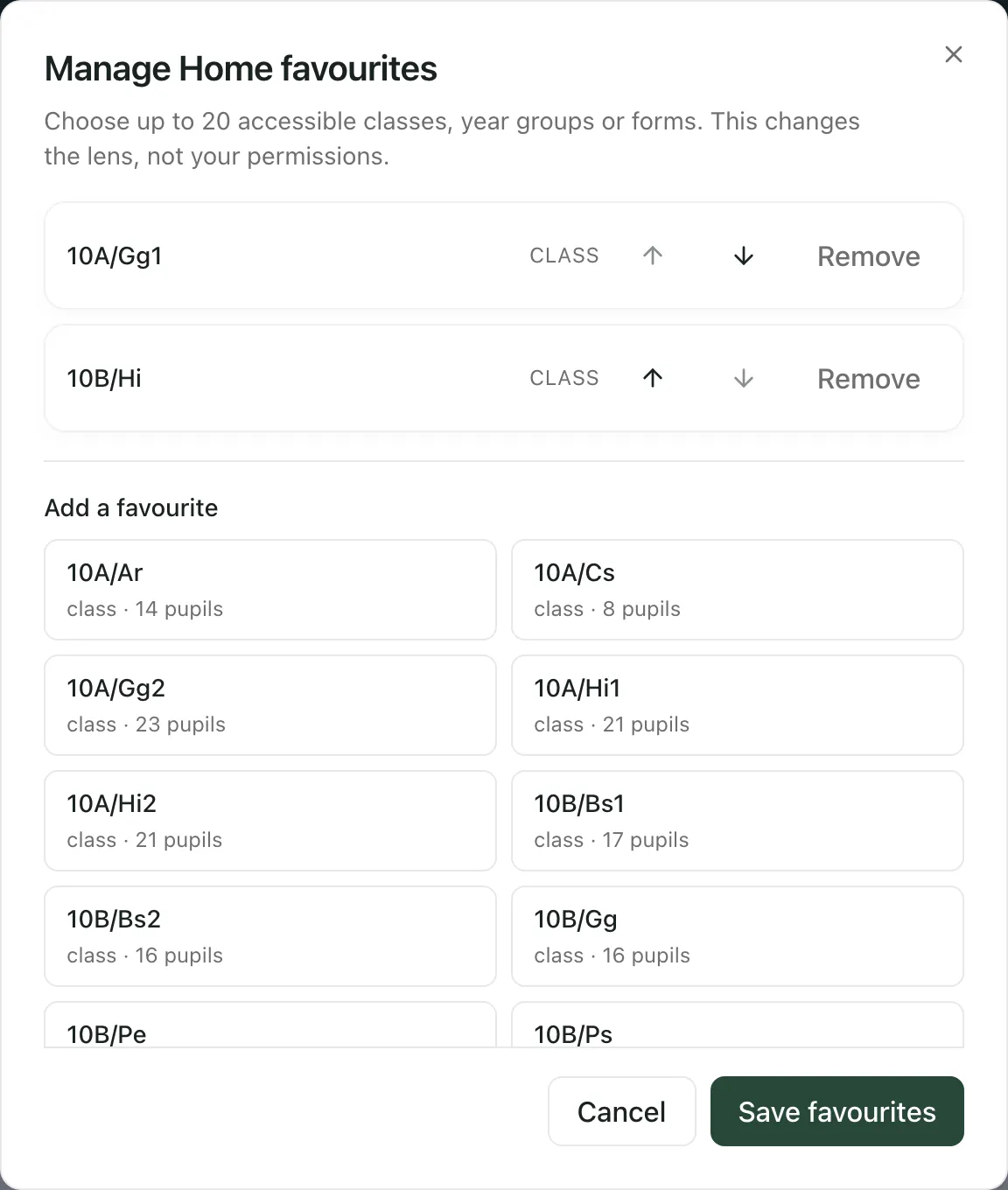
-
Click Save favourites.
You’ll see “Home favourites saved”, and your favourites appear next to Today, in the order you chose. Click Cancel to close the window without saving.
Only classes, year groups and forms you can already access are listed. The list shows classes first, then forms, then year groups, up to 250 in all. In a school with a lot of classes, forms and year groups may not fit in the list.
Use a lens
Section titled “Use a lens”Click a favourite next to Today. A message tells you the lens is updating. When it has loaded, the line under the date names the lens you’re using.
With a favourite lens:
- Needs attention, Today’s pupils, Changes and Due work and messages show only that group.
- Now and next still shows your own timetable, cover and duties.
- Leadership pulse, if you see it, still shows the whole school.
- If you have actions due outside the lens, Home tells you how many, with a link to My Actions. Messages outside the lens are listed separately under Messages requiring action.
Student Radar remembers the lens you chose, so Home opens on it next time. Click Today to go back to your own day.
On a phone, choose the lens from the drop-down list at the top of Home.
For what each part of Home means, see Find what needs your attention on Home.
Change or remove favourites
Section titled “Change or remove favourites”Click Manage again. Reorder or Remove favourites, add new ones, then click Save favourites.
If something doesn’t work
Section titled “If something doesn’t work”| What you see | What to do |
|---|---|
| “Favourites changed elsewhere” | Your favourites were changed in another tab or on another device. Refresh Home, then make your changes again. |
| “Could not save favourites” | Nothing was saved. Try again in a moment. |
| “Could not change the Home lens” | Home stayed on the lens you were using. Refresh the page and try again. |
| “Accessible groups could not be loaded.” | Close the window and click Manage again. If it keeps happening, wait a minute and try again. |
| “No other accessible groups are available.” | You’ve added every group you can access, or your account can’t see any other classes, year groups or forms. |
| “The selected lens could not be loaded.” | Click Retry lens. Until it loads, the page may still show the previous lens, so don’t use it for the new group. |
| You can’t add another favourite | You already have 20. Remove one, then add the new one. |