Write your self-evaluation
Written for: Headteachers and senior leaders who write the school’s self-evaluation.
The Self-Evaluation (SEF) page holds your school’s evaluation of itself, area by area, against the inspection framework your school has selected. For each area you record a judgement, write an evaluation summary, link the evidence behind it and agree next steps. Live figures from Student Radar sit alongside, and AI can suggest a first draft of the commentary for you to review.
Open the self-evaluation
Section titled “Open the self-evaluation”- In the sidebar, open Leadership, then Strategy & assurance.
- Choose Self-Evaluation (SEF).
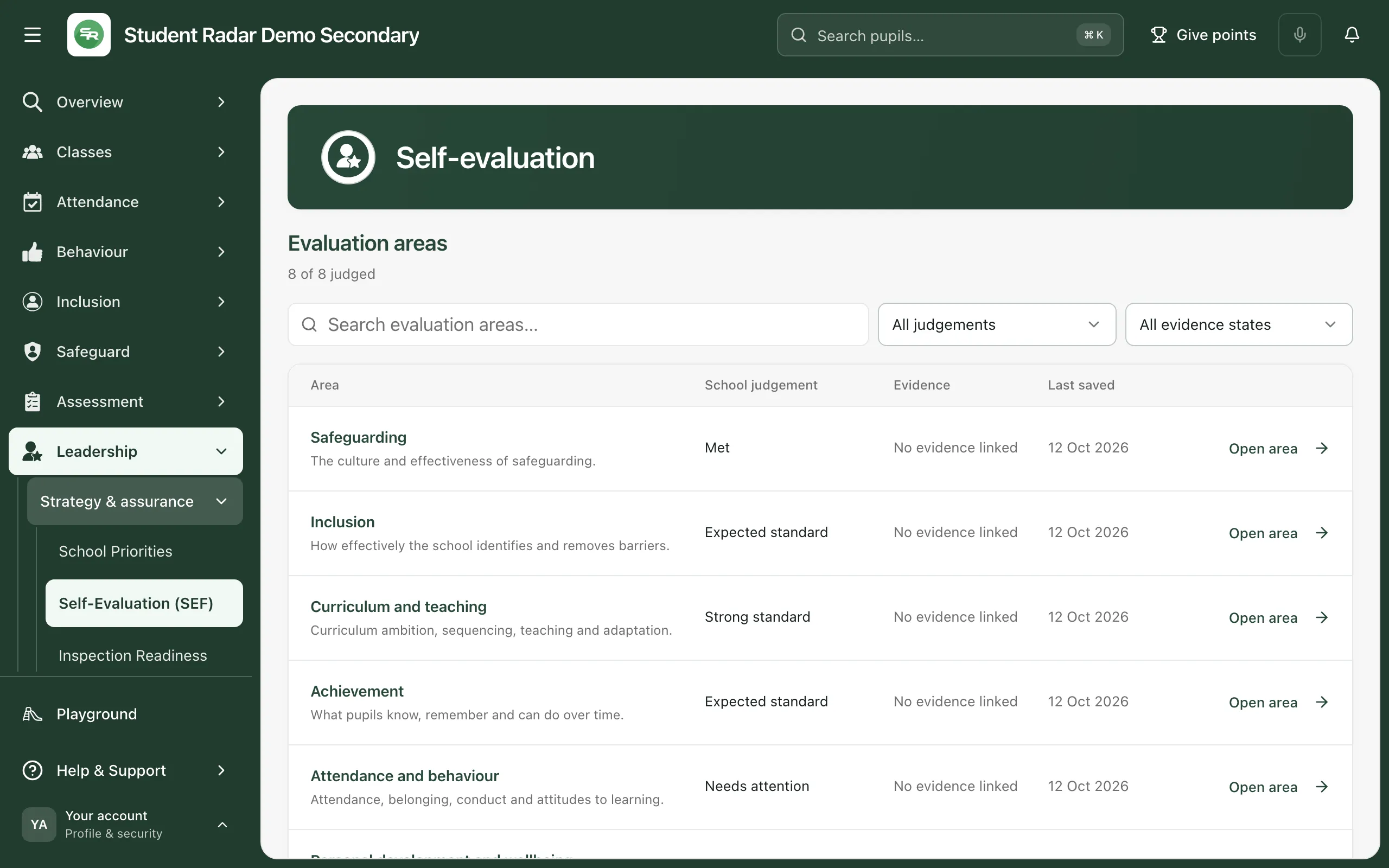
Evaluation areas lists the areas in your school’s framework, with how many have a judgement so far. For each area you’ll see the School judgement, how much Evidence is linked and when it was Last saved. Use the search box and the two filters to find areas with a particular judgement, or with no linked evidence yet.
The framework’s name and edition are shown under the list, with a link to the official framework.
Confirm your framework first
Section titled “Confirm your framework first”If the page says “Confirm the framework your setting uses before editing, generating commentary or signing an evaluation. Existing records remain available to review.”, a leader who can configure the framework needs to set it up:
- Click Choose framework. (Once a framework is confirmed, use Configure framework to change it.)
- Choose the Leadership framework your setting uses.
- Tick Include early years provision or Include post-16 provision if they apply to your school.
- Click Review framework selection, check the summary, then click Confirm framework.
The framework decides which areas and judgements you see. It doesn’t decide which inspectorate inspects your school. Changing it later keeps your saved evaluations with their original framework.
Evaluate an area
Section titled “Evaluate an area”- Click Open area next to the area.
- On the Evaluation tab, choose the School judgement. Base it on the evidence you’ve reviewed.
- Under Evaluation summary, write what is working well, what needs attention and how you know.
- Check the figures under the summary. They come from your school’s records in Student Radar, with the period they cover and how many pupils or records are behind them. Click Source & method to see how a figure was worked out.
- Open Evaluation prompts for questions to help you evaluate the area.
- Click Save area.
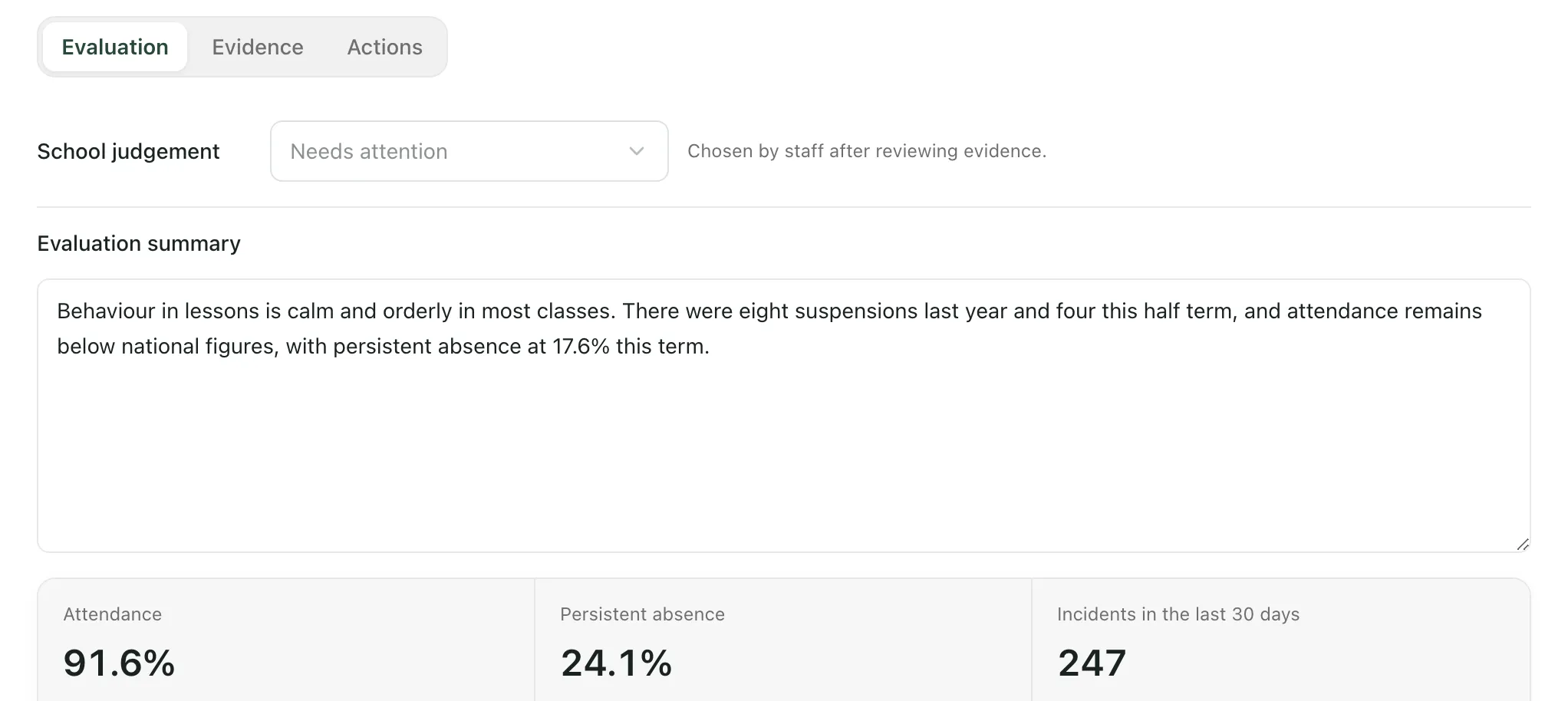
The bottom of the window shows All changes saved once the area is saved. If you go back to the list with unsaved changes, the area shows Unsaved changes until you save it.
Get a suggested summary
Section titled “Get a suggested summary”Click Suggest commentary above the summary box. AI drafts an evaluation summary for the area from its supporting figures and your saved evaluation, and puts it in the box in place of your text. The window says “AI draft: check the evidence and edit before saving. Save or reject this suggestion before requesting another.”
- Read the draft carefully. Check every figure against your records, and add what only you know about your school.
- Edit it as much as you need, then click Save area. Student Radar records whether you kept the suggestion as it was or changed it.
- Click Reject suggestion to remove it. Your previous text comes back.
The suggestion is only a draft. The judgement and the final words are yours.
Link your evidence
Section titled “Link your evidence”- Open the Evidence tab and click Add evidence.
- Choose where the evidence comes from:
- Student Radar: click Link next to the part of Student Radar that supports the judgement.
- Current metrics: click Add snapshot to keep a record of a figure as it is today.
- Evidence library: tick evidence your school has already added.
- Upload: give the evidence a title, choose a file, then click Upload and cite. PDFs, Office documents, images, CSV and plain text files up to 10 MB are accepted.
- Click Use selected evidence.
- Under Evidence notes, explain how the evidence supports your judgement, including any gaps or uncertainty.
- Click Save area. Linked evidence is kept only once you save the area.
Linking evidence doesn’t set the judgement. You can link up to 100 items to an area.
Agree next steps
Section titled “Agree next steps”- Open the Actions tab.
- Under Agreed next steps, write what should happen next, who will lead it and when you’ll review it.
- Click Save area.
To give a next step an owner and a review date, click Create priority under Give the next step an owner. See Create a school improvement priority.
When the self-evaluation is complete, it can be signed off and downloaded. See Sign off and download a SEF.
Who can edit the self-evaluation
Section titled “Who can edit the self-evaluation”By default, headteachers, senior leaders, DSLs, SENCos and administrators can edit the self-evaluation, and headteachers, senior leaders and administrators can choose the framework. Other staff can read the judgements. Schools can change who has access. If an area says “Narratives and evidence are not available with your current access. This does not mean they are missing.”, your account can see the judgements but not the writing and evidence behind them.
If something doesn’t work
Section titled “If something doesn’t work”| What you see | What to do |
|---|---|
| “Another change was saved. Your draft is retained; reload the saved version before retrying.” | A colleague saved this area while you were editing. Click Compare saved version, then choose Use saved version or Keep my draft for saving. |
| “You do not have permission to make this change.” | Your account can’t edit the self-evaluation. Ask your headteacher or administrator. |
| “Draft suggestion failed” | Your text hasn’t changed. Click Suggest commentary again. |
| “Your newer text has been retained” | You edited the summary while the suggestion was being prepared, so it wasn’t inserted. Click Suggest commentary again when you’re ready. |
| “Self-evaluation unavailable” | Click Retry. Your unsaved drafts in this browser are kept. |
| “The school’s framework selection has changed” | Another leader changed the framework. Click Load current framework to open it. Save or copy any unsaved writing first. |
| “No areas match these filters.” | Click Clear filters. |
| “Evidence not added” | Try again. The evidence you’d already chosen is still selected. |