Take the register for your class
Written for: Teachers and form tutors.
Use the register to record who is present, absent or late for a session. You mark each pupil, then save the register, and the marks go straight to each pupil’s attendance record. You can take the morning (AM) or afternoon (PM) register, or a lesson register if your school uses them.
Open the register
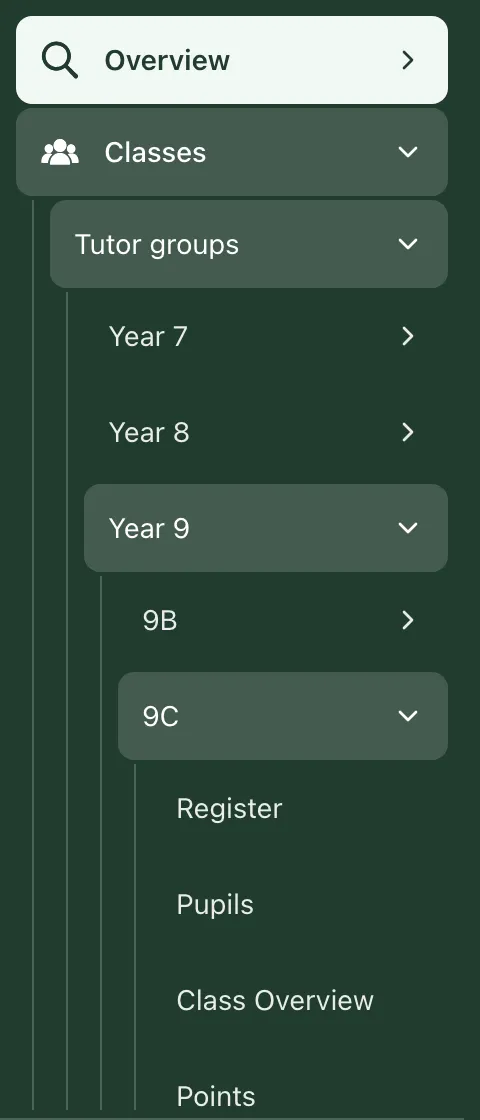
Section titled “Open the register”- In the sidebar, click Classes.
- Choose the class:
- In a secondary school, click Tutor groups, then the year group and the tutor group. For a subject class, click Teaching classes, then the subject and the class.
- In a primary school, click the year group, then the class.
- Click Register.
The Take Register page opens with the class name at the top. It shows today’s register and selects the session that’s due: AM in the morning and PM in the afternoon. Due now appears beside the date while that session is selected.
Mark each pupil
Section titled “Mark each pupil”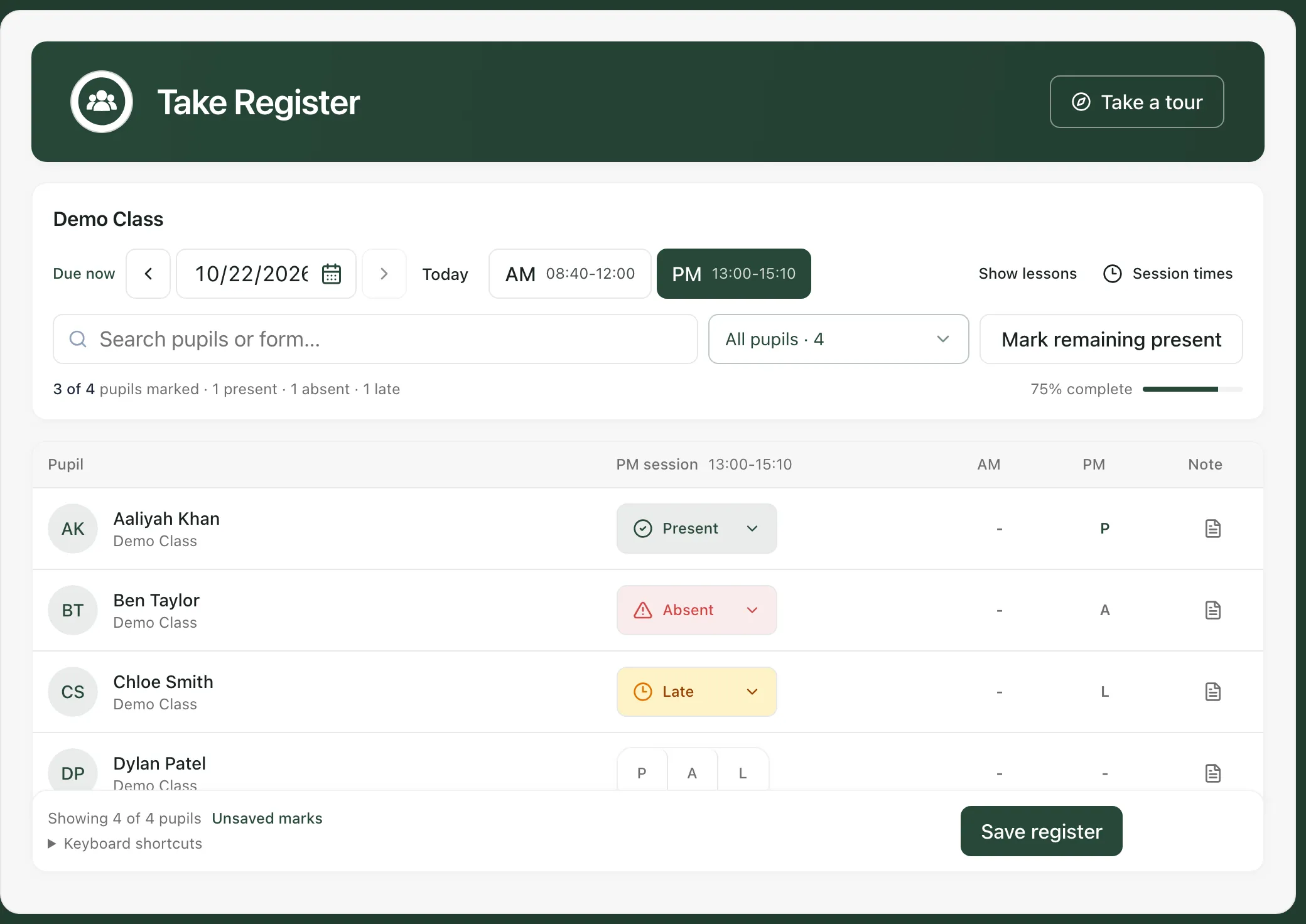
- Check the date and session at the top. Click AM or PM to switch session.
- For each pupil, click P for present, A for absent or L for late.
- If most of the class is in, click Mark all present first, then change the pupils who aren’t. Once you’ve marked anyone, the button becomes Mark remaining present and only marks the pupils who don’t have a mark yet.
- For each pupil you marked absent, click the note icon in the Note column and choose an Attendance code. For a pupil marked late, you can change the minutes late in the same place. See Record a late arrival or change an attendance code.
- Click Save register.
When the register is saved, you’ll see “Register saved”, with the session and the time it was saved. If you open the same register again, the saved marks are shown.
To change a mark before you save, click the pupil’s mark (for example Absent) and choose again.
Tip: To mark from the keyboard, click a pupil’s row (not a button), then press Enter or P for present, A for absent or L for late. The next pupil is selected automatically. Press U to clear a mark. You’ll find this reminder under Keyboard shortcuts at the bottom of the register.
What the register shows
Section titled “What the register shows”- Progress: under the search box, how many pupils you’ve marked, how many are present, absent and late, and the percentage complete.
- AM and PM columns: the pupil’s marks for the day’s morning and afternoon sessions, so you can see at a glance whether they were in earlier. A dash means not marked. Point at a mark to see what it means.
- Note column: the note icon opens the pupil’s attendance details, where you can add a comment of up to 200 characters. A dot on the icon means there’s already a note.
- The bar at the bottom: how many pupils are shown, and whether there are Unsaved marks, the register is Ready to save, or Saved marks loaded.
To find pupils in a large class, type a name in Search pupils or form…, or use the list next to it to show only pupils who are Present, Absent, Late, Not required or Not marked. Not marked is the quickest way to check nobody’s been missed.
Other registers and dates
Section titled “Other registers and dates”- An earlier day: use the arrows either side of the date, or pick a date, to open an earlier register. Click Today to come back. You can change registers from the last 7 days. You can’t choose a future date, and there are no registers at weekends.
- Lesson registers: if your school has set up lesson times, click Show lessons and choose the lesson from the list. Click Hide lessons to go back to AM and PM. If the button is greyed out, no lesson registers are set up for your school.
- Session times: click Session times to see the AM and PM times. Changing them affects every register in the school, so only some staff, such as administrators, office managers and attendance officers, can change them.
If you change the date, session or lesson with unsaved marks, Student Radar asks “Discard unsaved register changes?”. Click Keep editing to go back and save, or Discard changes to lose them.
- Who can take registers: teachers, year leads, SENCos, safeguarding leads, senior leaders and headteachers can take registers by default. Teaching assistants can’t, unless their school gives them access. Schools can change who has access.
- Attendance codes: the codes you can choose depend on your school. Schools in England use the DfE attendance codes. Schools outside England, such as schools in Thailand, can use their own set of codes, so the list you see may be different.
- Tour: click Take a tour at the top of the page for a step-by-step guide to the register.
If something doesn’t work
Section titled “If something doesn’t work”| What you see | What to do |
|---|---|
| “Mark every pupil as present, absent, or late before saving.” | Some pupils don’t have a mark. Choose Not marked in the status list to find them, mark them, then save again. |
| “Select an attendance code.” | A pupil marked absent has no attendance code. Their details open for you: choose a code, click Done, then save again. |
| “This register is more than 7 days old and cannot be edited.” | You can only change registers from the last 7 days. Ask your school’s attendance office to change older marks. |
| “No register session on weekends” | Choose a weekday date. |
| “This register has changed. Your draft has been kept; reload the latest marks before saving.” | Someone else saved this register while you were marking. Click Reload latest marks, check the marks, then make your changes again. |
| “You don’t have permission to edit this register” | Your account can’t save this register. Ask your school’s Student Radar administrator. |
| “Network error. Please check your connection and try again” | Your marks are still on the page. Check your connection, then click Save register again. |
| “Unable to load today’s registers.” | Click Retry. If it keeps happening, check with your administrator that you have access to registers. |
| “Save or undo your register changes before switching class.” | You have unsaved marks. Save the register, or discard your changes, before choosing another class. |
| “No pupils match these filters” | Click Clear filters to show the whole class again. |