Create and share a pupil passport
Written for: Teachers, SENCos and staff who support pupils with SEND.
A pupil passport is a short, practical guide to a pupil: what they’re good at, what helps them and what to avoid. Staff who teach or support the pupil can read it, and you can share it with the pupil’s parent or carer through a secure link so they can read and acknowledge it.
Open Pupil Passports
Section titled “Open Pupil Passports”In the sidebar, open Inclusion, then SEND, then Plans, and choose Pupil Passports.
The page lists pupils on the SEND register or being monitored. The counts across the top show SEND pupils, Monitoring, Current passports, Missing passports and Reviews due.
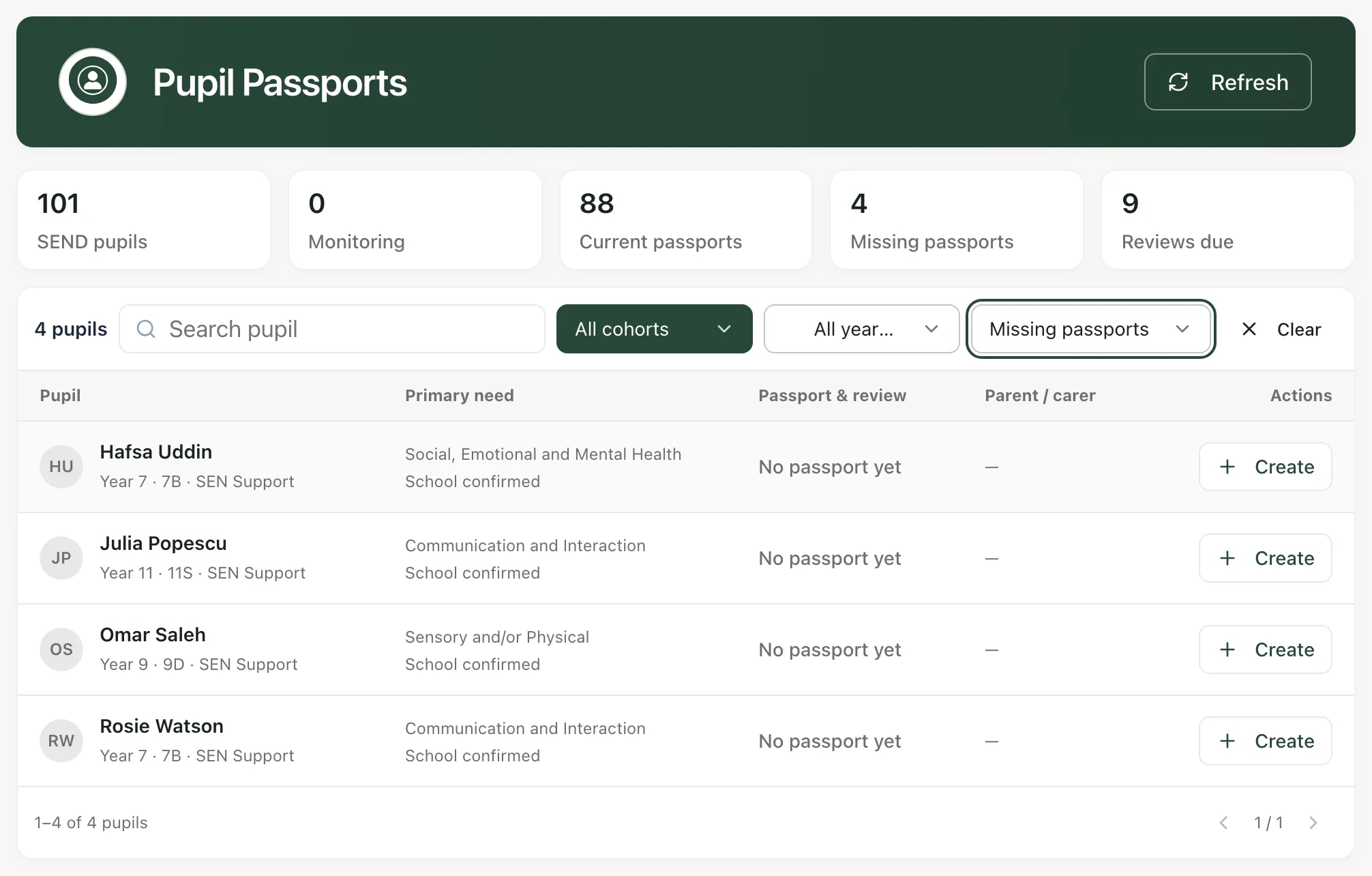
Each pupil’s row shows:
- Primary need: their broad area of need, and where it came from (school confirmed, a plan or your MIS).
- Passport & review: Current, No passport yet, Review due or Review date not set, with the next review date.
- Parent / carer: whether the passport has been shared and acknowledged.
Use Search pupil and the filters above the list to narrow it down. To find pupils who still need a passport, choose Missing passports in the passport filter.
Create a passport
Section titled “Create a passport”- Find the pupil and click Create in their row.
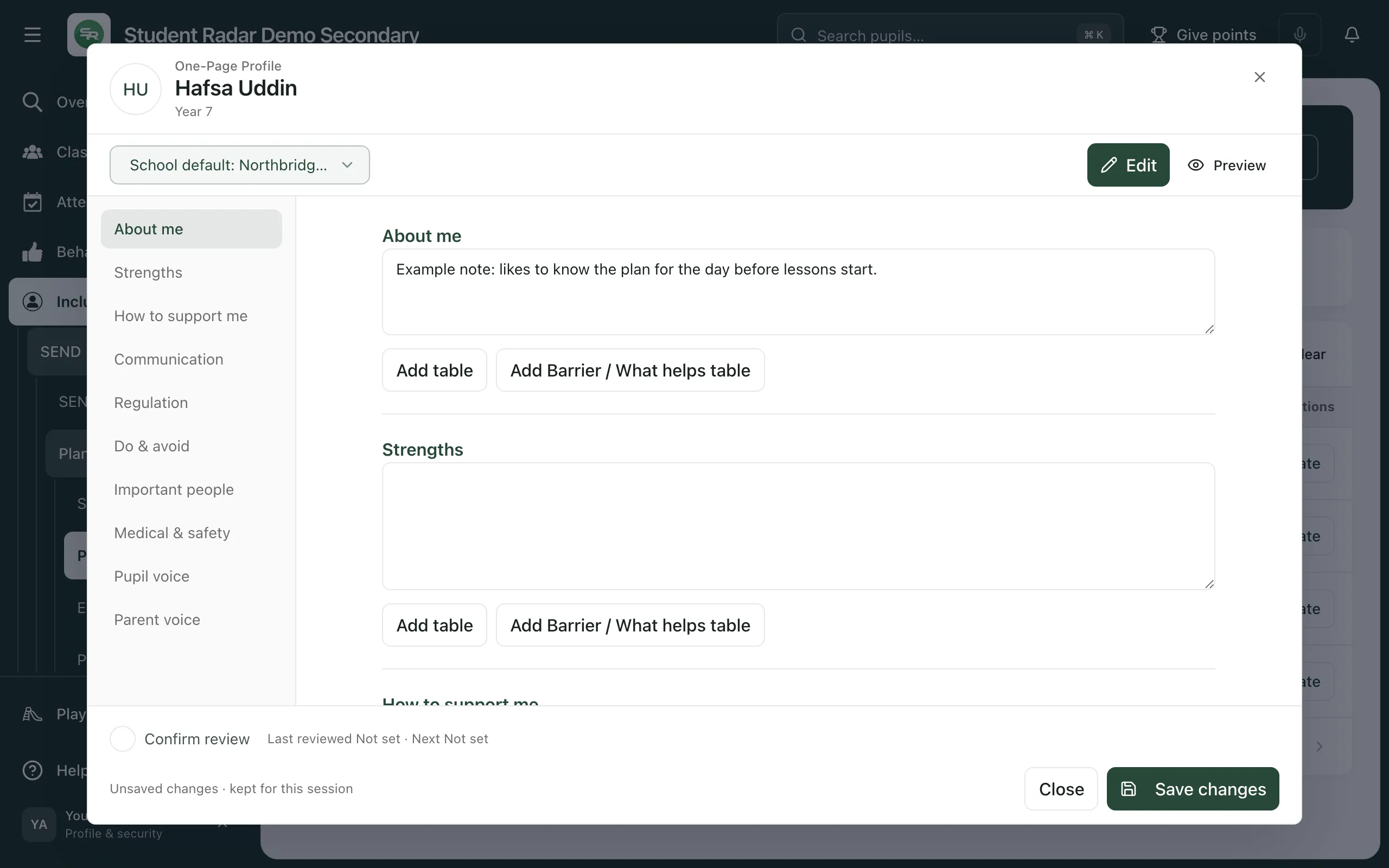
- Check the template at the top left. It starts on your school’s default. Changing the template keeps anything you’ve already written.
- Write each section. Use the list on the left to jump between them. The standard sections are About me, Strengths, How to support me, Communication, Regulation, Do & avoid, Important people, Medical & safety, Pupil voice and Parent voice. Your school’s template might use different sections.
- To set out information in a grid, click Add table, or Add Barrier / What helps table for a two-column table of barriers and the support that helps.
- Click Preview to see the passport as staff will read it, and Edit to go back.
- Tick Confirm review and choose the Next review date. Without a review date, the passport is listed as Review date not set.
- Click Save changes.
You’ll see “Passport saved” and the pupil’s row changes to Current.
If you close the passport before saving, Student Radar asks whether to discard your edits. Unsaved edits are only kept while Student Radar stays open. Reloading the page loses them, so save before you leave the passport.
Tip: Your school’s template might give the passport another name, such as One-Page Profile. The steps are the same.
Update a passport
Section titled “Update a passport”Click Edit in the pupil’s row, or click View and then Edit passport. Make your changes and click Save changes.
When you’ve reviewed the passport with the pupil and their family, tick Confirm review and choose the next review date before you save. The passport then moves back to Current.
Change the wording with AI
Section titled “Change the wording with AI”For a passport that’s already saved, you can ask AI to rewrite its wording in the first person (I enjoy…) or third person (Sam enjoys…).
- Open the passport for editing and click Change passport wording.
- Choose First person or Third person, then click Rewrite wording.
- Compare the Current wording and Proposed wording for each section.
- Click Apply wording to draft to use it, or Keep current wording.
- Read the whole passport again, then click Save changes.
The AI wording is a suggestion. Check that it’s accurate and still sounds like the pupil before you save. Quotations, medical details and sections with the pupil’s or family’s own views stay as written.
Share a passport with a parent or carer
Section titled “Share a passport with a parent or carer”Passports are shared by secure link. Student Radar doesn’t email the link for you: you copy it and send it through your school’s usual way of contacting parents.
- Click View in the pupil’s row, then click Sharing.
- Click Share with parent/carer.
- Under Who is this link for? (optional), you can add who you’re sending it to, such as Mum or Carer, so you can tell links apart later.
- Click Create secure link.
- Click Copy, then click Done.
- Paste the link into a message to the parent or carer using your school’s usual parent channel.
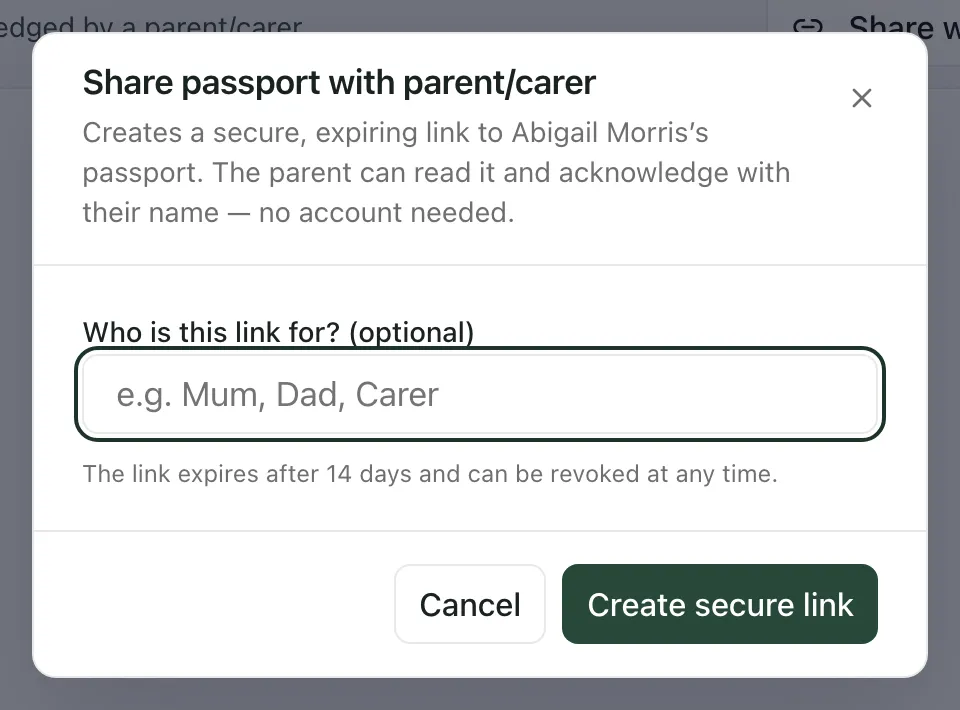
The link is shown only once, so copy it before you click Done. It expires after 14 days.
The parent or carer doesn’t need an account. They open the link, read the passport and acknowledge it with their name.
Follow up and revoke links
Section titled “Follow up and revoke links”On the Sharing tab you’ll see each active link, when it expires and whether it has been opened. Click Revoke to stop a link working straight away, for example if you sent it to the wrong person.
In the passport list, the Parent / carer column shows:
| What it says | What it means |
|---|---|
| Not shared | No link has been created yet. |
| Awaiting acknowledgement | A link is active but the parent or carer hasn’t acknowledged yet. |
| Acknowledged | A parent or carer has acknowledged the current passport. |
| Updated since acknowledgement | The passport has changed since it was acknowledged. Consider sharing it again. |
| No active share link | Earlier links have expired or been revoked, and nothing was acknowledged. |
Download a passport
Section titled “Download a passport”Click View, then Download. Choose the Staff version, Parent/carer version or Pupil version to save a PDF.
- Who can change passports: anyone who can open the page can read passports for the pupils they can see. Create, Edit and Share with parent/carer are only available to staff who can update that pupil’s passport.
- Email: Student Radar can’t email a passport link for you. Copy the link and send it yourself.
If something doesn’t work
Section titled “If something doesn’t work”| What you see | What to do |
|---|---|
| Create, Edit or Share with parent/carer is greyed out | You can read this passport but not change or share it. Ask your SENCo. |
| “Sharing requires permission to update this pupil’s passport.” | As above: only staff who can update the passport can share it. |
| “Choose a next review date of today or later.” | Pick a review date that isn’t in the past, then save again. |
| “Passport save failed” | Your edits are still in the passport. Read the reason in the message, then click Save changes again. |
| “Could not create the share link” | No link was created. Try again. If it keeps happening, contact your SENCo. |
| “Copy failed” | Select the link text in the Secure link box and copy it yourself before you click Done. |
| “Unable to load pupil passports.” | Click Retry. If it keeps happening, wait a minute and try again. |
| “No SEND or monitoring pupils found” | Pupils appear here once they’re on the SEND register or being monitored. |