Enter marks quickly with rapid entry
Written for: Teachers.
When you have a mark to record for every pupil in a class, use Entry mode in the Digital Markbook. You type each mark straight into the grid and move on with the keyboard, without opening a window for each pupil. Each mark is saved as you move to the next one.
This article assumes the markbook already has a column for the assessment. To add one, see Set up and fill in your markbook.
Turn on entry mode
Section titled “Turn on entry mode”- In the sidebar, click Classes, choose your class, then click Digital Markbook.
- Above the grid, click the folder that holds the assessment, or click All columns.
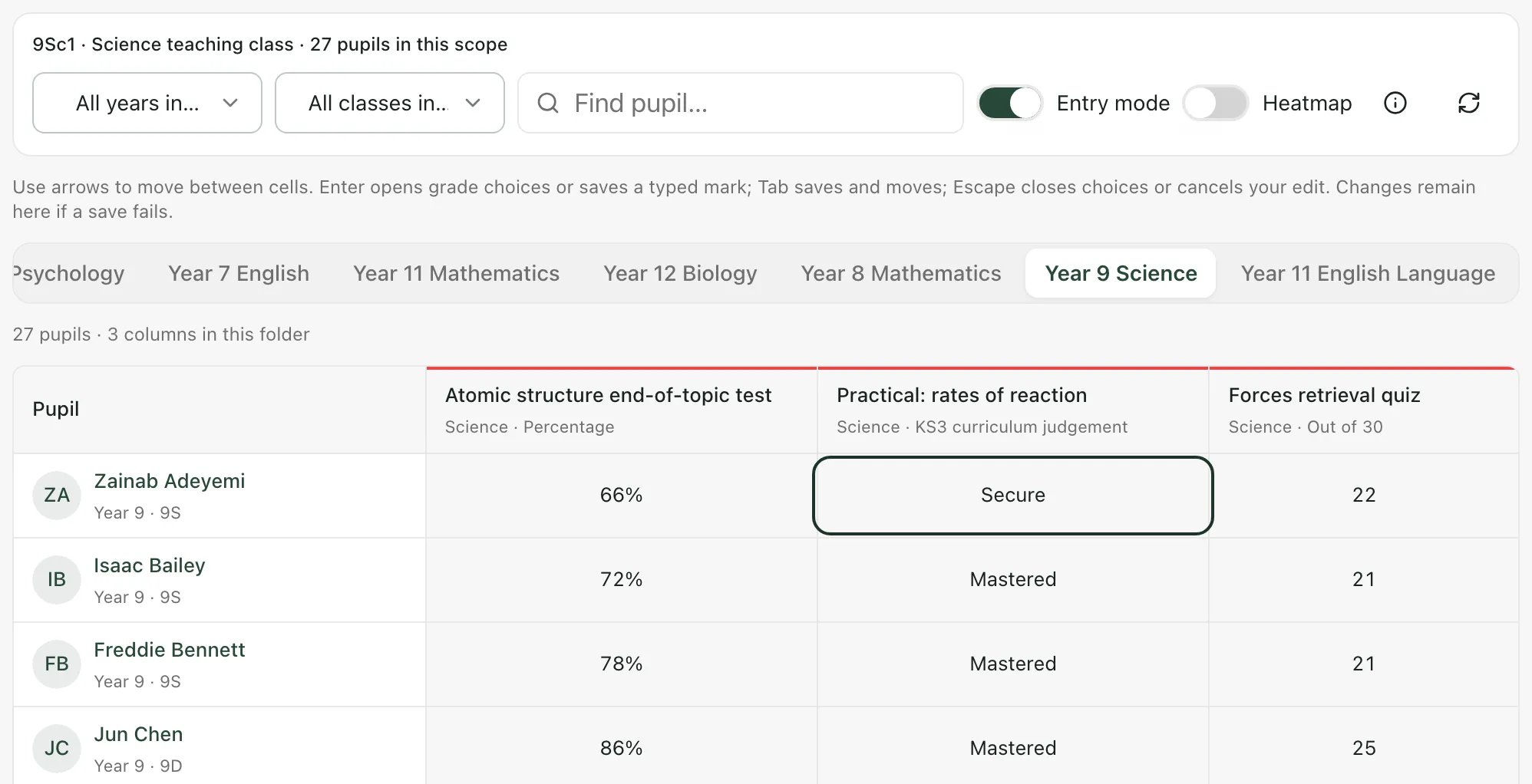
- Turn on Entry mode. A reminder of the keys appears under the toolbar.
Enter the marks
Section titled “Enter the marks”- Click the cell for the first pupil in the assessment’s column. A box opens in the cell.
- Enter the mark:
- A number or percentage: type it.
- A grade, level or Pass/Fail: press Enter to open the list, then choose the mark.
- Press Tab to save the mark and move to the next cell. Press Shift+Tab to save and go back one cell instead.
- Carry on until every pupil has a mark.
To save a typed mark without moving, press Enter, or click Save in the box. To leave a cell without changing it, press Escape or click Cancel.
Tip: Tab moves along the row, from column to column. To type marks down one column instead, press Enter to save each mark, press the down arrow to move to the next pupil, then press Enter to open their cell.
Move around the grid
Section titled “Move around the grid”While no box is open:
| Key | What it does |
|---|---|
| ↑ and ↓ | Move to the pupil above or below. |
| ← and → | Move to the previous or next column. |
| Tab | Moves to the next cell. |
| Enter | Opens the highlighted cell, ready for a mark. |
| Escape | Turns off entry mode. |
The keys move through the pupils and columns on screen. The markbook shows up to 40 pupils and 12 columns at a time. Use Next pupils or Next columns to mark the rest.
Good to know
Section titled “Good to know”- Saving: each mark is saved when you press Tab or Enter, or click Save. There’s no separate save for the whole grid.
- If a save fails: your mark stays in the box with a message, so you can try again.
- Marks you can’t change: if a cell opens a window that says “You have read-only access to this mark.”, you can’t change that mark. It may come from homework or Home Reading, or your account can’t record marks for that pupil.
- Turning entry mode off: clicking a cell then opens a window where you can also add Assessment notes to a mark.
- Who can use it: teachers, SENCos, safeguarding leads, senior leaders, headteachers and office staff can use the markbook by default. Teaching assistants can’t. Schools can change who has access.
If something doesn’t work
Section titled “If something doesn’t work”| What you see | What to do |
|---|---|
| “Enter a mark before saving.” | The box is empty. Type or choose a mark, or press Escape to leave the cell without one. |
| “Enter a valid number.” | This column takes a number. Check what you typed. |
| “This mark changed elsewhere. Your draft is still here; reopen the mark to review the latest result before saving.” | Someone else saved a mark for this pupil while you were typing. Press Escape, click the refresh button at the end of the toolbar, then try again. |
| “The connection failed. Your draft is still here; please retry.” | Check your connection, then press Enter or click Save again. |
| “You do not have permission to make this change.” | Ask your school’s Student Radar administrator to check your access. |
| “Too many requests. Wait a moment, then retry.” | Wait a few seconds, then save again. |