Add an event to the calendar
Written for: School staff.
The Calendar brings your school’s events, meetings, review dates and deadlines together in one place. You can add your own events to it, such as a club, a meeting or a reminder about a deadline, either just for you or on the whole-school calendar.
Open the Calendar
Section titled “Open the Calendar”In the sidebar, open Overview and choose Calendar.

- Use the arrows and Today to move through the calendar.
- Choose Month, Week or Agenda (a list) to change the view.
- Type in Search calendar… to find events by name.
- Click an event to see its details.
Add an event
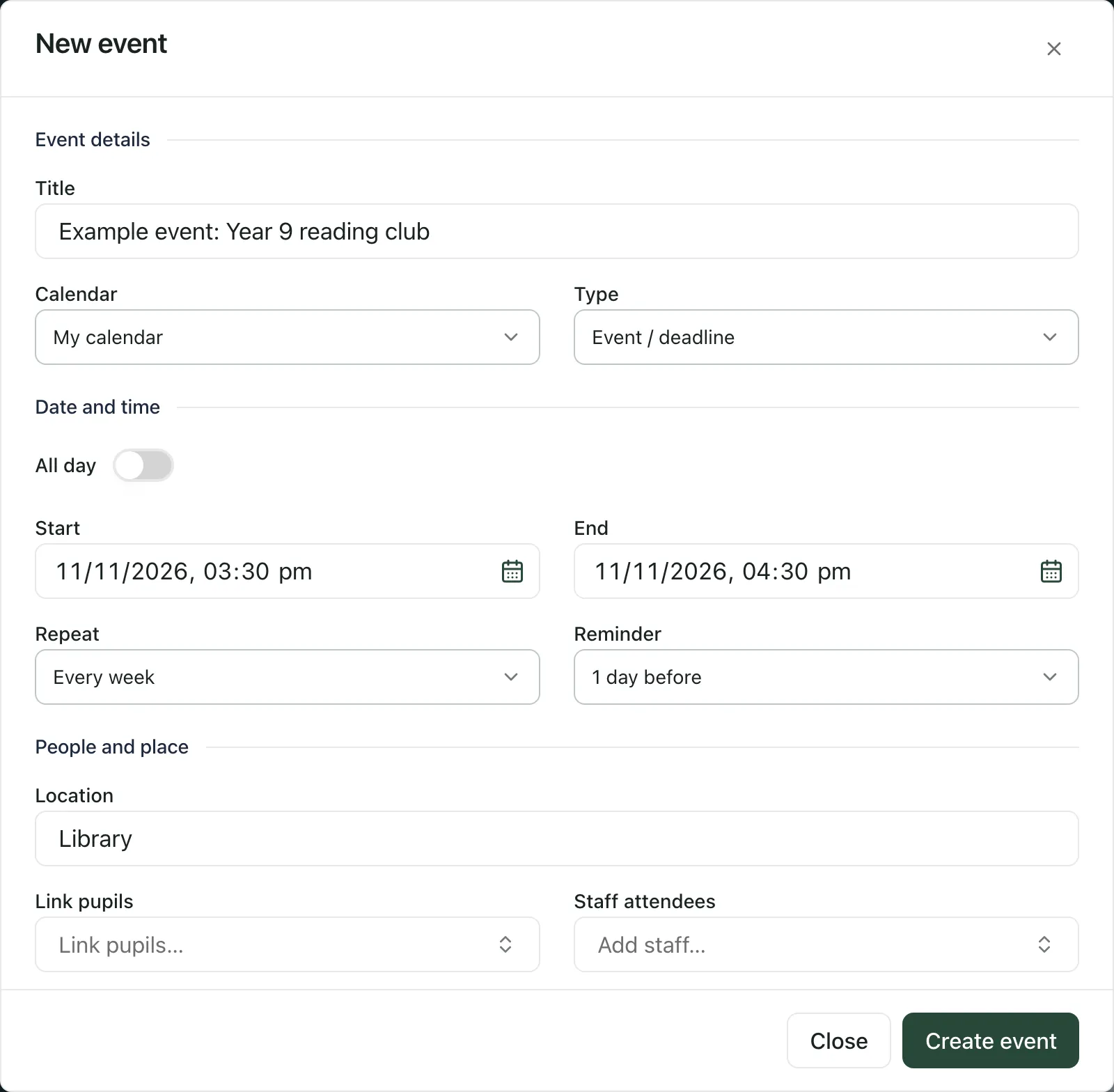
Section titled “Add an event”- Click New event. To add an event on a particular day, you can also click + on that day in the Month or Week view.
- Under Event details, enter a Title.
- Choose the Calendar:
- My calendar for your own events.
- Whole school to add the event to the school’s calendar.
- Choose the Type: Event / deadline, Meeting / review or Sports fixture. For a sports fixture, also enter the School team and the Opponent.
- Under Date and time, set the Start and End. For an event that lasts all day, switch on All day, then set the start date and the date it Ends before.
- If the event happens regularly, choose how often under Repeat: Every day, Every week or Every month.
- To be reminded, choose a Reminder, such as 10 minutes before or 1 day before.
- Under People and place, you can add a Location, link pupils the event is about under Link pupils, add colleagues under Staff attendees, and write any Notes.
- Click Create event.
The event appears on the calendar straight away.
Adding an event to Whole school doesn’t share it with parents or the public. That’s done separately, in Calendar sharing, with a preview and approval first.
Change or cancel an event
Section titled “Change or cancel an event”- Click the event on the calendar.
- Click Edit, make your changes, then click Save changes.
To cancel the event, click Cancel event in the same window and confirm. A cancelled event stays in the calendar history, marked as cancelled.
You can only edit events added in the Calendar. Items that come from elsewhere in Student Radar, such as a review date or a trip, show Open source instead. Click it to change them where they were created.
If you can’t see your event
Section titled “If you can’t see your event”Click Calendars & filters. Check that the calendar you added it to (My calendar or Whole school) is selected, and that School events or Meetings is ticked under Calendar types. You can also add a class, year group, staff member, room or resource calendar here and click Add calendar.
- Your school decides who can add events to the whole-school calendar. If you can’t save an event to Whole school, choose My calendar or ask whoever looks after the calendar in your school.
- If your account isn’t linked to your staff record, you’ll see “Link your account to a staff record to include staff-targeted commitments in My calendar.” Your own events still work. Click Link staff record, or ask your school’s Student Radar administrator.
If something doesn’t work
Section titled “If something doesn’t work”| What you see | What to do |
|---|---|
| “Add a title” | Enter a Title for the event. |
| “End must be after the start” | Change the End so it’s later than the Start. |
| “Add both the team and opponent” | For a sports fixture, fill in both School team and Opponent. |
| “Could not save the event” | Check the details and try again. If you chose Whole school, your role may not be allowed to add whole-school events. |
| “This event changed after you opened it. Your draft has been kept. Close and reopen to load the latest version.” | Someone else changed the event. Close the window, open the event again and make your change. |
| “Calendar items could not be loaded.” | Click Try again. |