Change the portal language
Written for: Parents and carers.
You can read the parent portal in the language you’re most comfortable with. Menus and buttons change to your language, and posts and updates from school can be translated for you too.
Choose your language
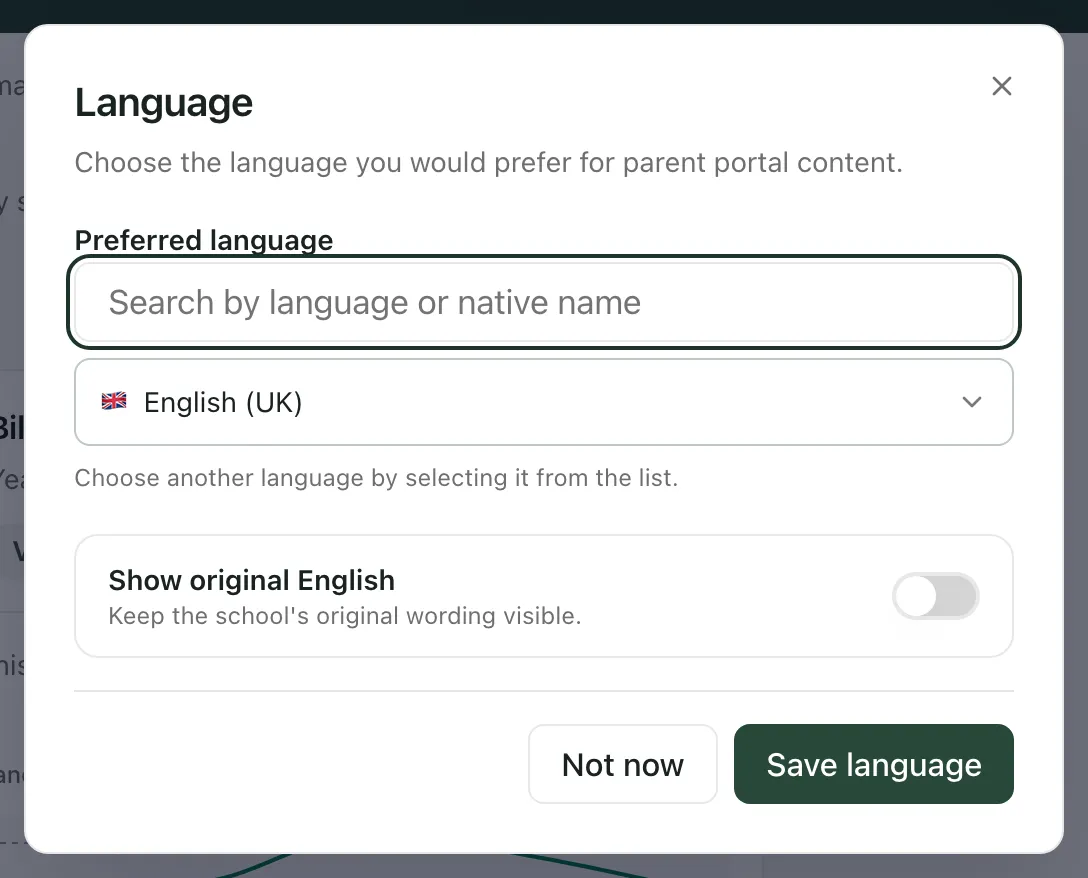
Section titled “Choose your language”- At the top of any page, click the flag. It shows the language you’re using now.
- The Language window opens. Under Preferred language, type the name of your language in the search box. You can type it in English or in your own language.
- Click the list under the search box and choose your language.
- If you’d like to see the school’s original English as well as the translation, turn on Show original English.
- Click Save language.
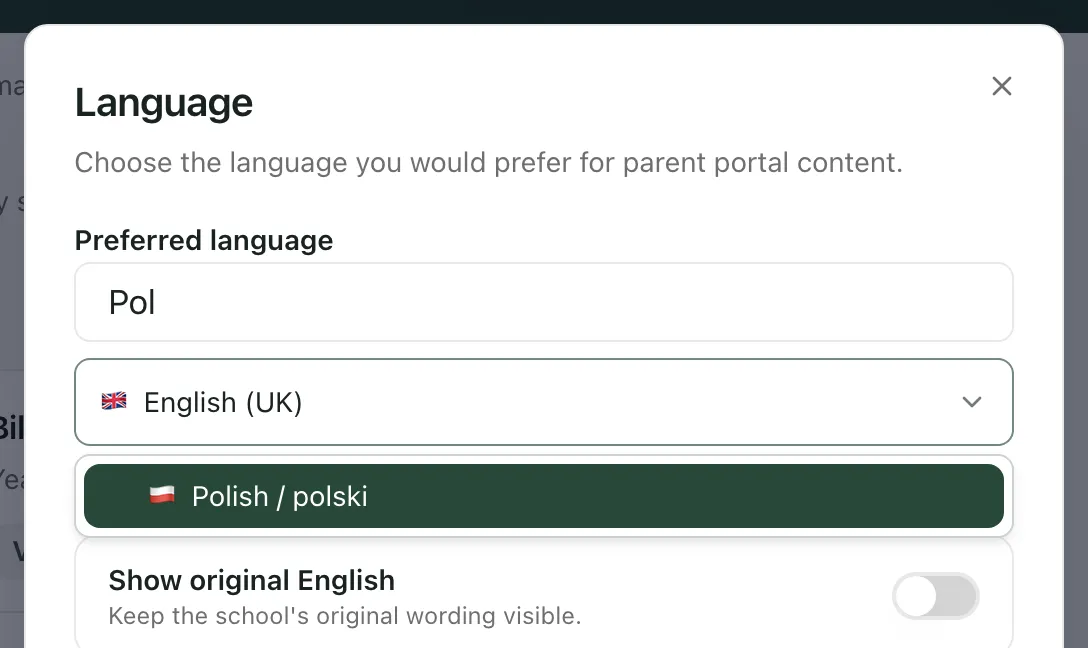
The portal changes to your language straight away. The flag at the top changes too. To go back to English, choose English (UK) in the same way.
If you change your mind, click Not now to close the window without changing anything.
Sometimes the window suggests languages at the top, under Suggested from your child profile or Common languages at your school. Click a suggestion to choose it.
The first time you sign in, the portal may ask you about your language straight away, if the school’s records suggest you might prefer one other than English.
Read translated posts and updates
Section titled “Read translated posts and updates”When your language isn’t English, posts and updates written by the school are translated automatically. Under translated text you’ll see a short note saying it was translated. The school’s English wording is always the official version.
- Click Show original English under a post to see the school’s own words. Click Show translation to switch back.
- If a translation looks wrong, click Is this translation incorrect?. In Report a translation, you can say what seems wrong and suggest better wording, then click Send report to Student Radar. Reports are checked before any wording is changed.
If anything in a translation is unclear, ask the school.
Arabic and Urdu, among other languages, are shown right to left.
Choose a language before you sign in
Section titled “Choose a language before you sign in”On the sign-in page, click Parent / carer, then choose your language under Language. The sign-in steps are then shown in that language. See Sign in to the parent portal.
- The languages you can choose, and whether the school’s own posts are translated, depend on your school’s settings.
- If the button says Use language instead of Save language, your choice works on this device until you close the browser, but it isn’t saved to your account. The school needs to link your account to your contact details first. Contact the school office if you’d like it saved.
If something doesn’t work
Section titled “If something doesn’t work”| What you see | What to do |
|---|---|
| “No languages match your search.” | Check the spelling, or clear the search box and look through the list. |
| “The school needs to connect your contact record before this preference can be saved.” | Click Use language to use it for now, and ask the school office to link your account. |
| “Translation unavailable. Showing original English.” | This piece of text couldn’t be translated. Try again later, or ask the school if it’s unclear. |
| “Your report could not be confirmed. Please try again.” | Click Send report to Student Radar again. |