Review a new concern: promote or dismiss it
Written for: Designated Safeguarding Leads, deputies and senior leaders.
New safeguarding information reaches the DSL Action Board in several ways. A concern raised by a member of staff becomes a case straight away. Worry box reports, medical review prompts and coverage reviews wait in their own tabs until someone in the safeguarding team decides what they are. This article covers that first decision. Student Radar records each decision, who made it and why. The decision itself is yours, made under your school’s safeguarding procedure.
Important: If anything you read suggests a child may be at immediate risk of harm, follow your school’s safeguarding procedure straight away. Don’t wait to work through the board.
Where new concerns arrive
Section titled “Where new concerns arrive”In the sidebar, open Safeguard, then Concerns & Response, and choose DSL Action Board. New items arrive here:
| Where it comes from | Where you’ll find it | What you can do |
|---|---|---|
| A member of staff uses Raise Concern | Pupil safeguarding or Staff allegations, as a case | Classify it, give it an owner and work the case. |
| A pupil, parent or someone else uses the worry box | Worry box | Promote to concern, Mark in review, Dismiss or Abuse. |
| A pattern in first aid records | Medical review | Escalate or Dismiss with reason. |
| Wording in a saved school record | Coverage review | Start safeguarding concern, Reviewed — not safeguarding or Decide later. |
Triage a concern raised by staff
Section titled “Triage a concern raised by staff”Concerns raised with Raise Concern arrive on the board as cases without a category. Usually they’re in Needs attention today, and the card’s next step reads “Triage and assign next steps”.
-
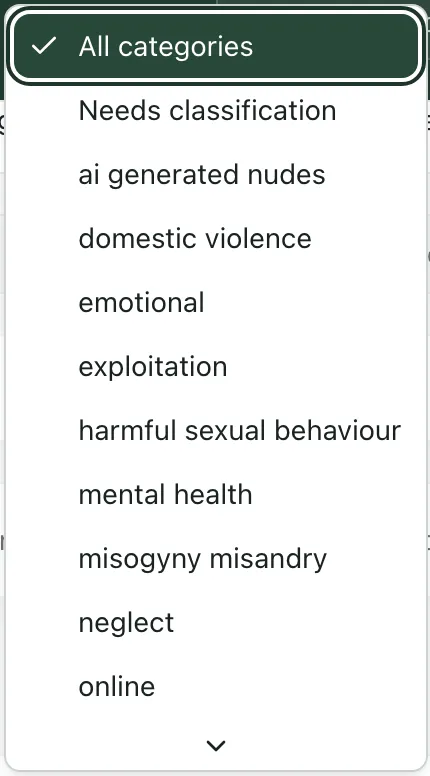
On the Pupil safeguarding tab, open All categories and choose Needs classification. The board shows only the concerns still waiting for a category.
-
Click Open case on a concern and read it in full.
-
In Overview, under Case type, choose the category that fits, then click Save case type.
-
Give the case an owner, set its stage and plan what happens next. See Manage cases on the DSL Action Board.
A concern raised by a member of staff is already a safeguarding record, so it can’t be dismissed from the board. If you decide no further action is needed, record your reasons and close the case with Review for closure, as your procedure requires.
Promote or dismiss a worry box report
Section titled “Promote or dismiss a worry box report”The worry box is a public link that pupils, parents and others can use to tell the safeguarding team about a worry, anonymously if they want to. Each school switches it on or off. The switch is on the Anonymous worry box card at the top of the Worry box tab. Reports arrive only while it’s on, and nothing becomes a concern until someone promotes it.
Each report shows its reference, its status, the kind of worry the person chose, when it was sent, what they wrote and any contact details they left. For each report:
- Read the report in full.
- If you need time to look into it, click Mark in review. The report stays in the tab, marked as in review.
- Then decide:
- Promote to concern: choose a Priority, then click Promote. Student Radar creates a safeguarding case linked to the report, using the report’s words as the description. The case opens, and it’s listed under Promoted concerns on the Worry box tab.
- Dismiss: write your reason in the box, then click Record decision. The report is kept, with your reason, and leaves the tab.
- Abuse: closes the report without creating a concern, as Dismiss does, and records it as misuse of the worry box. Write your reason, then click Record decision.
If a report describes harm to a child, use Promote to concern, not Abuse.
Dismissed, promoted and abuse decisions are never deleted. Open Previously triaged to see them. A promoted report has an Open case button that takes you to its case.
Escalate or dismiss a medical review prompt
Section titled “Escalate or dismiss a medical review prompt”Medical review shows Medical review prompts. A prompt appears when first aid records show a pattern that may need a safeguarding question asked, such as repeat visits, injuries in unusual places or explanations a first aider flagged. Each prompt names the pattern and the pupil, and shows any note from the first aider. A prompt is a question to consider, not a finding.
- To open a safeguarding case, click Escalate, add a note if you want to, then click Create safeguarding concern. Student Radar opens a medical-category case with the recorded summary. This doesn’t confirm any clinical conclusion.
- If no safeguarding duty is triggered, click Dismiss with reason, write why, then click Confirm dismissal.
Click Previously reviewed medical prompts to see decisions already made.
Review wording found in saved records
Section titled “Review wording found in saved records”Coverage review lists wording in saved first aid incidents, pupil notes and attendance contact logs that may be relevant to safeguarding. Each item is a suggestion for a person to check, not a confirmed concern.
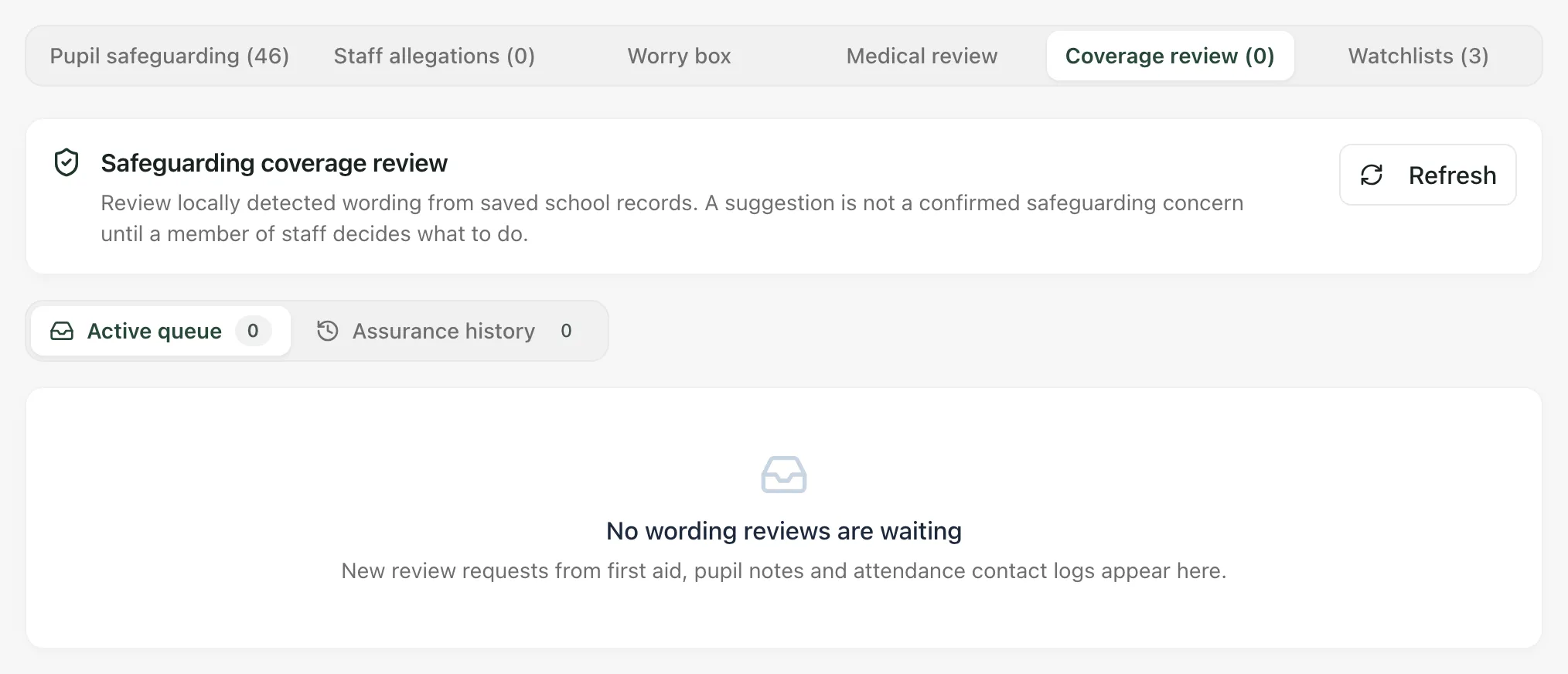
- Under Active queue, click Review source on an item and read the saved text.
- Choose what to do:
- Start safeguarding concern: opens the concern form for that pupil. When you submit it, the review is linked to the new concern.
- Reviewed — not safeguarding: write the reason in Reason this is not safeguarding, then click Record review decision.
- Decide later: leaves the item in the queue.
Assurance history keeps every completed decision.
If something doesn’t work
Section titled “If something doesn’t work”| What you see | What to do |
|---|---|
| “Unable to confirm worry-box queue coverage. The inbox cannot be treated as clear.” | Click Refresh reports. Until the reports load, don’t assume none are waiting. |
| “Coverage is incomplete. Load the remaining reports before concluding no work is waiting.” | Click Load more reports until it no longer appears. |
| “Medical review coverage is unavailable. The inbox cannot be treated as clear.” | Click Refresh review prompts. |
| “Safeguarding coverage reviews could not be loaded. Check your access and try again.” | Click Refresh. If it keeps happening, ask your Student Radar administrator to check your access. |
| “Promotion not recorded” | No case was created. Check the report is still in the tab, then try again. |
| “Concern created, but could not be opened” | The case exists. Refresh the Worry box tab and open it from Promoted concerns. |
| “Decision outcome unconfirmed” | Student Radar couldn’t confirm whether your decision was saved. Click Check original decision receipt before deciding again, so it isn’t recorded twice. |
| “Unconfirmed source decisions require review before starting more.” | Click Check original decision receipt on the unconfirmed decision first. |